.svg)
Admin Feature
This feature requires the account owner (or admin) to grant CRM Admin Permissions. If you don't see this option, contact your account owner to enable it for you.
Adding a lender to your Real Geeks lead manager allows you to collaborate more closely with your lending partners. Lenders can communicate directly with shared leads, log follow-ups, and view conversation history, while you retain visibility and control over the entire process. This helps ensure your clients receive timely lending support without juggling multiple tools or losing track of conversations.
Need to Know
-
Lenders are added as Users with the Lender role in the lead manager
-
Lenders can be assigned to leads alongside agents
-
Assigned lenders can message leads, add notes, and view communication history
-
CRM permissions can be adjusted at any time by an admin or site owner
Table of Contents
How to Add a Lender to the CRM
-
Go to leads.realgeeks.com
-
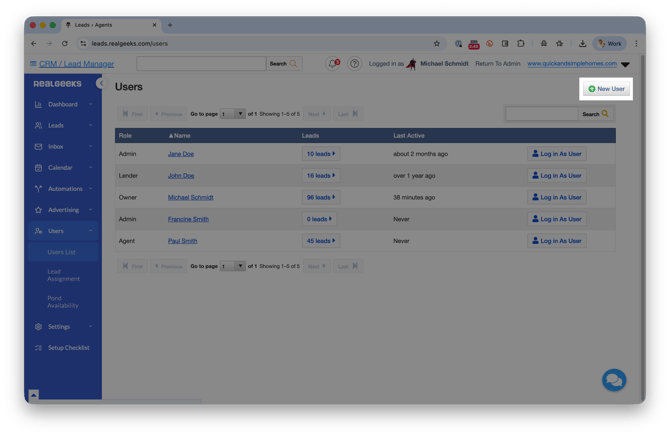
Click Users > Users List
-
Click New User
-
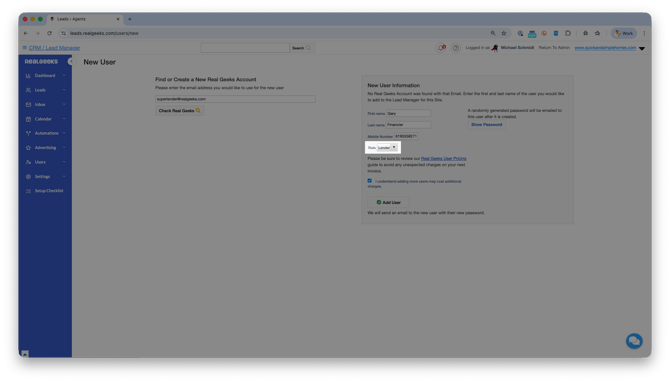
Enter the lender’s email address and click Check Real Geeks
-
If the lender is new to Real Geeks, enter their Name and Phone Number
-
Set the Role to Lender
-
Agree to the User Terms
-
Click Add User
Once added, the lender receives an email with a temporary password. After logging in, they are prompted to create a new password.
Lender Access and Permissions
Lenders can be assigned to leads alongside an agent. When assigned, lenders can:
-
View the lead profile
-
Communicate directly with the lead
-
Add follow-up notes
-
See agent notes, messages, and activity history
This shared view helps both parties stay aligned on next steps and follow-up timing.
If your lender is a full business partner, you can grant admin-level access. This provides the same lead manager permissions as the site owner.
To Update Lender Permissions
-
Go to Users > Users List
-
Click the lender’s name
-
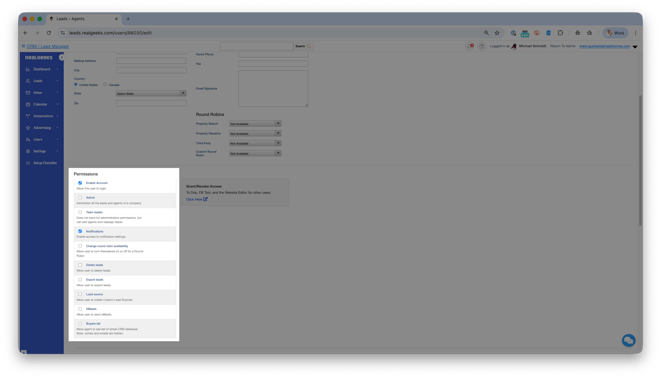
Scroll to Permissions
-
Adjust CRM permissions to the desired access level
Lender Lead Assignment
You can assign lenders using manual assignment or automated rules such as Round Robin.
How to Assign a Lender to Leads
-
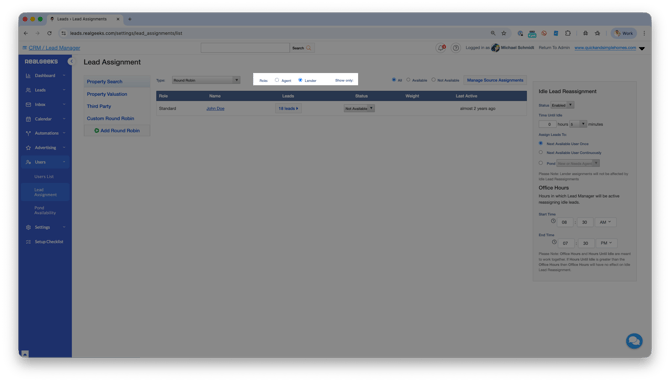
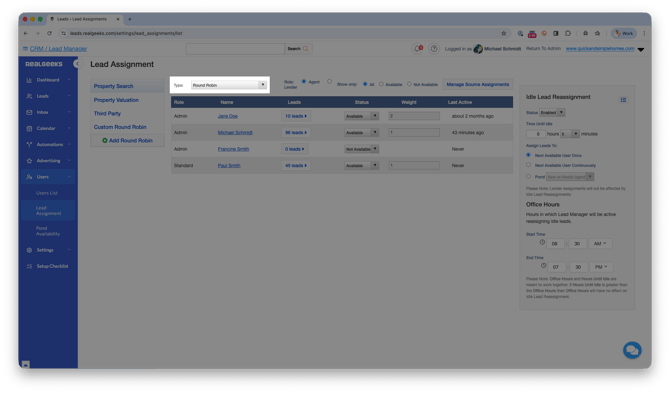
Go to Users > Lead Assignment
-
Select the Role as Lender
-
Choose a Lead Assignment Type
-
Select Manual to assign lenders individually as needed
-
Select Round Robin or another automated option to assign lenders automatically
-
Update the lead’s Status to Available
-
Manual assignment is best for one-off situations. Automated assignment works well for teams that route leads consistently.
Best Practices
Use these tips to get the most value from lender collaboration in the lead manager.
-
Assign lenders only to leads who are actively exploring financing
-
Review notes regularly to ensure consistent messaging
-
Align on response time expectations with lending partners
-
Limit admin access to trusted partners only
Troubleshooting
Common issues and how to resolve them.
-
Lender cannot log in: Confirm the correct email address. Once they visit the Login screen, have them click Forgot My Password.
-
Lender cannot see leads: Verify the lender is assigned to the lead and permissions are set correctly. Lenders are only able to see leads assigned to them unless they have admin permissions enabled
-
Messages not visible: Ensure communication is happening inside the lead manager and not externally
Frequently Asked Questions
Can a lender see all leads in my account?
Only if they are granted admin-level permissions. Otherwise, they can only see leads they are assigned to.
Can I remove a lender’s access later?
Yes. You can change their role or permissions at any time from the Users List.
Do lenders count toward my agent limit?
Yes. All users, lender or agent, count towards your overall user limit in the CRM. This is based on your billing package.
Need Help?
-
Call us at 844-311-4969 (Mon–Fri, 8 AM–8 PM CST)
-
Email support@realgeeks.com
-
Visit Real Geeks University for free video courses
-
Join the Real Geeks Mastermind Group on Facebook for peer tips and best practices