.svg)
Keeping accurate contact information helps you reach leads faster and stay organized. If a lead shares their phone number after registering, or you need to correct one, you can update their profile in just a few clicks inside the Lead Manager.
Table of Contents
How to Add a Phone Number to a Lead
-
Open the lead’s profile in your Lead Manager
-
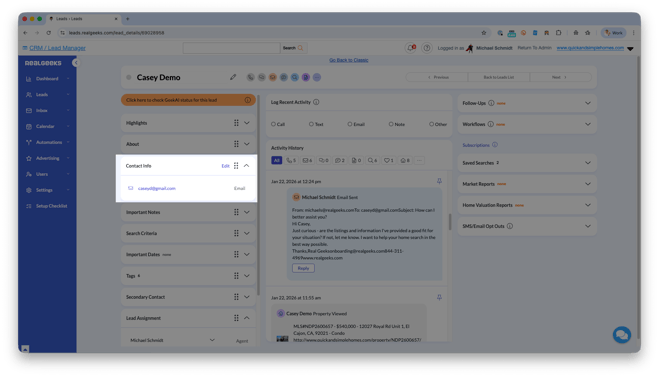
Click the Contact Info menu
-
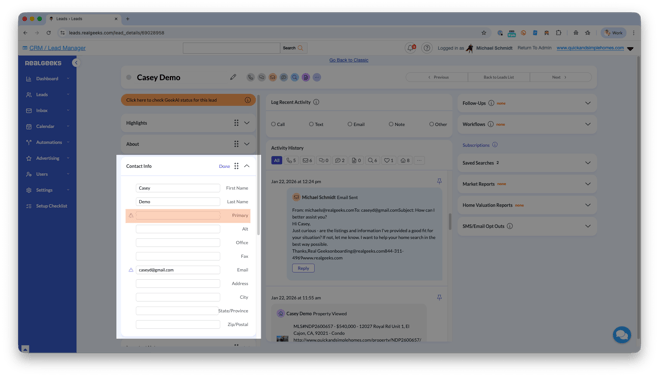
Click Edit
-
Enter the phone number in the Primary field
-
Click Done
Frequently Asked Questions
Can I add more than one phone number?
Yes. You can store additional numbers in the Alt or Office Phone fields, but the Primary field is the main number used for calls and texts.
Will adding a phone number trigger an automatic message?
No. Adding or updating a phone number does not trigger a Workflow Campaign, but you can immediately subscribe the lead to one so they start to receive text messages
Can I update multiple leads at once?
Phone numbers must be added or updated individually within each lead’s profile.
Need Help?
- Call us at 844-311-4969 (Mon–Fri, 8 AM–8 PM CST)
- Email support@realgeeks.com
- Visit Real Geeks University for free video courses
- Join the Real Geeks Mastermind Group on Facebook for peer tips and best practices