.svg)
Admin Only
These actions must be completed by the Site Owner only. No action is required from other users.
Sometimes you need to assign leads to a specific agent instead of using Round Robin or shared Lead Assignment rules. This is common when an agent is running personal marketing, promoting a listing, or driving their own traffic. Real Geeks gives you three reliable ways to automatically assign leads to an agent so they receive proper credit and immediate follow-up responsibility.
Need to Know
-
Assigning leads to a specific agent bypasses your default lead assignment rules
-
You can assign website and ad leads automatically
-
Agent Landing Pages, the Facebook Ads Tool, and Agent ID links all support this
-
Proper setup ensures the right agent receives credit and follow-up ownership
Table of Contents
Agent Landing Pages
Agent Landing Pages are individual pages created for each agent on your Real Geeks website. Any lead who registers on that page will automatically be assigned to that specific agent in the Lead Manager.
Admin Feature
Creating Agent Landing Pages requires account owner or admin access to the website editor. If you don't see this option, contact your account owner to enable it for you.
For full setup instructions, see our Building Agent Landing Pages guide.
Why Use Agent Landing Pages
-
Ensures agents receive full credit for their marketing
-
Automatically assigns leads without manual routing
-
Prevents conflicts with Round Robin Lead Assignment rules
How to Use Agent Landing Pages
-
Share the agent’s landing page on social media
-
Add it to email signatures
-
Include it in print marketing
-
Use it in digital advertising campaigns
Any registration that happens on that page will assign the lead directly to that agent.
Facebook Ads Tool
Admin Feature
This feature requires account owner or admin access to use the Facebook Ads Tool. If you don't see this option, contact your account owner to enable it for you.
The Real Geeks Facebook Ads Tool allows you to assign leads to an agent when creating Facebook or Instagram ads. For complete setup instructions and to learn how to use this feature, check out our Facebook Ads Setup Guide.
How to Assign Leads to an Agent in the Facebook Ads Tool
-
Log in to the Facebook Ads Tool.
-
Create a new ad campaign.
-
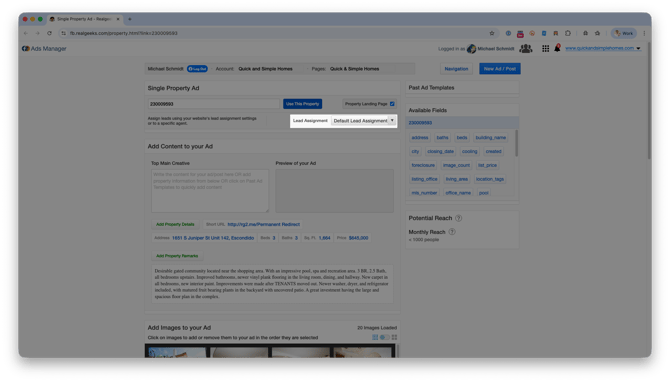
Locate the Assign Leads To dropdown menu.
-
Select the specific agent.
-
Complete the ad setup and launch.
All leads generated from that campaign will automatically assign to the selected agent.
Please Note
Access to the Facebook tool must be provided to additional agents in accounts.realgeeks.com. To learn more about these permissions, check out our guide.
Share a Custom Link with Agent ID
You can assign leads to a specific agent by adding that agent’s unique Agent ID to any Real Geeks website link. This method works for property pages, search results, blog posts, and most content pages.
Admin Feature
This feature requires the account owner (or admin) to grant CRM Permissions. If you don't see this option, contact your account owner to enable it for you.
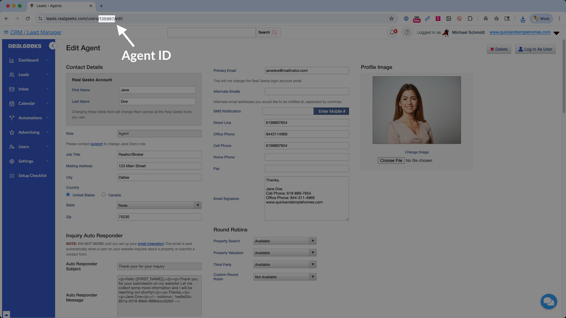
Step 1: Find the Agent ID
-
Go to the CRM Users page.
-
Click on the agent’s name.
-
Look at the browser address bar for a 5-digit number

Step 2: Add the Agent ID to a Link
For most website pages, add the Agent ID using this format: ?agent_id=XXXXX
Example:
-
www.yourwebsite.com/property/123456/
?agent_id=135987
Please Note
For Home Valuation Pages, the Agent ID format is slightly different. you'll need to use ?agentid=XXXXX (no underscore).
Example:
-
www.yourwebsite.com/home-valuation
?agentid=135987
Step 3: Share the Link
-
Social media posts
-
Email campaigns
-
Text messages
-
Property flyers
-
Paid ads
Any lead who registers through that link will automatically assign to that agent in the Lead Manager.
Frequently Asked Questions
-
Does assigning leads to an agent override Round Robin?
Yes. When using an Agent Landing Page, the Facebook Ads Tool assignment setting, or an Agent ID link, the lead will assign directly to that agent instead of following Round Robin rules. -
Can I use the Agent ID method on any page?
Yes. The Agent ID method works on most Real Geeks website pages. The only format exception is Home Valuation Pages, which useagentidwithout the underscore. -
Will the assigned agent receive notifications?
Yes. The assigned agent will receive the same new lead notifications configured in their CRM notification settings. -
Can multiple agents use their own Agent ID links?
Yes. Each agent has a unique Agent ID and can use their own links to ensure proper lead assignment and credit.
Need Help?
- Call us at 844-311-4969 (Mon–Fri, 8 AM–8 PM CST)
- Email support@realgeeks.com
- Visit Real Geeks University for free video courses
- Join the Real Geeks Mastermind Group on Facebook for peer tips and best practices