.svg)
Admin Feature
This integration supports only one account and should be completed by the Site Owner/Admin.
Keep your Real Geeks CRM and Google Contacts working together automatically using the API Nation integration. This integration syncs contact information between Real Geeks and Google Contacts, helping you keep your lead database organized, your caller ID information accurate, and your follow-up process streamlined.
Table of Contents
Whether you're adding new leads inside Real Geeks or updating contacts from your phone, the integration helps ensure your contact information stays up to date across both systems.
API Nation offers two sync directions:
- Google Contacts contacts to Real Geeks leads
- Real Geeks leads to Google Contacts people
You can activate one sync or both syncs for the same flat-rate subscription.
Why Connect Real Geeks and Google Contacts?
With this integration, you can:
- Keep your Real Geeks leads and Google Contacts synchronized automatically
- Access your smartphone contacts inside your Real Geeks CRM
- Keep caller ID names and text messaging information current
- Reduce manual data entry between platforms
- Back up important lead and client contact information
- Organize contacts using Google Contact Labels and Real Geeks lead fields
This integration supports a smoother follow-up process and helps keep your contact database accurate across devices and platforms.
Before You Start
Before setting up the integration, make sure:
- You have an active API Nation account
- You have access to your Google account
- You have access to your Real Geeks account
- You are not already using another third-party contact sync tool between Google Contacts and Real Geeks
- You can access LeadRouter inside Real Geeks
Set Up the Integration
Step 1: Open API Nation
Go to: https://my.apination.com/apps/realgeek/google_contacts
You will see two available sync options:
- Google Contacts contacts to Real Geeks leads
- Real Geeks leads to Google Contacts people
Click Activate on the sync you want to configure.
Step 2: Connect Google Contacts
After clicking Activate:
- Check the confirmation box verifying that you are not already using another sync tool between the two platforms
- Click Connect Google Contacts
- Choose your Google account
- Follow the prompts to authorize API Nation
Once connected, continue to the next step.
Step 3: Connect Real Geeks
After Google Contacts is connected:
-
Click Connect Real Geeks to open an API Nation article on the connection process.
-
Locate the Authorization Key under Step 4
-
Copy the Authorization Key using Ctrl+C or Cmd+C
Inside LeadRouter:
-
Go to the Real Geeks Third Party Integrations page
-
Next to API Nation, click Setup
-
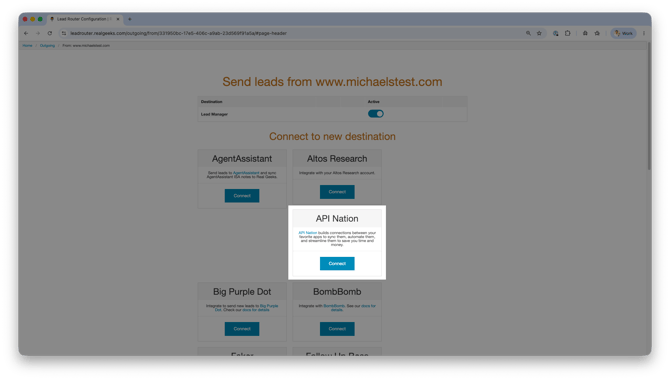
Scroll to the API Nation destination tile
-
Click Connect
- Paste the Authorization Key into the field
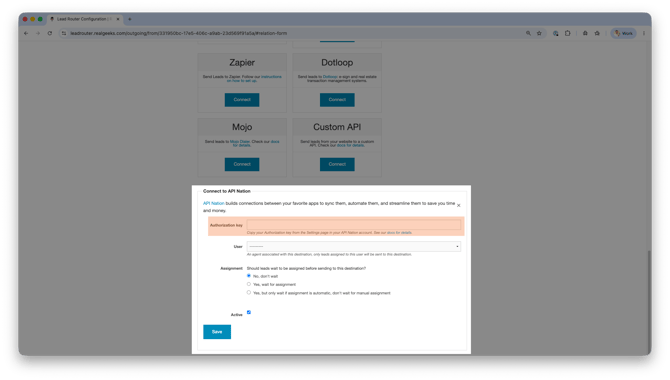
- Choose the Real Geeks user that leads should connect to
- Click Save
Once the destination is saved:
-
Return to the API Nation tab
-
Scroll to the bottom of the article
-
Click Test Connection
If the connection is successful, API Nation will move you to the sync configuration screen.
Step 4: Configure Your Sync
Once both platforms are connected, you can customize how contacts sync.
Choose a Contact Group
Select which Google Contacts Label should sync into Real Geeks.
You can choose:
-
Default to sync all contacts
-
A specific Google Contacts Label to sync only selected contacts
Choose Historical Sync Behavior
You can decide whether to import older contacts immediately.
-
Enable the historical sync option to import all existing matching contacts
-
Disable the option to sync only newly created contacts moving forward
Configure Field Mapping
Scroll to the Mapping section.
Here you can match fields between Real Geeks and Google Contacts.
To add additional field mappings:
-
Click a field on the left side
-
Select the matching destination field on the right side
This allows you to control which information syncs between platforms.
Step 5: Activate the Sync
After reviewing your configuration:
-
Scroll back to the top of the page
-
Click Activate the Sync
Your sync will begin processing automatically.
Set Up the Opposite Sync Direction
If you want contacts syncing both ways:
-
Click the Real Geeks logo inside API Nation
-
Select the Google Contacts tile
-
Choose the opposite sync direction
-
Configure the sync settings
-
Activate the sync
Since both platforms are already connected, you will go directly to the configuration screen.
Manage Existing Syncs
All active integrations can be managed from the My Syncs area inside API Nation.
Inside My Syncs, you can:
-
View all active syncs
-
Turn syncs on or off
-
Clone existing syncs
-
Create additional syncs with different Google Contact Labels or configurations
Cloning is useful when you want multiple sync rules with slightly different settings.
What Happens After Setup?
Once activated:
-
New or updated Real Geeks leads can sync into Google Contacts
-
Existing and future Google Contacts can sync into Real Geeks
-
Caller ID information stays more accurate across devices
-
Contact information remains backed up and organized
The integration continuously works in the background to help keep your lead and client contact information aligned.
Best Practices
To keep your sync healthy and organized:
-
Avoid connecting multiple sync tools to the same contact databases
-
Use Google Contact Labels to organize sync behavior
-
Regularly review duplicate contacts
-
Keep your Real Geeks lead information updated
-
Test your sync setup before relying on automation for production workflows
Need Help
- Call us at 844-311-4969 (Mon–Fri, 8 AM–8 PM CST)
- Email support@realgeeks.com
- View our Live Events page for free coaching and training.
- Join the Real Geeks Mastermind Group on Facebook for peer tips and best practices