.svg)
Admin Feature
This integration supports only one account and should be completed by the Site Owner/Admin.
Connect Real Geeks and BoldTrail (formerly kvCORE) using API Nation to automatically sync your contacts between both platforms. This keeps your leads up to date, eliminates manual data entry, and helps you engage faster with smart campaigns and follow-up.
Need to Know
-
You can sync data in one direction or both directions
-
Both syncs are included in the same API Nation subscription
-
You need access to both your Real Geeks and BoldTrail accounts
-
Setup requires configuring the Real Geeks Lead Router
-
Syncs can be turned on or off at any time
Table of Contents
What This Integration Does
-
Sync Real Geeks leads into BoldTrail automatically
-
Sync BoldTrail contacts into Real Geeks (optional)
-
Keep contact data updated in both systems
-
Trigger Smart Campaigns using tags or lead source
How to Set Up the Integration
Step 1: Open the Integration
-
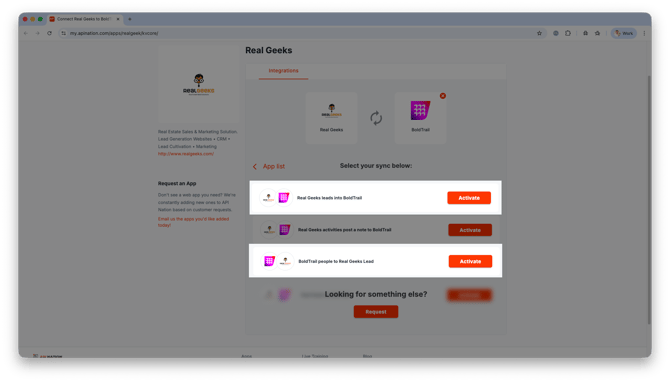
Choose a sync direction:
-
Real Geeks to BoldTrail
-
BoldTrail to Real Geeks
-
-
Click Activate on the sync you want to set up
Step 2: Connect BoldTrail (kvCORE)
-
Click Connect kvCORE
-
Log in to your BoldTrail account
-
Click Authorize
Step 3: Connect Real Geeks
-
Click Connect Real Geeks
-
Follow the prompted steps to log in to your Real Geeks account
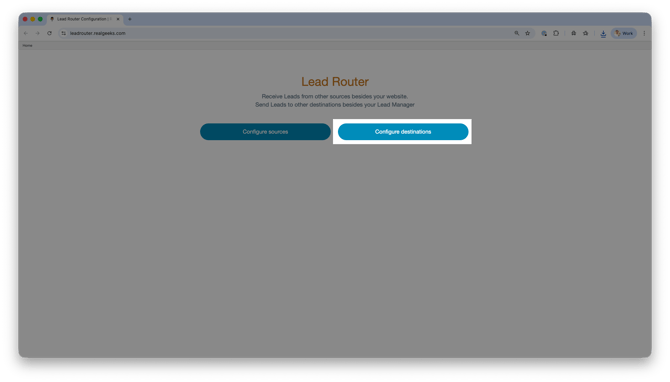
Step 4: Configure Lead Router in Real Geeks
-
Click Configure Destinations
-
Scroll to the API Nation section
-
Click Connect
-
Paste your API Nation Authorization Key
-
Select the user to assign leads to. Leave this space empty to follow your Real Geeks' Lead Assignment
-
Click Save
Step 5: Test the Connection
-
Return to API Nation
-
Click Test Connection
Confirm you see a success message
Configure Sync Settings
-
Choose whether to sync all existing contacts or only new ones going forward
-
Optionally filter BoldTrail contacts by type
-
Optionally filter BoldTrail contacts by source
-
Review field mapping before activating
Optional: Add Tags or Lead Source
-
Add a custom field such as Source = Real Geeks
-
Or add a hashtag like #RealGeeks
-
Use these to trigger Smart Campaigns automatically
-
Helps organize and segment your leads inside BoldTrail
Manage Your Syncs
-
Go to My Syncs in API Nation
-
View all active syncs
-
Toggle syncs on or off at any time
-
Edit sync settings as needed
What Happens After Setup
-
New and updated leads in Real Geeks are sent to BoldTrail
-
New and updated contacts in BoldTrail are sent to Real Geeks if enabled
-
No manual importing or exporting is required
-
Your systems stay aligned automatically
Frequently Asked Questions
-
Do I need to set up both syncs?
You can choose one direction or both depending on your workflow -
Will this sync old contacts?
Yes, if you choose to include existing contacts during setup -
Can I control which contacts sync?
Yes, filters allow you to control which contacts are included -
Can I stop the sync later?
Yes, you can toggle syncs on or off anytime in API Nation
Need Help?
- Call us at 844-311-4969 (Mon–Fri, 8 AM–8 PM CST)
- Email support@realgeeks.com
- View our Live Events page for free coaching and training.
- Join the Real Geeks Mastermind Group on Facebook for peer tips and best practices