.svg)
The Real Geeks Calendar helps you manage follow-ups, stay consistent with your outreach, and keep your pipeline moving. It gives you a clear, visual view of your scheduled activities so nothing slips through the cracks. When used daily, the Calendar supports better speed to lead, stronger organization, and more predictable results.
Need to Know
-
The Calendar displays scheduled CRM follow-ups in a standard monthly view with optional weekly breakdown
-
Follow-ups can be marked complete directly from the Calendar
-
Sync your CRM Calendar to Google, Microsoft Outlook, and other calendar tools to display your CRM follow-up schedule on your third-party calendar
Table of contents
What is the Real Geeks Calendar?
The Real Geeks Calendar is built into the Lead Manager and displays all scheduled follow-ups tied to your leads in a standard monthly calendar format. It acts as your daily action plan, showing exactly who needs to be contacted and when.
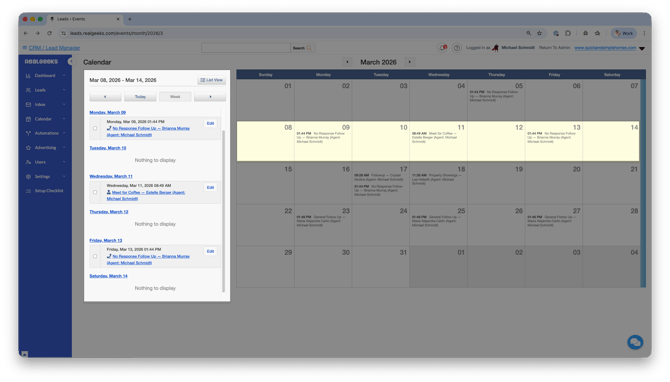
Click the Week view to see a day-to-day list of your follow-ups for that specific week. Within the Week view, click any individual day to open the Day View, which shows a focused list of follow-ups scheduled for that date. Instead of relying on memory or scattered reminders, the Calendar keeps your prospecting organized in one place so you can focus on conversations and closings.
How to Connect Your Calendar to Google
If you use Google Calendar, you can send your Real Geeks follow ups to Google for monitoring.
To enable:
-
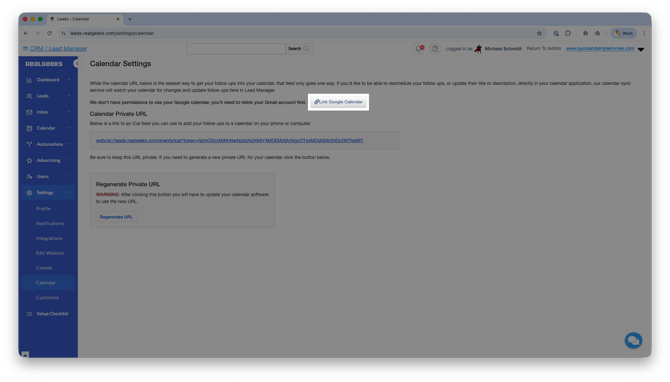
Go to Settings > Calendar
-
Select Link Google Calendar
-
Complete the authorization steps
Once connected:
-
A new Real Geeks calendar is created inside Google
-
CRM follow-ups sync to Google automatically
-
Changes to time, title, or description in Google update in the CRM
Important:
-
Only events created in the CRM sync to Google
-
Events created directly in Google will not appear in the CRM
-
Disabling sync deletes the connected Real Geeks calendar from Google
How to Connect Your Calendar to Microsoft Outlook
To connect your CRM calendar to Microsoft Outlook:
-
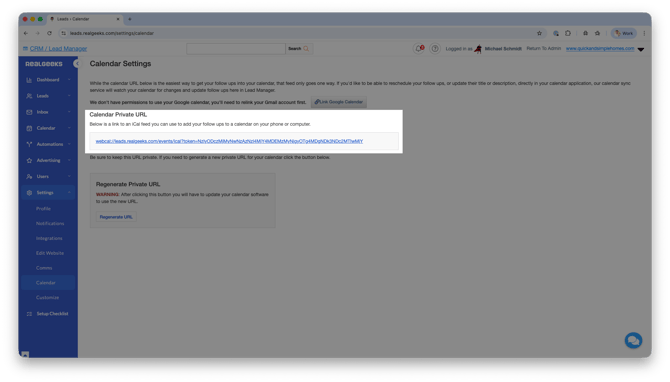
Go to Settings > Calendar
-
Copy your Calendar Private URL
-
Follow Microsoft’s instructions to subscribe to a calendar
This connection uses the one-way feed method.
How to Connect Your Calendar to Apple Calendar
To connect your CRM calendar to Apple Calendar:
-
Go to Settings > Calendar
-
Copy your Calendar Private URL
-
Follow Apple’s instructions for subscribing to an iCloud calendar
This connection also uses the one-way feed method.
Best Practices
-
Check your Calendar at the start of every workday
-
Time block follow-up calls directly from your Day View
-
Complete follow-ups immediately after each conversation
-
Use Google sync if you rely heavily on mobile scheduling
-
Keep no more than one active follow-up per lead to stay organized
Consistency with your Calendar leads to consistency in your income. When your follow-ups are visible and scheduled, your pipeline becomes predictable.
Frequently asked questions
-
Does the Calendar show all CRM activities?
Yes. It displays all scheduled follow-ups tied to your leads. -
Can I edit follow-ups from Google Calendar?
Yes. Changes to time, title, or description made in Google Calendar update in the CRM automatically once you have connected via Link Google Calendar. Note that new events created directly in Google will not appear in the CRM. -
Will Google events I create appear in the CRM?
No. Only events created in the CRM sync to Google. -
What happens if I disable Google sync?
The connected Real Geeks calendar will be removed from your Google account. -
Can I connect multiple calendar platforms?
You can subscribe to the Calendar Private URL in multiple platforms, but they will all function as one-way feeds.
Need Help?
-
Call us at 844-311-4969 (Mon–Fri, 8 AM–8 PM CST)
-
Email support@realgeeks.com
-
Visit Real Geeks University for free video courses
-
Join the Real Geeks Mastermind Group on Facebook for peer tips and best practices