.svg)
Your Lead Manager dashboard serves as your daily command center. It highlights the contacts that need your attention first, displays your scheduled follow-ups, and offers a quick summary of new lead activity.
/Blog/Real%20Geeks%20Teaser%20Simple%20Lead%20Feed%20Updates%20July%202025.png)
This guide helps you understand each section of the dashboard, why it matters, and how to use it to work leads more efficiently.
Need to Know
-
The Lead Feed includes four categories-Awaiting Response, High Priority, New, and Slipping Away-to help you focus on the right contacts at the right time.
-
The Follow-Ups section shows all past due, due today, and upcoming tasks you’ve scheduled or that were created by Lead Follow-Up Campaigns.
-
My Summary provides a snapshot of unassigned leads, new leads, valuation seller leads, and potential seller leads so you can quickly identify next steps.
Table of Contents
How to Work Your Lead Feed
Your Lead Feed updates automatically as leads take actions on your website or engage with you.
Awaiting Response
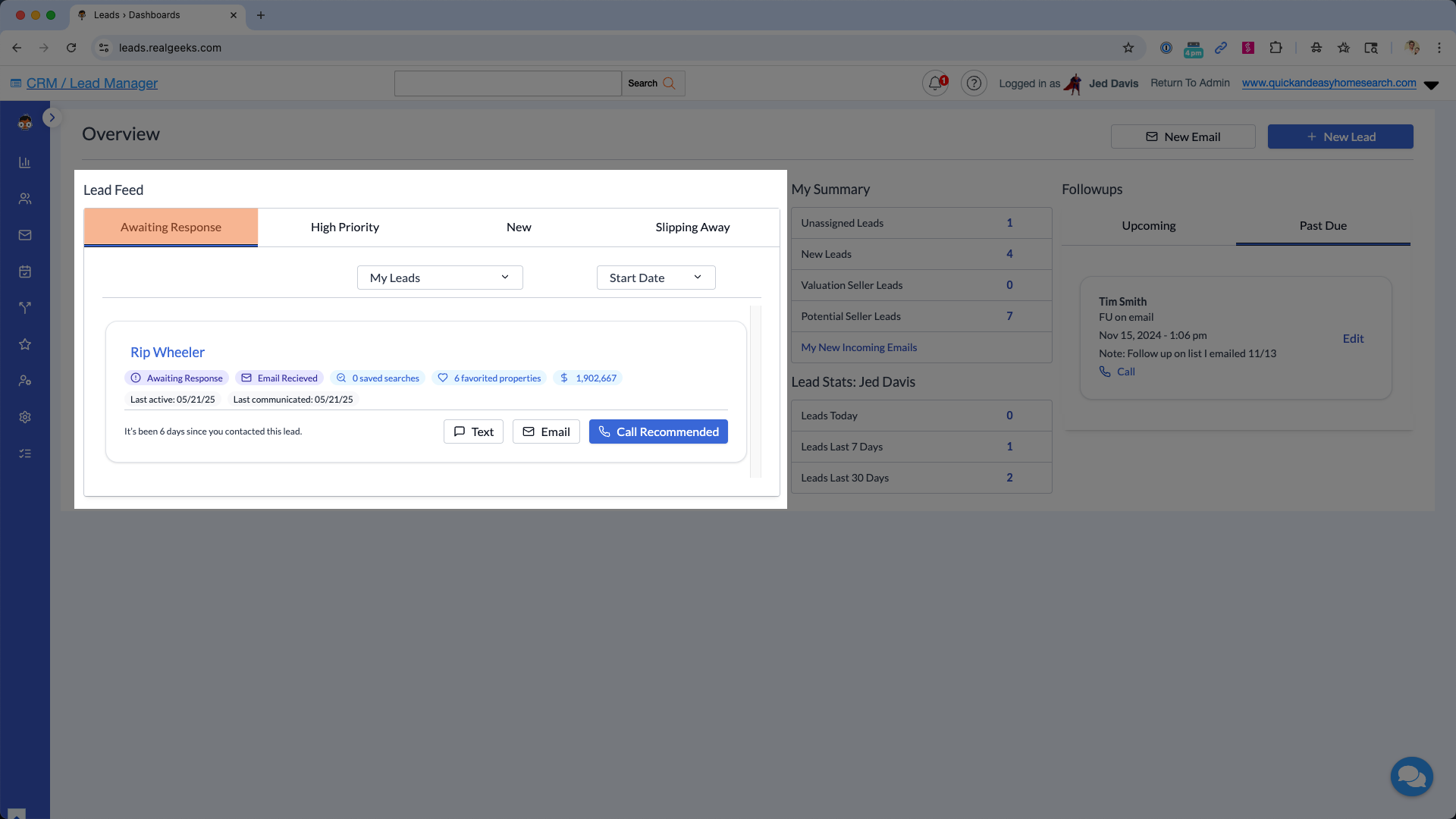
Leads appear here when they’ve reached out and are waiting to hear back from you. These are your most time-sensitive contacts because they initiated the conversation. Prioritizing these right away helps build trust and keeps the conversation warm.
A lead appears here when they send:
-
An inbound email
-
An inbound text
-
A live chat message
-
A missed call
-
A property inquiry
-
A Home Valuation request
-
An “Agent Ready” inquiry (if your AI assistant is active)
High Priority
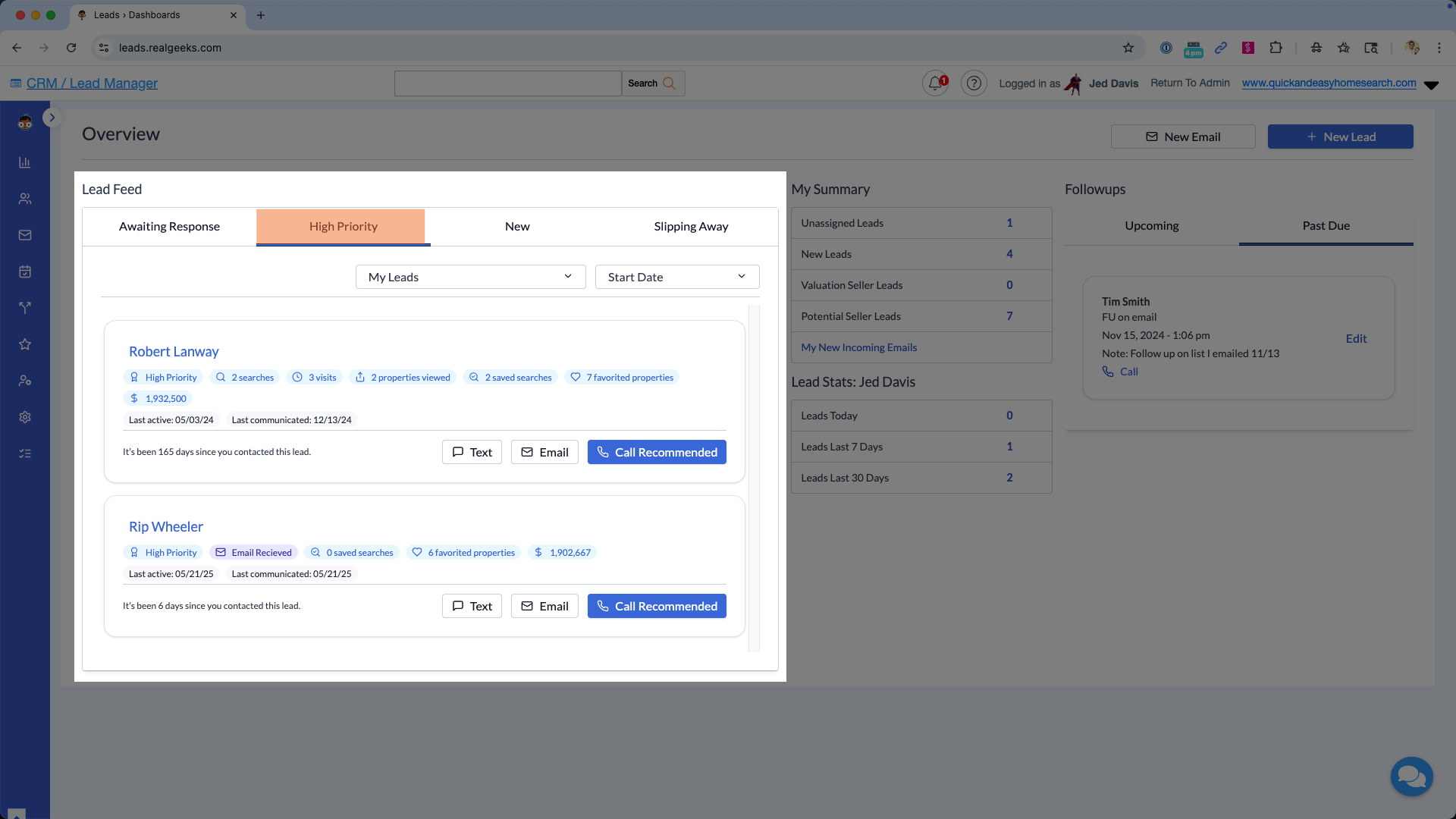
High Priority leads are showing meaningful buying or selling behavior. These leads may not have messaged you directly, but their activity indicates growing interest. Reaching out promptly helps keep them engaged and builds momentum.
A lead appears here when they:
-
Favorite a property
-
Visit your website 3 times in 7 days
-
View 10 properties in 7 days
-
Return after 14 days of inactivity
-
Update their phone number
-
View the same property 3+ times
-
View the Home Valuation Tool or Market Report 3+ times
-
Have a short timeframe (less than 3 months)
-
Save a search
-
Share a property
-
Trigger an “Agent Ready” action from your AI assistant
New
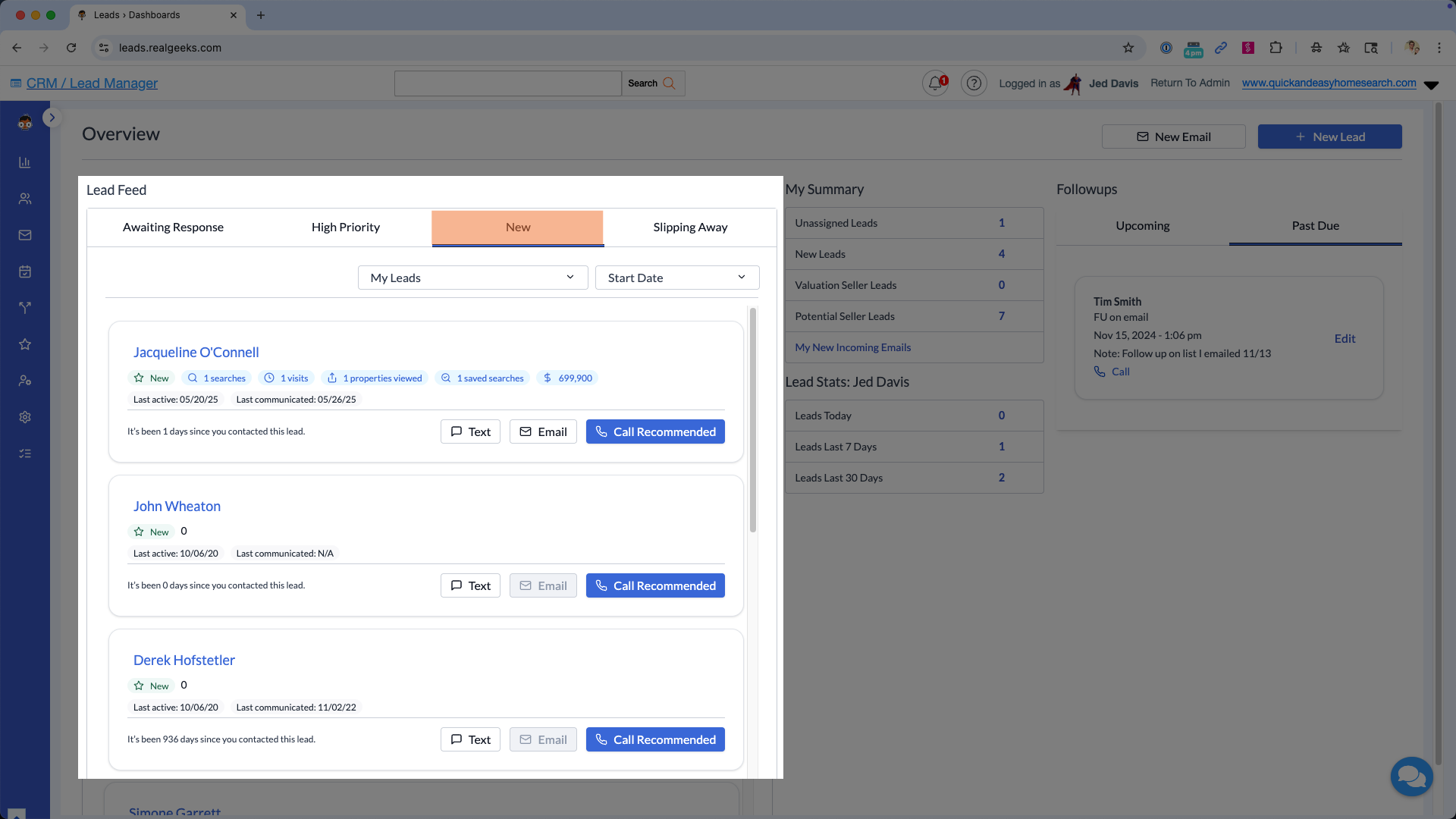
New leads have never been contacted by an agent. They’ve just signed up on your website and often expect quick outreach.
These contacts are identified with a New Lead flag in their profile, so when you click on their name, you’ll see a clear indicator reminding you to reach out right away.
Learn more about the new lead indicator here.
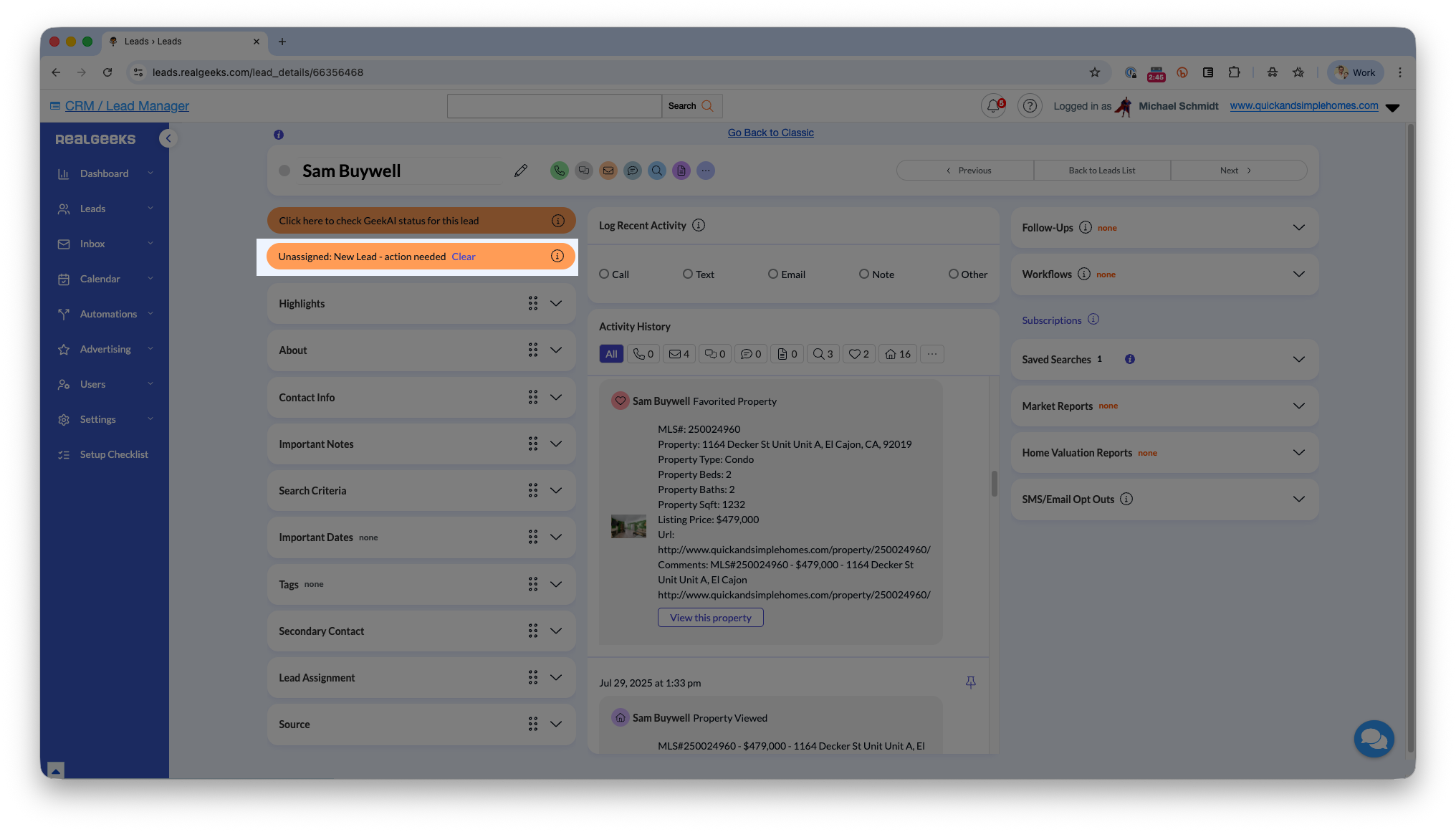
A lead appears here when:
-
They are newly registered and have had no agent contact
Slipping Away
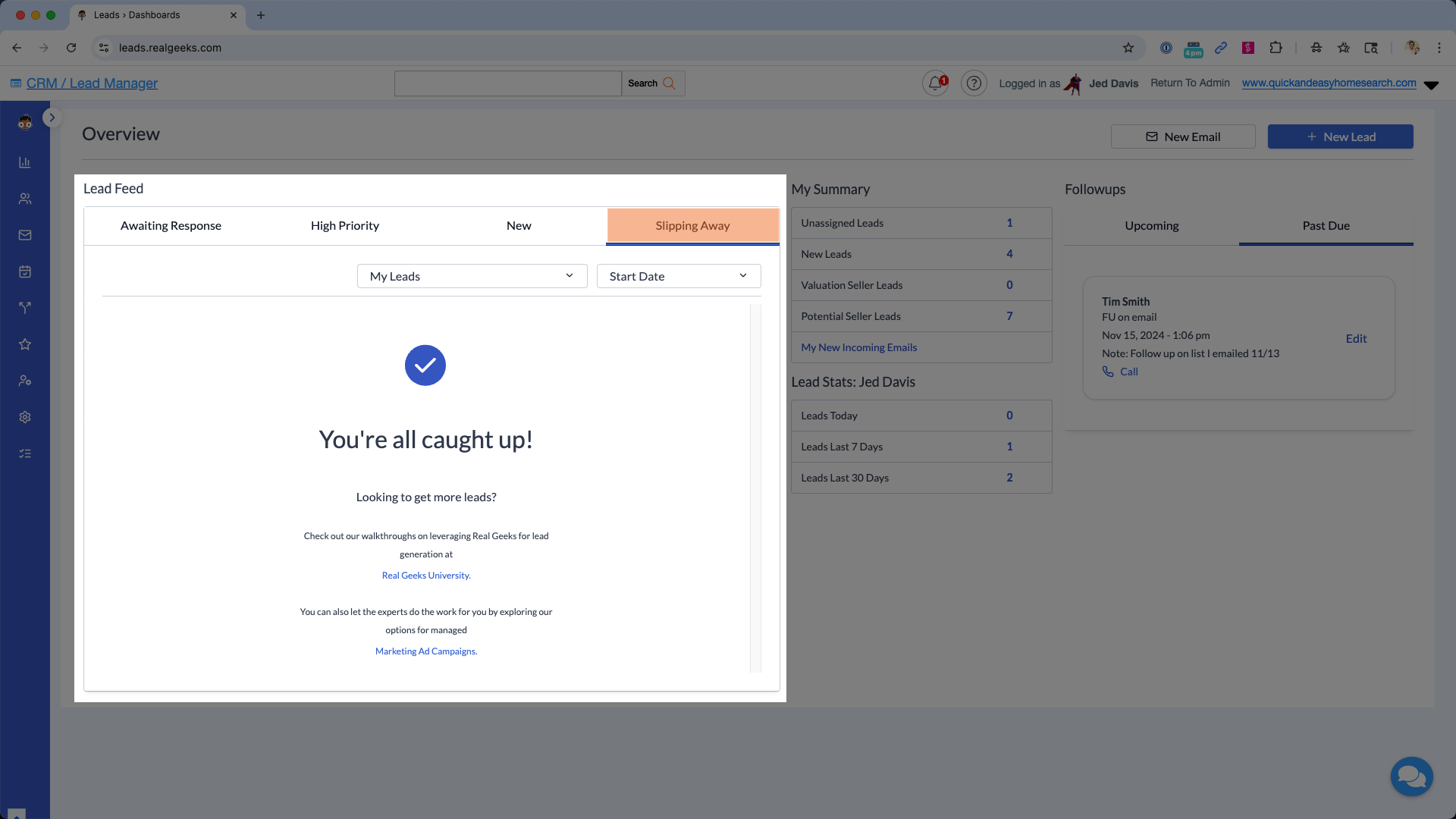
Slipping Away leads previously showed strong intent but haven’t been contacted in 14 days, or they stopped responding to your AI assistant. These leads often re-engage with a simple check-in, so they’re worth rescuing.
A lead appears here when:
-
They previously appeared in Awaiting Response or High Priority but haven't had recent agent contact
-
They interacted with your AI assistant but stopped responding
Message Template
Save this Text Message Template to quickly engage your Slipping Away leads over text:
"Hey {{FIRST_NAME}}, checking in to see how I can support your search. If your plans shifted, I’m happy to update your saved searches so you get the right updates."
How to Remove Leads from Your Lead Feed
Agents can choose to Snooze leads that appear on the Lead Feed, which temporarily prevents them from showing up on the dashboard for a specified period. This feature helps you pause certain contacts without removing them entirely, keeping your Lead Feed focused on leads who need attention now.
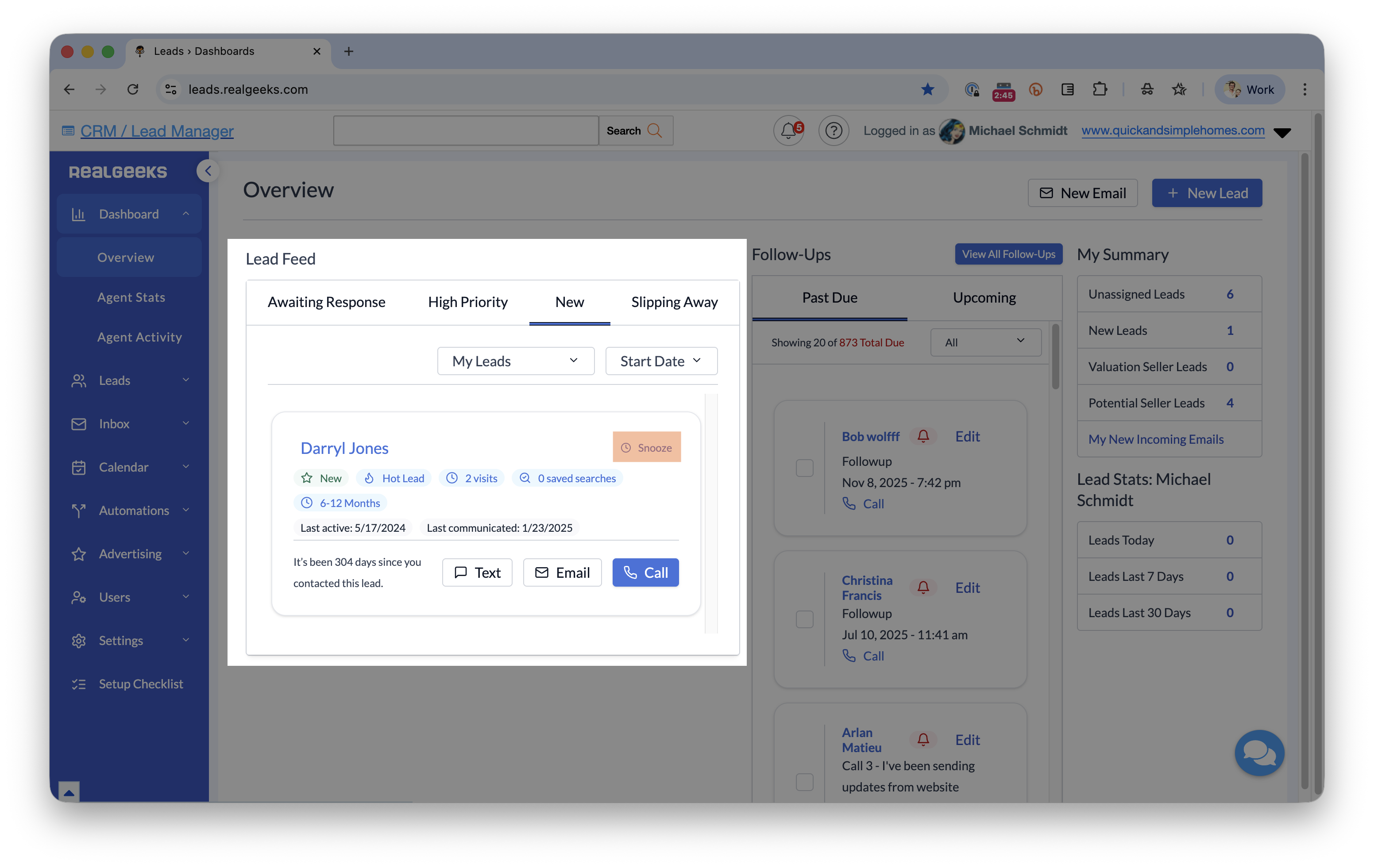
Snoozing removes a lead from your Lead Feed temporarily, allowing you to pause follow-up while keeping their information accessible. a lead from your Lead Feed temporarily, allowing you to pause follow-up while keeping their information accessible.
You can snooze a lead for:
-
1–6 days
-
1–3 weeks
-
1–3 months
Snoozing is ideal when
-
A lead prefers to browse silently for now
-
A lead expresses that they don’t need assistance yet
-
You need to pause outreach to avoid over-contacting
When you snooze a lead, you can also create a Follow-Up for a specific date to ensure you reconnect when the time is right.
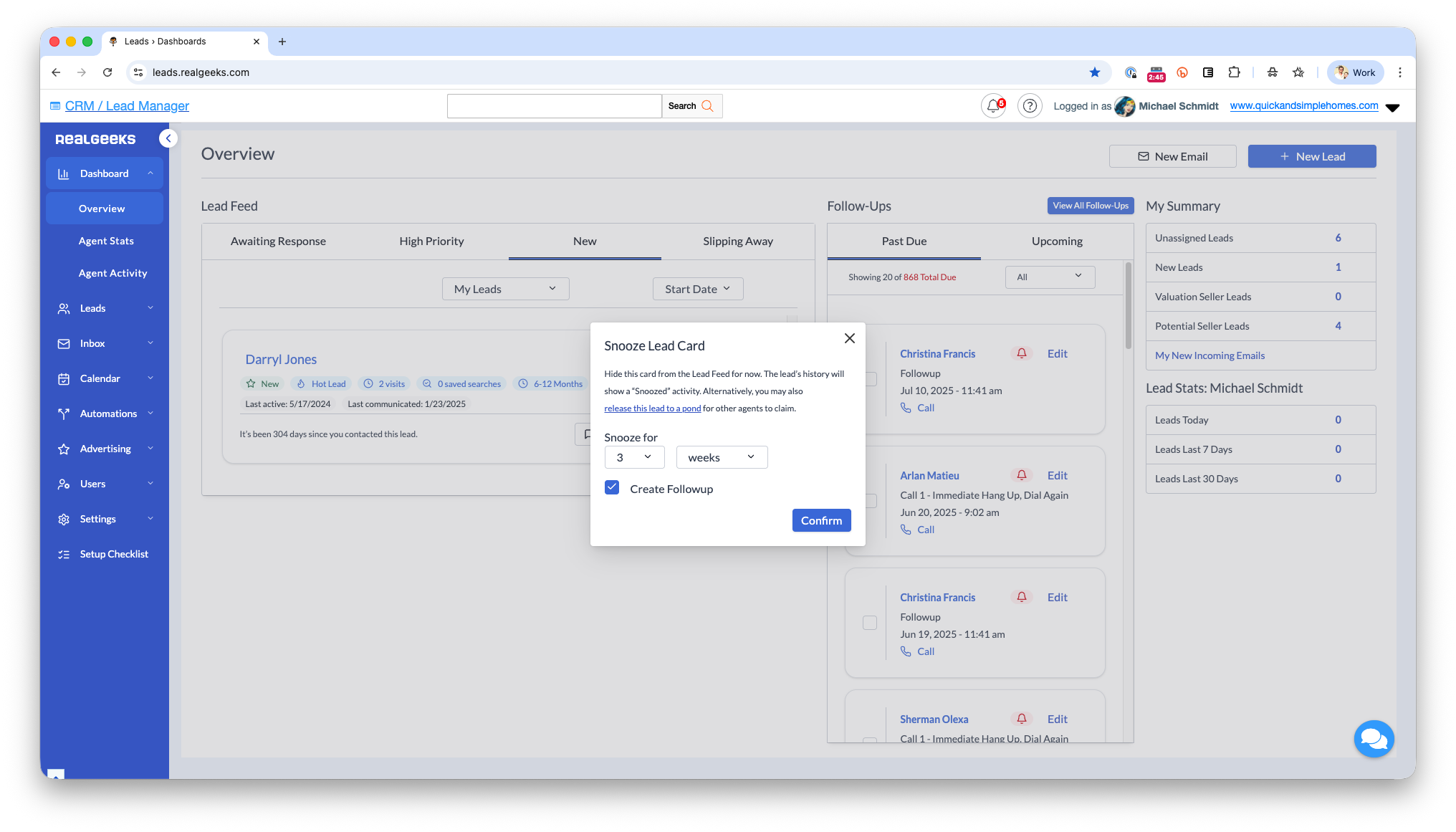
Additional notes
-
Snoozed leads show a “Snooze” activity in their history.
-
You can find snoozed leads using Advanced Filters in the Leads List.
-
Snoozing helps you keep your Lead Feed focused on contacts who need hands-on attention.
How to Permanently Remove a Lead From the Lead Feed
If you want to permanently remove a lead from your Feed because you do not intend to contact them, you can release them to a Lead Pond. This makes the lead available for other agents on your team to claim and work.
Your Dashboard Game Plan
This game plan outlines the recommended order for working the Lead Feed each morning. Below, each numbered step is the category you should work, followed by a suggested time block to help guide your day.
-
Awaiting Response - Spend roughly 10 minutes
Reply to messages, return missed calls, and make sure every inbound communication receives a response. -
High Priority - Spend roughly 15 minutes
Review recent activity, update Saved Searches if needed, and send a quick text or call based on the properties they're viewing. -
New - Spend roughly 10 minutes
Introduce yourself, build rapport, and set them up on relevant Saved Searches or Market Reports. -
Slipping Away - Spend roughly 10 minutes
Use your check-in template and look for ways to re-engage these leads based on their previous activity. -
Follow-Ups - Spend roughly 15 minutes
Complete today's tasks, log your activity, and schedule the next follow-up.
Follow-Ups Overview
The Follow-Ups section displays everything due today, overdue, or coming up soon. You can call a lead directly using the call button, but clicking the lead’s name is recommended so you can review their activity history and notes.
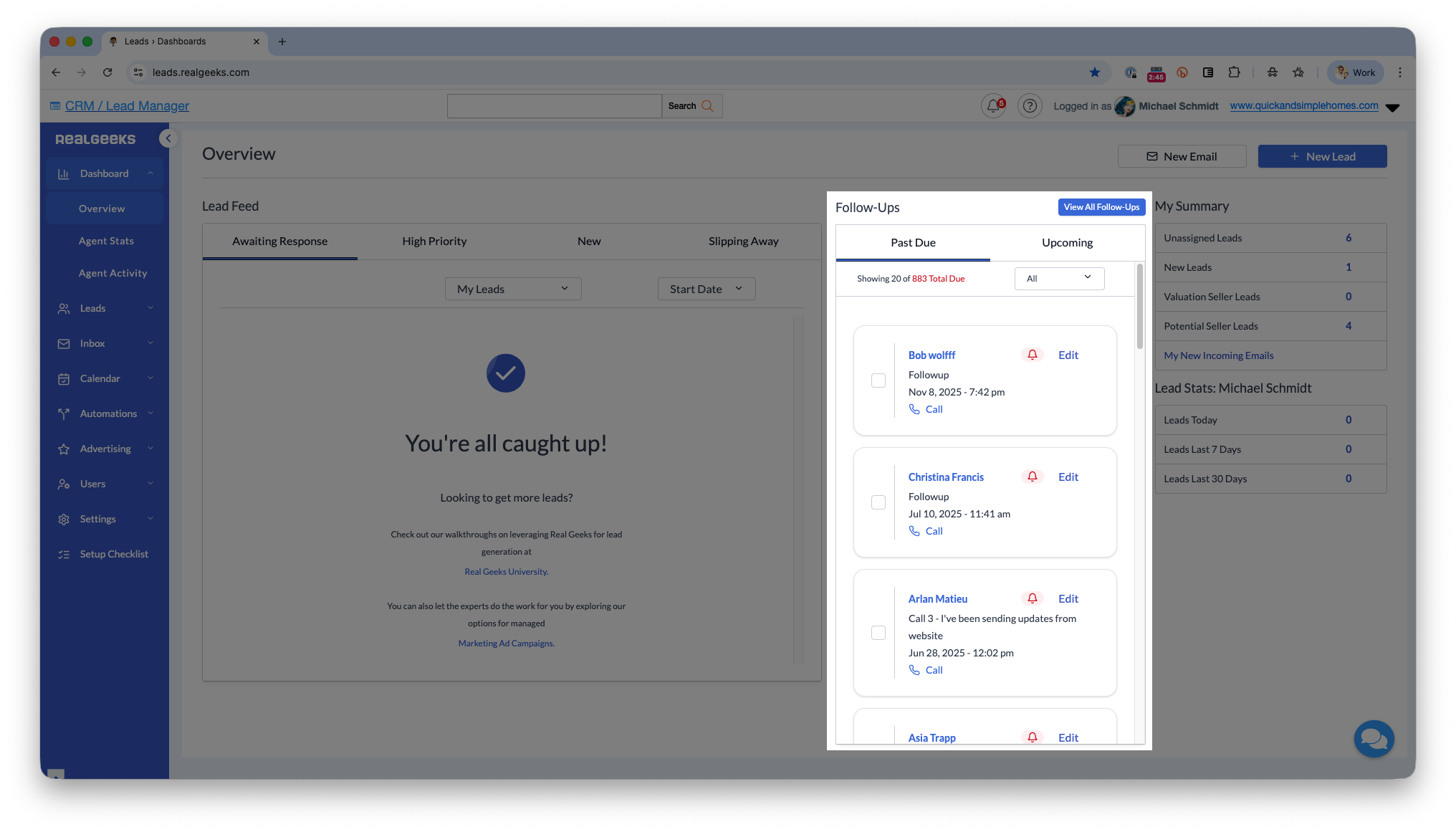
Agents can create follow-ups in two ways:
- Manually: Open a lead's profile and schedule a follow-up reminder for a specific date and time.
- Lead Follow-Up Campaigns: You can create custom lead follow-up campaigns using Real Geeks Workflows. These campaigns let you build a full schedule of follow-ups in advance, helping you reach out to your leads more efficiently.
This helps you
-
Reacquaint yourself with the lead
-
Understand what properties they viewed or saved
-
Review any previous conversations or notes
-
Start a more informed and meaningful conversation
How to Clear and Complete Follow-Ups
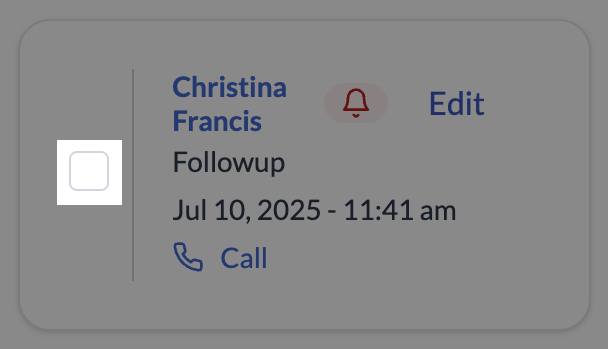
You can clear a follow-up directly from the dashboard by clicking the checkbox on the reminder. This instantly marks the follow-up as complete.
For a More Complete Follow-Up
Use activity history, notes, and subscriptions to fuel stronger conversations:
- Click the lead’s name to open their lead detail page.
- Review the lead’s activity, subscriptions, and notes to see what they’ve viewed, which updates they get, and any past conversations.
- Call, text, or email the lead based on what you’ve learned from their profile.
- Schedule the next follow-up using the follow-up menu before closing the page.
Dashboard Summary
My Summary gives you a quick look at new opportunities and tasks that need your attention. It helps you stay informed and react quickly to leads in your crm.
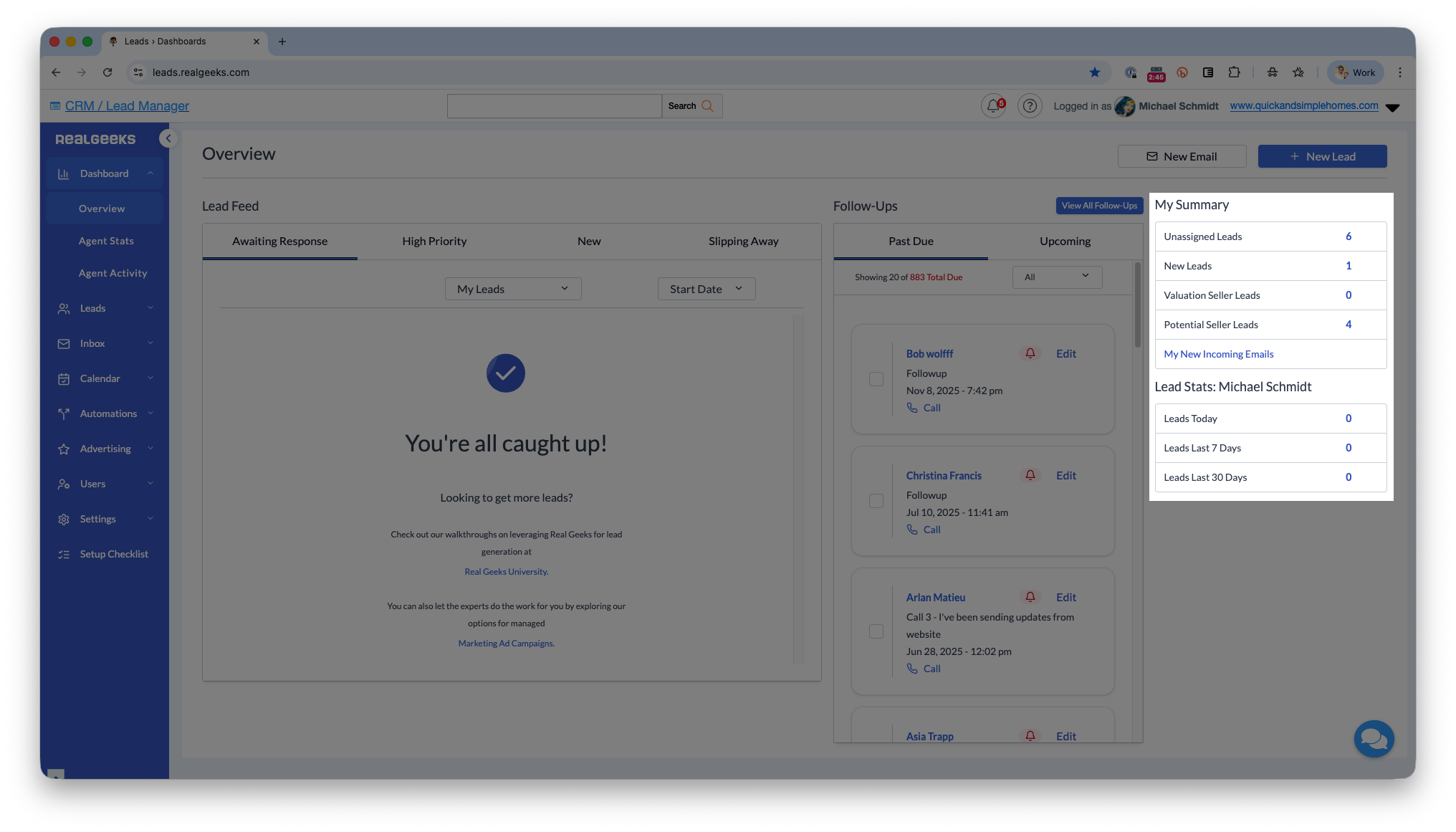
You’ll see four key items:
- Unassigned Leads: Leads not assigned to any agent. Admins and site owners can assign these to themselves or other team members.
- New Leads: Contacts who haven’t had their first conversation yet and need quick outreach.
- Valuation Seller Leads: Leads who submitted their address through your Home Valuation Tool and requested a property estimate.
- Potential Seller Leads: Leads who attempted to use the valuation tool but didn’t complete the form. These often contain only an address.
Ideas for working Potential Seller Leads
-
Mail a letter
-
Door knock
-
Reverse-look-up their contact info (Agents recommend Exact Dial or That's Them)
Best Practices
-
Prioritize your follow-up by working leads in this order:
-
Awaiting Response → High Priority → New → Slipping Away.
-
-
Log your activity and leave notes after each conversation. More detailed notes mean more context the next time you revisit the lead, making it easier to pick up where you left off and tailor your follow-up.
-
Always schedule your next follow-up. Having a follow-up already in place ensures you get a reminder to reconnect, whether it’s tomorrow or months from now, based on what makes sense for that lead.
-
Leverage Saved Searches and Market Reports to keep leads active. These tools act as passive follow-up, sending valuable updates your leads want to see while consistently reinforcing your brand.
Troubleshooting
-
A lead disappeared from a category: Categories update automatically as behavior changes.
-
A lead is active but not in High Priority: They may not meet the activity criteria yet.
-
Follow-Ups seem incorrect: Check that only one follow-up is active-multiple can cause confusion.
-
Can’t assign unassigned leads: Only admins and site owners can do this.
Frequently Asked Questions
-
Can I manually move a lead between categories? No. Categories update automatically based on activity.
-
Does the Lead Feed replace my Leads List? No. The Lead Feed helps with daily prioritization; the Leads List is for deeper filtering.
-
How often does the dashboard refresh? Continuously.
-
Why are Slipping Away leads important? They once showed strong interest and may re-engage with a simple outreach.
Need Help?
-
Call us at 844-311-4969 (Mon–Fri, 8 AM–8 PM CST)
-
Email support@realgeeks.com
-
Visit Real Geeks University for free video courses
-
Join the Real Geeks Mastermind on Facebook for peer tips and best practices