.svg)
Creating a Digital Business Card with Real Geeks is a free way to modernize your marketing and present your personal brand, contact information, and resources in one place. Your digital business card keeps your brand and links organized, making it easy for leads to recognize you, engage with you, and take the next step.
You can share your Digital Business Card in multiple scenarios:
-
At open houses or networking events using the built-in QR code
-
During in-person meetings so contacts can scan and save your information instantly
-
In text messages to new or existing leads
-
In emails or follow-up messages sent from the Lead Manager
-
Inside Lead Follow-Up Campaigns to keep your brand and contact details accessible
-
On social media or in your bio link
This guide shows you how to customize your card and start sharing it right away.
Need to Know
- Leads can save your contact information directly to their phone from your Digital Business Card
- Sharing your Digital Business Card is easy. Use the built-in QR code on your yard signs, print materials, open house sign-in sheets, or share it in person, by text, or by email so people can access your information anytime.
- The phone number you add to your business is used for login verification when editing your card, so make sure you can receive text messages at this number.
Table of Contents
How to Create a Digital Business Card
You can create a Digital Business Card in under five minutes and get a completely personalized card you can start sharing right away. In just a few steps, add your contact details, branding, and valuable links so your network can easily access your information and resources.
-
In the Real Geeks CRM, click Marketing.
-
Select Digital Card

-
Add your contact information
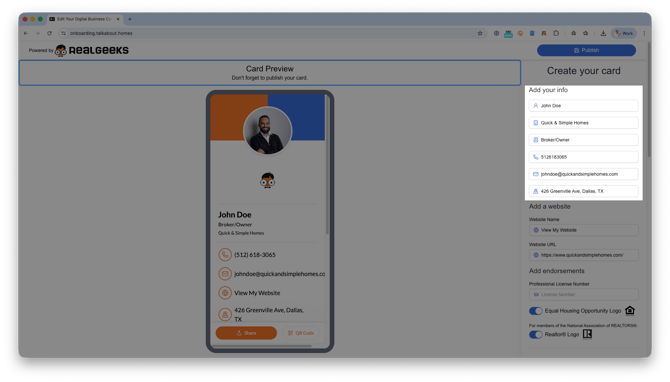
- The phone number you enter here is also used to authorize edits to your Digital Business Card
- When you need to make changes to your business card, a one-time security code will be sent to this number to verify access
- Enter your website URL
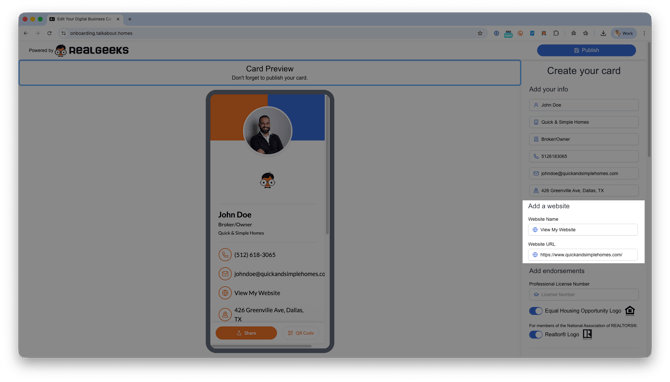
- Optionally: add a website name to customize the link text, such as View My Website or Visit My Website
- Add endorsements to your business card
- Include professional license numbers or required logos such as Equal Housing Opportunity or REALTOR®
- Personalize your card with your brand's color scheme, logo and a custom background image for the card
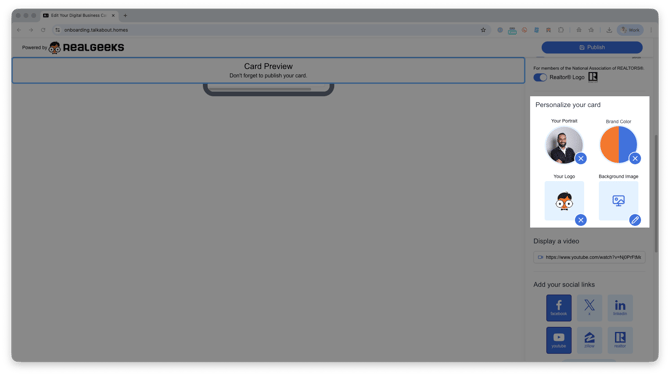
- Include a link to a video that people can watch in the card (optional)
- Use a video that introduces yourself and your website as a resource. You could also include video testimonials here!
- Add your social media links
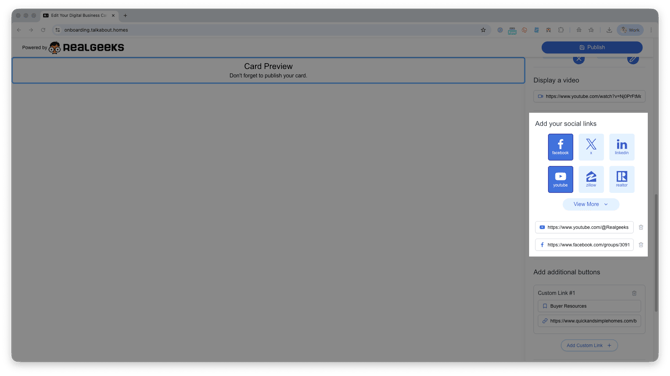
- Click the appropriate social icon and paste the link to your profile
- Use the Add Custom Link option to share additional resources
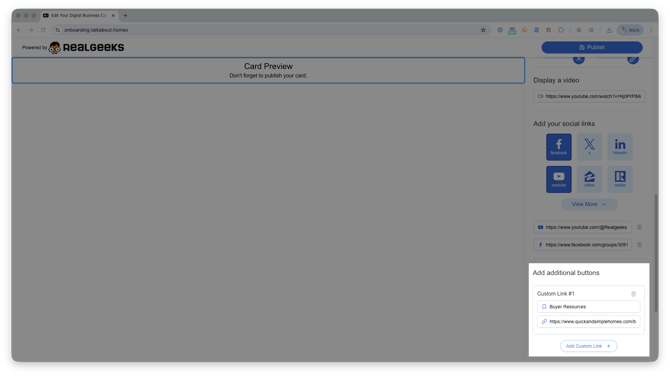
- There is no limit to the number of custom links you can include
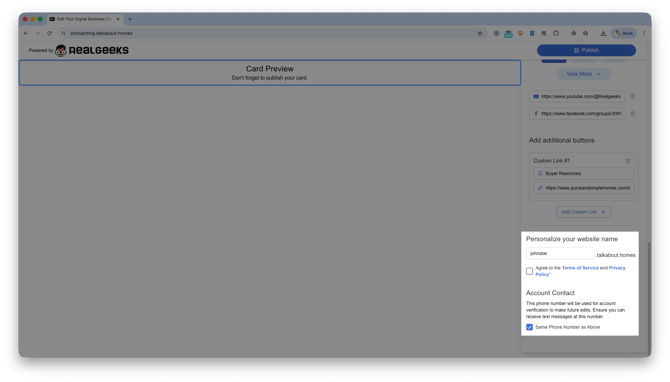
- Set up your card link
-
Enter the name that will appear in your Digital Business Card link
-
This becomes the first part of your card URL and will always end in
.talkabout.homes(example: johndoe.talkabout.homes)
-
- Agree to the Terms of Service
- Click Publish at the top of the page to make your card live
After your card is generated, you’ll get an email with a link to it. Save the email and bookmark the link to your new business card so you can access your card anytime.
Optional: Use a custom domain for your card
If you want a more personalized or branded URL, you can purchase a third-party domain and set up a 301 redirect to point that domain to your Digital Business Card link.
How to Share Your Digital Business Card
Your Digital Business Card includes multiple built-in ways to share your branded business card as part of your marketing, whether you are connecting in person or following up digitally.
You can share your Digital Business Card in several ways:
- Use the QR code on the card so leads can scan it directly from your phone
- Click Share to send your card link to a contact on your phone
- Copy your personal card link (name.talkabout.homes) and include it in messages or Lead Follow-Up Campaigns from the Lead Manager
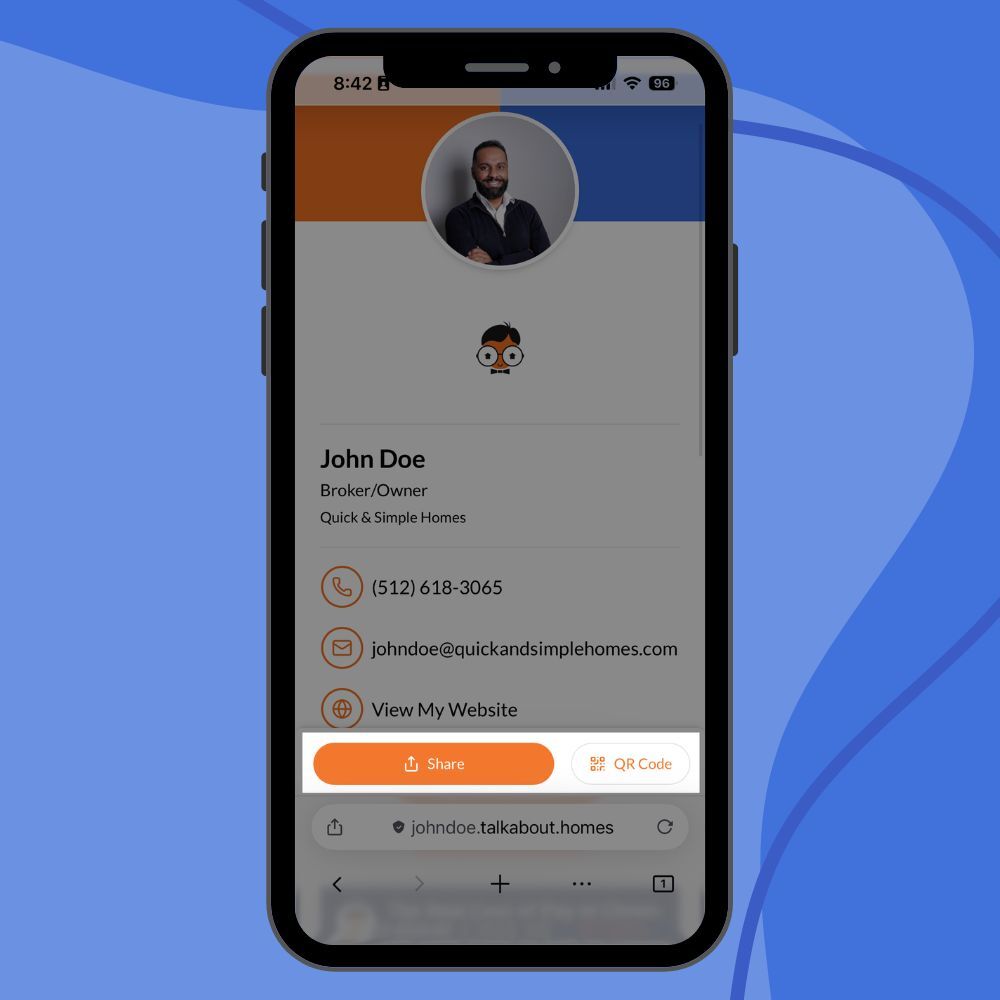
Once a lead opens your Digital Business Card, they can save your contact information directly to their phone by clicking Save Contact.
How to Edit Your Digital Business Card
This section explains how to access and update your Digital Business Card after it has been created.
To edit your card, you need two things:
- The personalized card link name you created during setup (name.talkabout.homes)
- Access to the phone number you entered during setup
The phone number added during initial setup is used to send a one-time security code each time you edit your card.
Step-by-Step Instructions
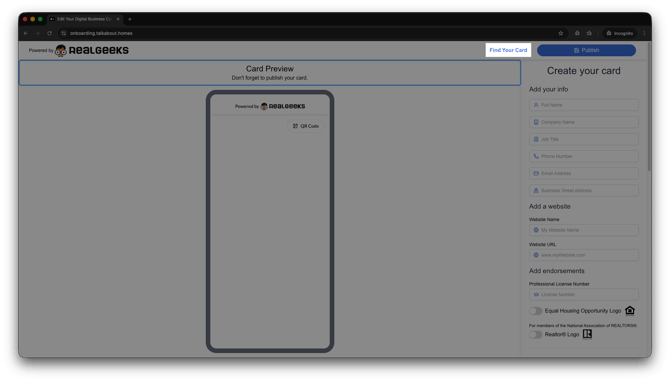
- Go to https://onboarding.talkabout.homes
- Click Find Your Card
- Enter the link to your business card (do not include .talkabout.homes)
- Click Send Code
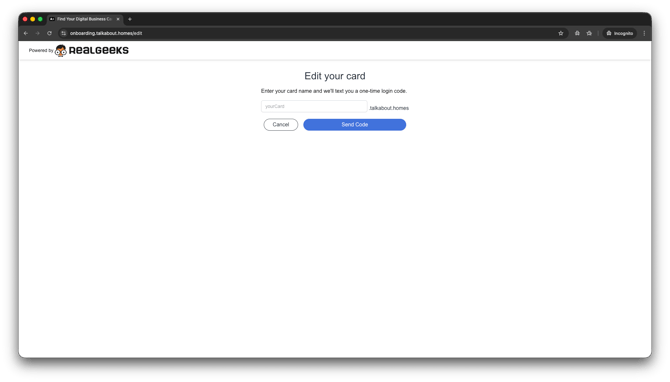
- Check your phone for a text message with a verification code
- Enter the code, then click Verify to access and edit your Digital Business Card
Best Practices
These tips help you get the most marketing and brand-building value from your Digital Business Card when connecting with leads.
- Use a clear, professional headshot so people recognize you instantly
- Match your brand colors and logo to your website for consistency
- Keep links focused on actions that help a lead take the next step
- Share your card in person, then follow up with a message afterward
- Test your QR code on your own phone before using it publicly
- Use the Additional Buttons feature to link to custom resources like listings, home valuations, or scheduling links
Message Template
Use this text message template to quickly engage leads:
"Hey {{FIRST_NAME}}, great meeting you earlier. Here’s my business card so you have all my info in one place. Let me know how I can help!"
Troubleshooting
Use these tips if something does not work as expected.
- If you do not receive a verification code, confirm your phone number was entered correctly
- If your logo looks distorted, upload a higher-resolution image
- If your card does not load on mobile, refresh the page or try a different browser
- If links do not open, confirm the full URL was entered
Frequently Asked Questions
-
What is the Real Geeks Digital Business Card?
The Digital Business Card is a sleek, single-page website that allows agents to share their contact info, video, social links, and key resources—all in one place. It’s fast to set up, easy to share, and designed to impress. -
Who is this product for?
Solo agents, new agents, and Real Geeks customers looking to enhance their online presence with a modern, mobile-friendly contact page. -
Is it really free?
Yes! It is completely free to use. -
What can I include on my Digital Business Card?
Your card includes:- An About section
- Contact info (That your clients can easily save)
- Featured video (YouTube or Vimeo)
- Social & custom links
- QR code for easy sharing
- Can I customize the design?
Yes! Today, you can choose your own colors and branding. More design options are coming soon! -
Why do I need to enter my phone number?
We use your phone number for secure verification via text message. It’s required to both publish and edit your card. -
How do I share my card?
On the bottom of every card is a share menu and easy access QR code! -
Can I use this card in printed materials or email signatures?
Absolutely! Your card link and QR code are perfect for email footers, flyers, and business cards. -
Where do I go for help?
If you have any questions or feedback, please submit a request to the Real Geeks Support.
Need Help?
- Call us at 844-311-4969 (Mon–Fri, 8 AM–8 PM CST)
- Email support@realgeeks.com
- Visit Real Geeks University for free video courses
- Join the Real Geeks Mastermind Group on Facebook for peer tips and best practices