.svg)
Connecting your email to the Real Geeks CRM helps you see every email conversation in one spot. You can continue sending emails from your personal inbox, your phone, or directly from the CRM. When your email is connected, those messages are saved on each lead’s profile along with their website activity and follow-ups. This helps you stay organized, reply faster, and see the full conversation history in one place.
Need to Know
- You do not have to send all emails directly from Real Geeks. Integrating your email allows you to send emails from your personal inbox or phone, and those messages will still be saved on the correct lead profile in the CRM.
- Google and Microsoft email accounts support two-way email sync. This means emails you send and replies you receive are saved in the lead’s profile in the CRM.
- Other email providers like Yahoo, AOL, Hotmail, and Network Solutions only support one-way email sync. This means only the emails you send to a lead are saved. Replies you receive are not recorded in the lead’s profile in the CRM.
Table of Contents
- How to Access the Email Integrations Page in Real Geeks
- Connect Gmail
- Connect Microsoft
- Connect Yahoo Mail
- Connect AOL Mail
- Connect iCloud Mail
- Connect ATT.net
- Connect Network Solutions
- Troubleshooting
- Frequently Asked Questions
- Need Help?
How to Access the Email Integrations Page in Real Geeks
This section shows you how to find the Email Integrations page. This is where you connect and manage your email accounts.
Step-by-Step Instructions
-
Go to https://leads.realgeeks.com and sign in.
-
Select Inbox in the navigation menu
-
Click Message Settings.
How to Connect Gmail / Google Workspace
Choose this option if you use Gmail or Google Workspace. This setup uses two-way sync, which means we record incoming and outgoing emails with leads in the CRM.
Send Emails from the CRM
-
Under Sending Email From CRM, click Setup Now
-
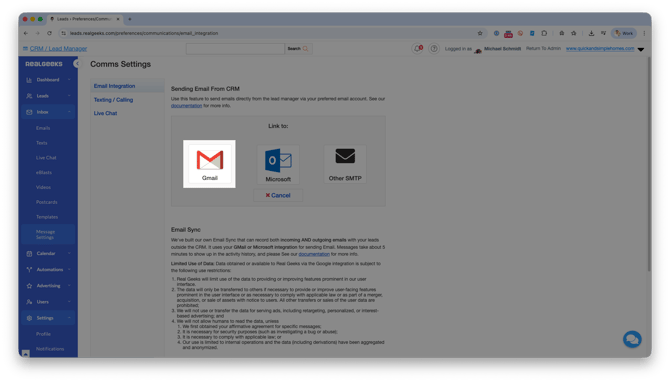
Select the Gmail icon
-
Click Link Gmail
-
Select your Google account.
-
If prompted, you will need to login to your Gmail account
-
-
Click Continue to confirm the Real Geeks Lead Manager
-
Review permissions and click Continue
Automatically Capture Lead Replies
-
Under Email Sync, click Setup Now
-
Click Sync Email
Your sent emails and lead replies will now appear on the lead’s profile, even when emails are sent from your personal inbox or phone.
How to Integrate Microsoft
Choose this option if you use Outlook or Microsoft 365. This setup uses two-way sync, which means we record incoming and outgoing emails with leads in the CRM.
Send Emails from the CRM
-
Under Sending Email From CRM, click Setup Now
-
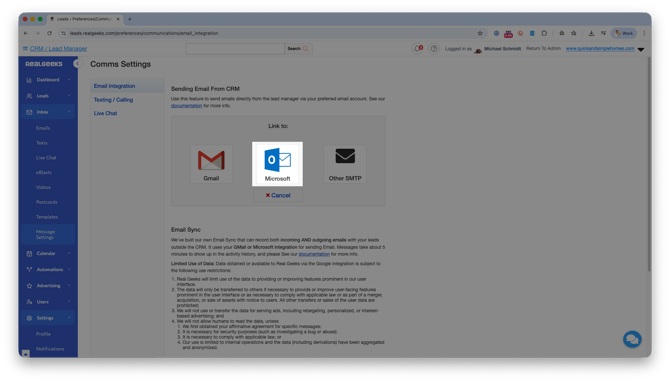
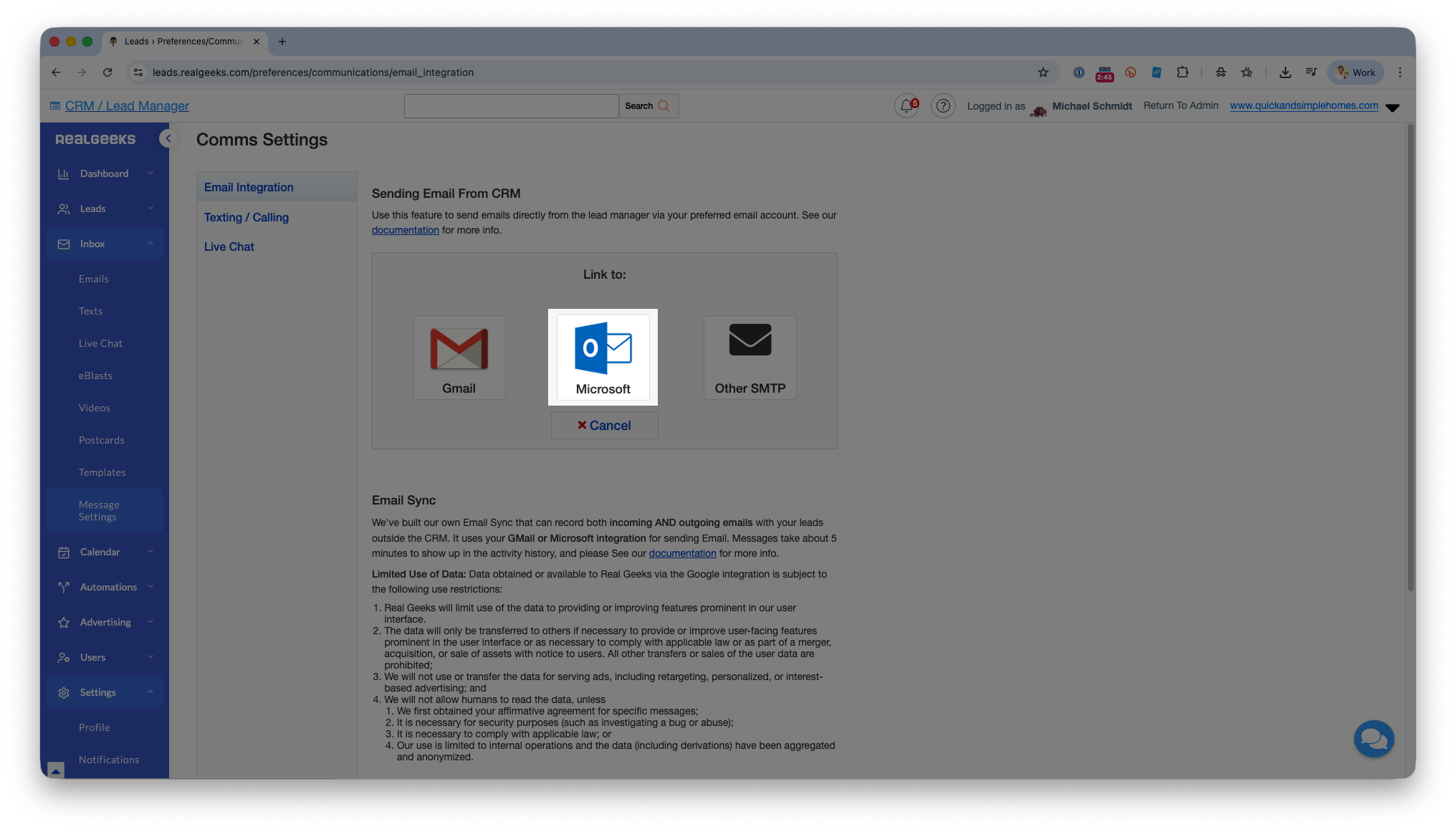
Select the Microsoft icon
-
Click Link Microsoft
-
Sign in to your Microsoft email
-
Review permissions and click Continue
Automatically Capture Lead Replies
-
Under Email Sync, click Setup Now
-
Click Sync Email
Your sent emails and lead replies will now appear on the lead’s profile, even when emails are sent from your personal inbox or phone.
Connect Yahoo! Email with Real Geeks
Please Note
Yahoo! email uses one-way sync only. Emails you send from the CRM are saved, but replies from leads are not saved.
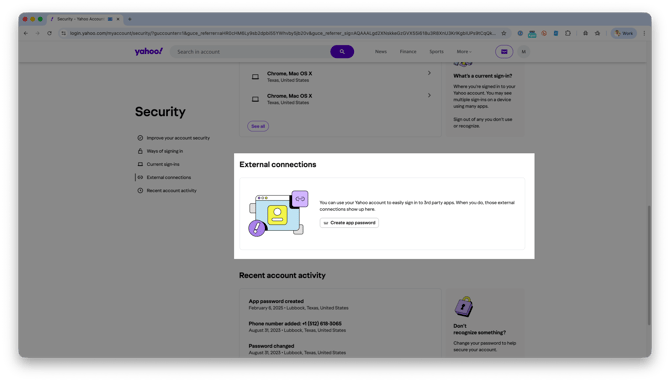
Due to Yahoo's advanced security settings, we need to take some additional steps to generate a custom password in Yahoo that allows you to connect your Yahoo email to the Real Geeks CRM.
Step-by-Step Instructions
-
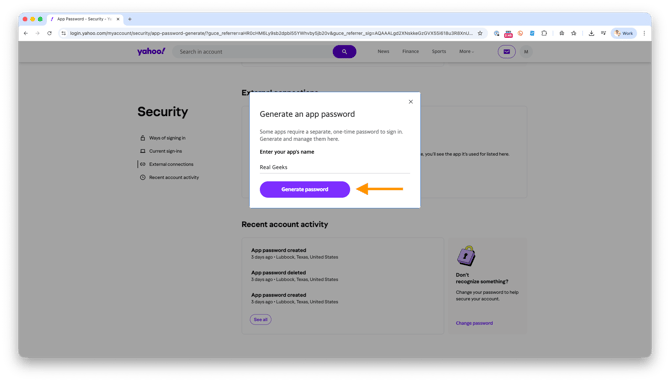
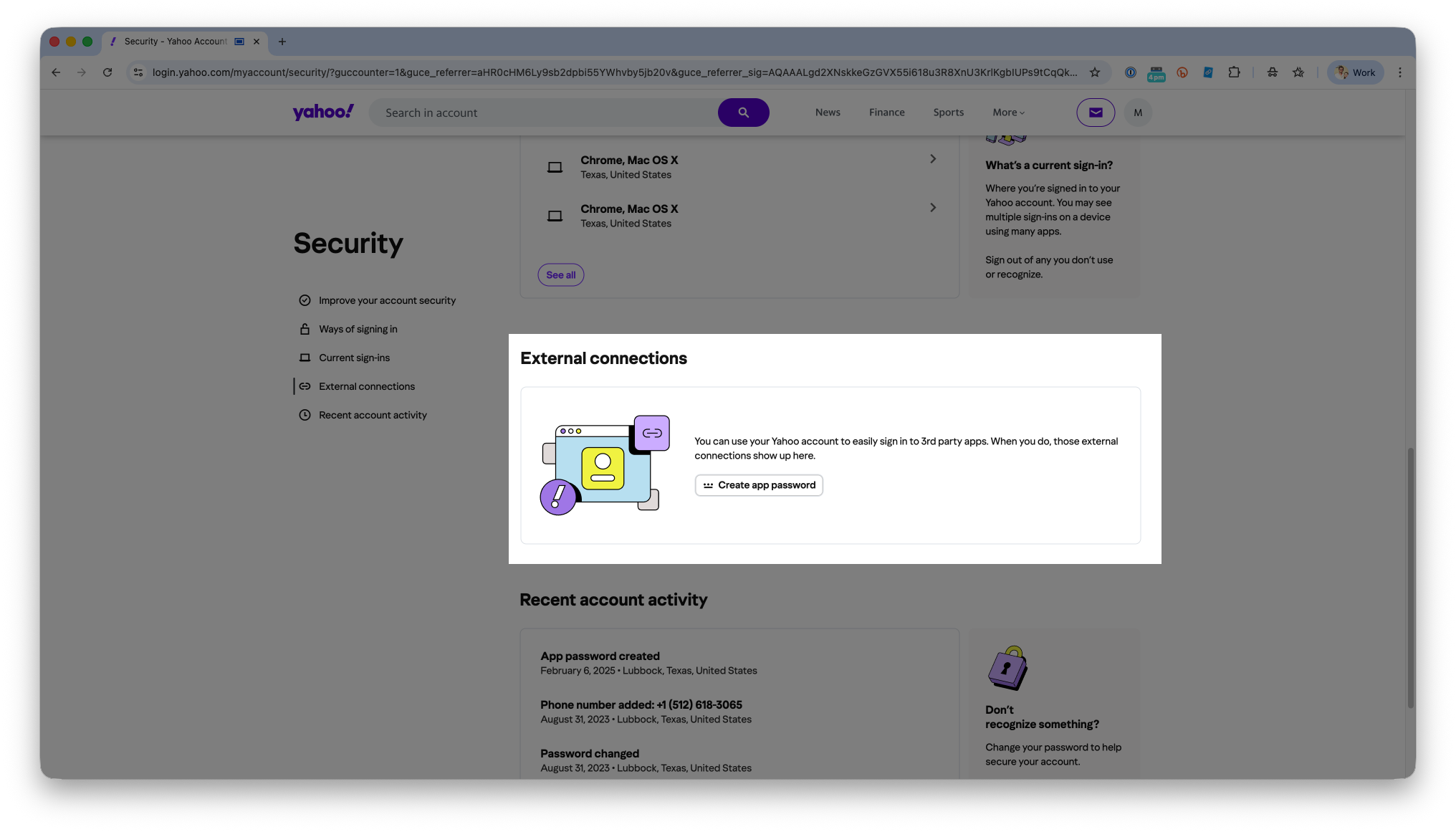
Sign in to your Yahoo! Account Security page
-
Click Generate App Password
-
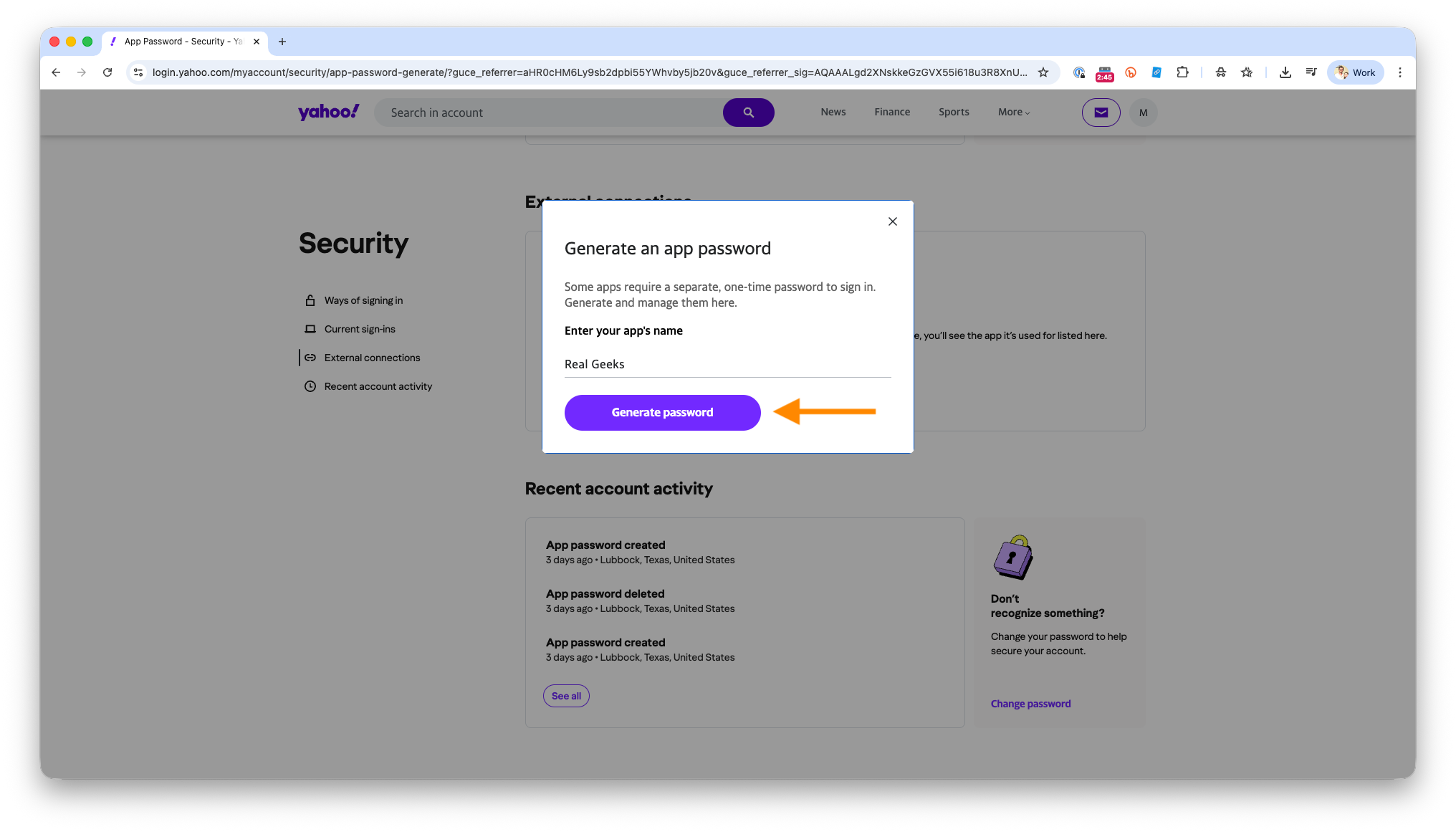
Enter Real Geeks as the App Name
-
Click Generate Password
-
Copy the password
-
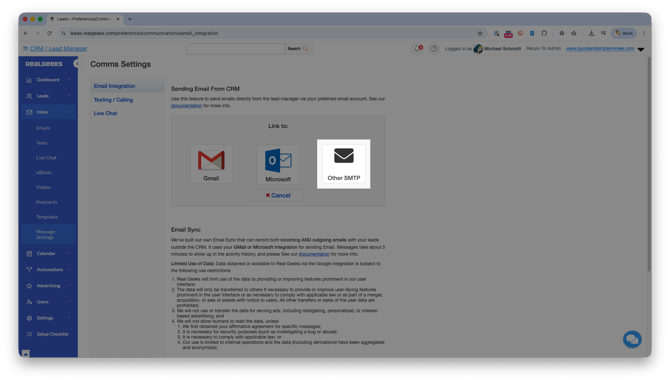
Go back to the Real Geeks Email Integrations page
-
Click Setup Now and choose Other SMTP
-
Enter your Yahoo! email address
-
Paste your generated Yahoo app password
-
Click Save
Connect AOL Email with Real Geeks
Please Note
AOL email uses one-way sync only. Emails you send from the CRM are saved, but replies from leads are not saved.
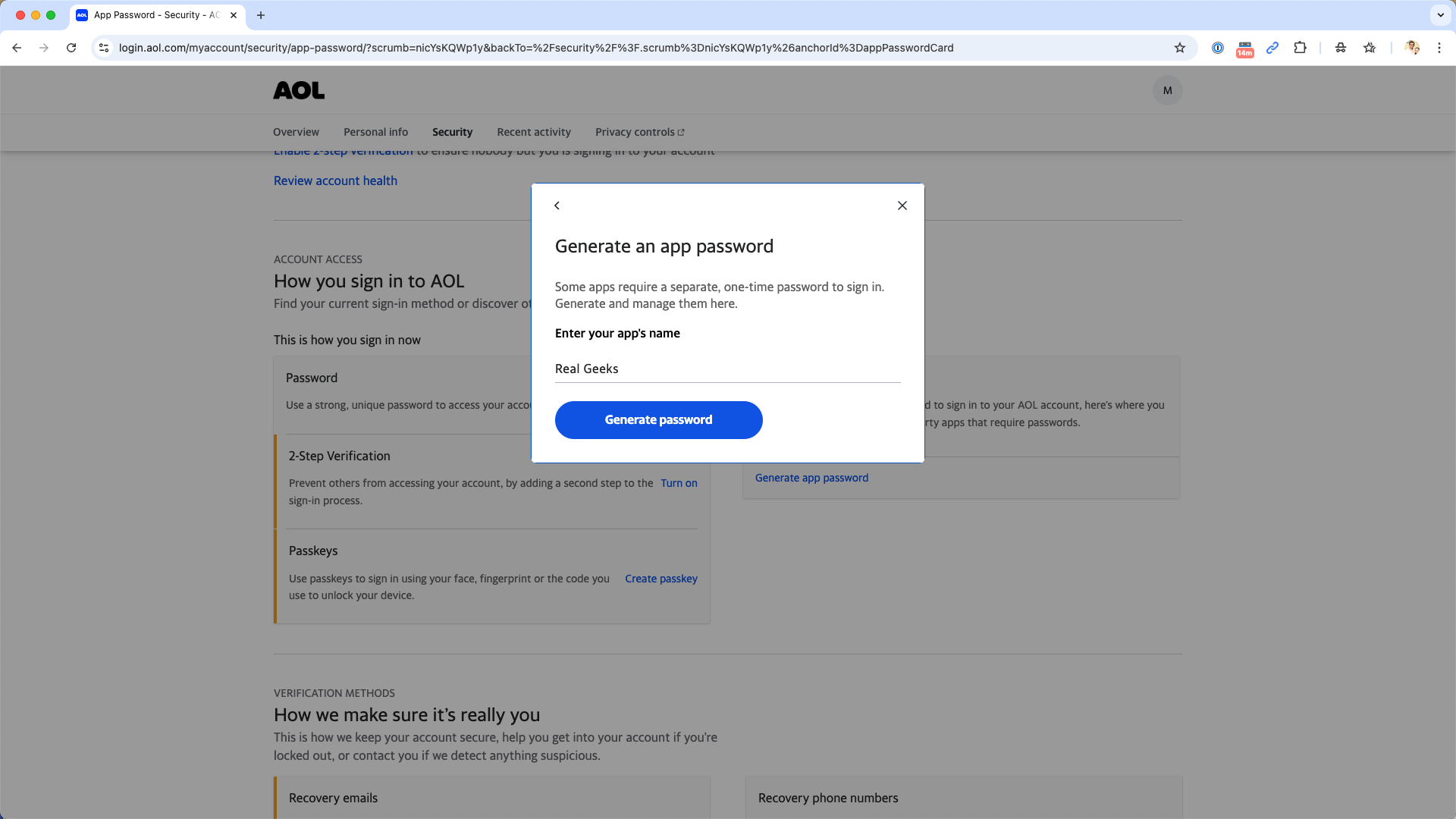
Due to AOL's advanced security settings, we need to take some additional steps to generate a custom password in AOL that allows you to connect your AOL email to the Real Geeks CRM.
Step-by-Step Instructions
-
Sign in to your AOL Account Security page
-
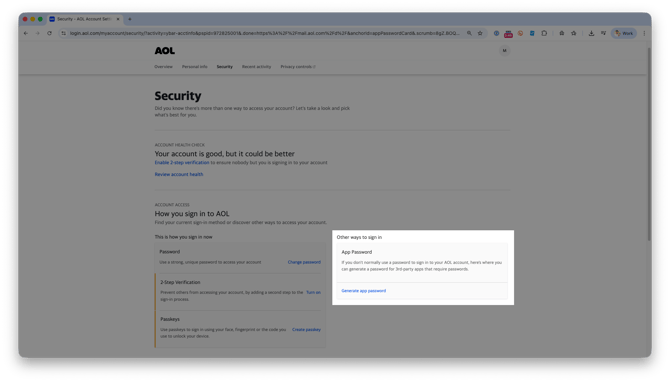
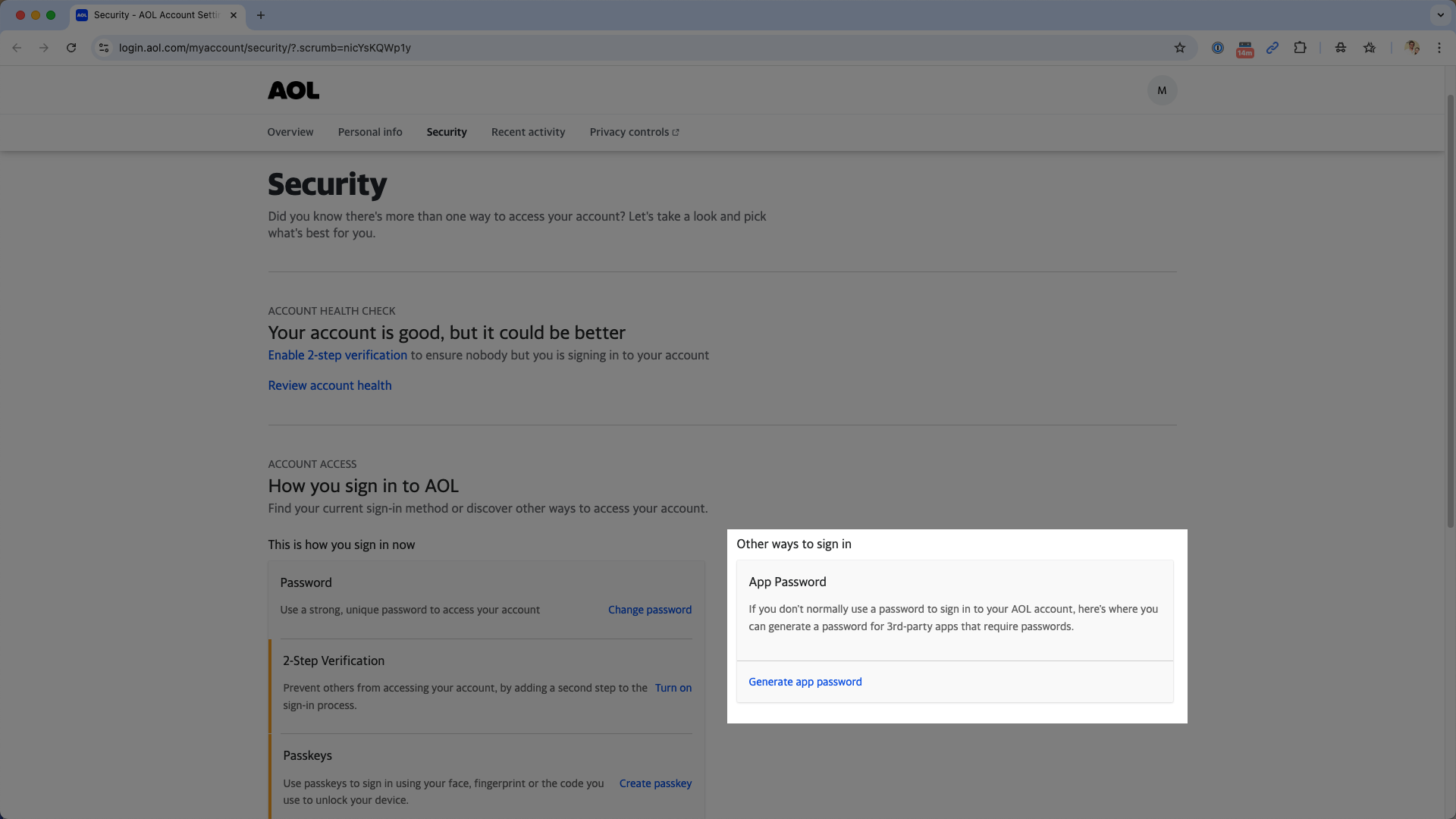
Click Generate App Password
-
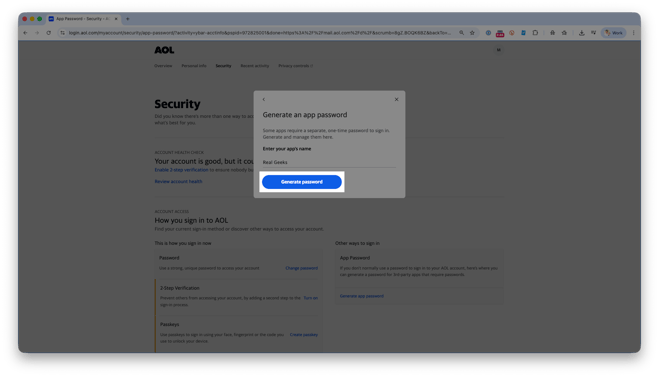
Enter a name like Real Geeks
-
Click Generate Password
-
Copy the password
-
Go back to the Real Geeks Email Integrations page
-
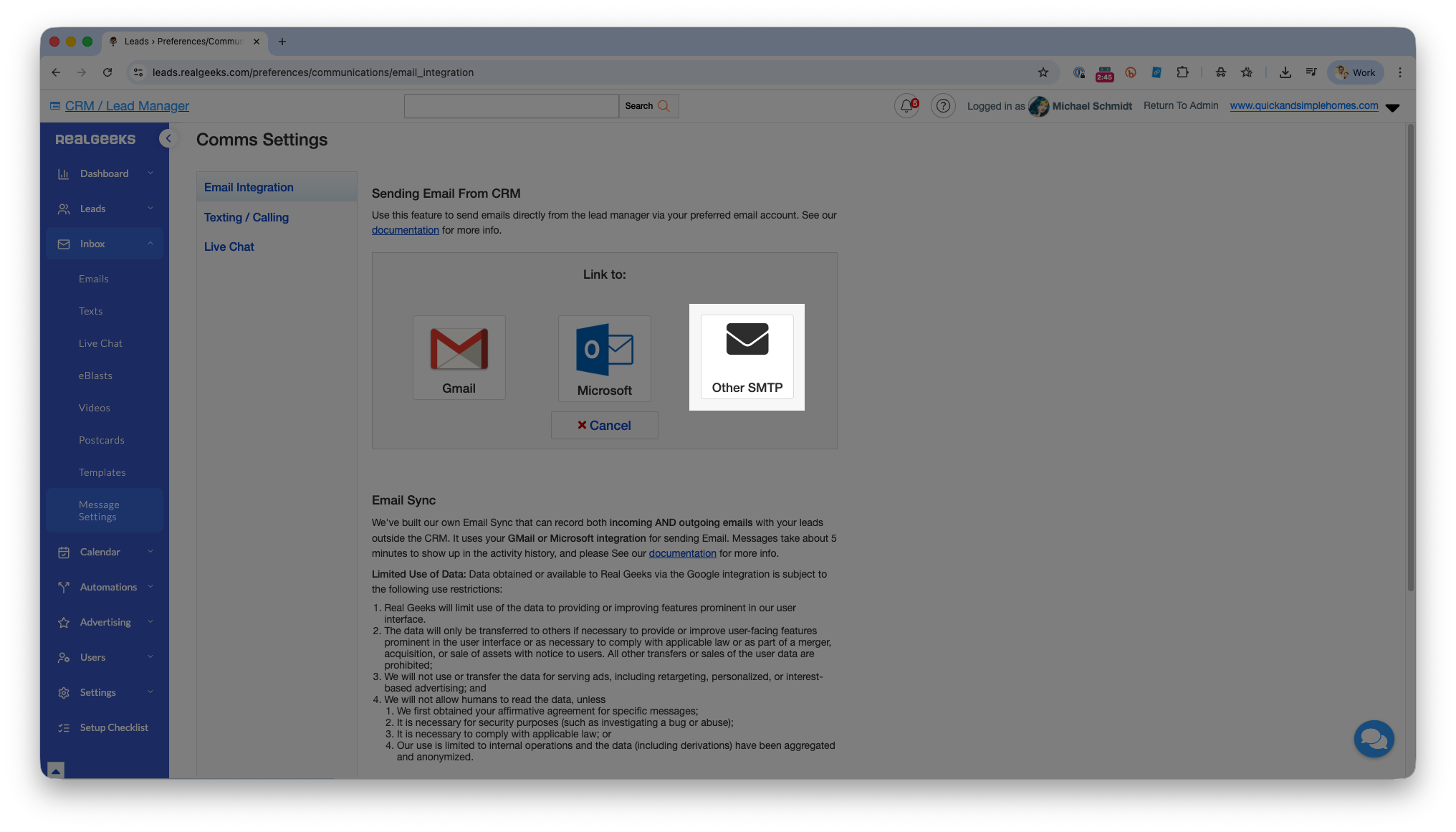
Click Setup Now and choose Other SMTP
-
Enter your AOL email address
-
Paste the app password
-
Click Save
How to Integrate iCloud
-
Sign in to your Apple ID account.
-
Under Security, click Generate Password below “App-Specific Passwords.”
-
Follow the instructions and copy the generated password.
-
Go to the Email Integration tab in your CRM.
-
Click Setup Now → Select Other SMTP.
-
Enter your iCloud email and the app password from Apple.
-
Click Save.
-
If you receive an error, change the SMTP Address to smtp.mail.me.com and click Save.
How to Integrate att.net
-
Create a Secure Mail Key by following these instructions.
-
Be sure to save this key, as it will not be visible again.
-
-
Go to the Email Integration tab in your CRM.
-
Click Setup Now → Select Other SMTP.
-
Enter your att.net email and the Secure Mail Key as the password.
-
Click Save.
If An Error Occurs
If you receive an error, update the SMTP Address to smtp.mail.att.net and click Save.
How to Integrate Network Solutions
-
Go to the Email Integration tab in your CRM.
-
Click Setup Now → Select Other SMTP.
-
Enter your Network Solutions email and password.
If An Error Occurs
Update the SMTP Address to smtp.networksolutions.com and change the Port to 25, then click Save.
Legacy Email Sync — Discontinued (Context.IO)
The Context.IO sync service was discontinued on March 31, 2019. Our current sync feature works only with Google or Microsoft email accounts.
If using a custom email domain, please switch to Google Workspace (formerly GSuite) or Microsoft 365.
Troubleshooting
If your email does not connect or stops working, check the following.
-
Make sure you picked the correct email provider.
-
For Yahoo or AOL, you need to generate a security password in order to connect your email to Real Geeks.
-
If you update your email's password, you may be prompted to reconnect your email to Real Geeks
Frequently Asked Questions
-
What is the difference between two-way and one-way sync?
Two-way sync saves sent emails and replies. One-way sync only saves sent emails. -
Can I change my email later?
Yes. You can disconnect and connect a new email at any time. -
Are emails sent outside the CRM saved?
Yes — but only if your email provider supports two-way sync (Gmail or Microsoft). Once you've completed the Email Sync setup, emails sent from your personal inbox or phone are automatically saved to the lead’s profile in the CRM.
Need Help?
-
Call us at 844-311-4969 (Mon–Fri, 8 AM–8 PM CST)
-
Email support@realgeeks.com
-
View our Live Events page for free coaching and training.
-
Join the Real Geeks Mastermind Group on Facebook for peer tips and best practices