.svg)
Follow Ups are reminders inside your CRM that help you stay organized and consistent with your leads. Instead of relying on memory, you can schedule reminders to call, text, email, or meet with a lead at the right time.
You can create Follow Ups manually for individual leads, schedule recurring reminders, or automate them through workflows so tasks are created for you automatically.
Need to Know
-
Follow Ups are internal reminders tied to a lead that notify you when to attempt to connect with a lead
-
Follow Ups appear in your Real Geeks Calendar. You can connect this calendar to your personal calendar to monitor these follow ups
-
Create a follow up campaign to establish a call schedule with your leads.
Table of Contents
What Follow Ups Do
Follow Ups help you plan the next step with a lead so nothing falls through the cracks.
Common uses include:
-
Calling a new lead
-
Sending a follow‑up email or text
-
Confirming an appointment
-
Meeting with a client
-
Checking in with long‑term prospects
Every meaningful conversation should end with a scheduled next step so your pipeline continues moving forward.
Creating a Follow Up
Follow Ups are created inside a lead's profile and allow you to schedule reminders for specific actions.
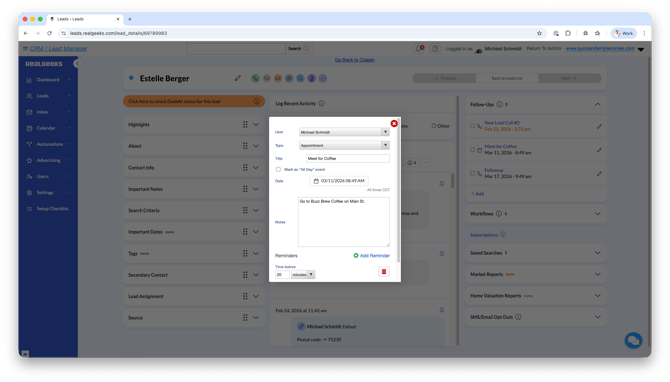 When creating a Follow Up you will:
-
Select the Follow Up Type (Call, Text, Email, Appointment, etc.)
-
Add a clear Title describing the purpose of the reminder
-
Choose the date and time for the follow up
-
Establish the follow up is a one-time reminder, or create a recurring scheduled follow up
-
Add notes to prepare for the follow up
-
Add reminder notifications so you have time to prepare
Recurring Follow Ups are helpful for staying consistent with long‑term leads such as monthly check‑ins, weekly buyer updates, or ongoing seller communication.
How to View Your Follow Ups
You can quickly review your upcoming Follow Ups in several places inside your CRM.
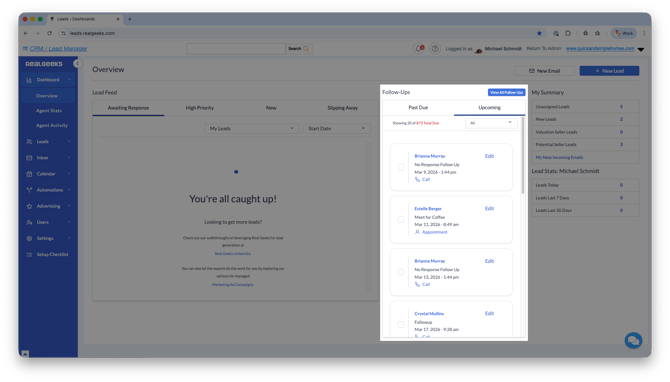
CRM Dashboard
Visit https://leads.realgeeks.com/ to see an overview of your upcoming Follow Ups on your Dashboard. This is a great place to start your day and see which leads need attention.
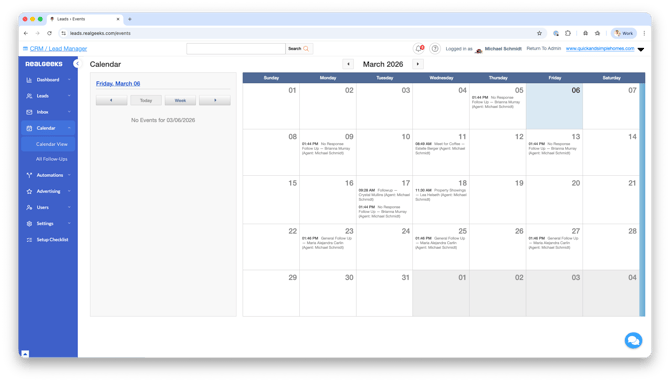
CRM Calendar
Open the CRM Calendar at https://leads.realgeeks.com/events to view all of your Follow Ups on a weekly or monthly calendar. This helps you plan your schedule and stay organized throughout the week.
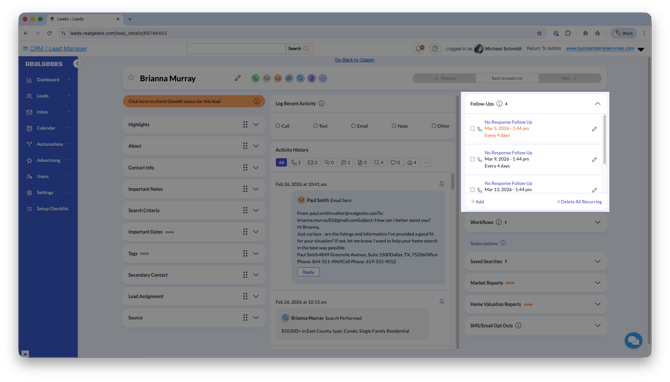
Lead Profile
You can also see Follow Ups directly inside a lead’s profile. This makes it easy to review past communication and prepare before reaching out.
Automating Follow Ups with Workflows
You can create a follow up campaign using workflows to automatically schedule Follow Ups for you. These Follow Ups are added to your lead’s profile and calendar, so you do not have to create each reminder manually.
To create a follow up workflow:
-
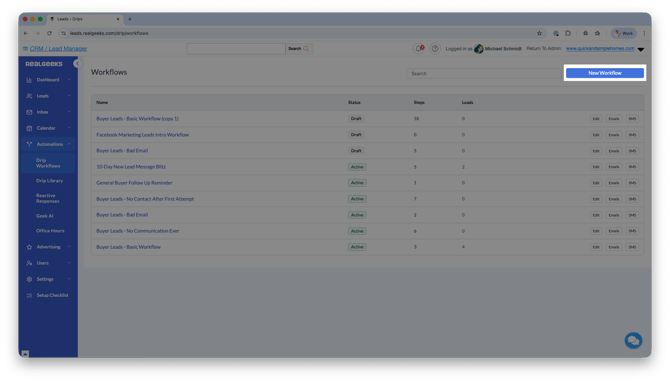
Go to the Workflow page in the CRM at and click New Workflow.
-
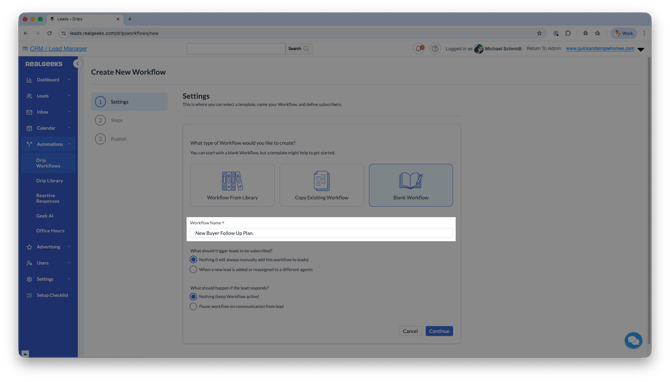
Click Blank Workflow.
-
Name the workflow something clearly related to Follow Ups, such as New Buyer Follow Up Plan.
-
Optional: Set up triggers to assign this workflow automatically based on lead source. Skip this if you want to assign the follow up plan manually.
-
-
Click Continue.
-
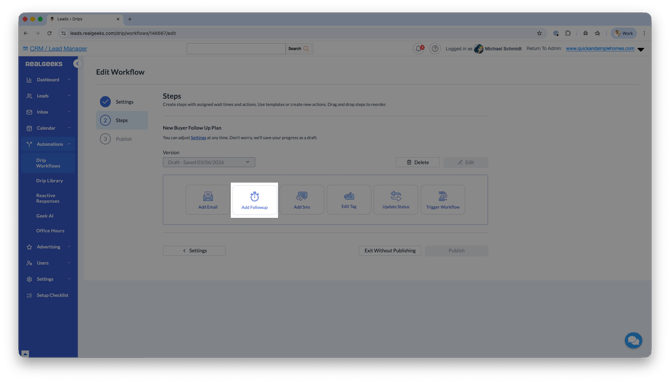
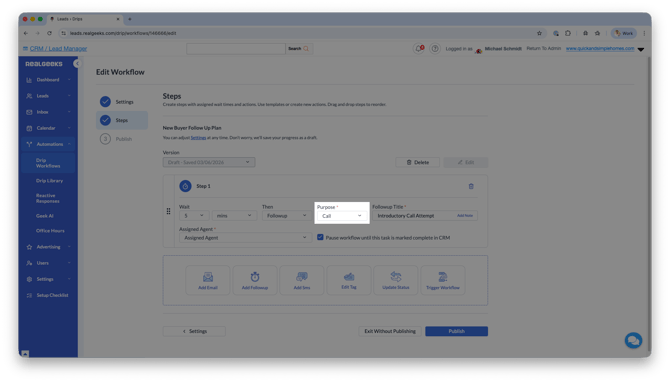
Select Add Follow Up.
-
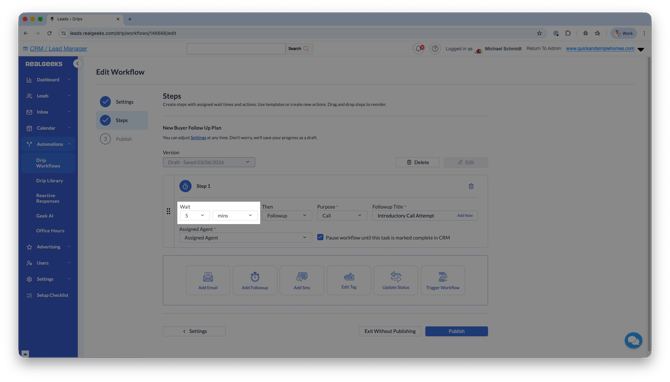
Choose how soon after a lead is subscribed to the workflow the Follow Up should be scheduled. For more aggressive plans, aim for a few minutes.
-
Set the Follow Up Purpose such as Call, Text, or Email.
-
Enter a direct Follow Up Title that clearly explains the task, such as Introductory Call Attempt or Call: Remind About Saved Search.
-
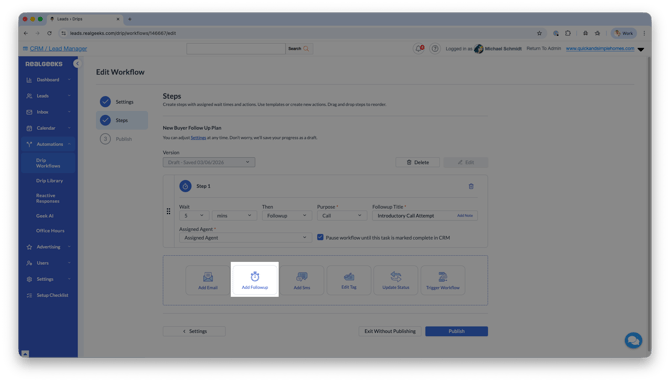
Click Add Follow Up again to create another step.
-
Repeat the setup by choosing the timing, purpose, and title for each additional Follow Up.
-
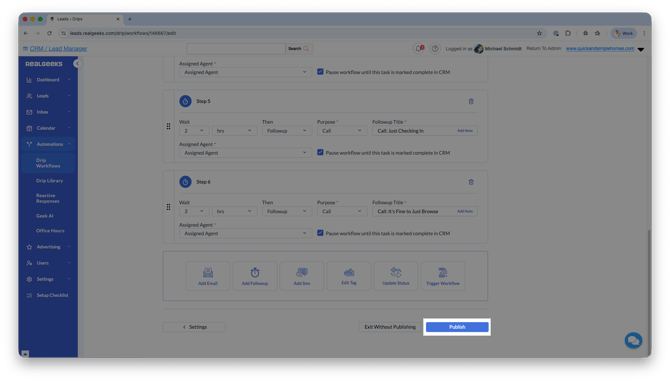
Continue adding steps until your schedule is complete.
-
Click Publish when finished so you can begin assigning the workflow to leads.
Best practice
Make sure Pause workflow until this task is marked complete in CRM is checked for each Follow Up step. This keeps the next reminder from triggering before you complete the current one.
The more Follow Ups you build into the workflow, the easier it is to stay consistent and keep leads from slipping through the cracks.
Best Practices
-
Always create a follow up after attempting to contact a lead so they never slip through the cracks.
-
Schedule the next follow up immediately after every meaningful conversation.
-
Use recurring follow ups for long‑term nurture leads.
-
Write clear titles so you instantly know the purpose of the reminder.
-
Add notes so you are prepared before reaching out.
-
Use workflows to automate repeatable follow up schedules.
Frequently Asked Questions
-
Are Follow Ups visible to my leads?
Follow Ups are internal reminders that only appear inside your CRM. -
Can I create multiple Follow Ups for the same lead?
Yes, you can schedule as many reminders as needed to manage your conversations and appointments. -
Can Follow Ups appear on my calendar?
Yes. If your CRM calendar is connected, Follow Ups can appear in your personal calendar. -
What happens when I complete a Follow Up?
Once completed, the reminder is marked finished and you can schedule the next step if needed.
Need Help?
- Call us at 844-311-4969 (Mon–Fri, 8 AM–8 PM CST)
- Email support@realgeeks.com
- View our Live Events page for free coaching and training.
- Join the Real Geeks Mastermind Group on Facebook for peer tips and best practices