.svg)
When leads register on your website, they may be prompted to verify their phone number. Inside your Lead Manager, you’ll see a badge next to each lead’s name that shows their verification status. These badges help you quickly identify who has confirmed their phone number and who may need additional follow-up.
What the Verification Badges Mean
Each lead is automatically assigned a verification status badge. These badges make it easy to see who confirmed their phone number and who has not.
Geek Verified ✅
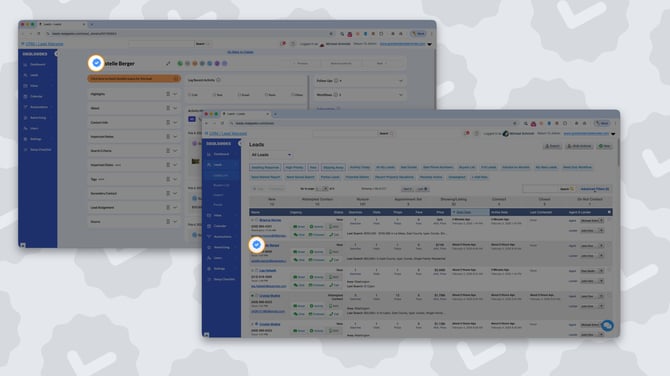
This badge means:
-
The lead completed SMS verification and confirmed they own the phone number provided.
Why this matters:
Verified leads are typically stronger opportunities because you know the number belongs to the person who registered.
Unverified and Locked 🔒
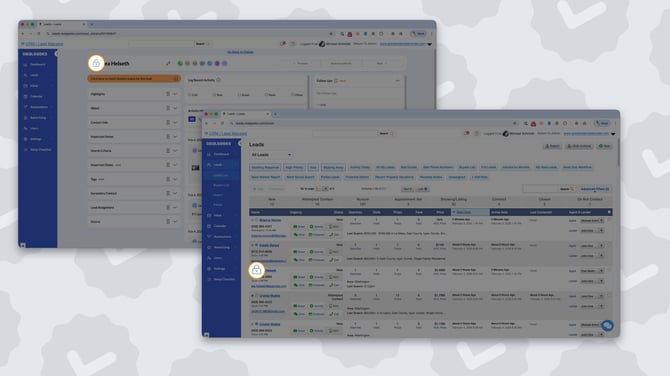
This badge means:
-
The lead declined phone verification.
-
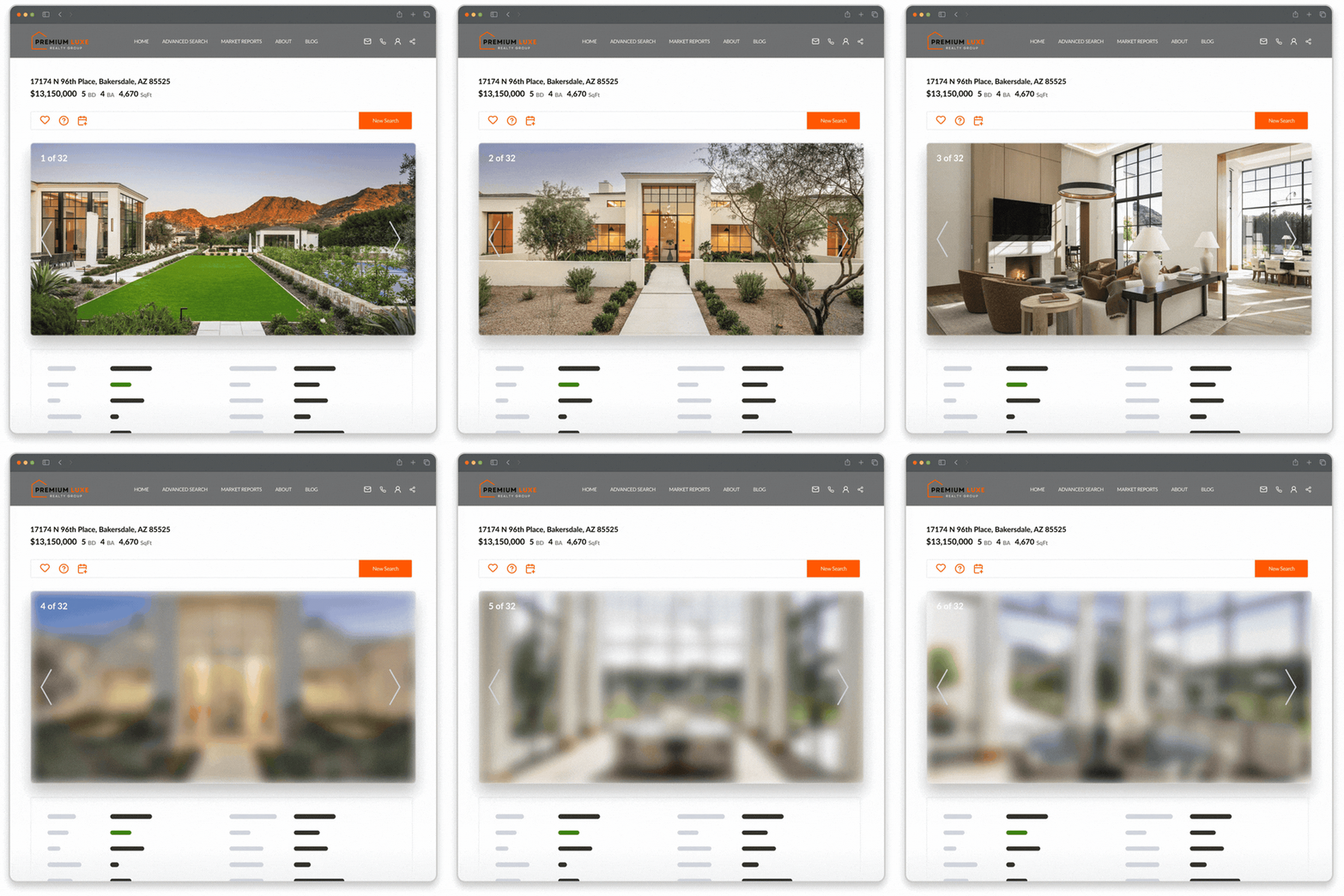
The lead is unable to view more than 3 photos on a listing, and will be prompted to verify their phone number
-
The system is limiting access until verification is completed.
Why this matters:
These leads may need additional follow-up to build trust and encourage engagement.
Unverified and Unlocked
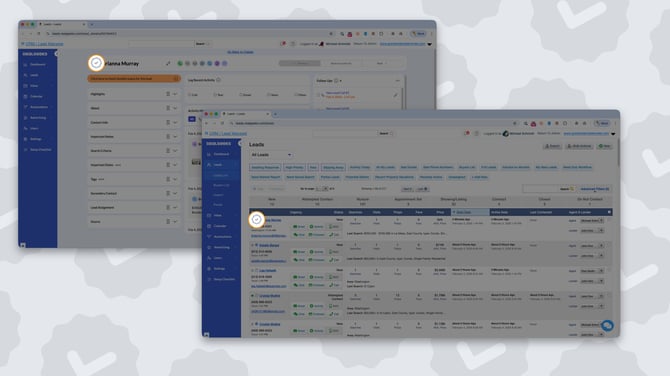
This badge means:
-
The lead did not verify their phone number but an agent manually granted them full website access.
-
The phone number is not confirmed as owned by the lead.
Why this matters:
You may have access to a phone number, but ownership has not been confirmed.
How to Filter Leads by Verification Status
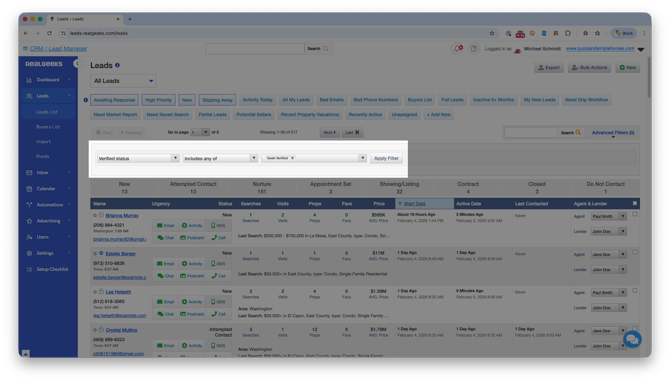
You can use Advanced Filters in your Lead Manager to view only specific verification types.
Step-by-Step Instructions:
-
Click + Add New
-
Select Verified Status
-
Select your Status
-
Click Apply Filter
-
Click Save to reuse the filter later
This allows you to quickly:
-
Build a call list of verified leads
-
Monitor unverified leads
-
Track engagement patterns
Back to top