.svg)
Admin Feature
Editing the website is an account owner-level permission. If you don't see this option, contact your account owner to enable these permissions for you.
Your Real Geeks website allows you to create dedicated pages for team members so they can showcase their bio, contact information, testimonials, and listings. These pages help agents build trust with leads and provide a personalized experience.
Need to Know
- These pages are custom Content Pages in Real Geeks that use an Agent Detail Page template.
- Add your agent’s personal listings to this page using their MLS Agent ID. If you don’t know it, contact support with the MLS number for one of their properties and we’ll look it up for you.
- Convert this profile into an Agent Landing Page so any new lead who signs up from this page is automatically assigned to that agent in the CRM.
Table of Contents
- How to Create an Agent Profile Page
- How to Add Listings to an Agent Page
- How to Automatically Assign Leads With an Agent Page
- Best Practices
- Troubleshooting
- Frequently Asked Questions
- Need Help?
- Related Articles
How to Create an Agent Profile Page
Creating an agent profile page gives each team member a dedicated space to highlight their experience and background. This page becomes a personalized hub they can share with leads.
Guided Demo
Click the button below to view an interactive walkthrough of this task.
Step-by-Step Instructions
- Go to your website backend by adding /admin to the end of your domain (www.yourwebsite.com/admin).
- Click Content Pages.
- Click Add Content Page.
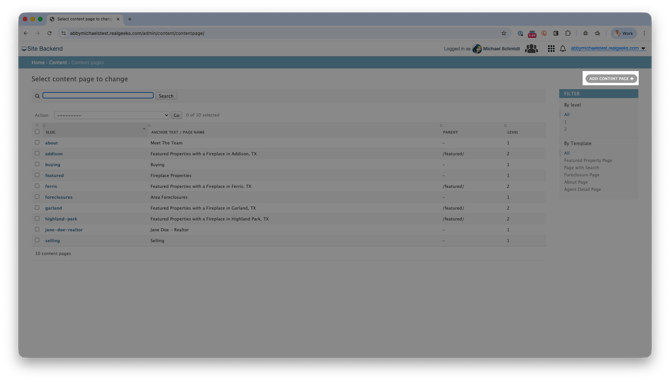
- Enter the page details with your agent's information (Title, Meta Description, Anchor Text, etc.).
- Change the Page Template to Agent Detail Page.
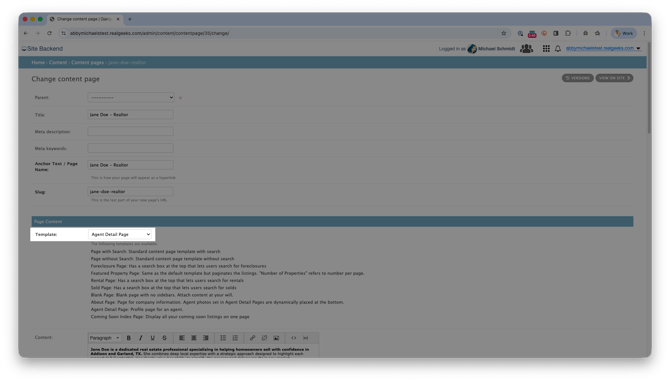
- Add the agent's bio in the Content field.
- Enter the agent’s information in the provided fields: Name, Email, Phone, Photo, Testimonials, etc...
- Click Save to publish the page.
How to Add Listings to an Agent Page
Adding listings to an agent’s profile page shows their active presence in the market and helps leads explore their current inventory. support@realgeeks.com
Guided Demo
Click the button below to view an interactive walkthrough of this task.
Step-by-Step Instructions
- Open the agent’s profile page in the Website Editor.
- Click Show next to Property Display Search Options.
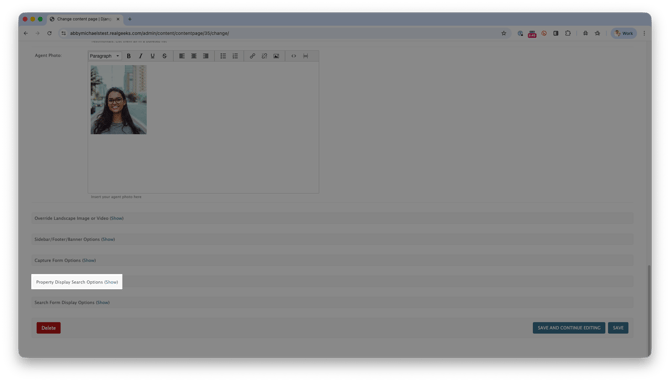
- Click Create Search.
- Select Agent ID.

- Choose the correct MLS Agent ID and click Create Search.
- Review the results and click Yes to attach the listings to the page.
- Click Save.


How to Automatically Assign Leads With an Agent Page
Converting an agent’s profile into an Agent Landing Page allows new sign-ups that begin on that page to be routed directly to that agent.
Guided Demo
Click the button below to view an interactive walkthrough of this task.
Step-by-Step Instructions
- Go to your website backend (www.website.com/admin).
- Click Content Pages.
- Check the box next to the page you want to assign leads from.
- Open the Actions menu.
- Select Convert selected pages to Agent Landing Pages.
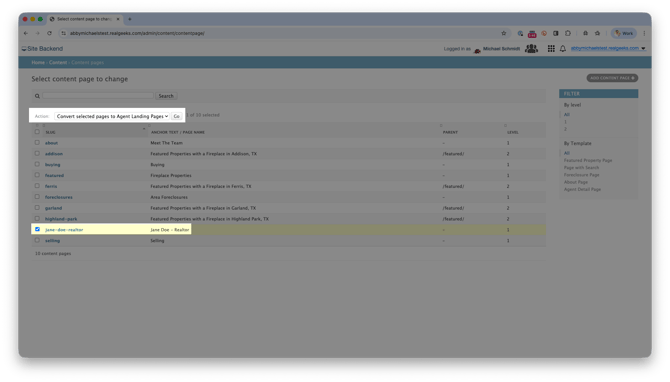
- Click Go.
- Click Home
- Select Content Pages w/ Agent Assign to view your agent page

How to Setup Lead Assignment on This Page
- Open the agents page
- Under Content, select the Agent menu and choose the featured agent
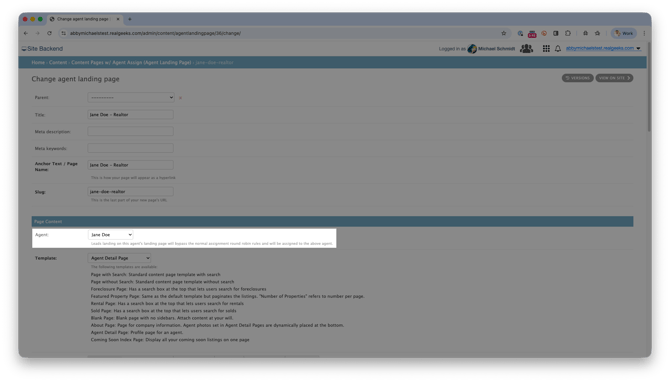
- This list pulls from your CRM Users. To assign an agent to the page, make sure they’ve been added to the CRM first.
- Click Save

Tip
You can convert any Content Page into an Agent Landing Page, not just your agent's bio page. This is helpful for marketing campaigns, guides, events, or custom pages that support specific agents on your team.
Best Practices
- Use the Quick Links option Add an Agent Page to quickly create a standard agent profile.
- Turn on lead assignment after creating the profile if the agent plans to market the page.
- Agents can purchase a custom domain and redirect it to their profile page to make sharing easier.
Troubleshooting
- Agent listings aren’t showing:
This usually means the agent has no active listings or the wrong MLS Agent ID was selected. Double-check the agent’s MLS ID, or email support@realgeeks.com with the MLS number for the listing so we can confirm the correct ID. - Lead assignment didn’t happen: The lead assignment function works when the agent's page is the first time visiting your website.
- The Agent Detail Page template isn’t appearing: Ensure the page is set as a Content Page.
- The agent page isn’t visible on the site: Confirm the page is saved and published.
Frequently Asked Questions
- Can I assign leads to myself? Yes. Select yourself when converting the page.
- Do I need a separate landing page? No. A single agent profile page can also be used to assign leads.
- Can multiple pages assign leads to the same agent? Yes.
- Can I change lead assignment later? Yes. Update the landing assignment in Content Pages.
- Does this affect existing leads? No. It applies only to new sign-ups.
Need Help?
- Call us at 844-311-4969 (Mon–Fri, 8 AM–8 PM CST)
- Email support@realgeeks.com
- Visit Real Geeks University for free courses
- Join the Real Geeks Mastermind on Facebook for peer tips and best practices