.svg)
Admin Feature
This feature requires the account owner (or admin) to grant CRM Admin Permissions. If you don't see this option, contact your account owner to enable it for you.
Exporting Leads in the Real Geeks Lead Manager allows you to download your contacts into a CSV file for reporting, backups, or transferring data to another system. Because lead data is sensitive, this feature is controlled by your Site Owner or Admin. If you need access, your permissions must be enabled before the export option appears.
Your exported file is a CSV, which opens in Excel, Google Sheets, Numbers, and most other spreadsheet programs. The data is organized into structured columns for easy sorting and analysis.
How do you export leads?
Once permissions are enabled:
-
Go to the Leads tab.
-
Apply Advanced Filters or select specific leads using the checkboxes.
-
Click the Export button in the top right, then select CSV
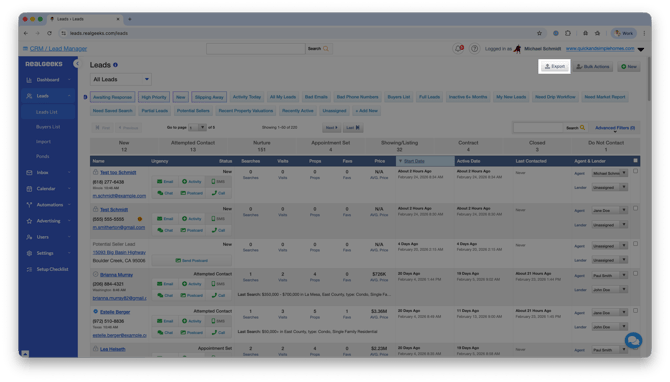
- In the confirmation dialog, choose one of the following options:
- All leads — exports your entire lead database
- Filtered leads — exports only the leads matching your current Advanced Filters criteria
- Selected leads — exports only the leads you checked in the Leads List
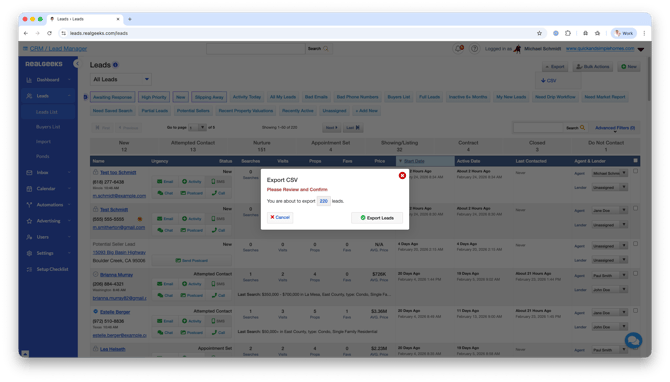
You'll receive an email within a few minutes containing a download link for your exported file. If the email doesn't arrive, check your spam folder or contact support.
Don't see the Export button? An admin must provide you with the permission to export leads in the CRM.
What’s included in the export?
Your export may include:
-
Lead contact information
-
Lead source
-
Important Notes
-
Number of saved searches
-
Last communication date
-
Additional lead detail fields (e.g., assigned agent, lead status, property preferences)
The export does not include a full activity history. To review individual lead activity (such as property views and searches), use the lead's profile page in the Lead Manager.
How do you filter your export?
Before exporting, you can choose which leads to include. There are two ways to filter your list:
-
Use Advanced Filters to create a targeted search
-
Manually check the boxes next to specific leads in the Leads List
If no filters are applied, clicking the CSV button will export your entire database.
Setting Export Permissions (Site Admin Only)
If you are a Site Owner or Admin and want to allow an agent to export leads:
-
In the Lead Manager: Go to Users > Users List
-
Select the agent.
-
Scroll to Permissions.
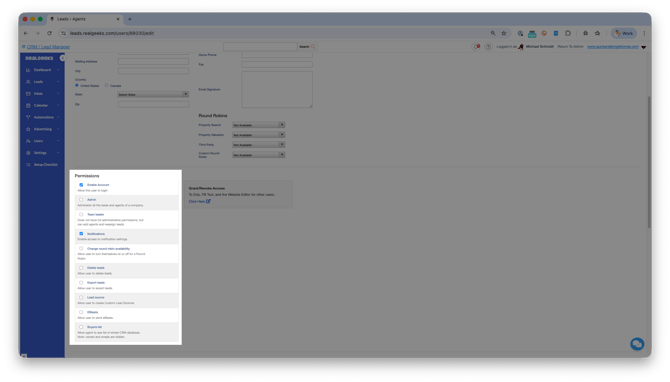
-
Enable Export Leads.
Once enabled, the agent will see the Export button in their Leads List view.
Exporting leads gives you flexibility while keeping your database secure and permission-based. When used thoughtfully, it’s a powerful way to analyze performance, maintain backups, and support your business operations.
Need Help?
- Call us at 844-311-4969 (see our website for current hours)
- Email support@realgeeks.com
- Visit Real Geeks University for free video courses
- Join the Real Geeks Mastermind Group on Facebook for peer tips and best practices