.svg)
This guide shows you how to capture Google Ads keyword data directly inside the Real Geeks Lead Manager. By passing keyword information through your ad URLs, you can see exactly what search terms leads used before signing up. This helps you evaluate ad performance, understand buyer intent, and optimize future campaigns.
Need to Know
-
This setup only applies to leads coming from Google Ads
-
No additional integrations are required
-
Keyword data appears automatically on the lead record once configured
Table of Contents
How to Pull Google Ads Keywords into the Lead Manager
This section explains exactly where to add the keyword parameter when building ads inside Google Ads so Real Geeks can capture that data on the lead record.
Step-by-Step Instructions
-
Log in to your Google Ads account
-
Create a new campaign or open an existing campaign
-
Go to Ad Groups
-
Scroll down to Create ads to get more leads
-
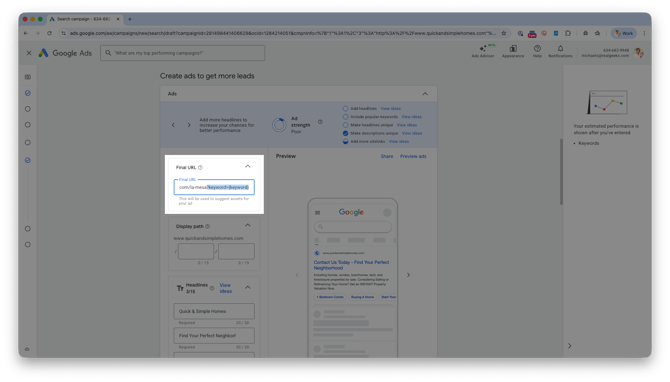
In the Final URL field, enter your destination page URL
-
Add the keyword parameter to the end of the URL:
?keyword={keyword}-
Example: https://www.quickandsimplehomes.com/la-mesa
?keyword={keyword}
-
-
Save and publish your ad
Once the ad is live, Real Geeks will automatically pull the keyword used by the lead and display it on the lead record inside the Lead Manager.
Where to View the Keyword in the CRM
This section explains where keyword data appears once a lead signs up.
-
Open the lead’s profile in the Lead Manager
-
Look at the left-hand menu labeled Source
-
Click View Source Details
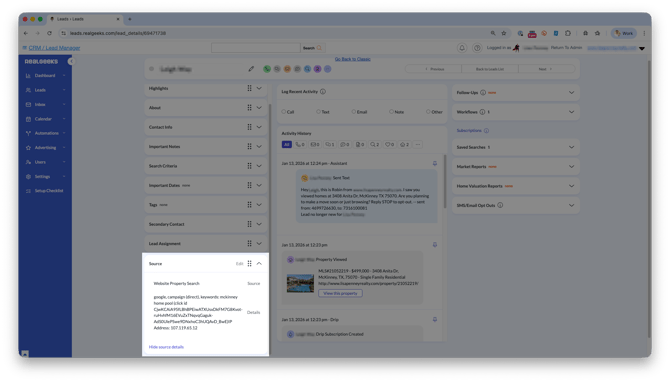
Keyword data is stored with the lead’s source, making it easy to see exactly how that lead found your website.
Troubleshooting
If keywords are not appearing on leads, review the following.
-
Confirm the ad is active and receiving traffic
-
Make sure the URL parameter is typed exactly as ?keyword={keyword}
-
Verify the lead signed up after the change was published
Frequently Asked Questions
Where do I see the keyword in Real Geeks?
The keyword appears in your lead's profile under the Source Details.
Does this work with other ad platforms?
This setup is designed specifically for Google Ads keyword tracking.
Do I need Google Tag Manager or tracking codes?
No. This method relies only on URL parameters.
Need Help?
-
Call us at 844-311-4969 (Mon–Fri, 8 AM–8 PM CST)
-
Email support@realgeeks.com
-
Visit Real Geeks University for free video courses
-
Join the Real Geeks Mastermind Group on Facebook for peer tips and best practices