.svg)
Admin Feature
This feature requires the account owner (or admin) to grant CRM Admin Permissions. If you don't see this option, contact your account owner to enable it for you.
Lead Ponds are a method of lead assignment that allows your team to claim leads for themselves instead of having leads automatically assigned. Rather than pushing a lead to one agent, the system places it into a shared pool where eligible agents can grab it in real time.
Just like fishing, each pond holds a different type of lead. These Ponds let you organize different types of leads into separate groups so agents can “fish” in the pond that fits them best.
Need to Know
-
A Lead Pond is a shared space for unassigned leads that agents can claim.
-
Agents are granted access to specific ponds to view and claim leads.
-
Admins manage pond access and can move leads in or out at any time.
Table of Contents
What Is a Lead Pond?
A Lead Pond is a place inside the Lead Manager where unassigned leads are stored until an agent claims them for follow up. Instead of automatically assigning a lead, the system holds it in a shared space where eligible agents can step in and take ownership.
You can create different Lead Ponds for different situations, such as:
-
Long term nurture leads
-
High priority new registrations
-
Investors or niche audiences
-
Incomplete or incorrect contact information
-
Leads from a specific marketing campaign
-
Leads reassigned from a former agent
Organizing leads this way helps your team focus on the opportunities they are best equipped to convert.
Claim Leads from a Pond
Agents are given access to specific ponds and claim leads that are available in that pond. Once a lead is claimed, the agent takes ownership and can begin working the lead and starting follow up.
Step-by-Step Instructions
-
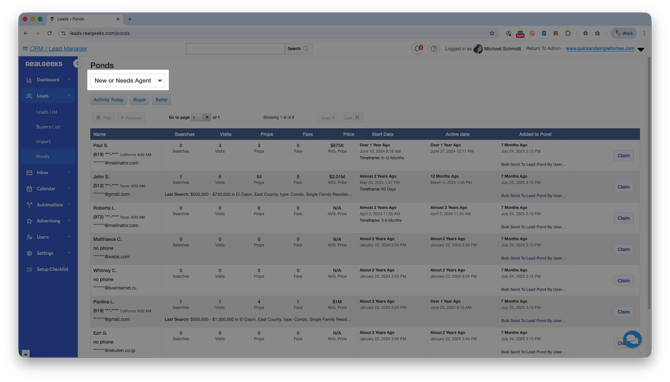
In the CRM Navigation: Go to Leads > click Ponds
-
Use the Pond navigation menu to open a particular Lead Pond
-
Click Claim on the lead you want to work.
Once claimed, the lead is assigned to you and removed from the pond.
Assign Leads to a Pond
Admins can move single or multiple leads into a pond when redistributing opportunities.
To assign a single lead to a lead pond:
-
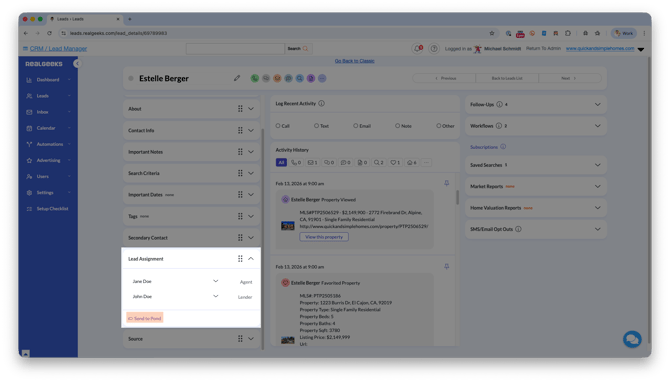
Open the lead profile.
-
In the Lead Assignment menu, click Send to Pond
-
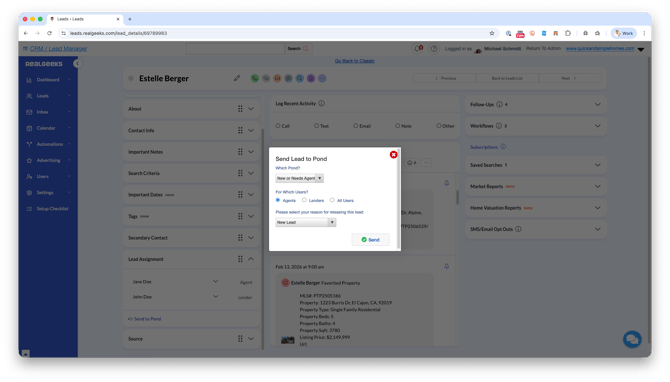
Select the destination Pond
-
Assign this to be claimed by agents or lenders
-
Select the reason for sending to your pond
-
Click Send
To assign multiple leads to a single pond:
-
Go to the CRM Leads List
-
Target your leads with an Advanced filter or the selection checkboxes
-
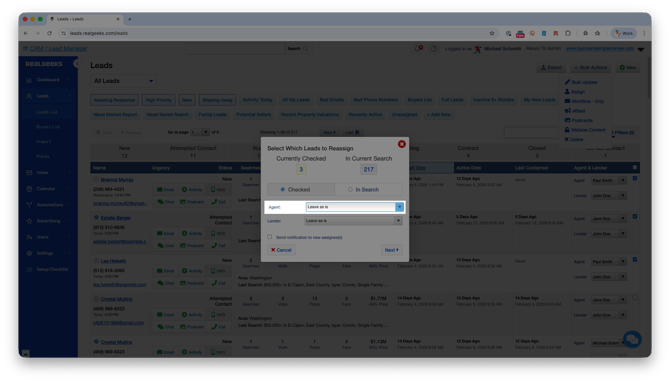
Click Bulk Actions
-
In the Agent menu, select your Lead Pond
-
Click Next
-
Enter the confirmation code provided
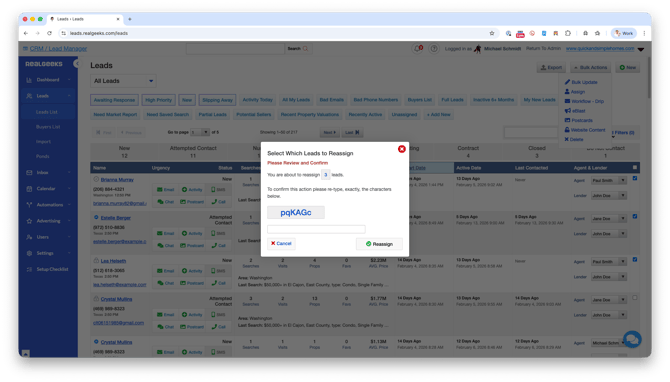
- Click Reassign
Create a Lead Pond
Admins can create and customize new ponds to support their lead strategy.
-
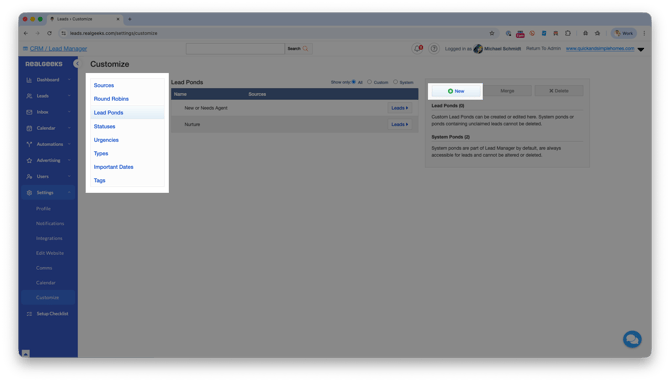
Go to Settings > click Customize
-
Select Lead Ponds
-
Click New
-
Name the pond.
-
Click Add
You can create ponds based on lead source, timeline, campaign type, or team structure to support your overall lead strategy.
Manage Agent Access to a Pond
You can manage which ponds an agent is allowed to claim leads from based on experience, performance, or territory.
For example, you might give more experienced agents access to a "Hot Leads" pond for high-priority opportunities, or create ponds by geographic location and allow only the agents who actively work those areas to claim those leads.
To do this:
-
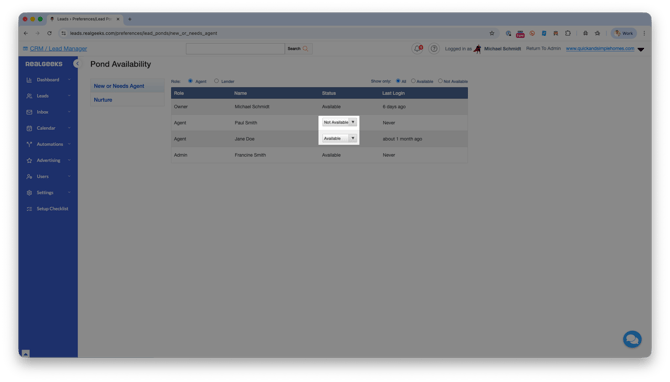
Select Users > Pond Availability
-
Select Your Lead Pond in the menu
-
Adjust your lead's status to Available to give that agent access to that pond
Need Help?
- Call us at 844-311-4969 (Mon–Fri, 8 AM–8 PM CST)
- Email support@realgeeks.com
- Visit Real Geeks University for free video courses
- Join the Real Geeks Mastermind Group on Facebook for peer tips and best practices