.svg)
Bad or missing contact information does not mean a lead is lost. It usually means the lead is early, cautious, or made a simple mistake. Real Geeks includes built-in tools that help you recover these leads, request updated details, and re-engage them when they return.
Need to Know
-
Leads may submit incorrect or incomplete contact details intentionally or by mistake
-
When contact information is marked as bad, Real Geeks automatically prompts the lead to provide valid details during future site visits
-
Real Geeks verification tools will automatically flag emails and phone numbers as "bad" if they find a history of invalid contact behavior
-
Workflows and templates help manage and recover leads with bad contact information
-
Leads with bad contact info can still browse your website and generate valuable activity history
Table of Contents
How Leads End Up with Bad or Missing Contact Information
Bad or missing contact information is common with online home search leads. It can result from how a lead signs up, what they choose to share, or how their details change over time. Understanding the main reasons helps you interpret what you see in your Lead Manager and respond with confidence.
Leads can end up with bad or missing contact details for several reasons:
-
The lead mistyped their email address or phone number during sign-up.
-
The lead prefers to browse listings anonymously before engaging with an agent.
-
The lead used Google Sign-In, which may not share a phone number because of Google security settings. Review the Google Sign-In guide to learn how to manage these options.
-
The lead used Facebook Login, which does not pass a phone number during login. Review the Facebook Login guide to learn how to manage these options.
-
Real Geeks contact verification may automatically flag an email address or phone number as invalid based on delivery or validation checks, even if that information later proves to be usable.
How to Manage Bad Contact Information
Use a mix of manual outreach, automation, and system prompts so your Lead Manager keeps working even when a lead is not responsive.
1. Create Bad Contact Info Templates
Create short, neutral templates you can reuse anytime contact information is incorrect. These messages are only meant to confirm the best way to reach the lead.
Create a Bad Email Text Template
Use a text message when an email address bounces or is marked as invalid.
Step-by-Step Instructions
-
Go to the Text Template page in the CRM
-
Click Create New
-
Name the template something easy to recognize, like:
Bad Email -
Keep the message short and focused on confirming contact information
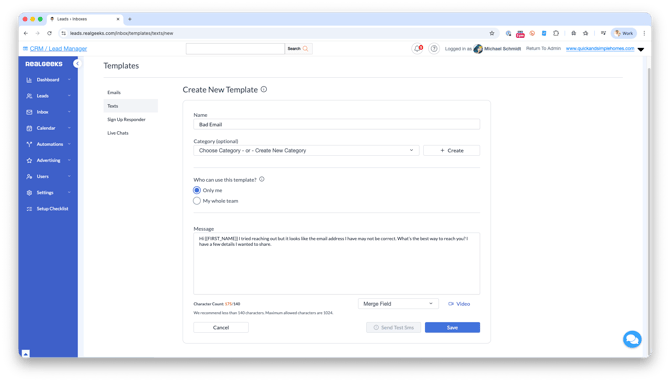
- Click Save
Message Template
Use this text message template to quickly engage leads:
"Hi {{FIRST_NAME}}, I tried reaching out but it looks like the email address I have may not be correct. What’s the best way to reach you? I have a few details I wanted to share."
Create a Bad Phone Number Email Template
Use an email when a phone number is missing or marked as bad.
Step-by-Step Instructions
-
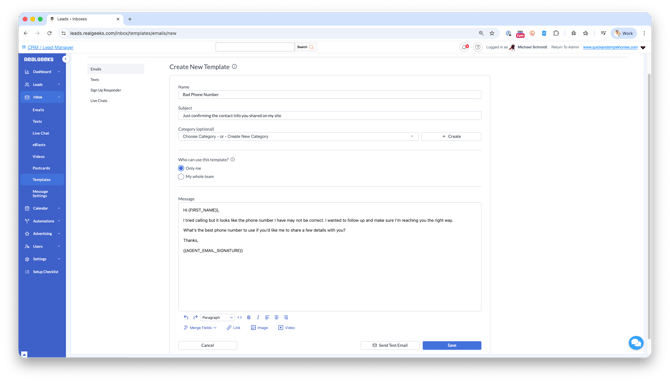
Go to the Email Template page in the CRM
-
Click Create New
-
Name the template something easy to recognize, like:
Bad Phone Number -
Keep the message short and focused on confirming contact information
-
Click Save
Message Template
Use this email template to request updated contact information:
Subject Line: Just confirming the contact info you shared on my site
Message: "Hi {{FIRST_NAME}},
I tried calling but it looks like the phone number I have may not be correct. I wanted to follow up and make sure I’m reaching you the right way.
What’s the best phone number to use if you’d like me to share a few details with you?
Thanks,"
2. Subscribe the Lead to a "Bad Email" or "Bad Phone Number" Workflow
Real Geeks includes pre-built workflows specifically designed to recover leads with bad email addresses or phone numbers. These workflows are ready to use and help you stay consistent without building anything from scratch.
How to Access the Pre-Built Bad Contact Workflows
Use the Drip Library to add these workflows to your account.
-
In the CRM: click Automations > Drip Library
-
Scroll to find the
Buyer Leads - Bad Emailor theBuyer Leads - Bad Phone Numberworkflows -
Click Save a Copy
-
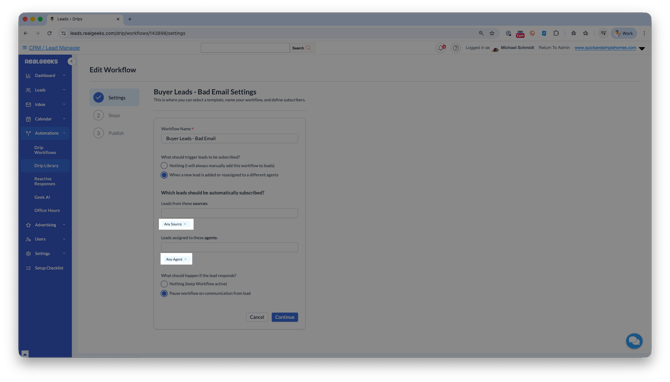
Disable the Automated subscription options
- Click the X next to Any Source
- Click the X next to Any Agent
-
Click Continue
- Click Publish
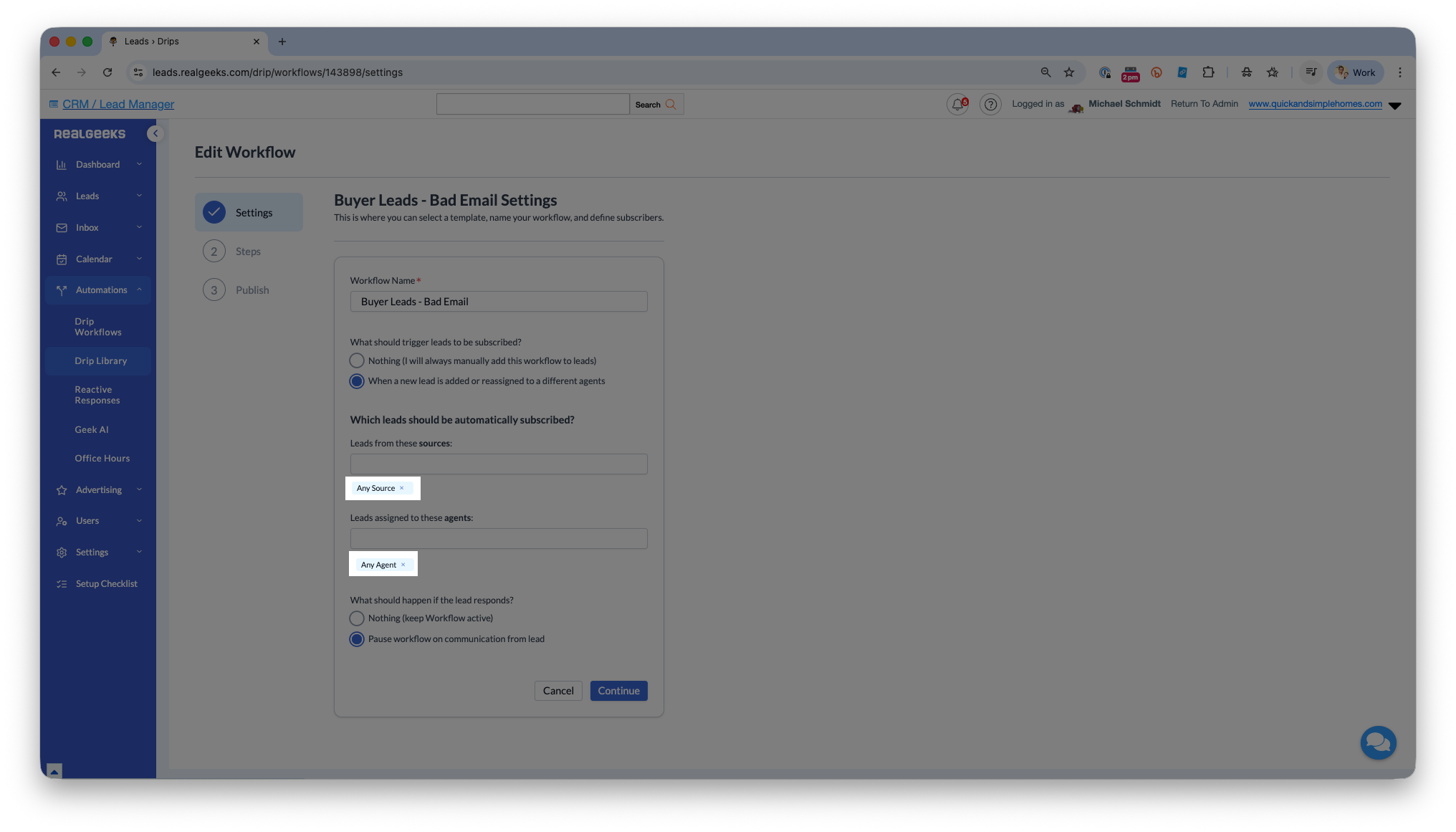
This ensures the workflows are available for manual use and are not automatically assigned to all leads.
How to Assign a Bad Contact Workflow to a Lead
Once the workflows are added, you can assign them as needed.
-
Open the lead profile
-
Go to the Workflows section
-
Click Select a Workflow
-
Choose the
Buyer Leads - Bad Emailor theBuyer Leads - Bad Phone Numberworkflow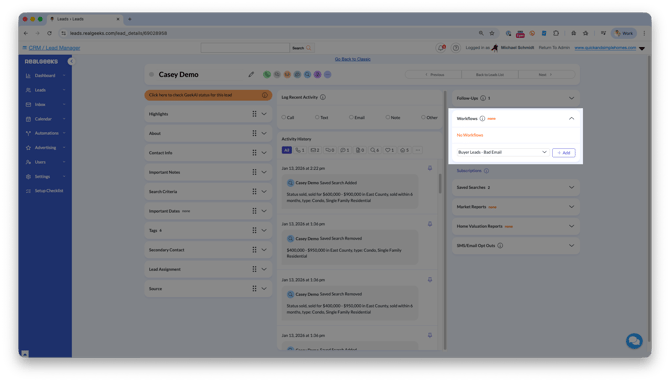
-
Click Add
These workflows send short follow-up messages over several days and work alongside your manual outreach and system prompts.
3. Manually Mark Contact Information as Good or Bad
Real Geeks uses contact verification to check whether email addresses and phone numbers are valid. In some cases, information may be marked as bad even when you know it is usable.
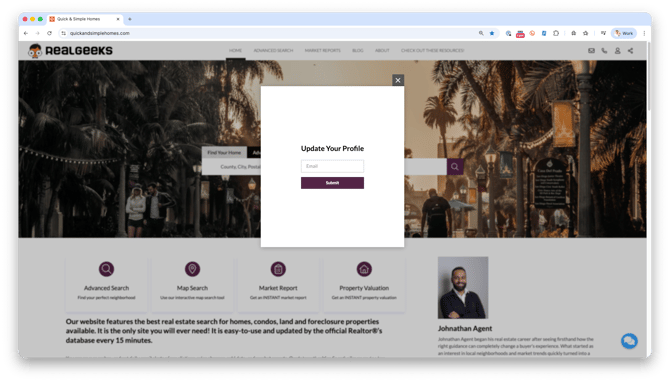
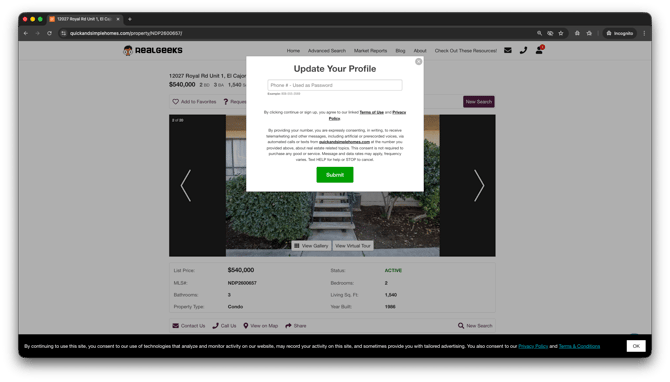
You can manually change a lead’s contact information status directly from their profile. When you mark an email address or phone number as bad, Real Geeks will prompt the lead to confirm or update that information the next time they visit your site.
Example: Lead Asked to Confirm Email Address
Example: Lead Asked to Confirm Phone Number
If you know a lead’s email or phone number is valid but it was marked as bad, you can update the status so that contact method can be used again.
Step by Step Instructions:
-
Open the lead profile in your Lead Manager
-
Go to the Contact Info section
-
Click the primary email address or phone number
-
Select Mark as Good or Mark as Bad
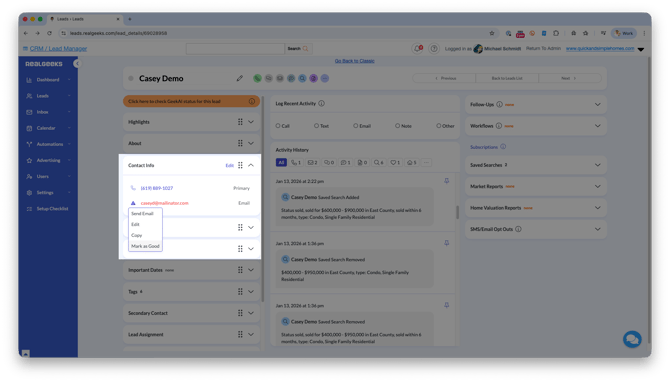
Marking contact information as good updates the lead profile and allows that contact method to be used again.
Important
-
Do not mark contact information as good unless you are confident it is valid
-
If an email or phone number was flagged due to delivery failures, verify it directly with the lead before changing the status
Best Practices
Bad contact information does not reduce a lead’s long-term value. Many of these leads continue browsing your website and coming back over time. You might have heard the saying, "all press is good press". The same applies to website traffic. Even leads with incorrect contact information still visit your site, which helps show your website is active. If a lead is browsing but has not updated their information, let them continue using the site.
-
Keep leads with bad contact info in your system to preserve activity history
-
Remove leads from active follow-up instead of deleting them
-
Allow leads to browse even if they close update prompts
-
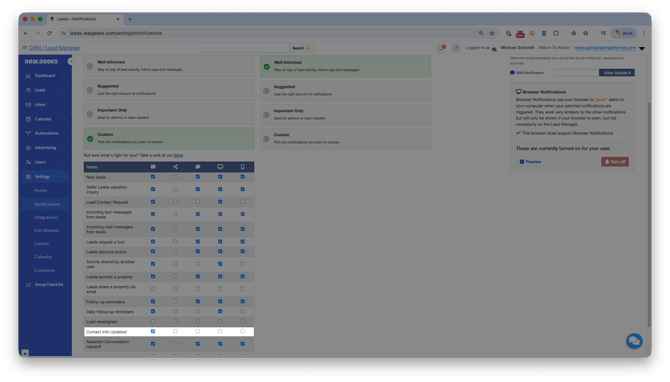
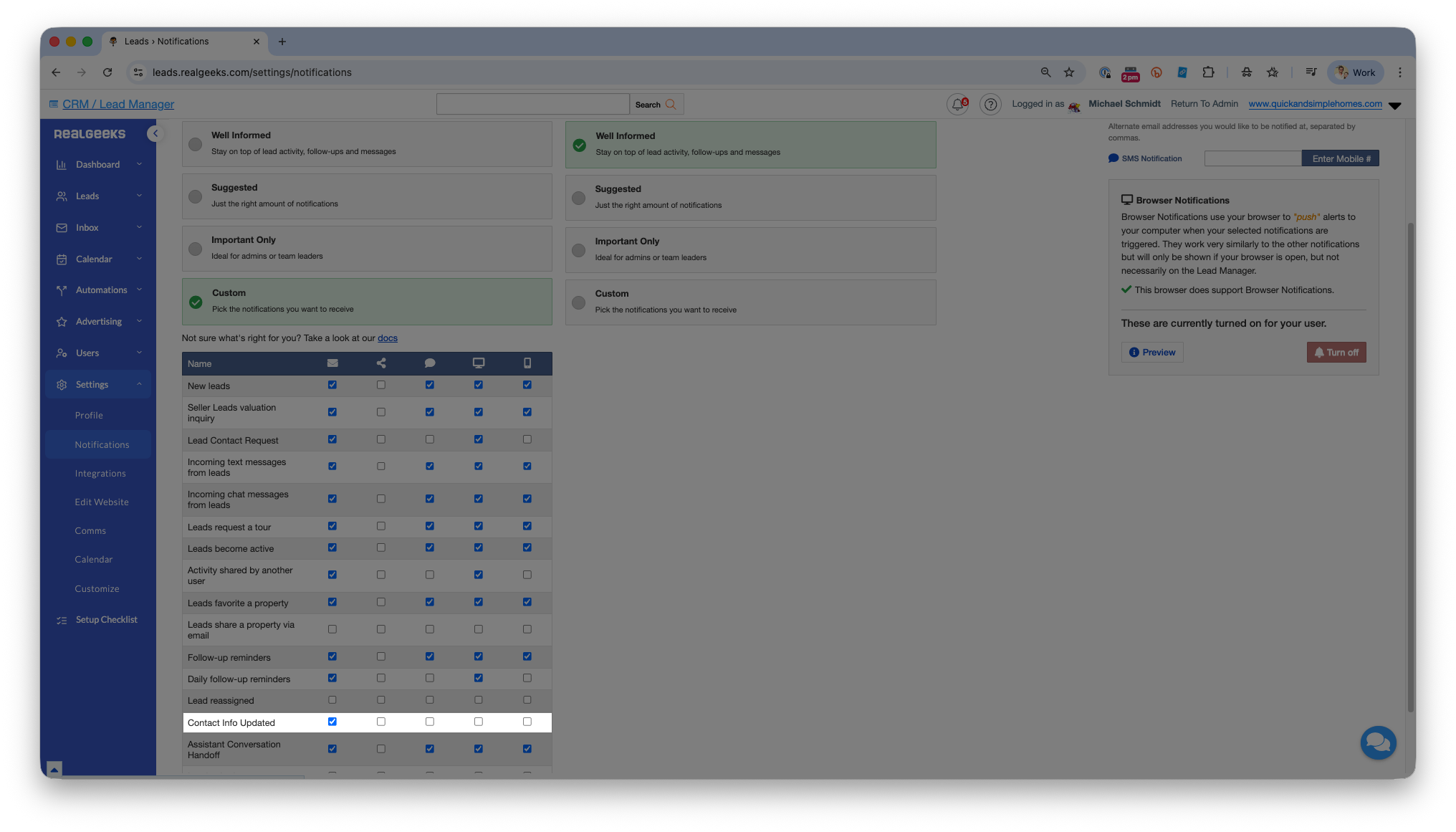
Enable the "Contact Info Updated" notification setting so you know when a lead's contact information is updated and you can contact them
Troubleshooting
-
If emails continue bouncing, first check whether the lead's email address is marked as bad in the CRM, then confirm the lead is subscribed to the correct workflow
-
If a phone number that should be flagged is not marked as bad, open the lead profile, click the phone number, and select Mark as Bad
-
If you are not receiving alerts, check your notification settings in the Lead Manager
Frequently Asked Questions
Does bad contact information mean the lead is fake?
No. Many real buyers and sellers intentionally provide limited or incorrect contact details early in their home search process. Bad contact information is a common pattern with online real estate leads and does not indicate fraud.
Do I need to create my own workflows?
No. Real Geeks includes two pre-built starter workflows available in the Drip Library: Buyer Leads - Bad Email and Buyer Leads - Bad Phone Number. Save a copy of either workflow and assign it to leads manually — no custom build required.
What happens if the lead never updates their info?
The assigned workflow continues sending follow-up messages, and Real Geeks will automatically prompt the lead to update their details the next time they visit your website. If the workflow completes without a response, keep the lead in your system for activity tracking without actively following up.
Need Help?
-
Call us at 844-311-4969 (Mon–Fri, 8 AM–8 PM CST)
-
Email support@realgeeks.com
-
Visit Real Geeks University for free video courses
-
Join the Real Geeks Mastermind Group on Facebook for peer tips and best practices