.svg)
Real Geeks managed marketing leads now display the specific ad channel as their Source in the Lead Manager. If you’re on a Grow, Expand, or Conquer plan, new leads will show updated Source labels such as RG Google or RG Facebook — making it easier to filter, follow up, and route leads by channel.
Need to Know
-
Applies only to Grow, Expand, and Conquer managed marketing plans
-
New leads will show updated Source labels (e.g., RG Google, RG Facebook)
-
Existing leads will not change
-
Default Workflows and filters have already been updated
-
Custom Workflows and Round Robin rules may need to be reviewed
Table of Contents
What’s Changing with Lead Sources
New managed marketing leads now show the exact advertising channel and lead type in the Source field inside the Lead Manager. This means you can immediately see where each lead originated and build a targeted follow-up strategy based on channel and opportunity type.
| Lead Type | Old Label | New Label |
|---|---|---|
| Google buyer | Website Property Search | RG Google |
| Bing buyer | Website Property Search | RG Bing |
| Facebook buyer | Website Property Search | RG Facebook |
What Does “RG” Mean?
RG stands for Real Geeks. Any Source that begins with “RG” indicates the lead came from your Real Geeks managed marketing campaigns.
How to Filter Leads by Source
Filtering leads by Source allows you to quickly view every lead that registered from a specific advertising channel. This makes it easy to take targeted action, such as sending a mass email, subscribing leads to a specific Workflow, or prioritizing follow-up based on lead type.
-
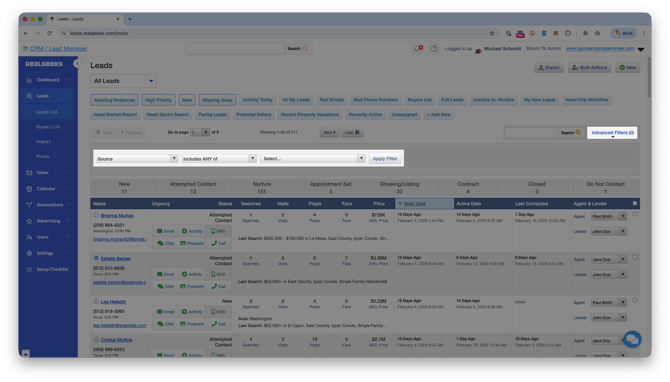
Click Advanced Filters.
-
Select Source from the dropdown.
-
Choose a specific Source (for example, RG Google).
-
Click Apply Filter
Your Leads List will now display only leads from that channel.
Pro tip:
Save your filter so you can access it anytime with one click.
How to Create a Workflow by Source
Creating a Workflow based on Source allows you to tailor your follow-up strategy to how the lead found you. Different channels often require different messaging and timing, so this helps you engage each lead more intentionally and automatically subscribe them to a unique campaign based on their Source.
-
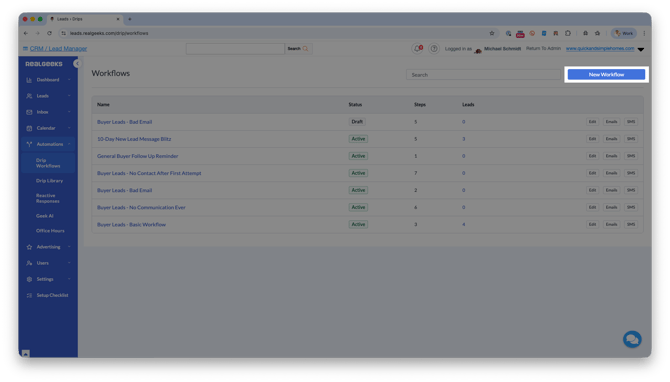
Go to Automations → Drip Workflows.
-
Click New Workflow.
-
Select Blank Workflow
-
Enter your Workflow Name
- Make this descriptive and easy to recognize by who it’s for.
For example: Facebook Marketing Leads Intro.
- Make this descriptive and easy to recognize by who it’s for.
-
Under
What should trigger leads to be subscribed?, select When a new lead is added or reassigned to a different agents - Under
Leads from these sources:, type in the appropriate source (for example, RG Facebook). - Under
What should happen if the lead responds?select Pause workflow on communication from lead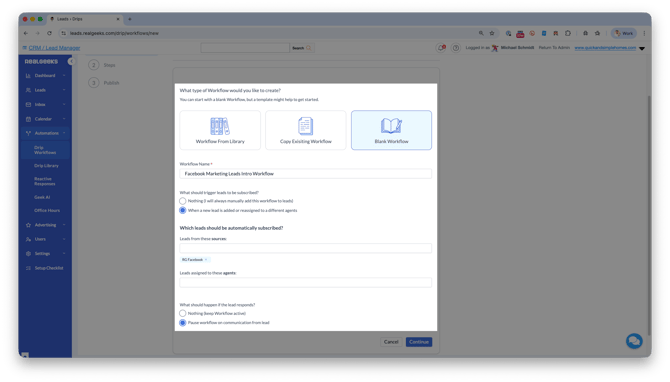
- Click Continue
- Build your Workflow steps.
- Click Publish
This will create the workflow campaign, and will immediately be assigned to any leads that register with the selected source. Build out a campaign for every unique source to have a unique campaign for your leads.
Example strategy:
-
RG Google leads often show higher intent because they actively searched for homes. Consider a faster, more direct follow-up sequence.
-
RG Facebook leads may benefit from a longer nurture sequence focused on education and relationship-building.
How to Route Leads by Source (Round Robin)
Routing leads by Source allows you to assign specific types of opportunities to the right agents. For example, you may want certain team members handling seller leads or high-intent Google buyers to ensure the best follow-up experience.
-
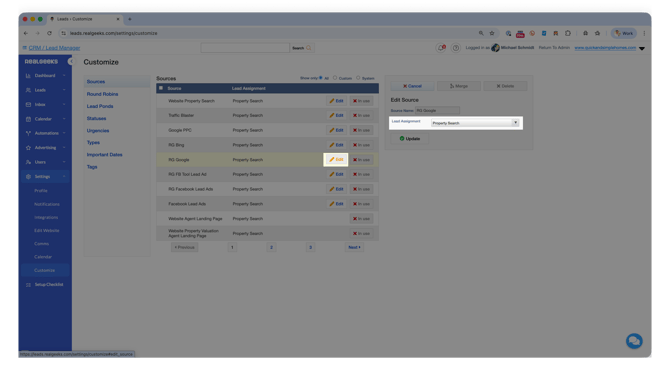
Go to Settings → Customize.
-
Next to your Marketing Source (RG Facebook, RG Google, etc...) click Edit
-
In the Lead Assignment menu, select a single agent or Round robin
- Choosing an Agent will always assign leads with that source to that single agent
- Choosing Round Robin will evenly distribute leads from this Source among the agents assigned to that Round Robin
-
Click Update
Do I Need to Update Anything?
If you are using any workflows or lead filters set up by the marketing team:
-
No additional action is required. These have already been updated for you.
If you have custom Workflows or Round Robin rules:
-
Review any rules that reference older Source names.
-
Update them to use the new RG Source labels.
-
Save and test your changes.
Frequently Asked Questions
-
Will my existing leads change their Source label?
No. Only new leads going forward will use the updated naming. Existing leads will keep their original Source label. -
I’m on the Establish plan. Does this apply to me?
No. This applies only to Real Geeks managed marketing leads on Grow, Expand, and Conquer plans. -
What happened to “Website Property Search”?
That Source is still used for organic website traffic. It is no longer used for managed marketing leads. -
My custom Workflow stopped triggering. What should I do?
It is likely referencing an old Source name. Edit the Workflow, update the Source condition to the new RG label, and save your changes. -
Can I still view all leads together?
Yes. The default Lead Manager view shows all leads regardless of Source. The new labels simply give you more filtering control.
Need Help?
-
Call us at 844-311-4969 (see our website for current support hours)
-
Email support@realgeeks.com
-
Visit Real Geeks University for free video courses
-
Join the Real Geeks Mastermind Group on Facebook for peer tips and best practices