.svg)
The Real Geeks CRM Mobile App lets you manage leads, create Follow-Ups, log notes, and track conversations from your phone — wherever you are. Whether you're leaving a showing, finishing a call, or between appointments, the app keeps you organized and ensures no opportunity is missed.
Download the App
Apple App Store | Google Play Store
Need to Know
-
Follow-Ups and notes created in the mobile app automatically sync with desktop
-
You can view Follow-Ups by Today, Upcoming, and Past Due
-
Notes are time-stamped and stored in the lead profile
-
Push notifications help you stay on top of lead activity in real time
-
The mobile app helps you create immediate next steps after every interaction
Table of Contents
How Follow-Ups Work in the Mobile App
Follow-Ups help you track the next action you plan to take with a lead so conversations continue moving forward.
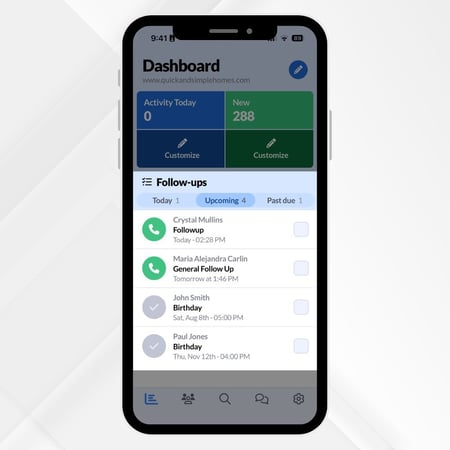
Inside the mobile app dashboard, you can view Follow-Ups by:
-
Today
-
Upcoming
-
Past Due
You can also manage Follow-Ups directly inside a lead’s profile from the Follow-Ups tab.
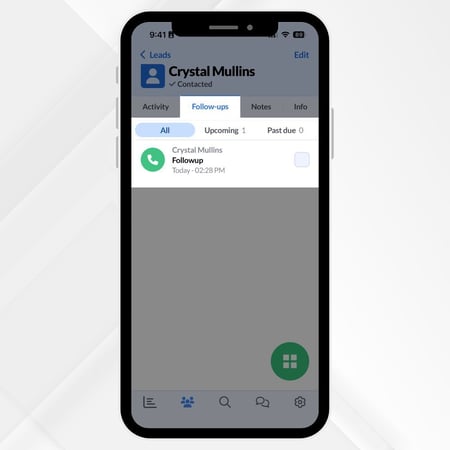
These Follow Ups Allow You to:
-
Keep your pipeline organized
-
Prioritize your daily outreach
-
Maintain visibility into upcoming tasks
-
Prevent leads from slipping through the cracks
Please Note
All Follow-Ups automatically sync between the mobile app and desktop Lead Manager.
Follow-Ups track your next step for each lead so nothing gets missed. They appear on the dashboard as soon as you open the app.
How to Create and Manage Follow-Ups
Follow these steps to create, edit, or delete a Follow-Up in the mobile app:
-
Open the CRM App
-
Select the contact you want to update
-
Select the Action Menu
-
Select Follow Up
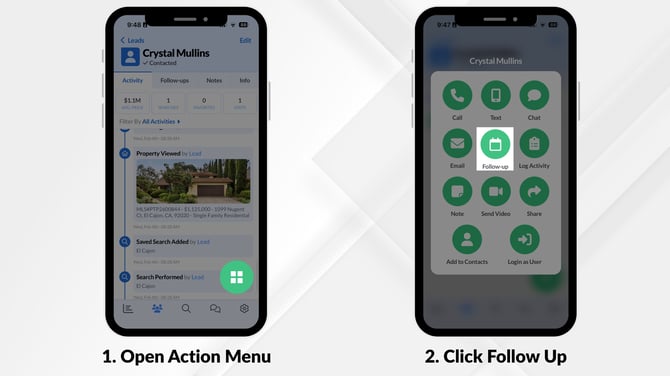
-
Enter the Follow-Up details (type of follow-up, scheduled date, and any notes)
-
Save your changes
This allows you to:
-
Set your next action immediately after a conversation
-
Stay accountable to your follow-up schedule
-
Keep your pipeline moving consistently
How to Add Notes to Leads
Notes help you capture important details about conversations, preferences, and follow-up opportunities.
When you place a call through the CRM Mobile App, you will automatically be prompted to log notes after the call ends.
To manually add a note:
-
Open the CRM App
-
Select the contact you want to update
-
Select the Action Menu
- Tap Note
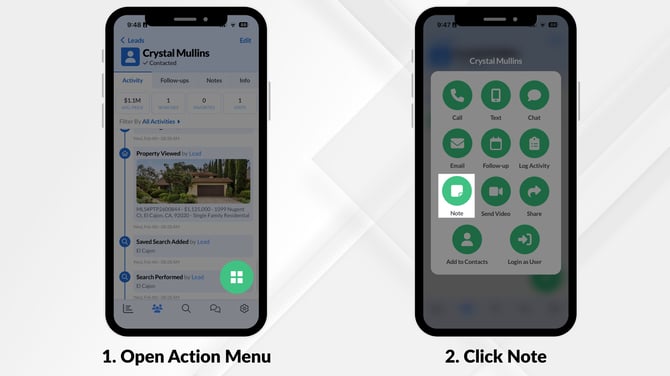
-
Enter your Note details - Save the Note
Notes are time-stamped and help you build better, more personalized follow-up conversations in the future.
Best Practices for Consistent Follow-Up
Consistent follow-up is one of the biggest drivers of lead conversion. The easier it is to take action, the more likely you are to stay engaged with your pipeline.
Best practices:
-
Set your next Follow-Up immediately after every interaction
-
Add detailed notes so future conversations feel personalized
-
Review your Today and Past Due Follow-Ups daily
-
Use the mobile app to update leads while you are still in the field
Using the mobile app consistently helps you create better habits, improve responsiveness, and maintain momentum throughout your day.
Why This Matters for Your Business
In real estate, consistent follow-up is one of the biggest drivers of conversion. The Real Geeks CRM Mobile App removes the friction between a conversation and your next action — so you stay consistent, build trust, and close more deals.
Using the CRM Mobile App helps you:
-
Follow up immediately after conversations
-
Stay organized with clear next steps
-
Keep leads from falling through the cracks
-
Build stronger relationships with better context
By removing the delay between conversation and action, you create a better experience for your leads and increase your chances of closing more deals.
Frequently Asked Questions
-
Can I add tags in the CRM Mobile App?
Currently, tags cannot be added from the mobile app. You can add tags from the desktop CRM. -
Can I add important dates in the mobile app?
This feature is not currently available in the mobile app. For the latest on upcoming features, check the Real Geeks blog or contact support. -
Do Follow-Ups sync between mobile and desktop?
Yes, all Follow-Ups automatically sync between the mobile app and desktop CRM. -
Will drip Follow-Ups show in the mobile app?
Yes, any Follow-Ups from workflows or drip campaigns will appear in the mobile app.
Need Help?
- Call us at 844-311-4969 (Mon–Fri, 8 AM–8 PM CST)
- Email support@realgeeks.com
- View our Live Events page for free coaching and training.
- Join the Real Geeks Mastermind Group on Facebook for peer tips and best practices