.svg)
You can manage the alerts you receive for lead activity, messages, assignments, and follow-ups in your CRM. This guide explains how to choose where notifications are sent, how to view your personal and administrative options, and how to customize the types of updates you receive. These settings help you stay informed while keeping alerts manageable.
Quick Reference
- Admins and site owners can adjust all notification settings at any time.
- Users can only access notification settings when their admin allows it.
- You can update your primary email, alternate emails, mobile number, and browser alerts on the CRM notifications page.
- Admins may limit which notification types users can change.
- Choose a notification tier or customize each alert individually.
Table of Contents
- Manage Notification Access
- Personal Notifications
- Administrative Notifications
- Best Practices
- Troubleshooting
- Frequently Asked Questions
- Need Help?
Manage Notification Access
Notification settings are managed on the CRM Notifications page. To navigate there, go to your CRM account, click your profile or settings icon, and select Notifications.
Admins and site owners always have access and can adjust their notifications at any time.
Users may or may not have access, depending on what their admin has allowed. If a user does not see the notifications page, they will need to contact their admin to request permission.
Once you can open the notifications page, you can update where your notifications are sent:
Where Your Notifications Go
- Primary email: The main email address where you receive notifications from the CRM.
- Alternate emails: Extra email addresses where you want to receive the same notifications. Many agents use an alternate email to separate personal notifications from administrative ones.
- Mobile number: The phone number used to receive text message notifications.
- Browser alerts: Notifications that appear in your web browser while you are signed in to the CRM.
About Permissions
Admins control which notification settings users can access and change. They may pre-set or limit certain options for their team. If you cannot adjust a setting, it has been managed by your admin. Admins are encouraged to share how and why notifications are configured.
Personal Notifications
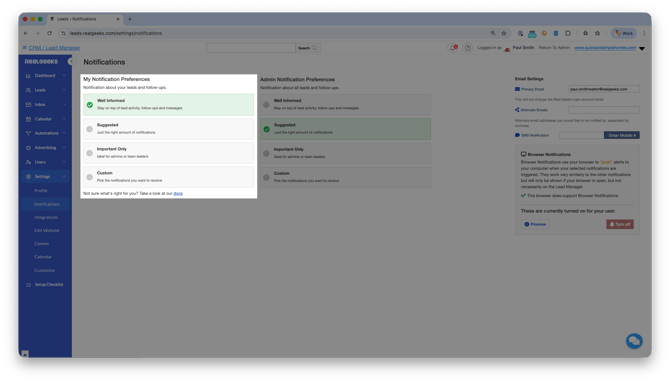
Personal notifications alert you to activity on leads assigned to you. These help you respond quickly to new messages, actions, and updates. Below is a short explanation of each notification type so you know exactly what to expect.
Notification Types
- New lead: Sent when a new lead is assigned to you.
- Lead contact request: Sent when a lead submits a contact form on your site.
- Incoming text message: Sent when a lead replies by text inside the CRM.
- Incoming chat message: Sent when a lead sends a chat message through your site.
- Lead becomes active: Sent when a lead returns to your site and views properties.
- Tour request: Sent when a lead requests to schedule a home tour.
- Favorite property: Sent when a lead adds a listing to their favorites.
- Shared property: Sent when a lead shares a property through your site.
- Contact info updated: Sent when a lead updates their contact details.
- Valuation request: Sent when a lead submits a home valuation inquiry.
- Potential seller lead: Sent when a new seller lead is identified and assigned to you.
- Lead reassigned: Sent when a lead previously assigned to you is reassigned to another user.
- Lead added to a pond: Sent when a lead is added to a pond (a shared lead group) you have access to.
- Lender assignment: Sent when a lender is assigned to one of your leads.
- Follow-up reminder: Sent when a follow-up you scheduled is due.
- Daily follow-up summary: A daily list of all follow-ups due (if enabled).
- Activity shared: Sent when another user logs an activity on one of your leads.
About Notification Tiers
The CRM includes preset notification tiers to help you get started quickly. Each preset tier activates a recommended set of notifications — choose a lower tier for fewer alerts or a higher tier for more comprehensive coverage.
When you switch to the Custom tier, your selections from the preset tier are kept so you can turn specific notifications on or off as needed.
How You Choose How Each Notification Is Delivered
Each notification type includes columns that let you choose how you receive that alert. After selecting the Custom tier, you can enable notifications by method using the columns for:
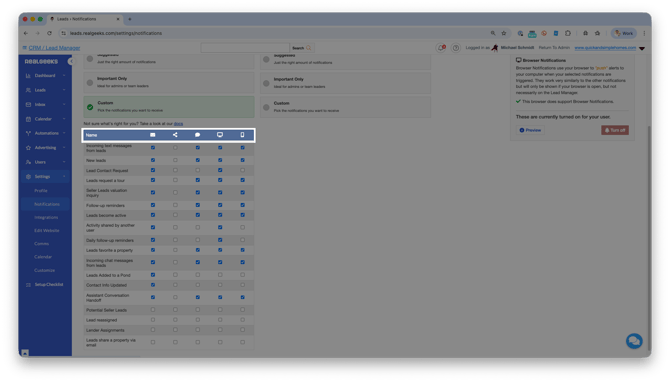
 Primary email
  Alternate email
  Text message
 Browser notifications
 CRM App
This lets you control both which notifications you receive and how you receive them.
Administrative Notifications
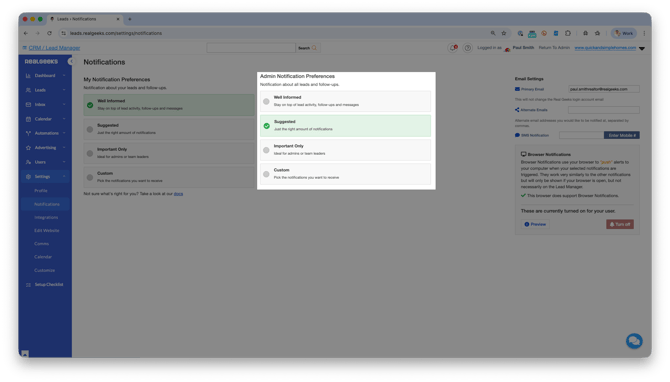
Administrative notifications alert admins and site owners to activity happening across the entire CRM, including leads and actions handled by all users. This helps team leaders monitor engagement, follow-up behavior, and overall activity.
Notification Types
- New lead (any user): Sent when a lead is assigned to someone on your team.
- Lead contact request: Sent when any lead submits a contact form.
- Incoming text message: Sent when a lead sends a text to any user.
- Incoming chat message: Sent when a lead sends a chat message to any user.
- Lead becomes active: Sent when any lead returns to your site and views properties.
- Tour request: Sent when any lead requests a property tour.
- Favorite property: Sent when any lead marks a listing as a favorite.
- Shared property: Sent when any lead shares a property.
- Contact info updated: Sent when a lead updates their contact details.
- Valuation request: Sent when any lead submits a valuation inquiry.
- Lead reassigned: Sent when a lead is reassigned between users.
- Lead claimed from a pond: Sent when a user claims a lead from a pond.
- Outgoing email: Sent when any user sends an email from the CRM.
- Follow-up reminder: Sent when any user has a follow-up due.
- Daily follow-up summary: A daily list of follow-ups due across the entire team.
- Activity logged: Sent when a user logs an activity on any lead.
- Activity shared: Sent when someone creates or shares an activity on a lead.
About Notification Tiers for Admins
Admins can also use preset notification tiers to quickly activate recommended combinations of administrative alerts. Like personal notifications, switching to the Custom tier allows you to turn individual notifications on or off depending on your oversight needs.
Best Practices
-
Add alternate emails if you monitor leads from multiple inboxes.
-
Use text alerts for items you want to respond to quickly.
-
Enable browser notifications while you are working in the CRM.
-
If you manage a team, review administrative alerts regularly to monitor agent follow-up activity and ensure no leads go uncontacted.
Troubleshooting
-
If you are not receiving text alerts, confirm that your mobile number is correct.
-
Make sure text notifications are turned on for the alert types you want.
-
If you cannot access notification settings, your admin may need to update your permissions in the CRM.
-
Check that alternate emails are spelled correctly.
-
Allow browser notifications if you want alerts while using the CRM on your computer/laptop.
Frequently Asked Questions
Why am I not receiving text notifications?
Check your mobile number and make sure text notifications are turned on for the alert types you want.
Why can’t I adjust my notification settings?
Your admin controls whether users can change notification settings. If a setting is locked or greyed out, your admin has restricted that option. Contact your admin to request a change.
Can admins set notifications for their team?
Yes. Admins can update notification preferences for any user.
Do bulk lead assignments send notifications?
No. Bulk lead reassignments do not trigger new-lead alerts. Only individual lead assignments generate a New Lead notification.
Need Help?
- Call 844-311-4969 (Mon–Fri, 8 AM–8 PM CST)
- Email support@realgeeks.com
- Visit learn.realgeeks.com for free courses
- Join the Facebook Mastermind community for user tips