.svg)
The Polygon map tool allows you to draw a custom search area directly on a map so you can view listings inside a very specific boundary. Instead of relying only on MLS city or neighborhood fields, you can outline the exact area you want to search.
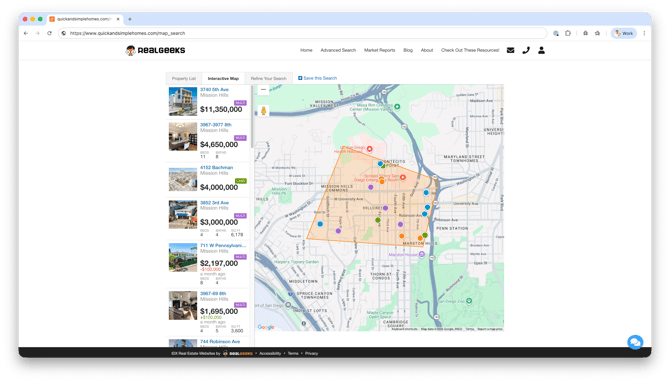 Agents commonly use the Polygon tool in two powerful ways: creating custom Saved Searches for leads and building hyper‑local property pages on their website. Both options help deliver more relevant listings and highlight precise market areas that standard MLS filters may not support.
Need to Know
-
The Polygon tool allows you to draw a custom property search boundary directly on the map
-
Ideal for targeting neighborhoods, subdivisions, school zones, or locally recognized areas not defined by MLS fields
-
Listings inside the drawn area will appear in the search results
-
You can use polygons when creating Saved Searches for leads in the CRM
-
You can also use polygons to power listing displays on Content Pages or Area Pages
Table of Contents
What the Polygon Tool Does
The Polygon map tool lets you manually draw a search boundary on the map by placing points that connect together to form a custom shape.
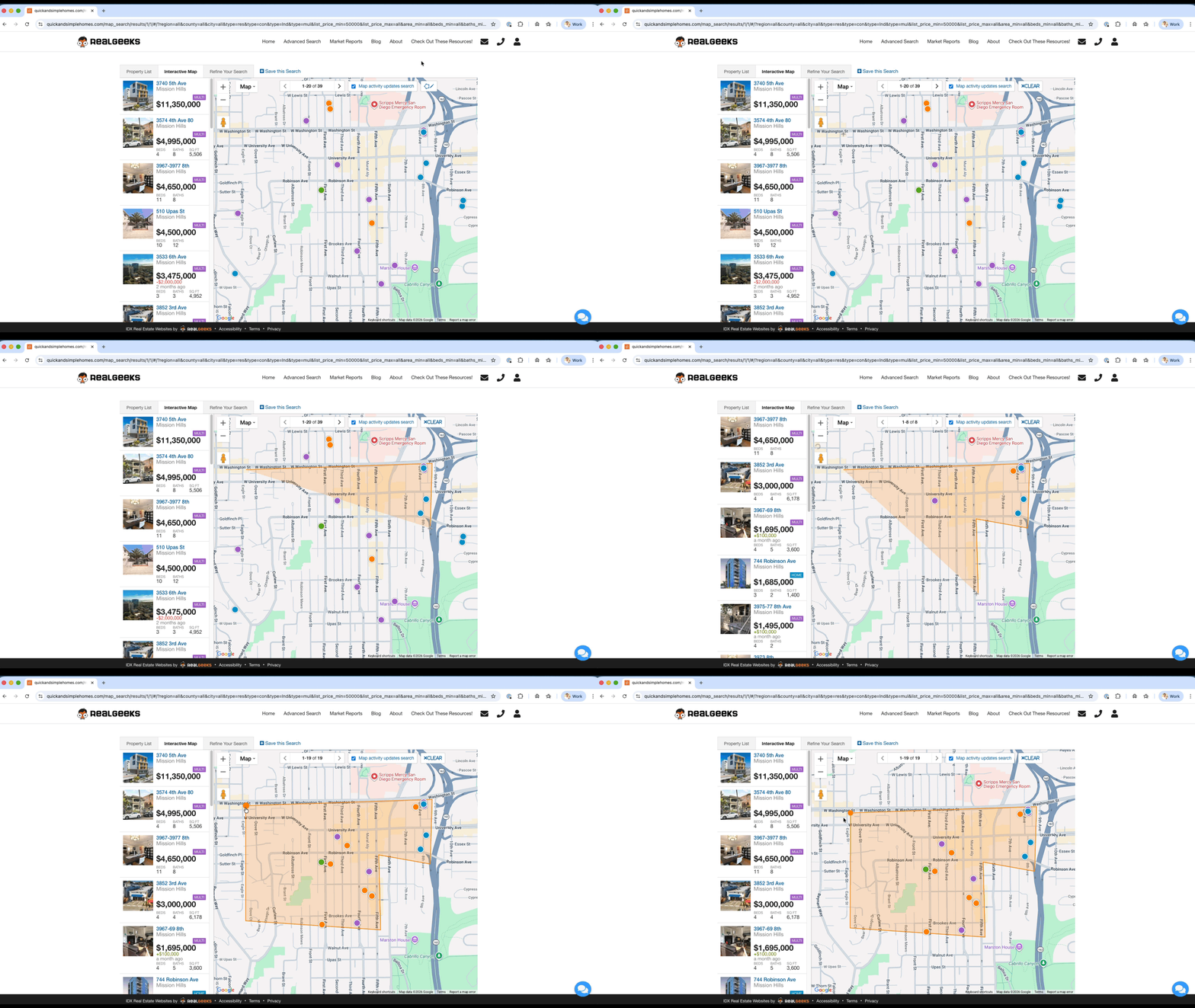
Once the polygon is completed, the search will return listings located inside that boundary. This gives you precise control over which properties appear in a search.
This is especially helpful when working with areas that do not follow standard MLS boundaries, such as:
-
Subdivisions
-
School districts
-
Waterfront areas
-
Lifestyle communities
-
Locally named neighborhoods
Why Agents Use Polygon Searches
Polygon searches allow you to create more targeted property searches for both your website visitors and your CRM leads.
Common benefits include:
-
Create hyper‑local listing searches
-
Deliver more relevant property alerts to leads
-
Highlight micro‑markets or niche communities
-
Create SEO pages targeting specific local areas
-
Provide a better home search experience for buyers
How to Create a Polygon Saved Search for a Lead
Use the Polygon tool when creating a Saved Search in the CRM to send property alerts based on a custom map area.
-
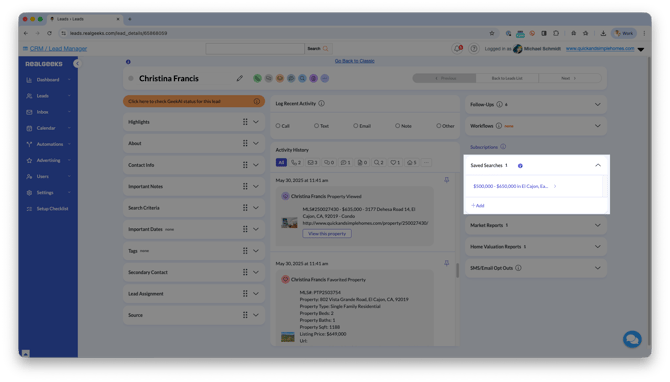
Open the lead's profile in your CRM
-
Open the Saved Search menu
-
Click Add
-
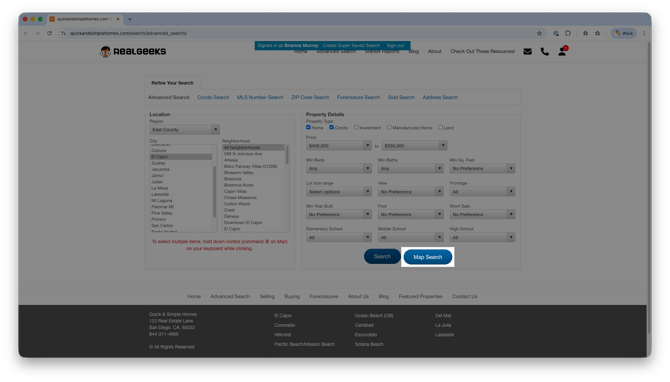
Build the search using a general location and the lead's search criteria, then click Map Search
-
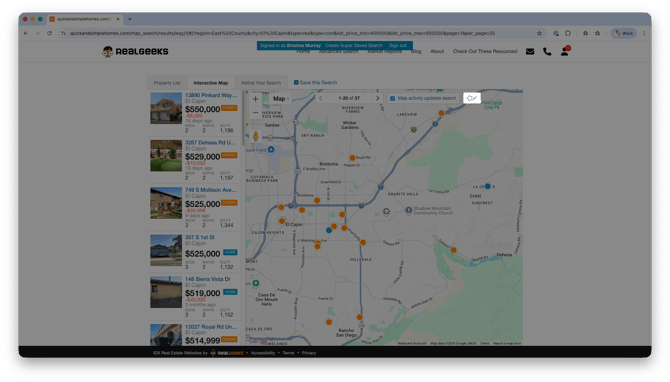
Click the Polygon icon
-
Click points on the map to draw the desired search area
-
Return to your starting point to close the polygon
-
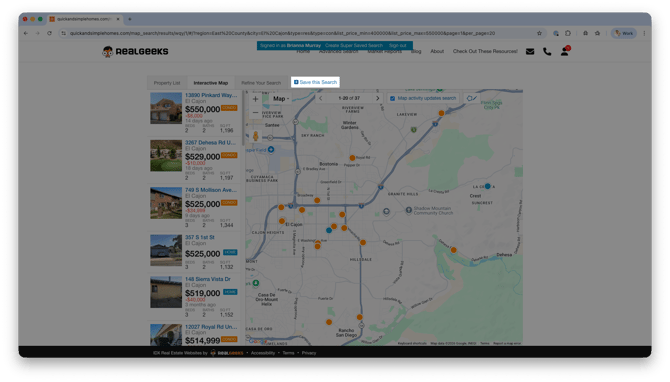
Click Save this Search
-
Enter a descriptive name for the search
-
Choose the email frequency
-
Click Save
Your lead will now receive property alerts that only include listings inside the drawn polygon area.
How to Create Hyper-local Pages with the Polygon Tool
You can also use the Polygon tool when creating listing display pages on your website. This allows you to build hyper‑specific pages showing listings within a drawn map area.
This works well for showcasing specific neighborhoods or custom geographic areas that may not exist as MLS search fields.
-
Open your website editor by adding /admin to the end of your website address (e.g. www.yourwebsite.com/admin)
-
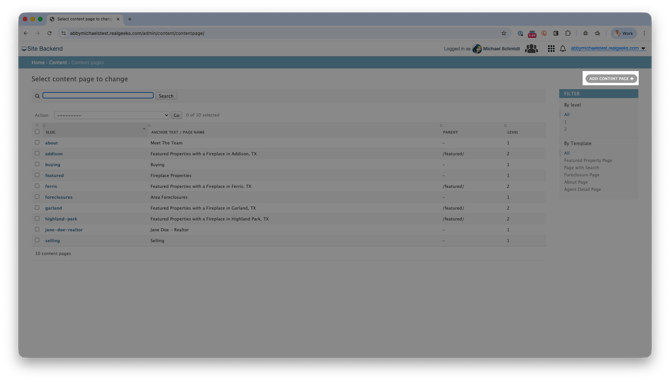
Open the Content (or Area) Page, then click Add Content Page
-
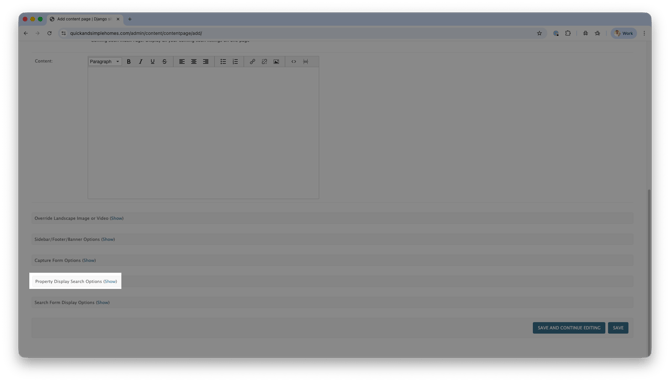
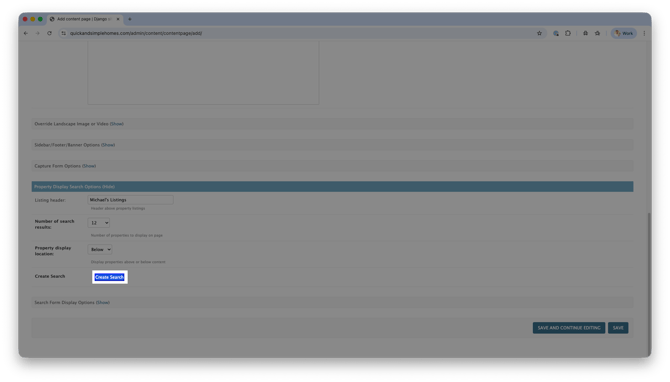
Scroll to Property Display Search Options, and click Show
-
Enter a Listing Header
-
Click Create Search
-
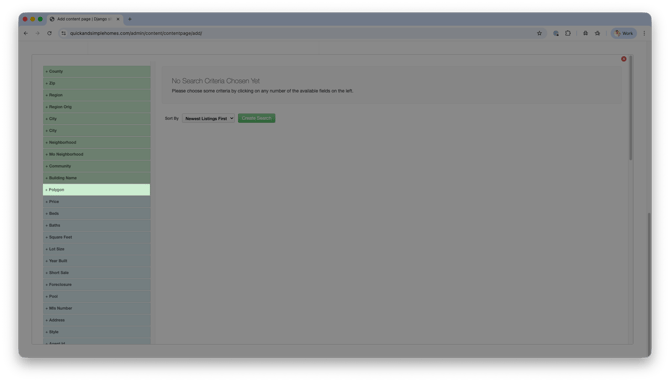
Select Polygon
-
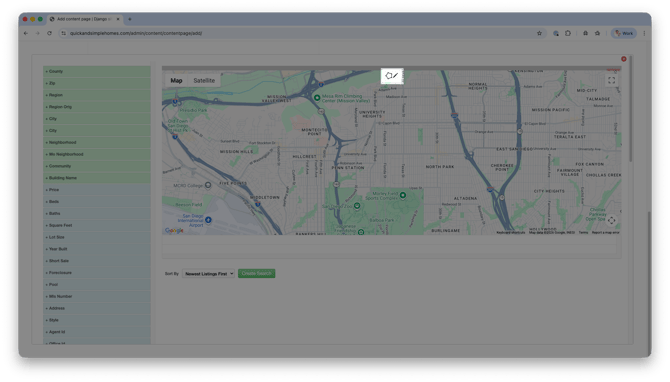
Zoom the map to your desired area
-
Click the Polygon icon
-
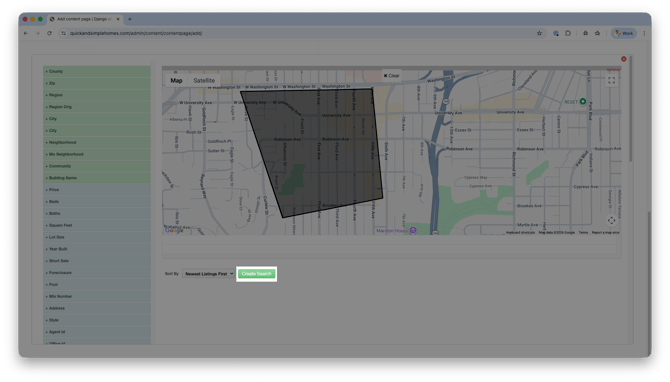
Click points on the map to draw the boundary
-
Return to the starting point to close the polygon
-
Click Create Search
-
In the confirmation popup, click Yes
-
Click Save
Your page will now automatically display listings located within the polygon you created.
Frequently Asked Questions
-
What happens if listings fall outside the polygon boundary?
Listings outside the drawn shape will not appear in the search results. -
Can I edit a polygon after creating it?
Yes. You can reopen the search settings and redraw or adjust the polygon if needed. -
Do polygon searches update automatically with new listings?
Yes. As new listings are added to the MLS inside the polygon area, they will automatically appear in the search results. -
Can website visitors use the Polygon tool themselves?
Yes. Visitors using your website search map can draw their own polygon area to view listings within their preferred location.
Need Help?
-
Call us at 844-311-4969 (Mon–Fri, 8 AM–8 PM CST)
-
Email support@realgeeks.com
-
View our Live Events page for free coaching and training.
-
Join the Real Geeks Mastermind Group on Facebook for peer tips and best practices