.svg)
Real Geeks integrates with SkySlope to help you send agreements to your leads quickly and efficiently. This integration allows you to create, customize, and request signatures on documents directly from your CRM, helping you move conversations forward and convert opportunities into clients.
Please Note
To take advantage of this feature, users of Real Geeks need to create a complimentary Skyslope account. This account provides access to Skyslope's Form and Digital Signature services at no additional cost.
This complimentary access is limited to only their Form and Digital Signature services. To utilize their comprehensive suite of transaction management tools, you will need to subscribe to one of their additional packages.
How to Send Agreements to Clients
Go to your lead’s profile in the Lead Manager and click Send Agreement - This is found next to your lead communication tools, at the top of the page. This will open a window to Skyslope’s Form Management tool.
-
Open a lead's profile in the CRM
-
Click Send Agreement at the top of the page
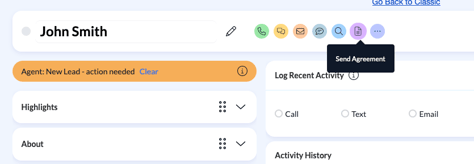
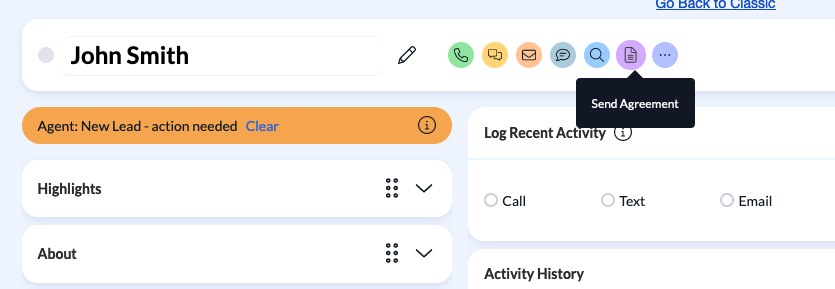
You'll be taken to Skyslope to set up your complimentary free account, or log in with an existing Skyslope account.
During setup, you will:
-
Add your MLS board
-
Enter your NAR Member ID
Note: If you are not a NAR member or do not have a NAR Member ID, contact SkySlope's support team for help completing your account setup.
Create and Manage Files
Click + Create to initiate a new file for your client. The file feature is where you can manage your representation by client or by property. You can create a new file for every client to organize your agreements with your database.
Instructions
-
Click + Create
-
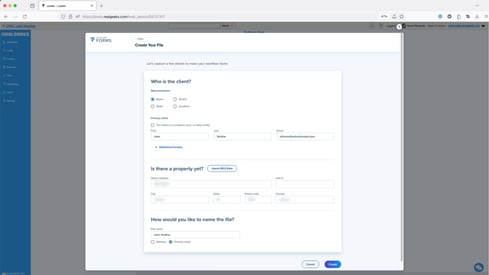
Choose buyer or seller representation
-
Enter your client’s contact information
-
Add property details
-
Use Import MLS Data or enter details manually
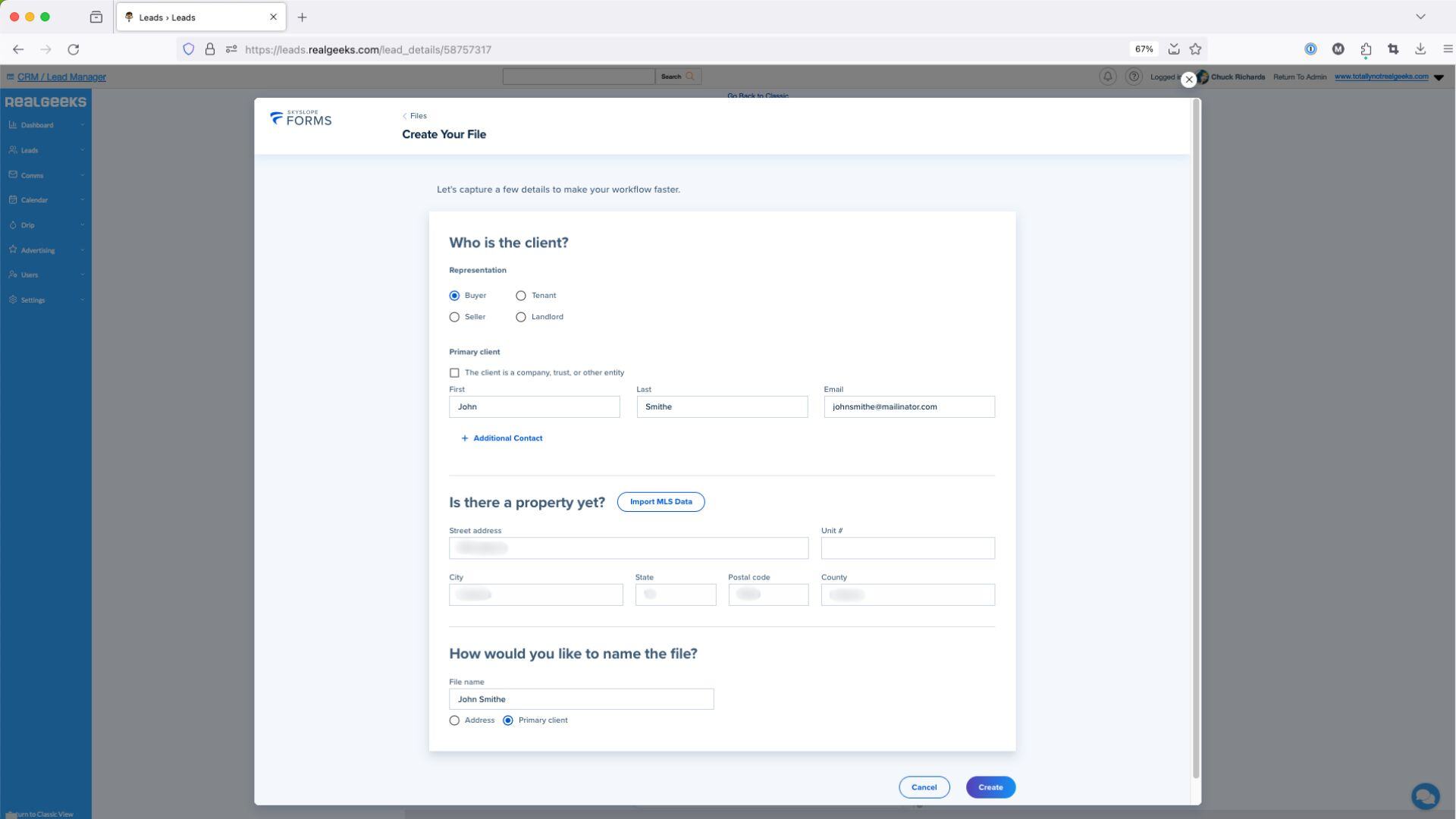
Establish your representation as a buyer or seller, enter your client’s contact information, and identify the property. Click Import MLS Data to automatically fill out the property data, or enter the data manually.
You can identify the file by the property address, the name of the client, or by manually entering a custom name.
Add Forms
After creating your client file, you can add forms for your client to complete. Click Add Form to use your MLS board’s association library. This will give you access to your board’s official agreement list of documents to share with your client.
To add forms:
-
Click Add Form
-
Select from your MLS library or choose Upload Documents
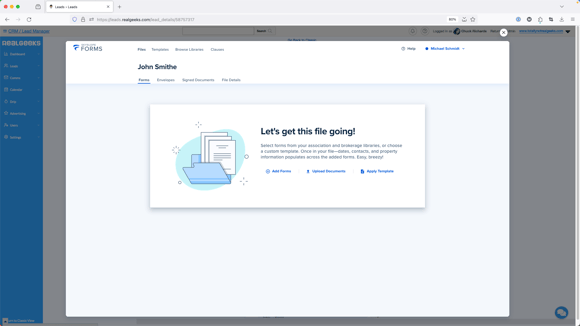
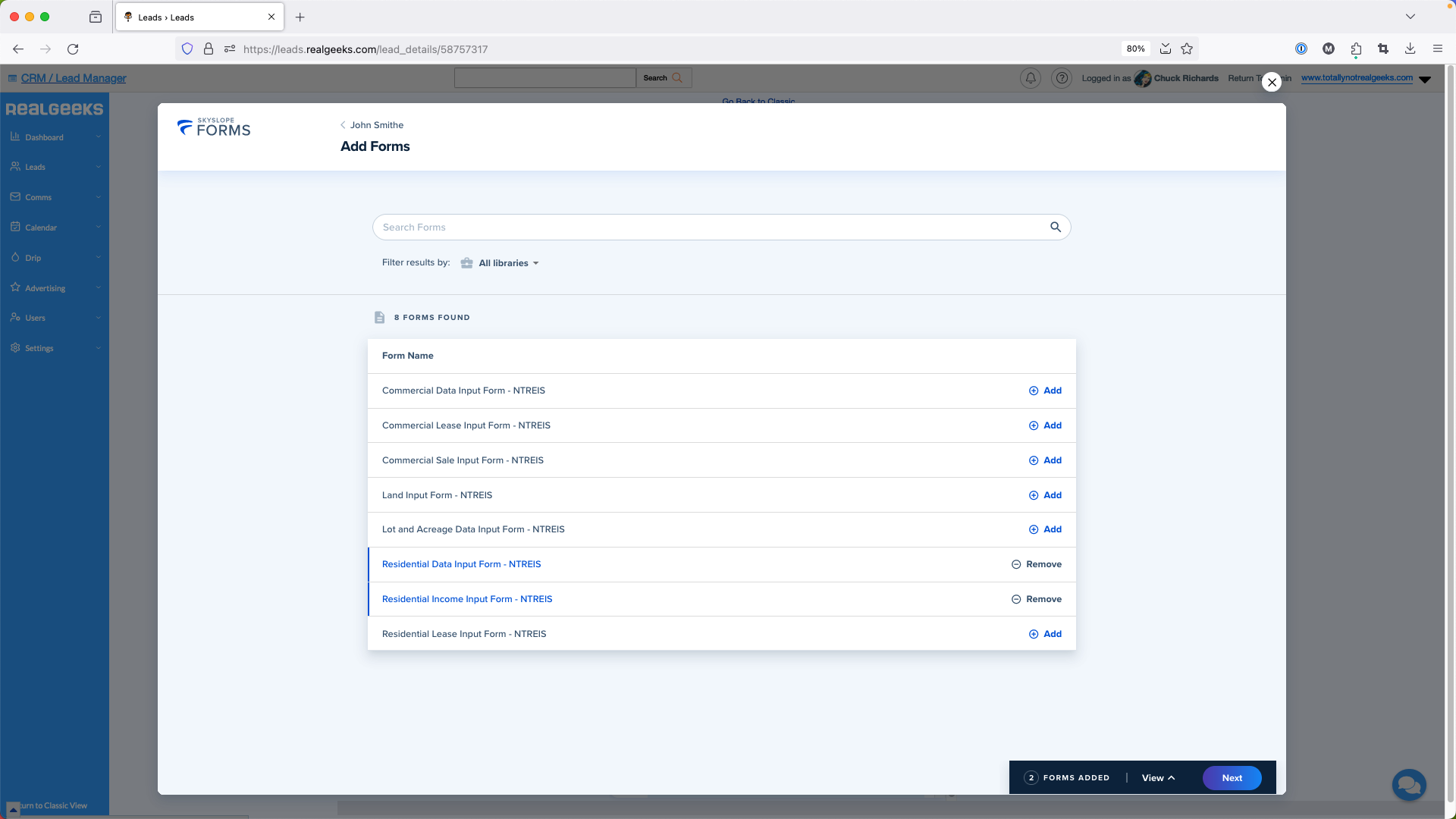
Choose Upload Documents to upload your own agreement forms. This option is ideal for agents whose MLS board is not connected to SkySlope, allowing you to manage agreements with clients at any time.
After adding your MLS forms or uploading a custom file, you can use digital signing technology to select your files and fill them out on your client’s behalf.
Please Note
After filling in the important information, you can save your forms as a template. This will save the document with the appropriate edits to streamline this process for future interactions with clients.
After inputting important details to your agreement form, you can save the form as a template. This will save the document to your Skyslope account to share the form with future clients, saving you time.
Request Signature
After personalizing the document for your client:
-
Click Prepare Signature
-
Assign recipients and actions (sign, review, etc.)
-
Send the document
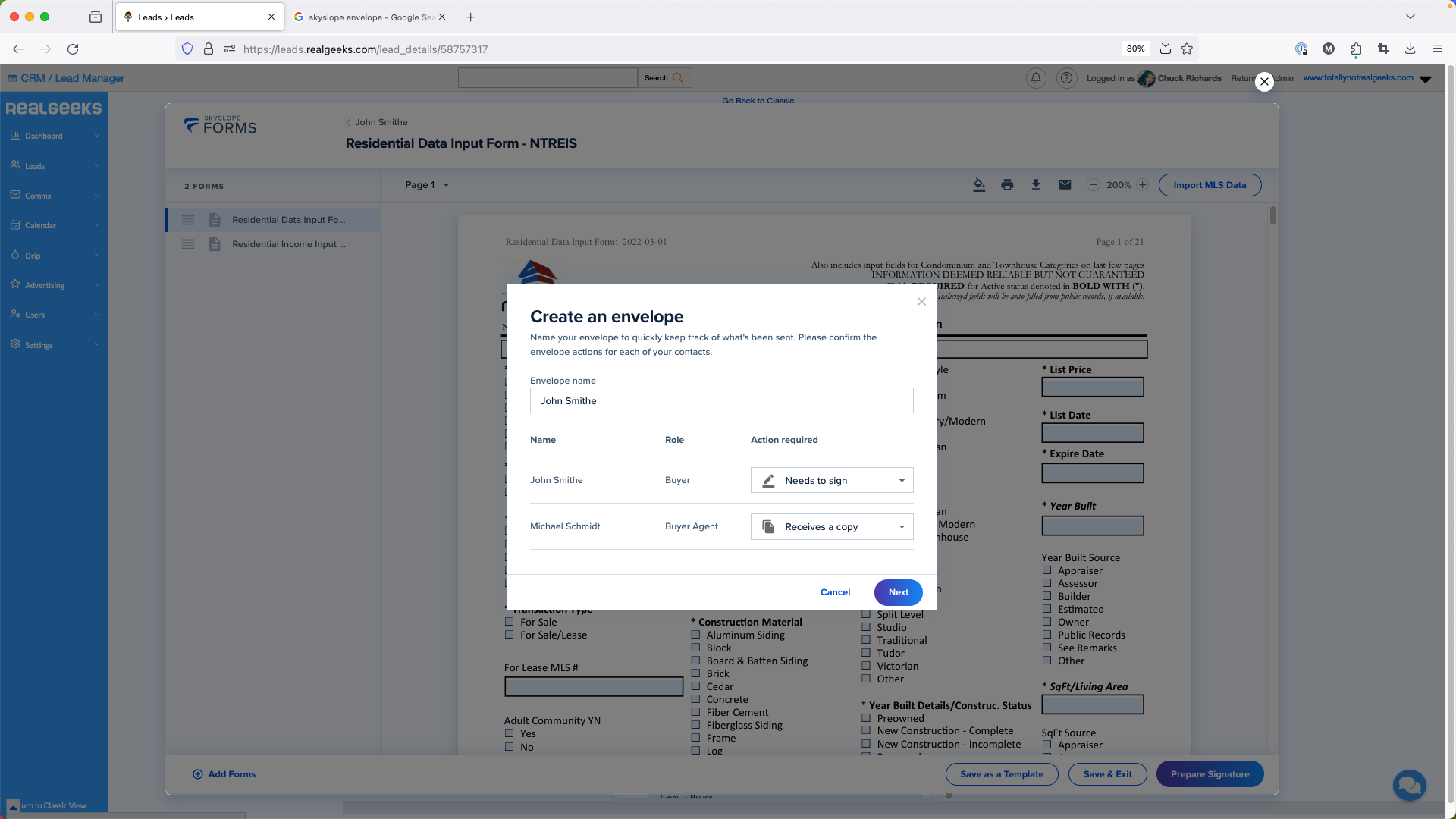
This action will create an Envelope in your client's file, containing all the documents sent for signature. It allows you to track the progress of these documents. You can assign actions to each individual associated with the file, such as requiring a signature or sending someone a form to review.
Access Your MLS Board’s Agreement Library
SkySlope partners with MLS boards across North America to give agents direct access to their board's officially licensed agreement libraries, making it easier to share compliant documents with clients.
On your initial visit to the system, you will be prompted to link your MLS board library to SkySlope.
To add your MLS Board’s agreement library to your account:
- Click your profile name in the top-right corner
- Select Libraries
- Use the Search tool to find your MLS board’s library
If your MLS board's library isn't available in SkySlope, contact your MLS association to request access — or use the Upload Documents feature to upload your own custom forms.
Skyslope Resources
FAQ
- Why did I receive a notice that my “free access to SkySlope DigiSign is coming to an end” announcement when using Skyslope?
- Skyslope offers a paid subscription service to use their products, however this is not necessary for Real Geeks users. If you receive this notice, reach out to Skyslope’s support department and they can remove this banner for you.
- Who has access to Send Agreements through Real Geeks?
- All Real Geeks users — regardless of their permission level — can use this feature to send agreements to their clients.