.svg)
A sold saved search displays recently sold listings on your Real Geeks website and sends updates to leads based on criteria you define. This feature helps buyers and sellers understand real pricing trends, market activity, and demand in a specific area. Sold saved searches can also automatically generate a companion Market Report using the same location and filters.
Need to Know
Before setting up a sold saved search, review these important requirements:
-
Sold listing data is only available if your MLS allows sold listings to be displayed
-
Non-disclosure states do not provide sold listing data and cannot use sold searches
-
Sold search functionality must be enabled by the Real Geeks Support team
If you do not see a Sold option in your website’s Advanced Search, email support@realgeeks.com and request that sold searches be enabled. Our team will confirm MLS eligibility and activate the feature if available.
Table of Contents
How Sold Saved Searches Work
Sold saved searches show closed transactions instead of active listings. They allow leads to view recently sold homes and receive updates over time.
Sold saved searches can be created in two ways:
-
Leads can create their own sold searches directly on your website
-
Agents can create sold saved searches for leads inside the Lead Manager
When a sold saved search is active, the lead can:
-
View sold listings on your website
-
Receive sold listing update emails
-
Receive automated Market Report updates when enabled
How to Create a Sold Saved Search for a Lead
Use this process to create a sold saved search directly from a lead’s profile.
Note: Only agent-created sold saved searches automatically generate a companion Market Report. Searches created by leads on your website do not generate a Market Report.
Step-by-Step Instructions
-
Open your Lead Manager
-
Select a lead to open their profile
-
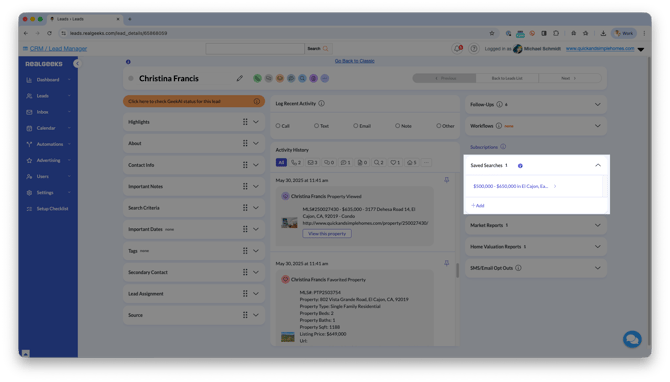
Click Saved Searches > Add
-
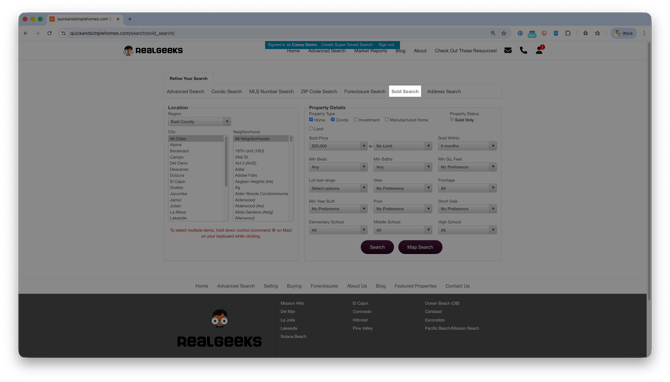
Select Sold Search as the search type
-
Build the search using location filters or the map and polygon tool
-
Click Search or Map Search to preview results
-
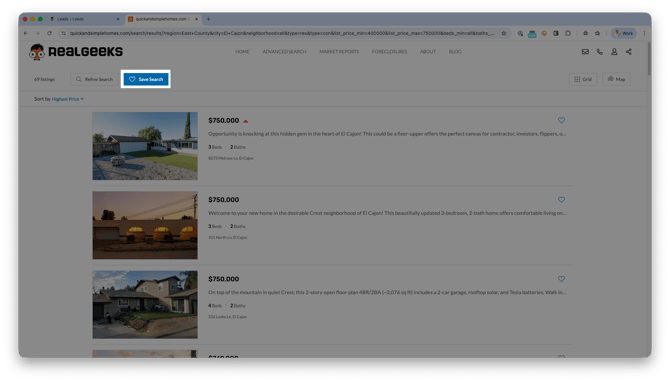
Click Save Search
-
Enter a clear search name the lead will recognize in emails
-
Select an email frequency
-
Click Save
Frequency options include daily, weekly, bi-weekly, monthly, or never. Setting the frequency to Never saves the search without sending automated emails.
Use Sold Searches to Create Custom Market Reports
When you create a sold saved search for a lead, Real Geeks automatically generates a custom Market Report using the same location, boundaries, and sold listing data.
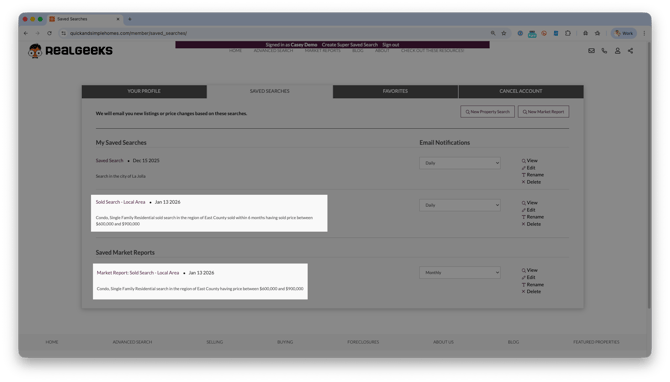
The Market Report:
-
Uses the same location and filters as the sold saved search
-
Honors polygon boundaries exactly
-
Updates automatically as new sold data becomes available
This allows you to deliver highly specific market insights without creating a separate report manually.
Best Practices
-
Use sold searches to support pricing and expectation conversations
-
Name saved searches clearly so leads know what they are clicking
-
Use polygon searches for neighborhood-level accuracy
-
Pair sold searches with follow-up conversations or workflows
-
Use Never frequency for on-demand reference searches
Troubleshooting
I do not see a Sold Search option on my website?
Your MLS may not allow sold listings, or the feature has not been enabled. Contact support@realgeeks.com to confirm availability.
My lead is not receiving emails
Make sure the email frequency is not set to Never. Also check that the lead has not unsubscribed from update emails and that update emails are not being filtered to their spam or junk folder.
Market Report is missing
Market Reports are only generated when a sold saved search is created by an agent (not by a lead) and when MLS sold data is available. If a lead creates their own sold search, no Market Report will be generated automatically.
Frequently Asked Questions
Can leads create sold searches themselves?
Yes. Leads can use the Sold Search option on your website to search for recently sold listings and choose to receive updates without agent involvement. Agents can also create sold saved searches for leads from the Lead Manager.
Does this work in non-disclosure states?
No. Sold searches are not available in non-disclosure states. These states do not provide sold listing data through MLS feeds, which means the feature cannot function there. Contact your MLS or check your state's disclosure rules if you are unsure whether this applies to you.
Can I edit a sold saved search later?
Yes. Agents can edit saved search criteria or email frequency at any time from the lead’s profile.
Need Help?
-
Call us at 844-311-4969 (Mon–Fri, 8 AM–8 PM CT)
-
Email support@realgeeks.com
-
Visit Real Geeks University for free video courses
-
Join the Real Geeks Mastermind Group on Facebook for peer tips and best practices