.svg)
Organize your leads fast, follow a simple daily plan, and focus on the right contacts. Lead Manager filters help you control what you see in your contacts list so you can quickly find the leads that matter most.
Need to Know
- Filters turn a long list of contacts into smaller, focused groups of leads you can act on quickly
- Default filters are prebuilt and ready to use so you can start organizing right away
- Custom filters let you tailor your follow-up to your workflow, priorities, and market
- Combine multiple criteria in a single filter to see a more targeted list of contacts with exactly the details you care about
Table of Contents
What is a Filter?
Filters help you save time and stay organized by narrowing your contact list to the leads you want to focus on. Instead of reviewing every contact in your database, you can quickly view specific groups of leads based on their needs, activity, or interests, making follow-up faster and more intentional.
Filters work like folders for your leads. When no filter is selected, you see every contact in your Lead Manager. When you apply a filter, you only see the leads that belong in that folder.
This helps you:
-
Spend less time searching and more time following up
-
Keep your lead manager organized as your database grows
-
Focus on the right leads at the right time
Where to Find Your Filters
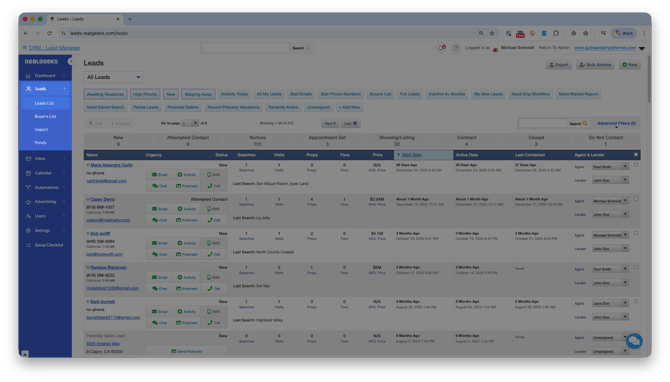
Filters live on the Leads List page.
To get there:
-
Go to leads.realgeeks.com
-
Click Leads > Select Leads List
Default Filters to Use First (Built For You)
These filters are built into your Lead Manager by the Real Geeks team based on the most common ways agents organize and prioritize contacts. They give you an easy starting point for managing your database with little to no setup.
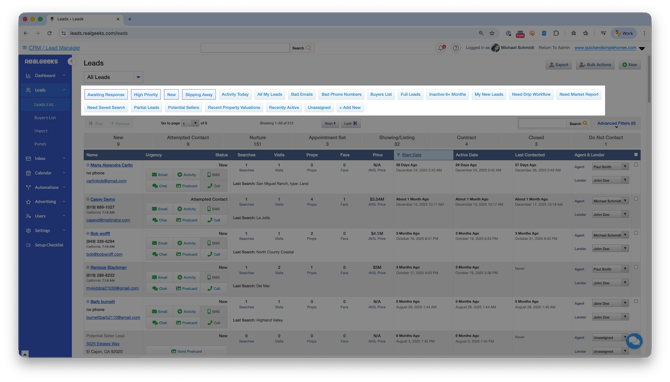 Common default filters include:
-
Bad Emails — leads with email addresses flagged for delivery issues. Use our guide on managing bad or missing contact info to see what to do next.
-
Activity Today — leads who used your website in the last 24 hours
-
Inactive 6+ Months — leads who have not engaged recently
-
Needs Saved Search — leads who are not receiving automated listing alerts
Using these default filters helps you clean up your database, spot activity, and complete key setup tasks before moving into daily follow-up.
Prioritize Follow-Up With Real Intelligence Filters
Some default filters are powered by Real Intelligence and are outlined in purple in your Lead Manager. These filters help you decide who to contact first based on lead behavior and engagement.
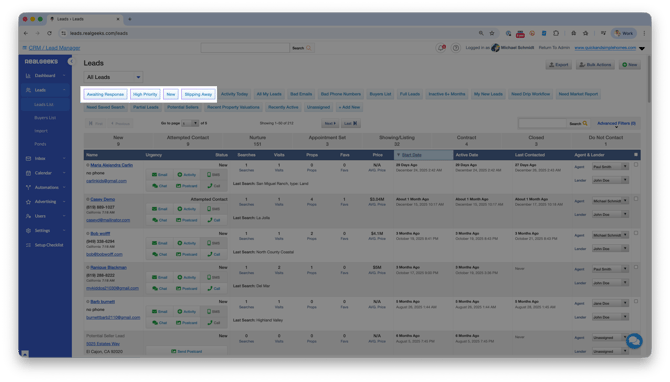 Use these filters in order:
-
Awaiting Response — leads waiting to hear back from you
-
High Priority — leads showing strong intent through actions and activity
-
New — leads who have not received direct outreach yet
-
Slipping Away — leads who may be losing momentum and need re-engagement
Work through these filters in order to stay organized, consistent, and focused on the leads that matter most.
Create a Custom Filter (Personalize Your Follow-Up)
Custom filters help you personalize how you identify and prioritize leads based on what matters most to you.
How to Create a Custom Filter:
-
From the Leads List, click Add New
-
Choose your criteria
-
Click Apply Filter, then Save Filter
When creating a custom filter, you’re making three choices:
-
What you want to find
-
How to narrow the results
-
Which value to match
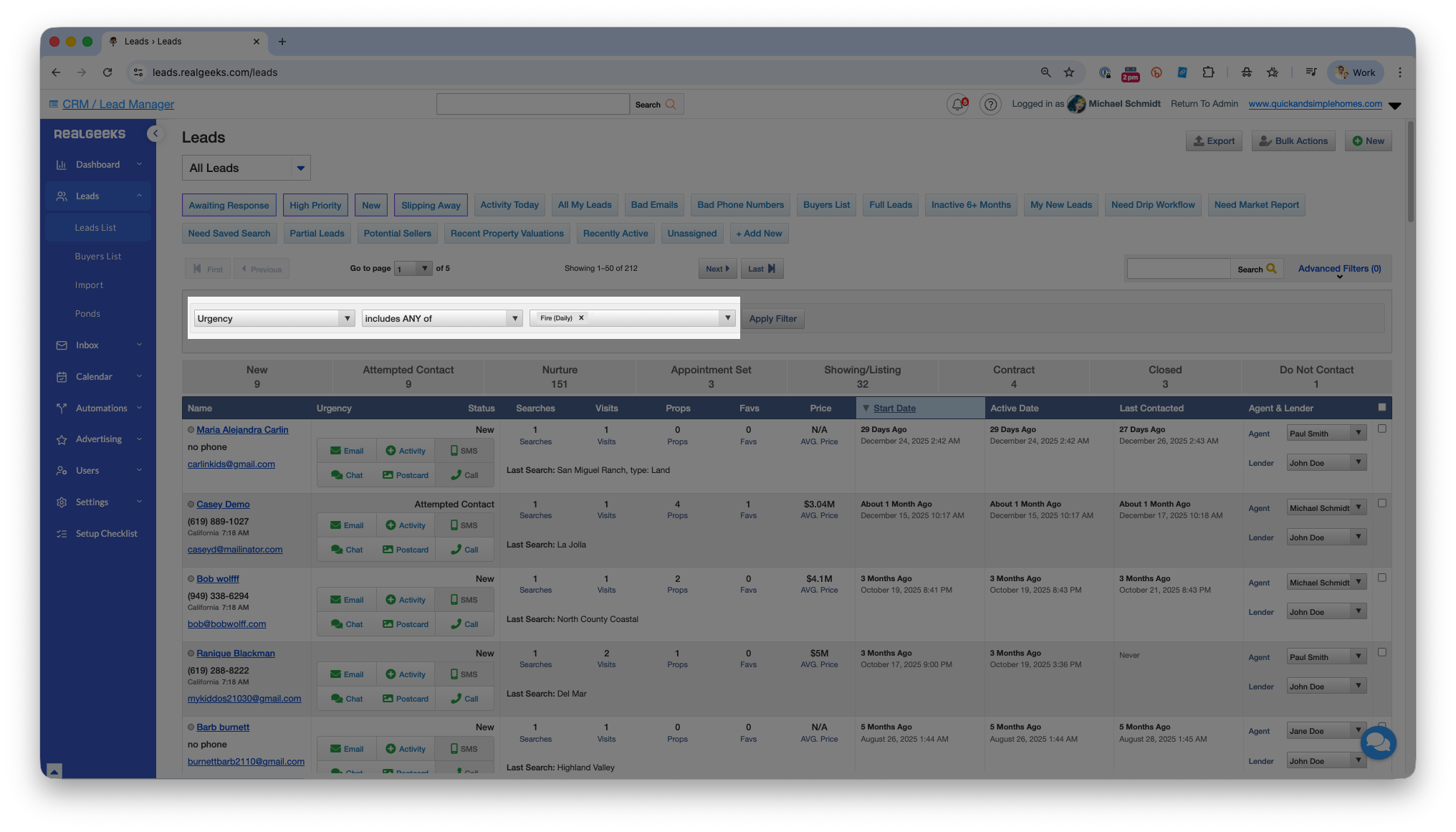
Example (common daily priority filter)
-
What: Urgency
-
How: Includes any of
-
Which value: Fire (Daily)
This filter highlights leads that need regular or daily attention and is a strong place to start each morning.
Want to get more specific?
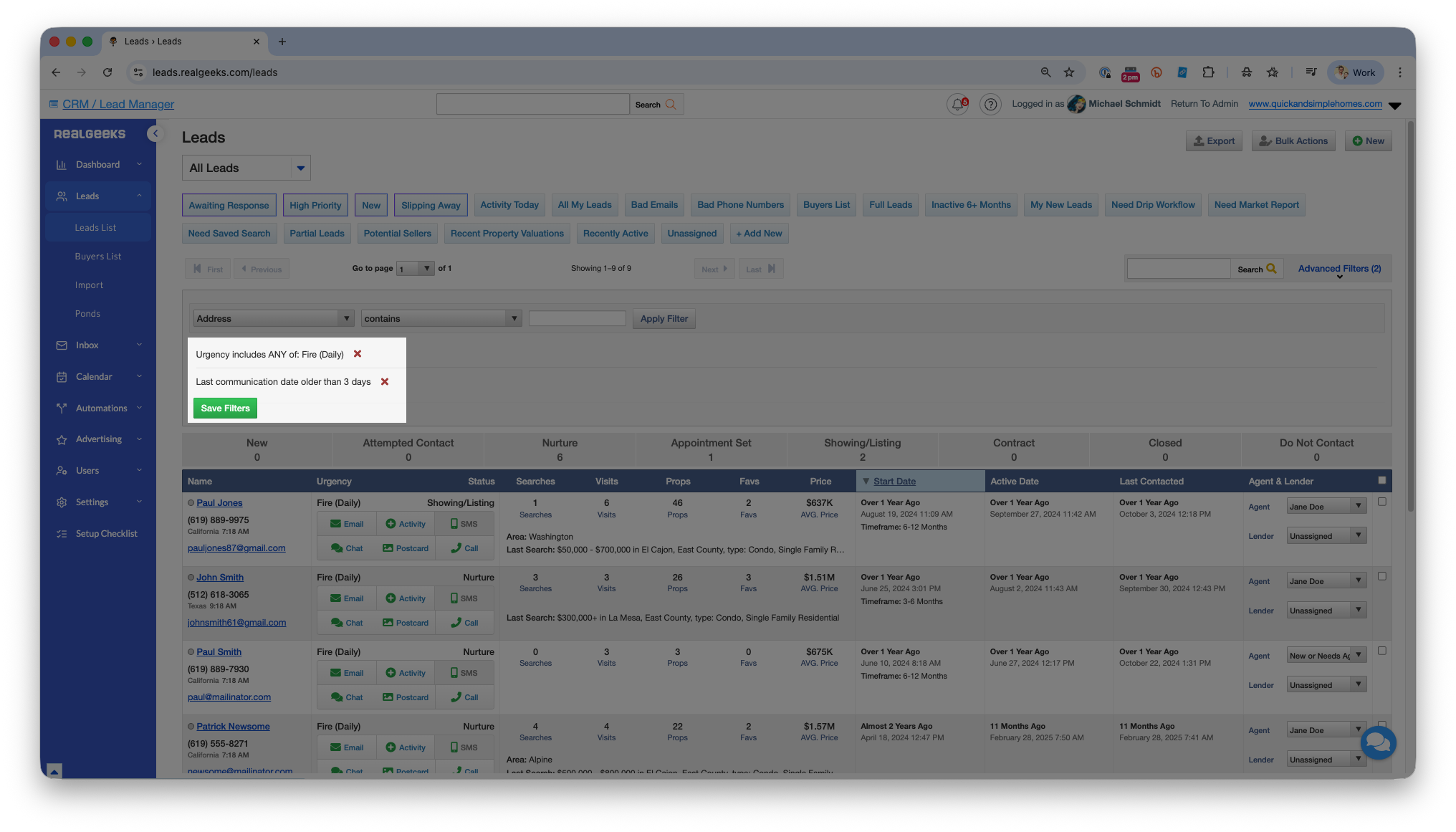
You’re not limited to just one criteria. You can add multiple criteria to the same filter to create a more targeted group of leads to connect with.
Example:
-
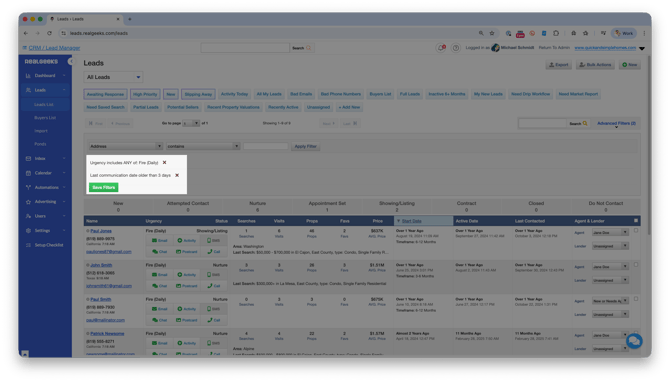
Urgency is Fire (Daily) and Last Communication Date is older than 3 days
-
This identifies Fire (Daily) leads you have not spoken to in 3 days or more.
Use Filters to Create a Simple Daily Follow-Up Schedule
Use filters to create a repeatable daily routine so you always know who to contact first and what actions to take next. Start with Real Intelligence filters to prioritize outreach, then move into setup and maintenance filters.
Start with Real Intelligence (top priority):
-
Awaiting Response — respond to leads actively waiting to hear from you
-
High Priority — engage leads showing strong intent and recent activity
-
New — make first contact with leads who have not been personally reached out to
-
Slipping Away — re-engage leads who were interested but may be losing momentum
Work through these filters in order each day to stay focused on the leads most likely to convert based on their website activity and your communication frequency.
Next, make sure your lead automation is up to date:
-
Use Needs Saved Search and Needs Market Report to identify contacts who do not yet have automated email alerts set up. These alerts keep leads updated on market activity and new listings without manual follow-up.
Finish with your custom priority filters:
-
High-urgency leads that need frequent follow-up
-
Recently active leads who are engaging with your website
-
Any custom groups you regularly prioritize
Following this same filter-based schedule each day helps create consistency, prevents leads from slipping through the cracks, and keeps your follow-up focused.
Best Practices
-
Keep lead profiles up to date with accurate statuses, urgency levels, and tags so filters return reliable results
-
Use filters daily as part of a routine instead of searching your database manually
-
Build filters around your real follow-up habits so your priorities are always one click away
-
Start simple and add more criteria only when you need more precision
-
Review and adjust filters as your business, markets, and lead behavior change
Need Help?
-
Call us at 844-311-4969 (Mon–Fri, 8 AM–8 PM CST)
-
Email support@realgeeks.com
-
Visit Real Geeks University for free video coursesv
-
Join the Real Geeks Mastermind group on Facebook for peer tips and best practices