.png?width=500&height=146&name=Real%20Geeks%20Primary%20Logo%20Black%20(3).png)
When you add someone to your team in Real Geeks, you are first creating a Real Geeks account for that user. Once their account exists, the Site Owner can grant access to specific tools, including the Website Editor, the Lead Manager (CRM), and the Facebook Ad Tool. This guide explains how to create a user account and then assign the correct permissions for their role.
Need to Know
-
Adding a user creates a Real Geeks account for that person
-
After the account is created, the Site Owner assigns the user with access to specific tools
-
Access is managed from accounts.realgeeks.com
-
Additional CRM roles and detailed permissions can also be adjusted inside the Lead Manager
Table of Contents
How to Create a Real Geeks Account for a User
-
Go to accounts.realgeeks.com
-
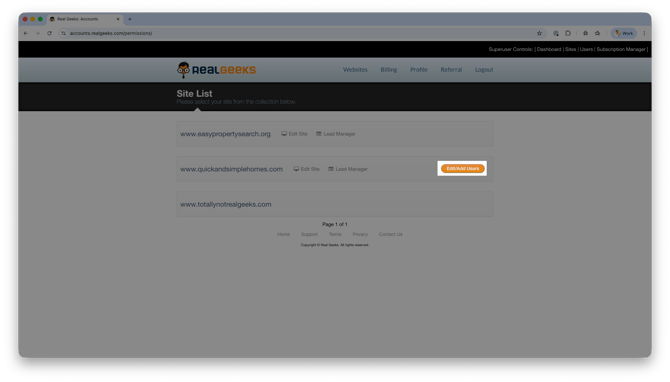
Select the site you would like to manage and click Edit/Add Users.
-
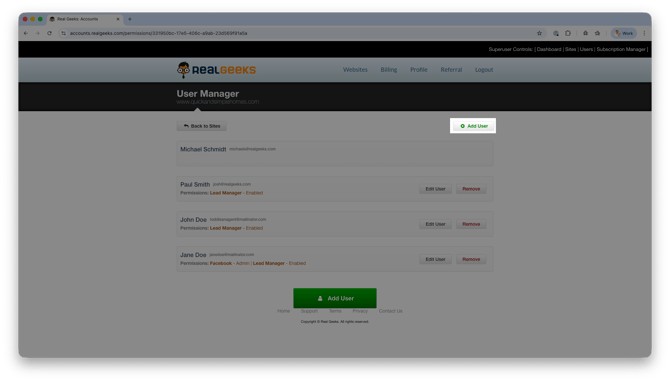
Click Add User.
-
Enter the user’s email address and press Enter
-
If the user already has a Real Geeks account, select Add Existing User.
-
-
If the user does not yet have an account, enter their First and Last Name and click Create User.
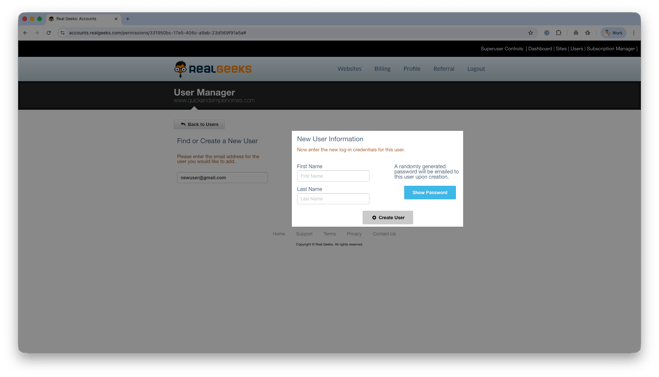
Creating the account gives the user login credentials. The next step is deciding what they can access inside your website.
How to Grant Website, CRM, and Facebook Ad Tool Access
-
Go to accounts.realgeeks.com and select Websites in the top navigation.
-
Click Edit/Add Users next to your website address
-
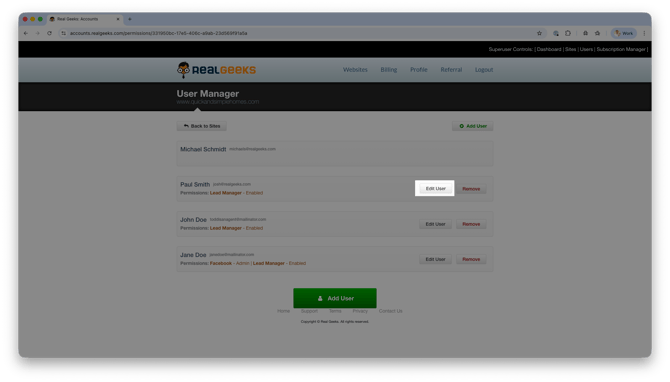
Click Edit User next to the person you want to update.
-
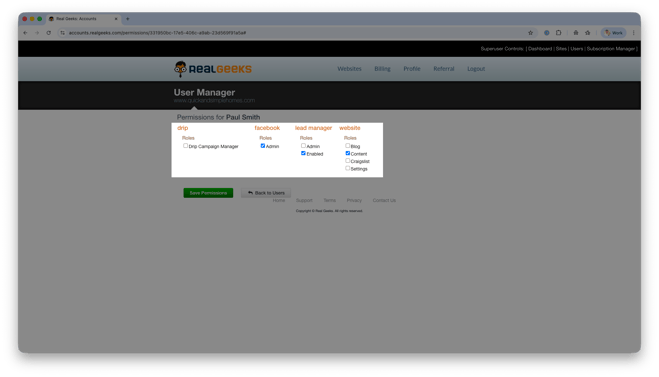
Check the boxes for the tools you want them to access.
-
Click Save Permissions.
You can choose to give access to the Website backend, the Lead Manager (CRM), the Facebook Ad Tool, or any combination based on the user’s role.
Permissions Overview
Below is a high-level breakdown of what each permission allows.
-
Admin: Create and Edit ads through the Facebook Marketing Tool
CRM (Lead Manager)
- Enabled: Can log in and access the Lead Manager.
-
Admin: Full administrative access similar to the Site Owner, except they cannot change other Admin settings.
More advanced CRM roles and permissions can be configured directly inside the Lead Manager after access is granted.
Website
-
Blog: Create, edit, and delete blog posts.
-
Content: Create, edit, and delete Content Pages and Area Pages.
-
Craigslist Tool: Create Craigslist postings through the Real Geeks Craigslist tool (unavailable to new customers)
-
Settings: Modify site settings such as logos and business information.
How to Remove a User’s Access
These steps remove a user’s access to a specific website. Their Real Geeks account will still exist, but they will no longer have access to your site.
-
Log in to accounts.realgeeks.com.
-
Select Websites from the top navigation.
-
Choose the website and click Edit/Add Users.
-
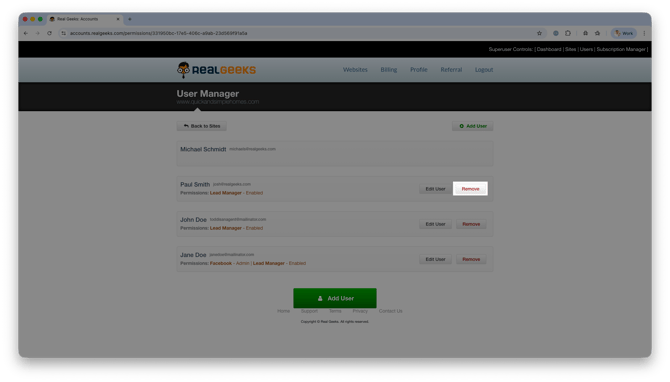
Locate the user and click Remove.
-
Select OK to confirm.
If the user has access to other websites you own, repeat these steps for each site.
Frequently Asked Questions
-
Does adding a user automatically give them access to everything?
No. Creating the account only gives them login access. The Site Owner must select which tools they can use. -
Can I give someone access to only the CRM and not the website?
Yes. You can enable only the Lead Manager permission and leave all Website permissions unchecked. -
Does removing a user delete their CRM data?
No. Removing a user only removes their access to your website. It does not delete their account or activity history. -
Can I have multiple CRM Admins?
Yes. You can assign multiple users as CRM Admins, but they cannot modify other Admin permissions.
Need Help?
- Call us at 844-311-4969 (Mon–Fri, 8 AM–8 PM CST)
- Email support@realgeeks.com
- Visit Real Geeks University for free video courses
- Join the Real Geeks Mastermind Group on Facebook for peer tips and best practices