.svg)
Intro Consistent communication is one of the most important parts of converting leads into clients. The Real Geeks CRM Mobile App allows you to call, text, and email leads directly from your phone so you can stay responsive throughout the day. Whether you are between appointments, at a showing, or working from the field, the mobile app helps you maintain conversations, share listings, and manage follow-up without needing to log into a desktop computer.
Download the App
Apple App Store | Google Play Store
Need to Know
-
You can call, text, and email leads directly from the mobile app
-
Communication activity is automatically logged in the lead profile
-
Text and Email Templates must be created in the desktop CRM before they can be used in the app
-
You can send property listings directly inside text and email conversations
-
Calls placed through the app use your phone’s native dialer and personal phone number
Table of Contents
Access Communication Tools
The Action Menu inside a lead profile gives you quick access to the communication tools you use most.
To contact a lead:
-
Open the CRM Mobile App
-
Tap Leads
-
Select a lead
-
Tap the Action Menu icon in the bottom-right corner
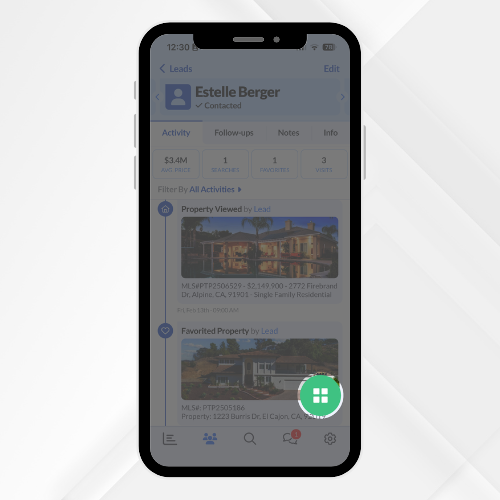
From the Action Menu, you can:
-
Call the lead
-
Send a text message
-
Send an email
-
Add a note
-
Log an activity
-
Create a Follow-Up
-
Use Login as User
Calls placed through the app use your phone’s native dialer and your personal phone number. This helps you build familiarity and makes it easy for leads to return your call.
Best Practice
After every call attempt, you'll be automatically prompted to log the call details and set your next Follow-Up so nothing falls through the cracks
Use Text and Email Templates
Templates help you communicate quickly while keeping your messaging consistent and professional.
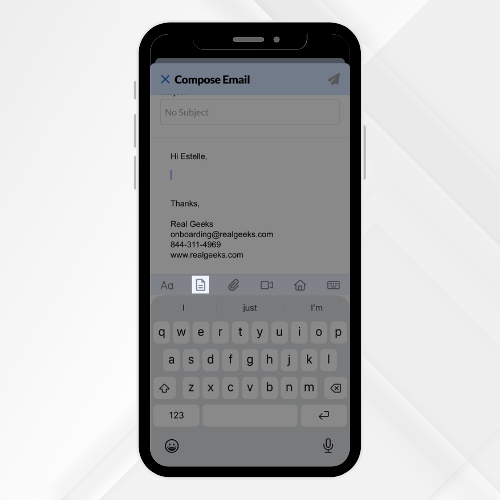
To send an email template:
-
Open the lead’s profile
-
Select the Action menu
-
Tap Email
-
Select the Templates icon
-
Choose your pre-created template
-
Tap Send
To send a Text template:
-
Open the lead’s profile
-
Select the Action menu
-
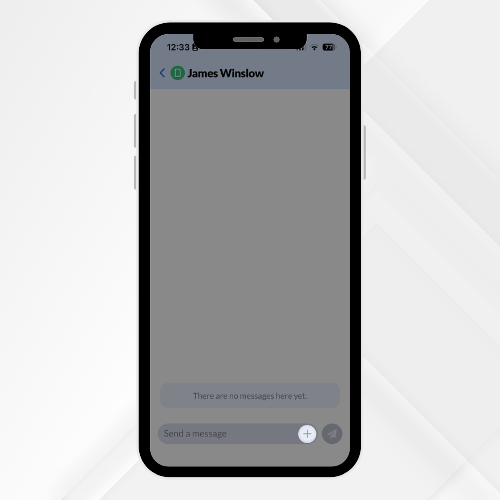
Tap Text
-
Select the + icon
-
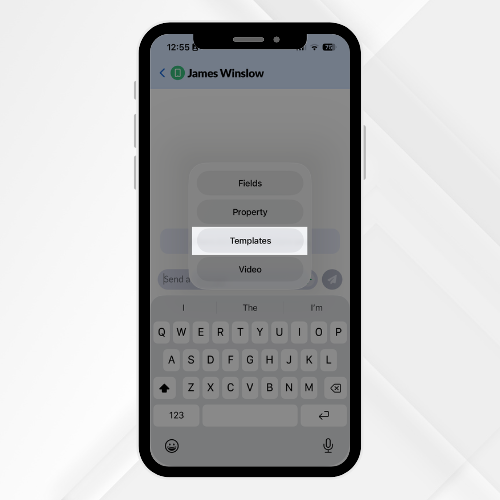
Select Templates
-
Choose your pre-created template
-
Tap Send
You can also write a message manually whenever a personalized response is needed.
Important:
Templates must be created in the desktop CRM before they appear in the mobile app.
How to Send a Property From the Mobile App
The CRM Mobile App allows you to send property details directly inside text and email conversations so you can quickly respond to lead interest while on the go.
To send a property via text:
-
Open the lead’s profile
-
Select the Action Menu
-
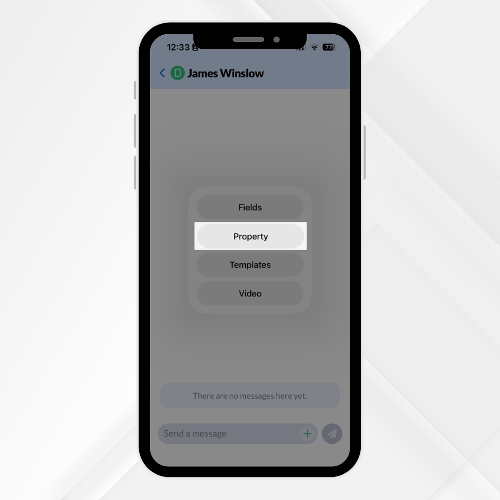
Tap Text
-
Tap the + icon
-
Select Property
-
Enter the property address
-
Tap on the property you want to send
-
Send
To send a property via email:
-
Open the lead’s profile
-
Select the Action Menu
-
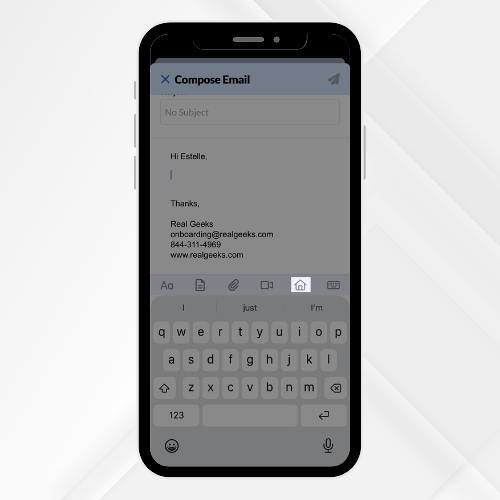
Tap Email
-
Tap the house icon
-
Enter the property address
-
Tap on the property you want to send
-
Send
This keeps the lead focused on listings that match their criteria and drives them back to your Real Geeks website.
Frequently Asked Questions
-
Do calls made through the app show my Real Geeks number?
Calls use your device’s native dialer and your personal phone number. -
Can I create templates inside the mobile app?
No. Templates must be created in the desktop CRM before they appear in the app. -
Are text messages and emails tracked in the lead’s profile?
Yes. Communication activity is logged in the lead’s record for easy reference. -
Can I send multiple properties in one message?
You can add properties individually within a text or email conversation.
Need Help?
-
Call us at 844-311-4969 (Mon–Fri, 8 AM–8 PM CST)
-
Email support@realgeeks.com
-
Visit Real Geeks University for free video courses
-
Join the Real Geeks Mastermind Group on Facebook for peer tips and best practices