.svg)
When a lead chooses to stop receiving certain types of communication, Real Geeks opt-out settings control which types of communication a lead is willing to receive. When a lead chooses to stop receiving certain types of communication, their preferences are stored in the Lead Manager. Understanding these settings helps you stay compliant, protect deliverability, and avoid sending messages to leads who have opted out. This guide explains each opt-out category and shows you how to review opt-out status efficiently.
Need to Know
-
Opt-out settings live inside each lead’s profile under SMS/Email Opt Outs
-
Some opt-outs override others (for example, All Text Messages disables Reactive Responses texts)
-
You can filter your Leads List by opt-out status using Advanced Filters
-
Respecting opt-outs protects your account and ensures compliance with communication regulations
-
If a lead is opted out of a specific communication type, the system will block you from sending that message and prevent delivery
Table of Contents
What Each Opt-Out Option Means
This section explains what communication is blocked when a lead opts out of a specific category.
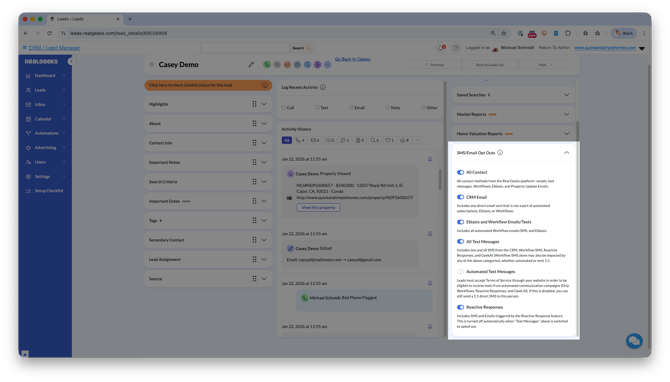
All Contact
Blocks all communication from the Real Geeks platform, including:
-
Emails
-
Text messages
-
Lead Follow-Up Campaigns
-
Mass emails
-
Property Update Emails
If this is enabled, the lead will not receive any automated or direct communication from the system.
CRM Email
Blocks direct, one-to-one emails sent from the Lead manager.
This does not include:
-
Mass emails
-
Automated emails in a workflow campaign
-
Automated subscriptions
Use this when a lead no longer wants personal emails but may still receive automated updates.
Back to top
Eblasts and Workflow Emails/Texts
Blocks:
-
All automated emails in a workflow campaign
-
All automated text messages in a workflow campaign
-
All mass emails
This prevents automated marketing communication but does not automatically block manual one-to-one messages unless another opt-out applies.
All Text Messages
Blocks all SMS communication from the system, including:
-
Direct one-to-one SMS
-
Lead Follow-Up Campaign texts
-
Reactive Responses
-
Geek AI messages
Automated Text Messages
Blocks automated texting only. This includes:
- All automated text messages in a workflow campaign
-
Reactive Responses
-
Geek AI
Important
If this opt-out is not enabled, you can still send direct one-to-one SMS messages.
Leads must accept your website’s Terms of Service to receive automated texting. If they have not accepted, automated campaigns will not send.
Reactive Responses
Blocks messages triggered by the Reactive Response feature. This includes:
-
Reactive Response emails
-
Reactive Response SMS
Note: If All Text Messages is enabled, Reactive Response texts are automatically turned off.
How to View a Lead’s Opt-Out Status
This section shows you how to check opt-out settings for a single lead or review multiple leads at once using filters.
View Opt-Out Status for a Single Lead
-
Open your lead's profile
-
Review the lead's opt out preferences in the SMS/Email Opt Outs menu
View Opt-Out Status for Multiple Leads
-
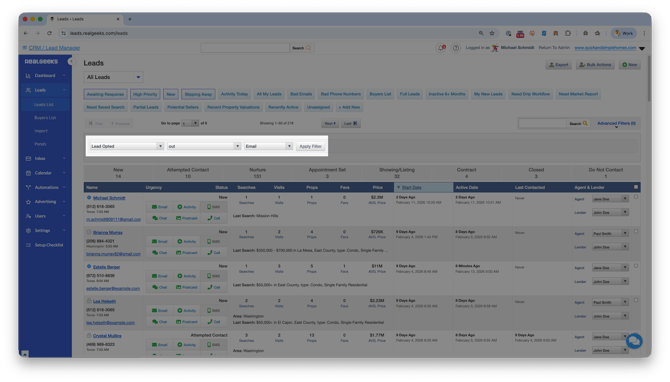
Go to the Leads List
-
Click Add New to create a filter
-
Select Lead Opted
-
Change the middle dropdown to In/Out
-
Select the opt-out type (Email, Texting, Reactive Responses, Lender). Note: The Lender option filters for leads who have opted out of lender-related communications.
-
Click Apply
Save the filter if you plan to reuse it, so you can quickly pull up the same group of leads by opt-out status before future campaigns without having to rebuild the criteria each time.
Best Practices
Understanding opt-outs helps protect your communication reputation and maintain trust with leads.
-
Always check opt-out status before sending a mass email
-
Never manually override a lead’s opt-out preference
-
Use filters before sending campaigns to avoid compliance issues
-
If a lead requests to opt back in, confirm their request in writing before reactivating their communication preferences
-
Review opt-out filters monthly as part of Lead manager cleanup
Message Template
Use this text message template to quickly engage leads:
Hey {{FIRST_NAME}}, I just want to confirm your communication preferences. Would you prefer email updates, text messages, or both? Happy to adjust so you only get what’s helpful.
Troubleshooting
If communication is not sending as expected, these checks can help identify why.
-
Confirm the lead is opted out of All Contact
-
Check if All Text Messages is enabled
-
Review Automated Text Messages settings
-
Confirm the lead accepted Terms of Service for automated texting
-
Double-check your filter before sending a mass email
Frequently Asked Questions
If a lead opts out of All Text Messages, can I still email them?
Yes, unless they are also opted out of email communication.
If a lead opts out of Automated Text Messages, can I still send a direct SMS?
Yes. Automated campaigns are blocked, but one-to-one SMS is still allowed.
Does All Contact override everything?
Yes. When All Contact is enabled, no emails, text messages, Lead Follow-Up Campaign messages, mass emails, or Property Update Emails will be sent — regardless of any other opt-out settings.
Yes. No emails or texts will be sent.
Why are my Reactive Responses not sending?
Check if the lead has opted out of All Text Messages or Reactive Responses.
Need Help?
- Call us at 844-311-4969 (Mon–Fri, 8 AM–8 PM CST)
- Email support@realgeeks.com
- Visit Real Geeks University for free video courses
- Join the Real Geeks Mastermind Group on Facebook for peer tips and best practices