.svg)
PLEASE NOTE
The current Postcard system will be retired and replaced by the new Design & Print system. A transition date has not yet been determined; this notice is intended to provide advance awareness so you can plan accordingly. Additional information will be communicated as it becomes available.
The Real Geeks Postcards feature allows you to create and send personalized direct mail directly from your CRM. In a digital-first world of emails and texts, postcards help you stand out with a tangible touchpoint that reinforces your brand and builds trust. Whether you're introducing yourself to new leads or nurturing long-term prospects, postcards help you stay top of mind and move conversations forward.
Need to Know
-
Postcards can be sent to any lead with a valid mailing address saved in their CRM profile
-
You can send postcards to a single lead or multiple leads at once
-
Custom templates allow full front and back personalization
-
Pricing includes printing and postage and is included in your monthly bill
-
Only Site Owners and Admins can send postcards
Table of Contents
How to Create a Postcard
Creating a postcard is built directly into the Real Geeks Postcards system, making it easy to design professional marketing without leaving your platform.
Access the Postcard Tool
Visit postcards.realgeeks.com. You can find this in the CRM Navigation menu under Inbox > Postcards.
Customize A Postcard
-
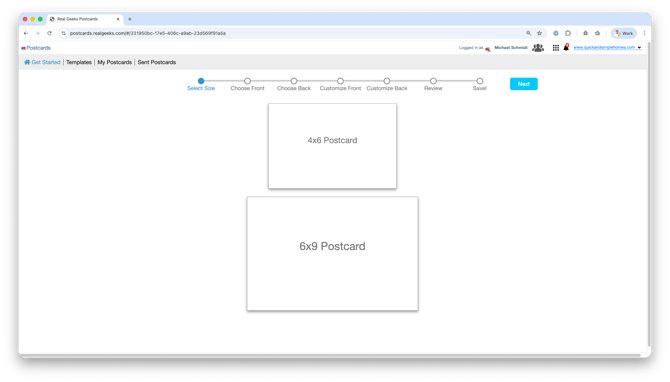
Select your postcard size (4x6 or 6x9) and click Next
-
Choose a template for the Front, then click Next
-
Select Use Your Design to upload a custom design for your postcard
-
-
Choose a template for the Back, then click Next
-
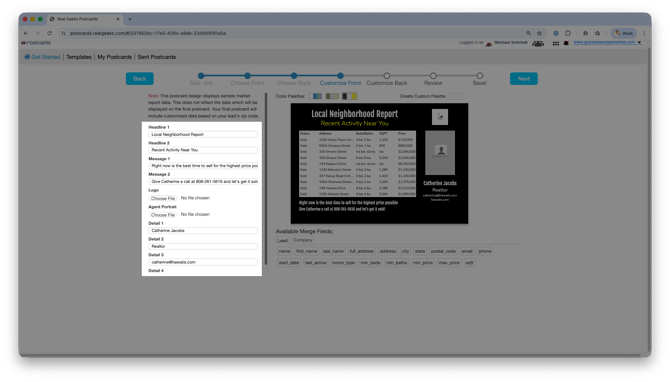
Customize the Front with your image, message, and details
-
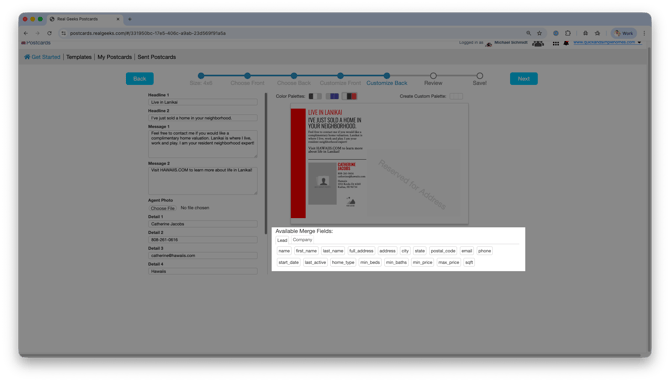
Use Merge Fields to automatically insert lead or property information
-
-
Customize the Back, then click Next
-
Review both sides and make any final edits, if necessary, then click Next
-
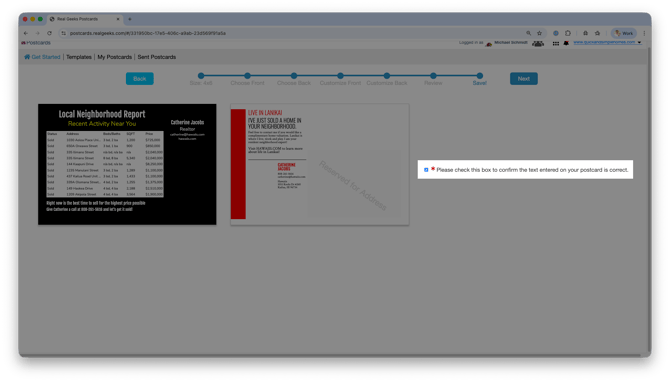
Select the Confirmation box to confirm your edits, then click Next
-
Name your postcard and click Save Design
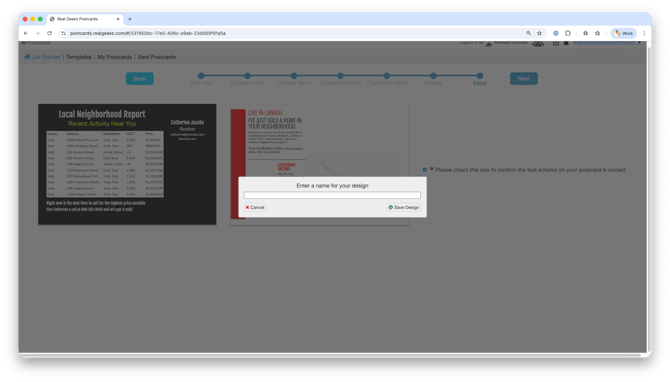
- Use a name that is easily recognizable so you can quickly choose the right postcard
Merge Fields allow you to personalize postcards at scale by automatically inserting details such as property information or contact data.
View Your Postcards
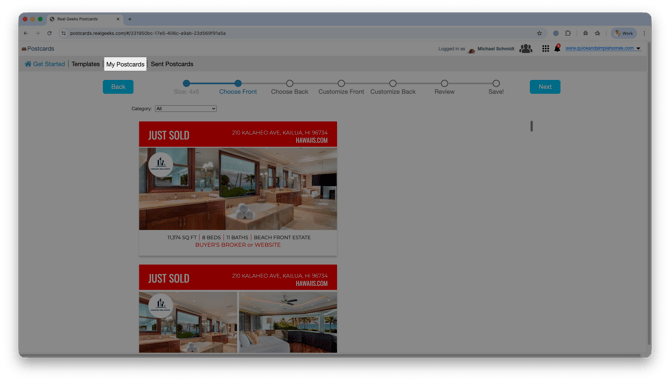
View any postcards you've personalized by clicking My Postcards in the navigation menu.
Send a Postcard to a Single Lead
Sending to an individual lead is ideal for personal follow-up, milestone touchpoints, or nurturing long-term prospects.
Please Note
The lead must have the following fields completed in their CRM profile before a postcard can be sent:
-
Address
-
City
-
State/Province
-
Zip/Postal Code
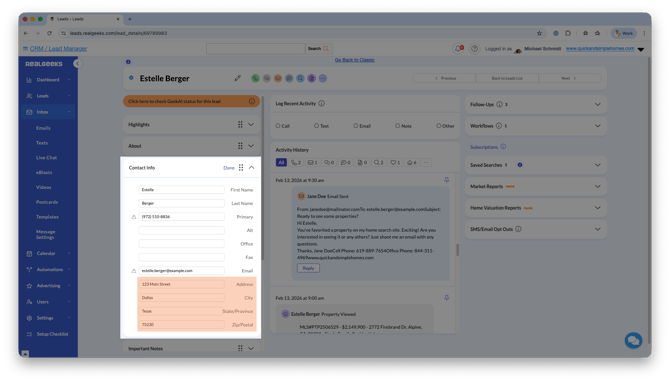
If any of these fields are missing, the postcard will not process for that lead.
From the Leads List
-
Locate the lead
-
Click the Postcard button under Quick Actions
From the Lead Profile
-
Open the lead's profile
-
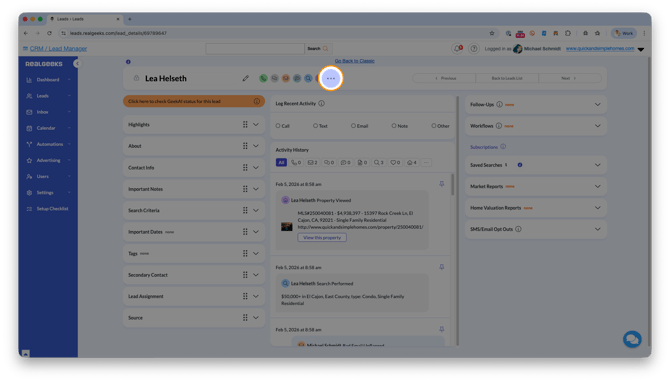
Click the three-dot menu in your action menu
-
Select Send Postcard to Lead
-
In the Send As field, select an agent
-
Click Send
Send a Postcard to Multiple Leads
Please Note
The lead must have the following fields completed in their CRM profile before a postcard can be sent to them:
-
Address
-
City
-
State/Province
-
Zip/Postal Code
If any of these fields are missing, the postcard will not process for that lead.
-
In the Lead Manager, Go to Leads > Leads List
-
Apply filters to target your audience or manually select your leads
-
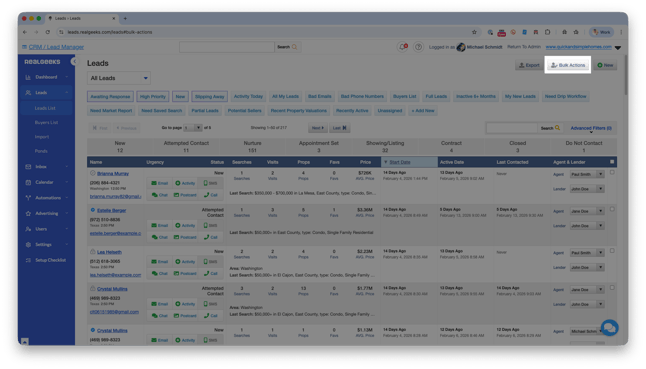
Click Bulk Actions
-
Choose Postcards
-
Confirm your audience and click Next
-
Select your postcard template
-
Click Send
This makes it easy to run targeted campaigns such as open house promotions, new listing announcements, or re-engagement outreach.
Postcard Pricing
Postcard pricing includes printing and postage.
-
(Domestic) 4x6: $0.53 per postcard
-
(Domestic) 6x9: $0.68 per postcard
- (International) 4x6: $1.55 per postcard
An address verification lookup fee will also be included in the cost
-
$0.05 per domestic address lookup
-
$0.055 per international address lookup
You are not charged for postcards that are not sent due to invalid addresses. Charges appear on your next monthly bill and can be viewed at accounts.realgeeks.com/billing.
Frequently Asked Questions
-
Is there an additional cost to use the Postcards feature?
The postcard creation tool is included with your platform. You only pay the per-postcard printing and shipping rate. -
How many postcards can I send per month?
You can send up to 100 postcards per month. You can reach out to support if you would like to send more. Email us at support@realgeeks.com or give us a call at 844-311-4969 -
How long does delivery take?
Estimated delivery time is 5–6 business days. -
Why was my postcard not sent?
Confirm the lead's address is in the lead's profile and confirm the address is correct. If the address fails verification, the postcard will not be mailed and you will not be charged for sending. -
I cannot see the Postcard option in my CRM. Why?
Postcard permissions must be enabled by the Site Owner. If the Site Owner does not see the option, submit a request at support.realgeeks.com.
Need Help?
-
Call us at 844-311-4969 (Mon–Fri, 8 AM–8 PM CST)
-
Email support@realgeeks.com
-
Visit Real Geeks University for free video courses
-
Join the Real Geeks Mastermind Group on Facebook for peer tips and best practices