.svg)
Admin Feature
Editing the website is an account owner-level permission. If you don't see this option, contact your account owner to enable these permissions for you.
Adding a video to the top of your website is a simple way to create a modern, polished first impression. A looping header video helps showcase your local market and brand style without distracting visitors from browsing homes. Videos play silently with no sound, serving as an eye‑catching visual rather than a media experience.
Need to Know
-
These videos play on a loop without sound at the top of your website
-
Videos must be MP4 format and 8 MB or smaller
-
Landscape-style videos work best. Avoid videos with people, text, or logos to prevent cropping or formatting issues across devices
-
Download free, high-quality videos to use on your website at unsplash.com and pexels.com
Table of Contents
How to Add a Video to the Top of Your Website
Real Geeks lets you set a site-wide header video for branding while allowing custom videos on individual pages for greater design flexibility. You can upload your own video or use free stock videos.
Video Requirements
-
The video must be in MP4 format
-
The video file must be 8 MB or smaller
-
There is no time limit as long as the file stays under the 8 MB file limit
Method 1: Customize Your Site-Wide Header Video
This option applies the same video to the top of every page on your website.
-
Visit your website backend by adding /admin to the end of your website domain (example: www.yourwebsite.com/admin)
-
Click Website Settings
-
Select Template Options
-
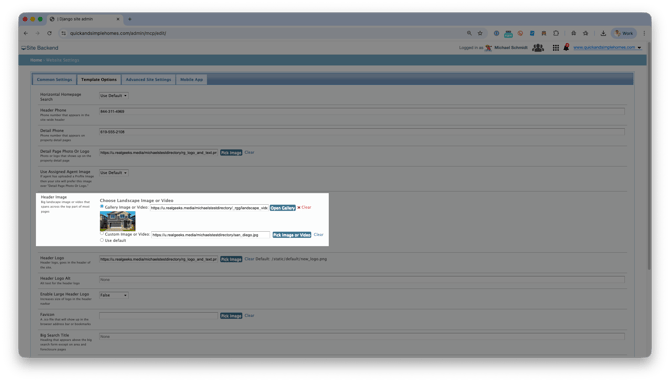
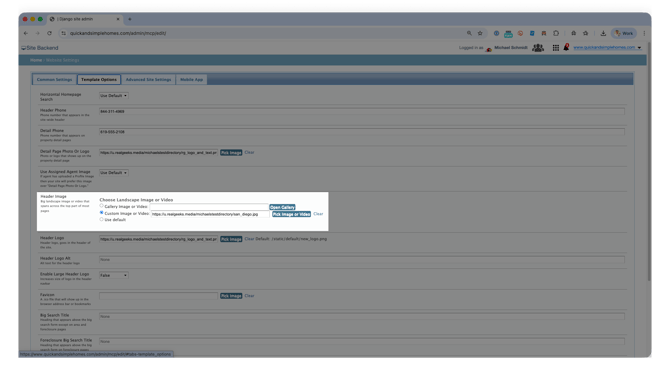
Next to the Header Image menu, select a Gallery or Custom Video
-
To Choose a (Free) Gallery Video:
-
Select Open Gallery
-
Under the Videos tab, select your video
-
Click Choose
-
-
To Use a Custom Video:
-
Select Pick Image or Video
-
Click Upload
-
Select the video file from your device
-
Click Insert
-
-
Click Save at the bottom of your website
This method is ideal for creating a consistent, branded look across your entire website.
Method 2: Customize Per-Page Header Videos
Use this option to add a unique video to individual pages using the Override Landscape Image setting.
-
Visit your website backend by adding /admin to the end of your website domain (example: www.yourwebsite.com/admin)
-
Click the page type you want to open (content page, area page, etc.)
-
Select the page you want to edit
-
Click Show next to Override Landscape Image
-
To Choose a (Free) Gallery Video:
- Select Open Gallery
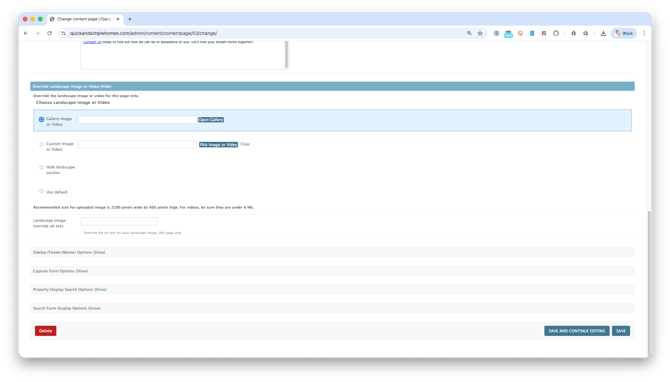
- Under the Videos tab, select your video
- Click Choose
- Select Open Gallery
- To Use a Custom Video:
- Select Pick Image or Video
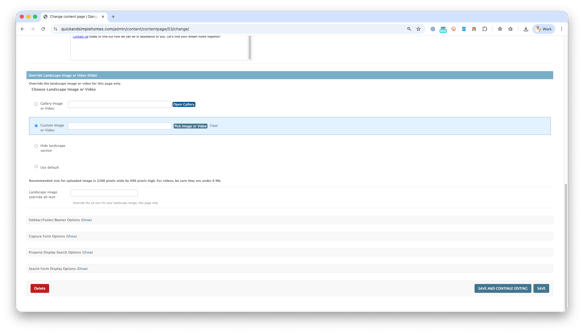
- Click Upload
- Select the video file from your device
- Click Insert
- Select Pick Image or Video
- Click Save
This method works well for highlighting specific neighborhoods, lifestyle pages, or featured content with visuals tailored to that page.
Best Practices
These tips help ensure your header video looks clean, professional, and consistent across all devices. Since videos play silently, visual simplicity matters more than motion or audio.
-
Use landscape or wide-angle footage of local areas, neighborhoods, or scenery
-
Keep videos subtle and calm to avoid distracting visitors from browsing listings
-
Avoid faces, text overlays, or logos, as they may be cropped or appear differently on different devices.
- Test how the page looks on different devices. Try it on your cell phone, tablet or desktop (whatever you have access to)
Troubleshooting
If your video does not appear as expected, review the following common issues.
-
Video does not upload: Confirm the file is MP4 format and under 8 MB
-
Video appears cropped: The video is limited by the size of the screen it is viewed on. It may appear differently on a phone than it would a laptop screen
-
Text or logos are cut off: this is due to the size of the screen it's being viewed on. Try viewing the page on a different device, or use a video without text on it
-
Video does not play: Refresh the page and confirm changes were saved
Frequently Asked Questions
Can I make a Youtube Video at the top of the website?
No, you would need the video file and upload it to Real Geeks.
Can I use videos with people in them?
This is not recommended. Faces may be cropped or partially hidden on different screen sizes.
Can I add text or my logo to the video?
Avoid text and logos, as they may appear cut off or misaligned depending on the device.
Does the video include sound?
No. Header videos always play silently and loop continuously. They are designed to be visually engaging without audio.
Where can I find free videos to use?
You can download free, high-quality videos from unsplash.com or pexels.com.
Need Help?
- Call us at 844-311-4969 (Mon–Fri, 8 AM–8 PM CST)
- Email support@realgeeks.com
- Visit Real Geeks University for free video courses
- Join the Real Geeks Mastermind Group on Facebook for peer tips and best practices