.svg)
Workflow text messages will not be sent if Geek AI is already texting a lead.
Workflows automate your lead follow-up while still keeping your outreach personal and on time. With workflows, you can schedule emails, texts, and reminders, organize leads using tags and statuses, and automatically trigger new campaigns based on how a lead engages.
This keeps your follow-up consistent, reduces repetitive manual tasks, and helps your brand stay top of mind with every lead in your database.
Need to Know
- Workflows allow you to set up automated follow up campaigns, and organize your leads more efficiently
- Leads can be assigned to workflows automatically or added manually, either one at a time or in bulk.
- You don't need to send messages in a campaign. Some workflows can be all internal follow up reminders or tags
- Leads can be assigned to multiple workflows at one time. Just make sure the communication isn't overlapping one another!
Table of Contents
Guided Demo: Create a Workflow
Guided Demo
Click the button below to view an interactive walkthrough of how to create a Workflow from scratch
This interactive demo walks through creating a workflow, selecting settings, and adding steps so you can see how everything fits together.
What Are Workflows
Workflows are automated follow-up campaigns where you decide what gets sent and when. Each step is an action (like sending a message, waiting a set time, or reminding you to reach out personally) chained together into a complete follow-up plan.
Workflows can send messages, create internal reminders, and update lead details (like status or tags). These steps run in a set sequence so your follow-up stays consistent, organized, and efficient, even when you’re busy.
Example: New Lead Follow-Up Workflow
Below is a simple example of how a short-term workflow might be structured:
-
Day 1: Send a welcome email introducing yourself and offering help
-
2 hours later: Send a short text checking in to make sure the lead saw your message
-
-
Day 1: Create an internal follow-up reminder so you know when to call the lead
-
Day 1: Apply a tag such as New Lead or Google Lead to help identify the source
-
Day 2: Send a second email with helpful information or listings
-
Day 3: Send a final check-in message to stay top of mind
-
End of workflow: If the lead has not responded, trigger a long-term nurture workflow that continues follow-up over the next 60 days
How to Access Workflows
This section explains where workflows live in the Real Geeks Lead Manager and how to open them.
Step-by-Step Instructions
-
Go to leads.realgeeks.com
-
Click Automations in the left-hand navigation
-
Select Drip Workflows
How to Create a Workflow
When you click New Workflow, you have three options to get you started:

-
Workflow Library: Pre-built campaigns you can use, edit, and launch immediately. Ideal for newer users, this option provides a library of pre-built workflows that can be used immediately
-
Copy Existing Workflow: Duplicate a workflow you already use and customize it. This helps you recycle old workflow content and make minor adjustments rather than recreate full campaigns over time.
-
Blank Workflow: Build a custom campaign from scratch. This gives you a blank canvas to build your campaign how you want it!
Want to create campaigns faster or not sure what to say?
We recommend checking out the AI Workflow Generator Prompt guide. This resource provides a simple AI prompt you can use with tools like ChatGPT or Gemini to help you quickly generate workflow ideas and message content.
This is especially helpful if you:
-
Aren't sure what kind of campaigns to create
-
Feel stuck on what to say in emails or texts
-
Want to build workflows faster without starting from scratch
-
Want more targeted, situation-based messaging instead of generic campaigns
Workflow Settings
Workflow settings are where you define the rules and guidelines for how the campaign should behave. This includes naming the workflow for internal reference, deciding how leads are assigned to it, and setting what should happen if a lead responds to your messages.
These settings act as the foundation of the workflow. They determine how you find the campaign in Real Geeks, who is enrolled, and how the system should pause or continue communication based on lead activity.
Workflow name
The workflow name is used internally to identify the campaign when assigning leads and reviewing active follow-up. Clear naming makes it easier to understand the purpose of each workflow at a glance.
Best practice is to include:
-
Audience: Who the workflow is for, such as a buyer, seller, past client, or active client
-
Urgency or frequency: How fast or slow the communication should be, such as short-term, long-term, aggressive, or low-frequency
-
Goal or situation: What the campaign is trying to accomplish or the situation the lead is in
Workflow Name Examples
-
Buyer 10-Day Aggressive Follow-Up
-
Buyer Long-Term Nurture (Low Activity)
-
Seller Pre-Listing Short-Term Outreach
-
Client Pre-Closing Documentation Sequence
-
Past Client One-Year Relationship Nurture
-
Buyer Unresponsive After Initial Contact
Workflow Triggers
Workflow triggers control how leads are subscribed to a campaign.
Workflows can start in three main ways:
-
Manual assignment by an agent
-
Automatic trigger based on lead Source
-
Automatic trigger based on Lead Assignment

Lead source triggers use where the lead came from, such as a website search, seller request, or advertising source. Lead assignment triggers start a workflow when a lead is assigned to a specific agent.
Common Buyer Lead Sources
- Website Property Search
- Website Agent Landing Page
- Website Property Landing Page
- Zillow
- Trulia.com
- Realtor.com
- Website Coming Soon Landing Page
Common Seller Lead Sources
- Website Property Valuation Agent Landing Page
- Website Property Valuation
- Website Market Report Page
You can also combine lead source and lead assignment conditions to create very specific enrollment rules. When you combine lead source and lead assignment conditions, both conditions must be met before a workflow is assigned automatically. This creates more hyper-specific scenarios and gives you tighter control over who receives certain campaigns and when they are triggered.
In most cases, lead source triggers work well for broad campaigns. Combined (lead source + assigned agent) conditions are best when you need more control over messaging, audience, or agent-specific follow-up.
What Happens When a Lead Responds
Use this setting to control how a workflow behaves when a lead replies to one of the automated messages in your workflow.

When the Pause workflow on communication from lead setting is enabled, all remaining steps stop as soon as a lead responds. This allows you to step in, reply personally, and continue the conversation without additional automated messages being sent.
After you respond, the workflow can be resumed at any time from the lead profile.
To resume a paused workflow:
-
Open the lead profile
-
Locate the Workflows section on the right side
-
Click Resume
Workflow Steps and Actions
After you continue from the workflow settings, you move into building the actual campaign. This is where you take a series of actions and place them in a specific order so the workflow sends messages, shares information, and schedules reminders over time.

This step is where your sequence comes to life. Each action builds on the previous one, creating a clear, intentional flow of communication. Build the workflow by defining the actions that run and establish the timing between each step.
Send Email

This step allows agents to send an email to the lead as part of an automated campaign. The content of the email is created by you, and while it’s scheduled in advance, it can still feel personal and timely. These messages are useful for both long-term nurturing and high-touch communication.
Emails can include:
-
Plain or rich text content
-
PDF attachments or other resources
-
Video messages embedded by the agent and delivered to the lead’s inbox
Send Text

This step allows you to send a pre-written text message to a lead’s mobile number. Texts are short, conversational, and highly effective for quick communication or engagement.
Text messages can include:
-
Plain text
-
Links to your site, resources, or video messages
Please Note
Workflow text messages won’t send while Geek AI, the automated AI texting assistant, is actively messaging a lead. This prevents overlapping messages that could feel overwhelming to the lead.
Add Follow-Up Reminder

This action creates an internal follow up reminder for you to reach out directly. With this step, you can tell "future you" wether to call the lead, send an email, text them, schedule a meeting, etc...
Why it’s helpful:
Follow-up reminders help you stay consistent and add a human touch where automation ends.
Use this step to:
-
Set a reminder to call a lead who hasn’t responded
-
Check in after sending a home valuation
-
Follow up one week after a showing
-
Prep for an upcoming appointment
-
Schedule a reminder to reconnect with a past client
Update Lead Status
This action automatically updates where the lead sits in your pipeline.
Use this step when a workflow reaches a point where the lead’s progress should be recorded, such as after outreach, a response, or a scheduled appointment. Keeping statuses up to date helps you prioritize follow-up and quickly understand a lead’s readiness.
Example use case
Update the lead status at the start of a new campaign when an appointment has been scheduled. The first step updates the status to Appointment Set, followed by an email or text that includes a link or details to confirm and prepare for the appointment.
Edit Tag (Add or Remove a Tag)

This step automatically applies or removes tags from a lead’s profile. Tags help you organize leads by interest, behavior, source, or stage—making it easier to manage your pipeline and launch follow-up campaigns.
This action applies or removes a tag on the lead profile.
Trigger Another Workflow
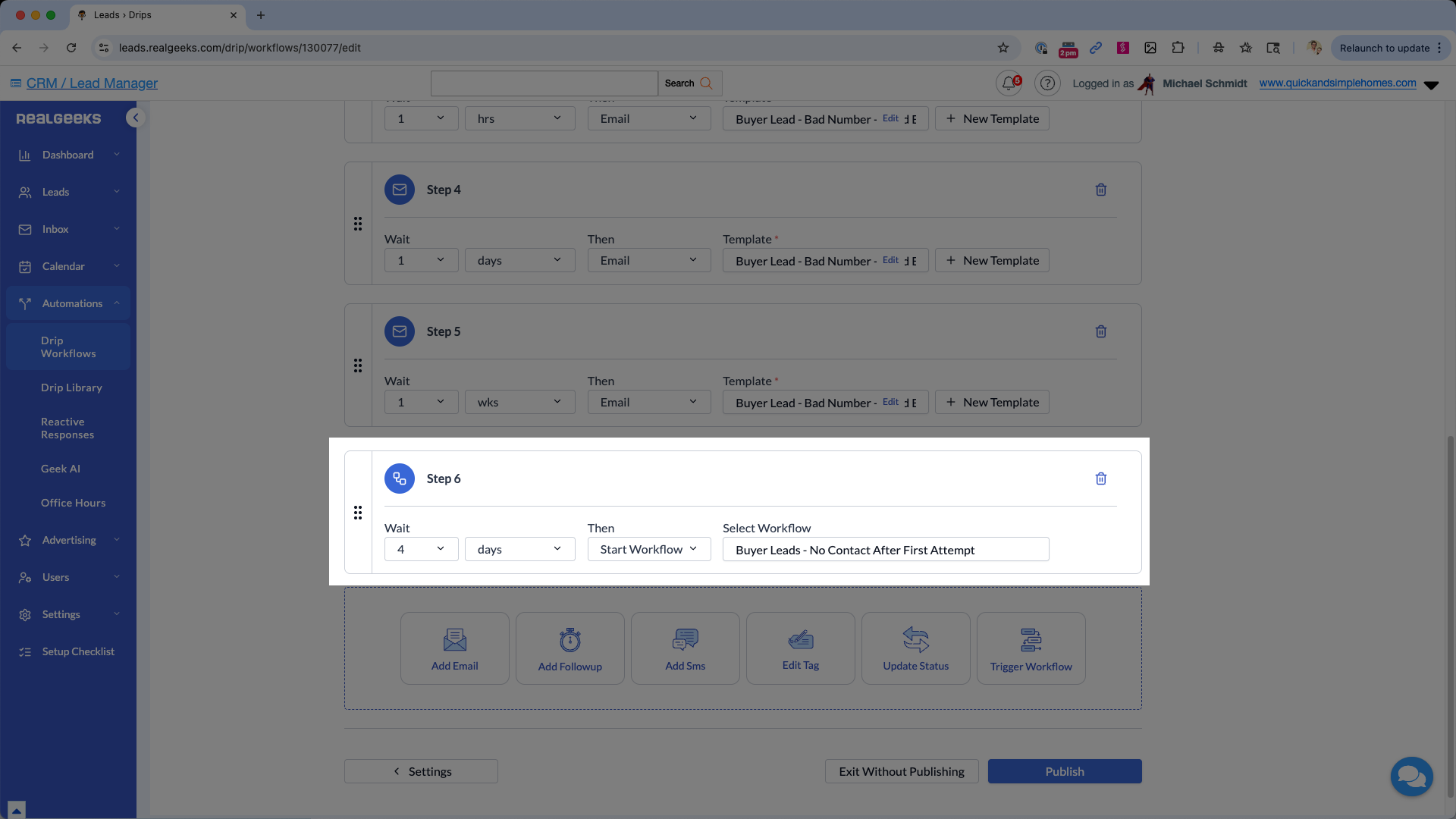
This step lets you automatically enroll a lead into another workflow when the current one ends. It’s a seamless way to keep leads engaged without needing to manually assign the next campaign.
Use this step to:
-
Transition a lead from a 7-day welcome campaign into a long-term nurture campaign
-
Move a closed client into a past client follow-up sequence
-
Re-engage leads who finished a seasonal or event campaign
-
Continue long-term education without interruption
Publishing your workflow
Once all steps are added, click Publish to make the workflow available for use.
After publishing:
-
Leads that meet your trigger rules will subscribe automatically
-
You can manually subscribe leads as they come in
-
You can retroactively subscribe existing leads who are a good fit
How Leads Are Assigned to Workflows
This section explains the different ways leads can be added to or removed from workflows so you stay in control of what messages are delivered and when.
Leads can be subscribed to workflows automatically using triggers or manually by an agent. You can also assign or remove workflows in bulk.
Automatic workflow assignment (triggers)
Automatic assignment uses the workflow trigger rules you set during setup.
Common trigger options include:
-
Lead source, such as website search, home valuation, or advertising source
-
Lead assignment to a specific agent
When a lead meets the trigger conditions, they are automatically subscribed to the workflow.
Manually assigning a workflow to a lead
Manual assignment is useful for situational follow-up or one-off scenarios.
To manually assign a workflow:
-
Open the lead's profile
-
Select the Workflows menu
-
Select the workflow you want to assign in the dropdown menu
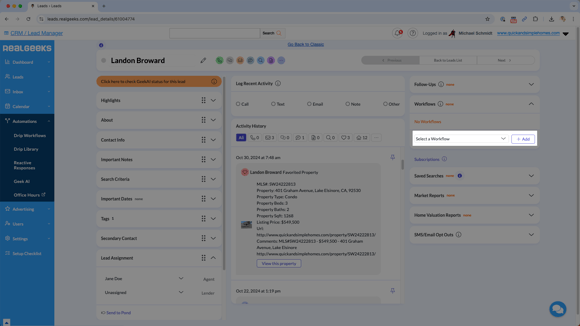
- Click + Add

The workflow will begin immediately based on the timing rules you set.
Assigning workflows in bulk
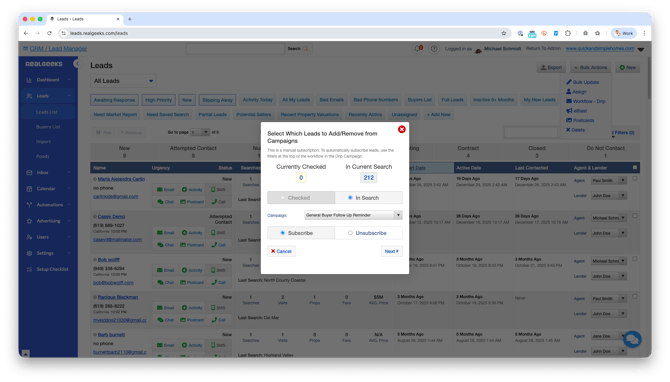
Bulk assignment allows you to enroll multiple leads into the same campaign at once. Use the CRM Advanced filters in the lead manager to build a list of similar contacts, then subscribe them to a campaign all at once.
Bulk assignment is completed from the leads list using filters and bulk actions.
To Assign Workflows in Bulk:
-
Select Your Leads (using Advanced Filters or with the Lead Selection Tool)
-
Click Bulk Actions > Workflow - Drip
-
Select the Campaign
-
Confirm the Subscribe option is selected
-
Click Next
- Select Change Subscription
Unsubscribing a lead from a workflow
You can remove a lead from a workflow at any time, either individually or in bulk.
Common reasons to unsubscribe a lead include:
-
The lead was added by mistake
-
The lead responded and needs personal follow-up only
-
The campaign is no longer relevant
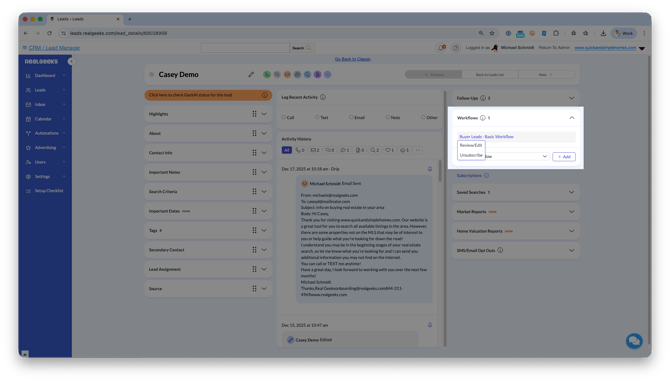
To unsubscribe a single lead:
-
Open the lead profile
-
Open to the Workflows menu
-
Click on the active workflow
-
Select Unsubscribe
-
Confirm the selection by clicking Ok
Unsubscribing workflows in bulk
Bulk unsubscribe allows you to remove multiple leads from the same campaign at once.
This is useful when:
-
A campaign is no longer appropriate for a group of leads
-
You want to stop messaging for a specific segment
-
Leads were enrolled incorrectly
Bulk unsubscribe is completed from the leads list using filters and bulk actions.
To Unassign Workflows in Bulk:
-
Select Your Leads (using Advanced Filters or with the Lead Selection Tool)
-
Click Bulk Actions > Workflow - Drip
-
Select the Campaign
-
Confirm the Unsubscribe option is selected
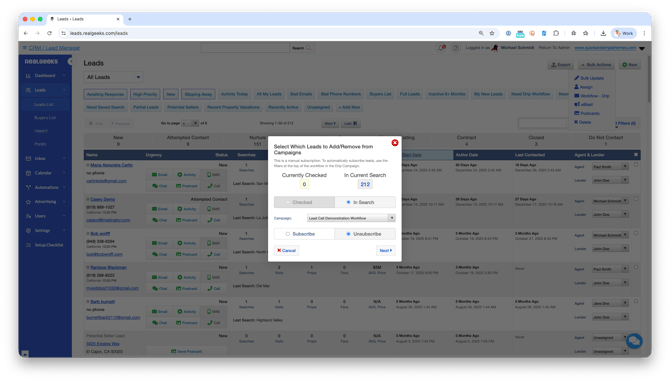
-
Click Next
- Select Change Subscription
Removing a lead stops all remaining steps from sending.
Examples of Workflows and When to Use Them
This section highlights common scenarios where workflows are most effective, explains what each campaign is designed to do, and when you would assign it to a lead.
Examples include:
-
First-Time Buyer Education: Built to explain the buying process step by step, set expectations, and reduce confusion for buyers who have never purchased a home before. This campaign focuses on education and confidence rather than speed.
-
When to use: Assign this workflow when a lead identifies as a first-time buyer or asks high-level questions about how buying works.
-
-
General Buyer Nurture (Listing Activity): A broad, always-on follow-up campaign designed to engage anyone who views active listings on your website. This workflow keeps your brand visible while buyers browse and serves as a baseline campaign that other, more specific workflows can be layered on top of later.
-
When to use: Use this as an automatic workflow triggered when a lead views active listings, then assign more situational workflows as you learn more about their intent.
-
-
Portal Lead Rapid Response (Zillow and Similar Sources): Designed for fast, high-touch outreach where speed to contact is critical and competition is high. Messaging is short, direct, and focused on getting a response quickly.
-
When to use: Assign this workflow immediately when a lead comes in from a third-party portal.
-
-
10-Day Buyer Fast Track: A short-term campaign focused on aggressive follow-up during the first 10 days after a lead registers. This workflow prioritizes contact attempts and reminders rather than long-term education.
-
When to use: Assign this workflow to new buyer leads when you want to maximize response during the most time-sensitive window.
-
-
Luxury Seller Outreach: Built for higher-end sellers who expect a premium experience, with messaging that emphasizes expertise, discretion, and service quality. This campaign often includes fewer messages with more personalized language.
-
When to use: Assign this workflow when a seller indicates a high-value or luxury property.
-
-
Open House Follow-Up: Reinforces the in-person interaction and keeps momentum going after meeting a lead at an open house. Messaging typically references the event and next steps.
-
When to use: Assign this workflow immediately after an open house while the interaction is still fresh.
-
-
Pre-Closing Requirements and Documentation: Designed for active clients who have decided to move forward and need clear guidance through paperwork, timelines, and next steps. This workflow sequences emails with attachments so documents and instructions are delivered in a manageable, organized way.
-
When to use: Assign this workflow once a client commits to moving forward so required documents, deadlines, and process updates are shared automatically.
-
-
Past Client Relationship Nurture: Focuses on staying connected after a transaction closes by providing periodic check-ins and value-based messages. This campaign supports long-term relationship building rather than immediate transactions.
-
When to use: Assign this workflow shortly after closing to maintain an ongoing relationship.
-
-
One-Year Post-Transaction Follow-Up: A long-term campaign designed to maintain consistent contact over the course of a year after a transaction. Messaging supports referrals, repeat business, and long-term brand recall.
-
When to use: Assign this workflow immediately after paperwork is signed so the campaign begins right away and runs automatically throughout the year.
-
-
Unresponsive Lead Long-Term Nurture: Keeps your brand visible for leads who stop responding without overwhelming them. Messaging is spaced out and focused on staying relevant rather than forcing engagement.
-
When to use: Assign this workflow after short-term outreach ends without a response.
-
Creating workflows for specific situations allows you to deliver more relevant messaging, build stronger relationships, and stay consistent across your entire network.
Need Help?
- Call us at 844-311-4969 (Mon–Fri, 8 AM–8 PM CST)
- Email support@realgeeks.com
- View our Live Events page for free coaching and training.
- Join the Real Geeks Mastermind Group on Facebook for peer tips and best practices