.svg)
Admin Feature
Editing the website is an account owner-level permission. If you don't see this option, contact your account owner to enable these permissions for you.
Uploading files through the FileBrowser allows you to personalize your Real Geeks Website and share valuable resources with visitors. Whether you're adding images, PDFs, or downloadable guides, keeping your files organized ensures your content looks professional and is easy to manage as your site grows.
Need to Know
-
The FileBrowser is located inside your Website admin panel
-
You can upload images, PDFs, and small media files (up to 8 MB)
-
Folders help keep your Website files organized
-
Images include built-in sizing versions for consistent formatting
-
Files must be uploaded before they can be inserted into Website pages
Table of Contents
How to Access the FileBrowser
-
Open your Website editor by adding /admin to the end of your Website address (example: www.yourwebsite.com/admin)
-
Click Manage Files
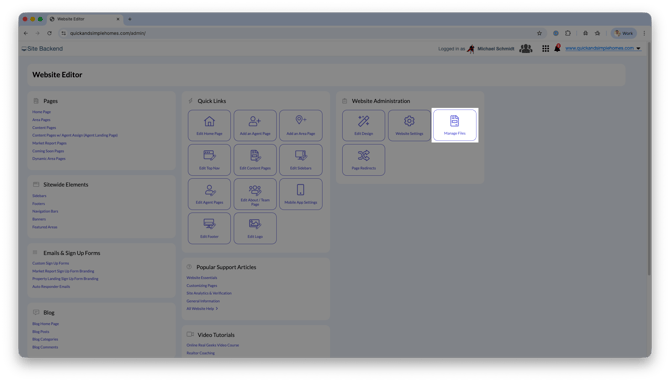
The FileBrowser will display all files currently stored on your Website.
How to Upload Files
-
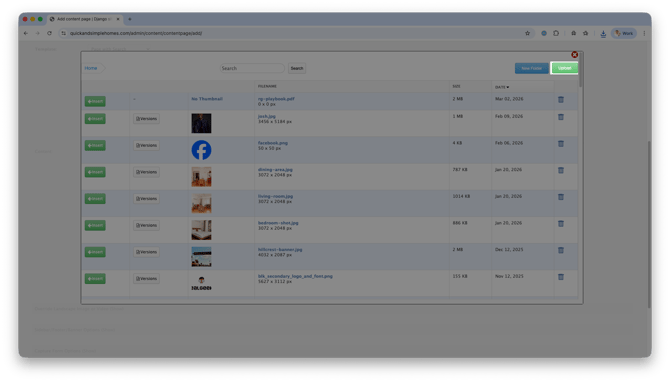
Click Upload
-
Select a file from your computer
Once uploaded, your file becomes available to insert into any Content Page, Blog post, or other editable Website section.
How to Organize Files with Folders
-
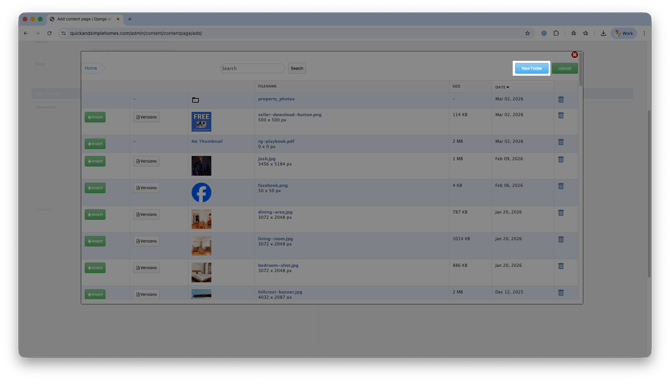
Click New Folder
-
Name your folder, then click Ok
To upload images to a folder: Click on the folder name, then select Upload
Recommended folder ideas:
-
Blog Images
-
Agent Photos
-
Market Reports
-
PDF Guides
-
Community Pages
-
Videos
How to Add a File to a Page or Blog Post
-
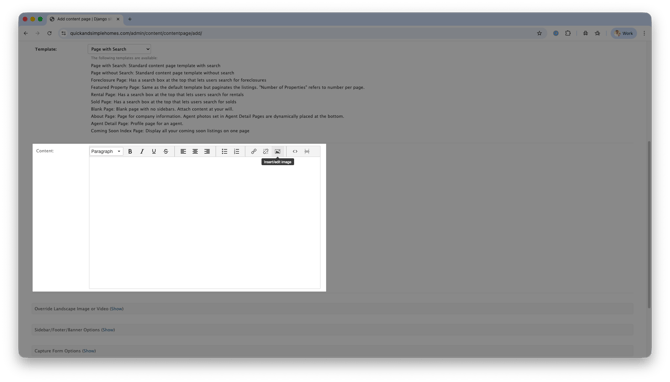
Open the page or Blog post inside your Website editor
-
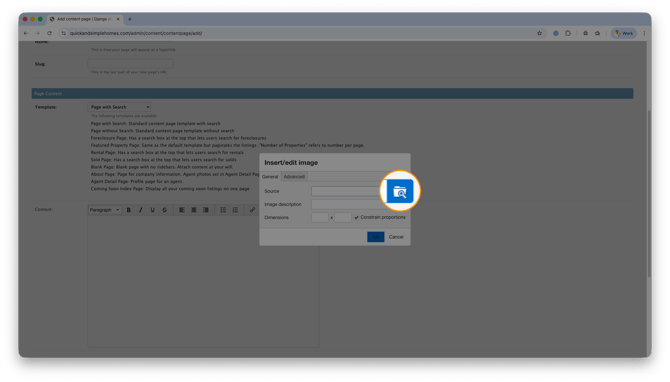
Click Insert/Edit Image
-
Select the Source icon
-
Locate your uploaded file
-
Click Insert
Image Versions & Sizing Options
When uploading images, click Versions to access pre-sized formats. These help keep your Website visually consistent and properly formatted.
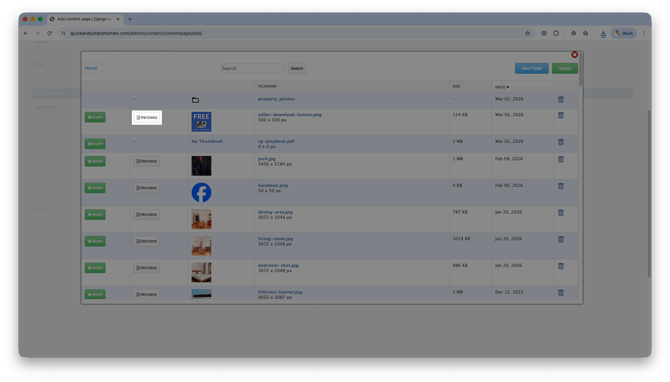
Available image versions:
-
Agent Detail Page (170 x 210 px)
-
Thumbnail (50 px)
-
Small (140 px)
-
Medium (300 px)
-
Big (460 px)
Using the correct size improves page load speed and keeps your layout clean.
File Size Limits
Files uploaded to your Website must be 8 MB or smaller.
If your file exceeds 8 MB:
-
Compress the file before uploading
-
Resize large images
-
Host larger videos on YouTube or Vimeo and embed them instead
Best Practices
-
Use descriptive file names (example: spring-market-report-2026.pdf)
-
Keep folders organized from the beginning
-
Use appropriately sized image versions
-
Upload PDFs directly to your FileBrowser instead of linking to third-party storage when possible
Keeping files organized ensures your Website remains easy to update and professional as your business scales.
Frequently Asked Questions
-
Can I upload videos directly to the FileBrowser?
Yes, as long as the file is under 8 MB. Larger videos should be hosted externally and embedded. -
Why should I use folders?
Folders make it easier to locate, reuse, and update files as your Website grows. -
What if my image looks too large on the page?
Use the Versions option to select a smaller pre-sized format. -
Can I replace a file after it’s uploaded?
Yes, you can delete the old file and upload a new version with the same name if needed.
Need Help?
- Call us at 844-311-4969 (Mon–Fri, 8 AM–8 PM CST)
- Email support@realgeeks.com
- View our Live Events page for free coaching and training.
- Join the Real Geeks Mastermind Group on Facebook for peer tips and best practices