.svg)
If you want to see which leads are currently subscribed to a specific workflow, you can use Advanced Filters in your Lead Manager. This allows you to quickly pull a list of leads who are actively receiving messages from that workflow so you can review, manage, or adjust your follow-up.
Need to Know
-
Advanced Filters are used to sort and organize your leads in Lead Manager
-
Workflows are automated follow up sequences that leads can be subscribed to
-
You can filter leads to see who is currently subscribed to a specific workflow
-
You can take bulk actions on filtered leads, like unsubscribing them from a workflow
Table of Contents
How to View Leads Subscribed to a Workflow
Follow these steps to view leads who are currently subscribed to a specific workflow:
-
Open the Leads List page in your CRM (leads.realgeeks.com/leads)
-
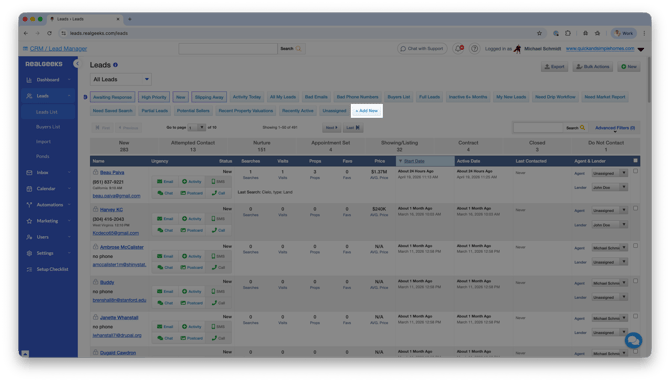
Click Add New
-
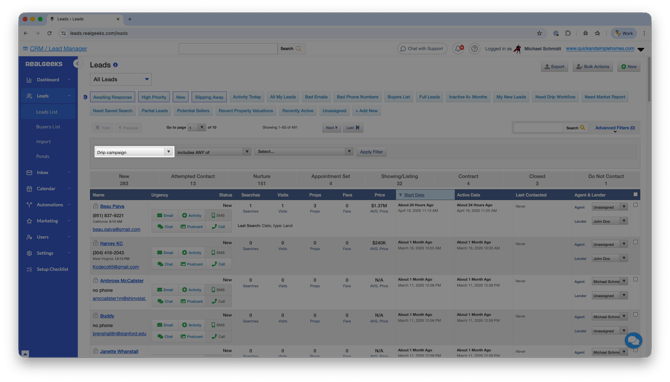
In the first dropdown, select Drip Campaign
-
In the third dropdown, choose the specific campaign you want to view
-
Click Apply Filter
Once applied, your list will update to show only the leads who are subscribed to that workflow.
Manage Leads in a Workflow
After filtering your leads, you can take action on them in bulk.
For example, if you need to remove leads from a workflow:
-
Select the leads from your filtered list
-
Use the bulk actions menu
-
Toggle the unsubscribe option for the workflow
This is helpful when cleaning up campaigns or adjusting your follow-up strategy.
Frequently Asked Questions
-
What is a workflow?
A workflow is an automated series of emails or texts that are sent to leads over time to help you stay in touc -
Can I save my filters?
Yes, Advanced Filters can be saved so you can quickly reuse them later. -
Why should I filter leads by campaign?
It helps you understand who is receiving specific messaging and allows you to manage or adjust your follow-up. -
Can I remove multiple leads from a campaign at once?
Yes, with your leads filtered by workflow you can use bulk actions to unsubscribe multiple leads at the same time.
Need Help?
- Call us at 844-311-4969 (Mon–Fri, 8 AM–8 PM CST)
- Email support@realgeeks.com
- View our Live Events page for free coaching and training.
- Join the Real Geeks Mastermind Group on Facebook for peer tips and best practices