.svg)
Admin Feature
Editing the website is an account owner-level permission. If you don't see this option, contact your account owner to enable these permissions for you.
When a new lead registers on your website, timing matters. Auto Responder Emails ensure every lead gets an immediate, professional response, helping you start the relationship strong and stay top of mind from the very first interaction. Responding quickly is a proven best practice — research shows that contacting a lead within the first five minutes can increase your chances of making a connection by up to 100x compared to waiting 30 minutes.
Need to Know
- Auto Responder Emails are sent automatically after a lead signs up
- There are 4 email types, each triggered by a different lead registration method (market report sign-up, general sign-up, automated valuation, or customized valuation)
- Each email can be customized with subject, content, and placeholders
- Personalization tokens (like name and login link) improve engagement
- Changes only apply to new leads after saving
Table of Contents
What Are Auto Responder Emails?
Auto Responder Emails are automatic emails sent to new leads immediately after they register on your Real Geeks website. There are four types, each triggered by a different sign-up method. This feature helps you:
- Deliver instant value
- Set expectations early
- Build trust from the first interaction
This is one of the simplest ways to improve lead conversion by ensuring no new lead goes without a response.
How to Access Auto Responder Emails
Follow these steps to find your Auto Responder settings:
-
Open your website editor by adding /admin to the end of your website address (e.g. www.yourwebsite.com/admin)
-
Log in to your admin panel
-
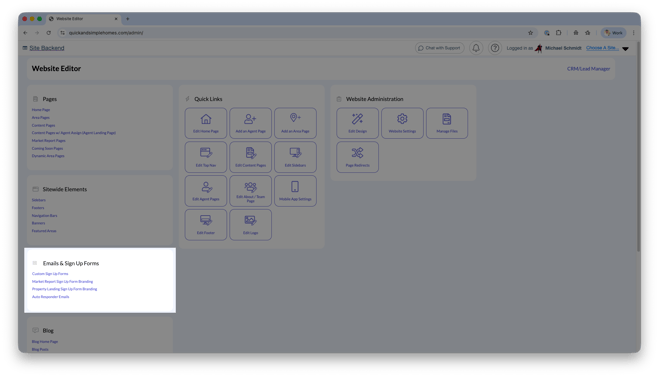
Navigate to Emails & Sign Up Forms
-
Click Auto Responder Emails
Auto Responder Types Explained
You have four Auto Responder Emails, each tailored to how a lead signs up:
Market Report Sign-Up
-
-
Sent when a lead registers through a market report page
-
Ideal for delivering insights and positioning yourself as a local expert
-
General Sign-Up
-
-
Sent when a lead signs up through general site activity
-
Includes property searches or clicking the sign-up/login icon
-
Seller Leads Automated Valuation
-
-
Sent when a lead uses the home valuation tool
-
Includes automated valuation results
-
Seller Leads Customized Valuation
-
-
Sent when valuation is not automated
-
Designed for agents who prefer to personally provide valuation details
-
How to Customize Your Emails
Each Auto Responder can be edited to match your voice and strategy:
- Update the Subject field (this is what the lead sees first)
- Edit the Content field (this is your message body)
- Keep messaging clear, helpful, and personal
Personalization Placeholders
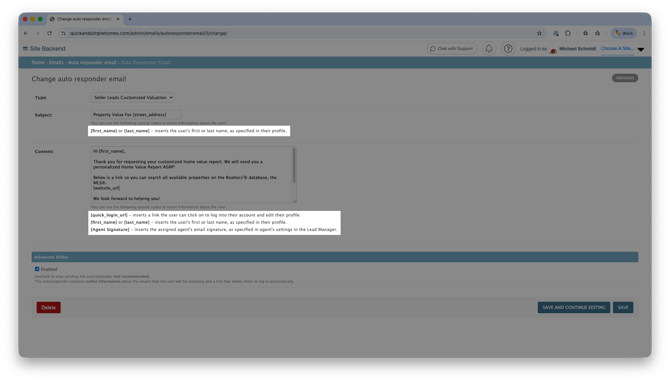
Use placeholders to automatically insert lead-specific details:
[first_name]– Inserts the lead’s first name[last_name]– Inserts the lead’s last name[quick_login_url]– Provides a direct login link[Agent Signature]– Adds your email signature
These tokens help your message feel personal without manual effort.
Enable or Disable Auto Responders
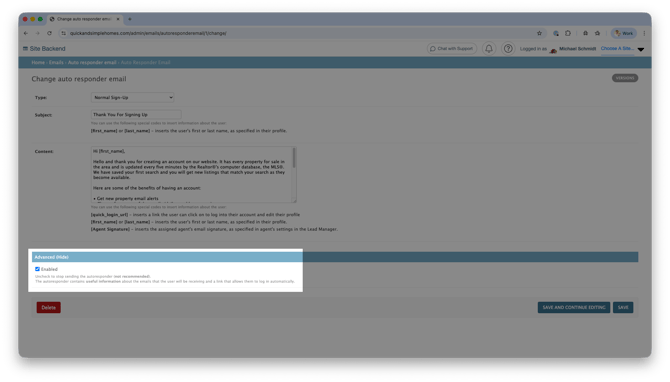
To enable or disable an Auto Responder Email, open the Advanced menu within that email and toggle the Enabled switch.
Best Practices
- Keep emails short and easy to read
- Focus on value first (not a sales pitch)
- Include a clear next step (search homes, reply, etc.)
- Personalize whenever possible using placeholders
- Align your message with why the lead signed up
Frequently Asked Questions
- Why isn’t my updated email sending to existing leads?
Auto Responder changes only apply to new leads who register after you save — existing leads will not receive the updated email. - Can I turn off one Auto Responder but keep others active?
Yes, each email can be enabled or disabled individually. To do so, open the Advanced menu within that email and toggle the Enabled switch. - What should I include in the email content?
Include a welcome message, relevant information about what the lead signed up for, and a single clear next step (such as searching listings, requesting more info, or replying directly). - Do I need to customize these emails?
A default template is provided, but customizing your emails with relevant content and personalization tokens significantly improves open rates and lead engagement.
Need Help
- Call us at 844-311-4969 (Mon–Fri, 8 AM–8 PM CST)
- Email support@realgeeks.com
- View our Live Events page for free coaching and training.
- Join the Real Geeks Mastermind Group on Facebook for peer tips and best practices