.svg)
Admin Feature
This feature requires the account owner (or admin) to grant CRM Admin Permissions. If you don't see this option, contact your account owner to enable it for you.
Deleting a lead in the Real Geeks CRM is a permanent action. This guide explains how to delete a single lead or multiple leads at once using Bulk Actions in the Lead Manager. Before you begin, make sure you have the correct permissions to delete leads in your account.
Need to Know
-
You must have permission to delete leads in the CRM
-
The Site Owner controls user permissions in the Users List
-
Deleting a lead is permanent and cannot be undone
-
You can delete one lead at a time or multiple leads using Bulk Actions
Table of Contents
Who Can Delete Leads
Only users with permission to delete leads can perform this action. The Site Owner must enable this permission within the user’s profile settings inside the Users List.
If you do not see the Delete option, contact your Site Owner to confirm your permissions.
How to Delete a Single Lead
Follow these steps to delete an individual lead from the Lead Manager:
-
Open the lead’s profile
-
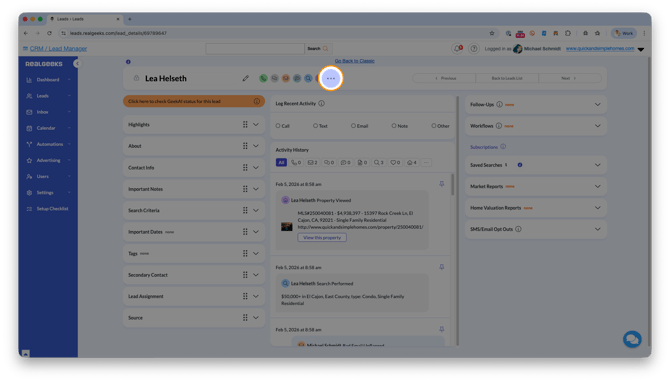
Select the More button (circle with three dots) at the top of the page
-
Click Delete Lead
-
Confirm the deletion
Once confirmed, the lead will be permanently removed from your CRM.
How to Delete Multiple Leads
If you need to remove several leads at once, use Bulk Actions from the Leads List.
-
Go to the Leads List
-
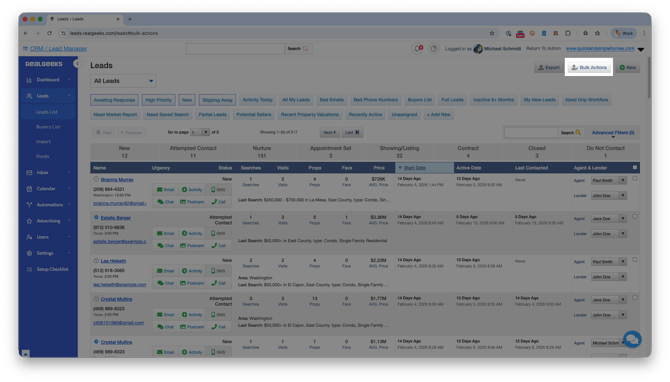
Check the boxes next to the leads you want to delete, or use Advanced Filters to target a group of contacts
-
Select Bulk Actions
-
Click Delete
-
Confirm your selection and click Next
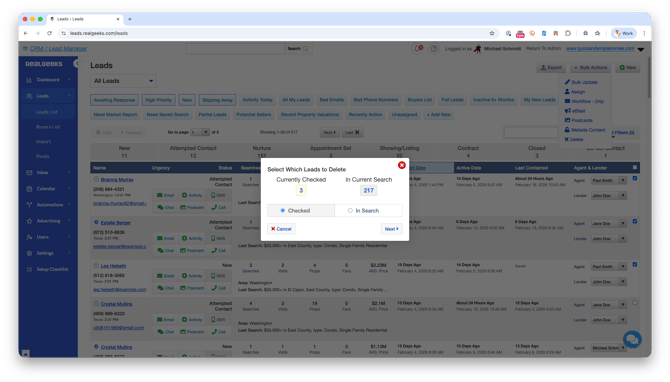
- Currently Checked: Leads that you selected with a checkmark
- In Current Search: The view of all leads. If no filter is selected then you will be deleting all of your leads
-
Enter the confirmation code
-
Click Delete
Bulk deletion is permanent and cannot be reversed.
Before Deleting a Lead...
In most cases, best practices suggest not deleting leads from your CRM.
Even if a lead is non-responsive or has incomplete or incorrect contact information, they can still bring meaningful value to your business. Every website visit boosts your traffic, strengthens your online presence, and expands your reach in the market. And remember, timing changes. A lead who is quiet today could come back ready to move tomorrow.
If a lead has bad contact information, manage them instead of deleting them. Use Tags, Status, and Urgency updates, and follow our guide to collect validated contact information and turn incomplete records into real opportunities.
Frequently Asked Questions
-
Can I recover a deleted lead?
No. Once a lead is deleted, it cannot be restored. -
Why don’t I see the Delete option in my account?
You may not have permission. The Site Owner must enable delete permissions in your user profile. -
Is deleting leads recommended?
In most cases, no. Keeping leads in your CRM allows you to maintain traffic, future opportunities, and potential referrals. -
What should I do with non-responsive leads instead of deleting them?
You can update their Status, adjust their Urgency, add Tags, or place them into a Workflow to stay organized.
Need Help?
- Call us at 844-311-4969 (Mon–Fri, 8 AM–8 PM CST)
- Email support@realgeeks.com
- Visit Real Geeks University for free video courses
- Join the Real Geeks Mastermind Group on Facebook for peer tips and best practices