.svg)
Admin Feature
This integration supports only one account and should be completed by the Site Owner/Admin.
The Follow Up Boss Tracking Code (Pixel) connects your Real Geeks Website to your Follow Up Boss account so you can track lead activity in real time. Once installed, you’ll see:
-
property views
-
saved searches
-
new inquiries
- and more...
All directly inside your Follow Up Boss lead profiles. This gives you better visibility into what your leads are doing so you can reach out with the right message at the right time.
Need to Know
-
The Follow Up Boss Pixel must be requested from inside your Follow Up Boss account
-
The installation email must be sent to support@realgeeks.com so our team can install this to your website
-
You will receive confirmation once installation is complete
Table of Contents
What the Follow Up Boss Tracking Code Does
The Follow Up Boss Pixel is a lightweight tracking script that creates a real-time connection between your Real Geeks website and your Follow Up Boss account.
With the Pixel installed, you can:
-
Display your Follow Up Boss tracking number on your website
-
Automatically add new inquiries to Follow Up Boss
-
Track saved properties and viewed listings
-
See exactly which pages a lead visits
-
Create personalized emails and texts based on browsing behavior
-
Retarget your database and identify engaged leads
-
Automatically tag marketing sources to measure performance
This real-time visibility helps you reach out when interest is highest. Instead of guessing, you’ll know exactly what your leads are looking at and when they’re most active.
How to Add a Follow Up Boss Tracking Code to Real Geeks
Follow these steps inside your Follow Up Boss account:
-
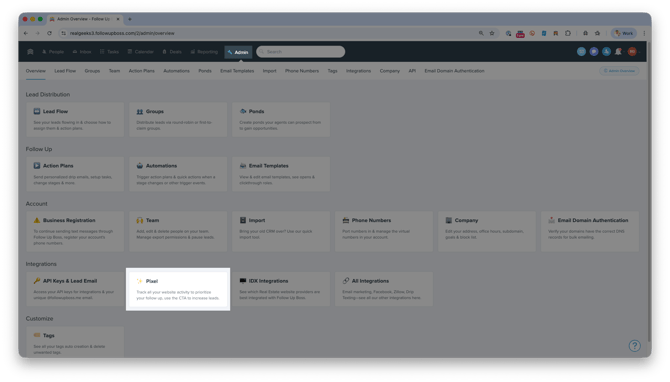
In Follow Up Boss, click Admin
-
Under Integrations, select Pixel
-
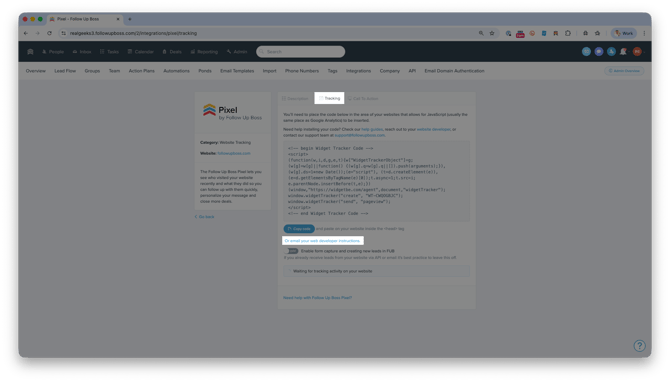
Open the Tracking tab
-
Click Email your web developer instructions
-
Send the email to support@realgeeks.com
Important
When prompted to send installation instructions, choose the option to email your developer and enter support@realgeeks.com as the recipient.
What Happens After You Send the Email
Once the Real Geeks Support team receives your installation request:
-
The Tracking Code will be added to your Real Geeks Website
-
This can typically take up to 24 hours to complete. The team will confirm once installation is complete
-
You can then log into Follow Up Boss to verify tracking
Want to speed up the process? Call us at 844-311-4969 (Mon–Fri, 8 AM–8 PM CST) after submitting the email to confirm receipt and request priority installation.
How to Verify the Tracking Code Is Working
Once installed, verify the Pixel is working by logging into Follow Up Boss and navigating to Admin > Integrations > Pixel. If the Pixel is active, you will see a connected status and lead activity — such as page views and property searches — will begin populating inside your lead profiles.
Best Practices for Using Tracking Code Data
Once your Pixel is active, use the data strategically:
-
Reach out when a lead views the same property multiple times
-
Reference specific neighborhoods or price points in your follow up
-
Prioritize leads who are actively browsing
-
Monitor marketing source tags to see which campaigns are driving traffic
The goal is simple: respond based on behavior. When your follow up matches what a lead is actively searching for, your conversations become more relevant and more likely to convert.
Frequently Asked Questions
-
Do I need technical experience to install the Follow Up Boss Pixel?
No. You only need to request the installation from inside Follow Up Boss and email the instructions to support@realgeeks.com. -
How long does it take to install the Pixel?
Installation typically takes up to 24 hours. The Real Geeks Support team will email you once the Pixel has been added to your website. -
Will the Pixel affect my website performance?
No. The Pixel runs in the background and does not impact the speed or design of your website. -
Can I install the Pixel myself?
No. The Real Geeks Support team must install the Pixel on your website.
Need Help?
- Call us at 844-311-4969 (Mon–Fri, 8 AM–8 PM CST)
- Email support@realgeeks.com
- Visit Real Geeks University for free video courses
-
Join the Real Geeks Mastermind Group on Facebook for peer tips and best practices