.svg)
Creating and managing leads in the Real Geeks CRM Mobile App allows you to capture opportunities the moment they happen and stay organized while you are on the go. Whether you are at an open house, showing, or networking event, you can add contacts, update details, and prioritize follow-up directly from your phone. This helps you maintain an accurate pipeline and take action without delay.
Download the App
Apple App Store | Google Play Store
Need to Know
-
You can create new leads directly from the mobile app
-
Leads created in the app automatically sync with your desktop Lead Manager
-
You can update lead details like Status, Timeframe, and Urgency from a lead profile
-
Sorting and filtering help you prioritize follow-up throughout the day
-
Filters must be created in the desktop CRM before they appear in the app
Table of Contents
How to Create a New Lead
Follow these steps to manually create a new lead in the mobile app:
-
Open the CRM Mobile App
-
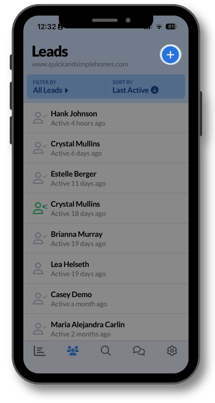
Tap the Contacts icon
-
Tap the plus (+) icon
-
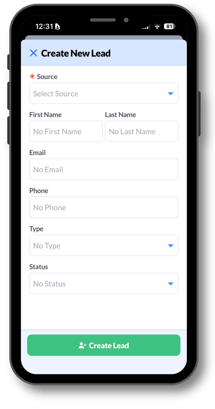
Assign a Source
-
Enter the lead’s contact details
-
Optional: Assign Type and Status
-
Tap Create Lead
What this allows you to do:
-
Capture new contacts immediately while you are in the field
-
Avoid losing opportunities by waiting to enter them later
-
Keep your database accurate in real time
When to use this:
-
At open houses or showings
-
During networking events
-
After meeting a potential client in person
How to Organize and Prioritize Leads
Inside the Leads menu, you can sort your contacts to focus on the most important opportunities.

You can sort leads by:
-
Last Active
-
Start Date
-
Last Communication
-
First Name
-
Last Name
-
Average Property Price
-
Number of Properties Viewed
-
Number of Searches
-
Number of Visits
-
Number of Favorites
Best practice
Use sorting to quickly identify active leads and prioritize who needs your attention first each day.
What this allows you to do:
-
Focus on the right conversations at the right time
-
Maintain consistent follow-up across your pipeline
-
Quickly identify engaged or high-intent leads
How to Search and Filter Leads
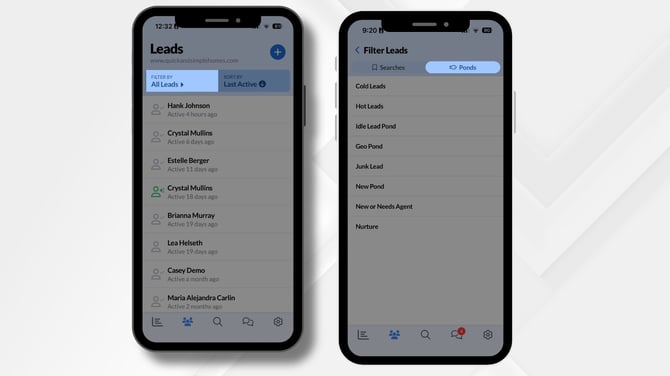
The mobile app allows you to quickly find specific contacts or groups of leads using search and filters.
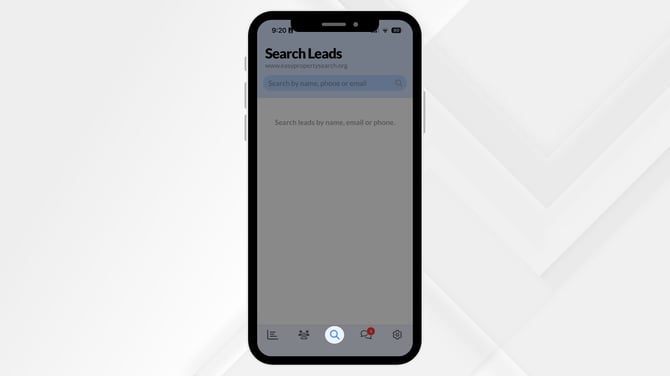
To search for a lead:
-
Open the Leads menu
-
Use the search bar to enter a name, email, or phone number
To use filters:
-
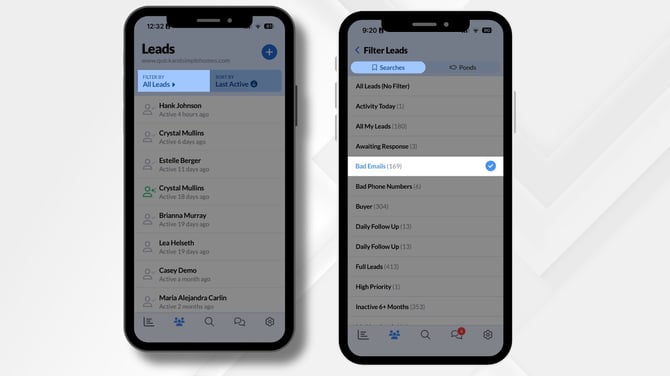
Tap Filter By
-
Select a saved filter
-
View leads grouped by criteria such as status, source, or activity
To access Lead Ponds:
-
Open the Ponds menu
-
Select a pond you have access to
-
Claim available leads
Please Note
Filters must be created in the desktop version of the CRM before they are available in the mobile app. You cannot create new filters directly inside the CRM Mobile App.
What this allows you to do:
-
Quickly locate specific contacts
-
Segment your database for targeted follow-up
-
Claim and manage new opportunities from lead distribution systems
Why This Matters for Your Business
Your database is one of your most valuable assets. The easier it is to capture and organize leads, the more consistent your follow-up will be.
Using the CRM Mobile App helps you:
-
Capture leads the moment you meet them
-
Keep your pipeline clean and up to date
-
Prioritize high-value conversations
-
Stay consistent with daily lead management
When your database is accurate and organized, it becomes easier to convert opportunities into appointments and closings.
Frequently Asked Questions
-
Can I edit a lead after creating it?
Yes. Open the lead’s profile in the app and update contact details, Status, Type, or add notes at any time. -
What should I use as the Source?
Choose the most accurate origin of the lead such as Open House, Referral, Sign Call, or Website so your reporting stays clean. -
Do I have to assign Type and Status?
No. These fields are optional, but assigning them helps you stay organized and improves follow-up consistency. -
Will the lead sync with my desktop CRM?
Yes. Any lead created in the CRM Mobile App automatically syncs with your desktop CRM.
Need Help?
- Call us at 844-311-4969 (Mon–Fri, 8 AM–8 PM CST)
- Email support@realgeeks.com
- View our Live Events page for free coaching and training.
- Join the Real Geeks Mastermind Group on Facebook for peer tips and best practices