.svg)
Admin Feature
Editing the website is an account owner-level permission. If you don't see this option, contact your account owner to enable these permissions for you.
Many homebuyers begin their search by typing the name of a city, neighborhood, or ZIP code rather than selecting options from dropdown menus. The Type Ahead search feature allows visitors to quickly find listings by simply typing a location into the search bar.
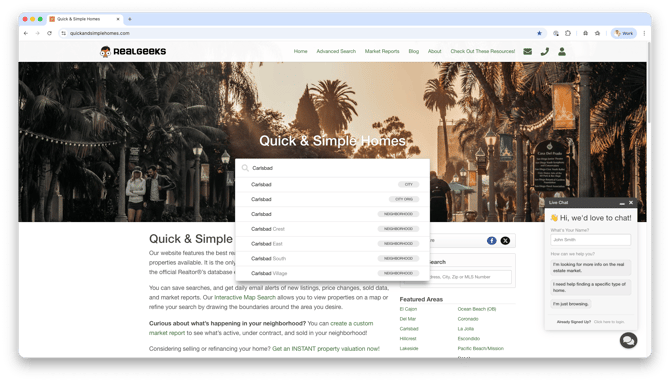 When enabled, the search field automatically suggests matching locations as the user types. This makes browsing faster and more intuitive for visitors, helping them find listings quickly while increasing engagement on your website.
Need to Know
-
Type Ahead allows visitors to search by typing a location instead of using dropdown menus, suggesting locations as the user types
-
This feature can only be adjusted on the following website templates:
-
Molly
-
Miranda
-
Miranda-Thin
-
-
The Anna and Anna-Modern templates already include this feature by default
Table of Contents
What the Type Ahead Feature Does
The Type Ahead search form replaces the traditional dropdown search fields with a single search bar that automatically suggests locations while users type.
Instead of selecting filters like city, beds, or price first, visitors can simply begin typing a location. The search field will immediately display suggestions such as:
-
Cities
-
Neighborhoods
-
ZIP codes
-
MLS areas
This streamlined search experience makes it easier for visitors to start browsing listings and reduces the friction that sometimes occurs with multi-field dropdown searches.
Supported Website Templates
The Type Ahead feature is available only on the following website templates:
-
Molly
-
Miranda
-
Miranda-Thin
The following templates already include this feature by default, so no setup is required:
-
Anna
-
Anna-Modern
How to Enable Type Ahead Search
This feature is configured on a per-page basis, meaning you must enable it on each page where you want the auto-complete search to appear.
To enable the feature on your Home Page:
-
Go to your website backend by adding
/adminto the end of your website domain
Example:www.yourwebsite.com/admin -
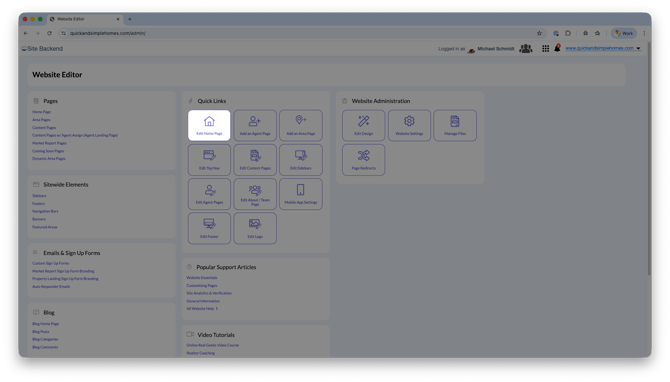
In the Quick Links, click Edit Home Page
-
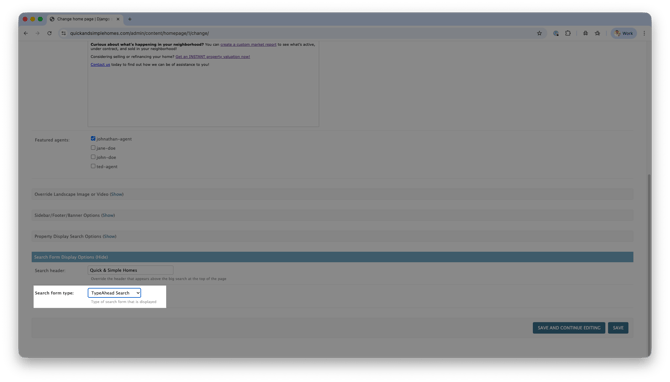
Scroll to the Search Form Display Options and click Show
-
Change Search Form Type to TypeAhead Search
-
Click Save
Once enabled, your search bar will allow visitors to type locations and receive instant suggestions while searching for properties.
Frequently Asked Questions
-
What is the difference between Type Ahead and the standard search form?
The standard search form uses dropdown menus for fields like city, beds, and price. Type Ahead replaces those dropdowns with a single search field that suggests locations as the user types. -
Why does this feature have to be enabled on each page?
Each page can have different search display settings. Because of this, the Type Ahead search must be enabled individually wherever you want it to appear. -
Why don’t I see the option in my website settings?
The feature is only available on the Molly, Miranda, and Miranda-Thin templates. Other templates may not include this option. -
Do Anna or Anna-Modern websites need to enable this feature?
No. These templates already include the Type Ahead functionality by default.
Need Help?
- Call us at 844-311-4969 (Mon–Fri, 8 AM–8 PM CST)
- Email support@realgeeks.com
- View our Live Events page for free coaching and training.
- Join the Real Geeks Mastermind Group on Facebook for peer tips and best practices