.svg)
Email templates help you respond to leads quickly while keeping your messaging professional and consistent. Instead of writing the same email over and over, you can save frequently used responses and send them with just a few clicks.
The Real Geeks CRM includes a library of pre-written email templates and allows you to create your own custom templates. These templates can be personalized with merge fields, formatted with images or videos, and shared with your team so everyone communicates with leads effectively.
Need to Know
-
CRM Email Templates are reusable messages you can send to leads from the CRM
-
Templates help you respond faster and maintain consistent messaging
-
You can create your own templates or use one from our email template library
-
Templates support formatting, attachments, images, videos, and merge fields
-
Templates can be private or shared with your team
Table of Contents
What Are CRM Email Templates?
CRM Email Templates are reusable messages that allow you to quickly respond to leads without rewriting the same emails every time.
Instead of typing common responses repeatedly, you can save messages for situations like new lead introductions, property suggestions, showing confirmations, and follow-ups. When needed, simply select the template and send it.
Using email templates helps you:
-
Respond to leads faster
-
Maintain consistent communication
-
Reduce time spent writing repetitive emails
-
Personalize messages efficiently
-
Keep your team using the same messaging standards
This allows you to stay responsive to leads while focusing more time on conversations and appointments instead of writing emails from scratch.
How to Access CRM Email Templates
You can access the Email Templates section from the CRM Inbox.
Follow these steps:
-
In the CRM navigation menu, click Inbox
-
Select Templates
From this page, you can browse existing templates or create new ones using the buttons at the top of the page:
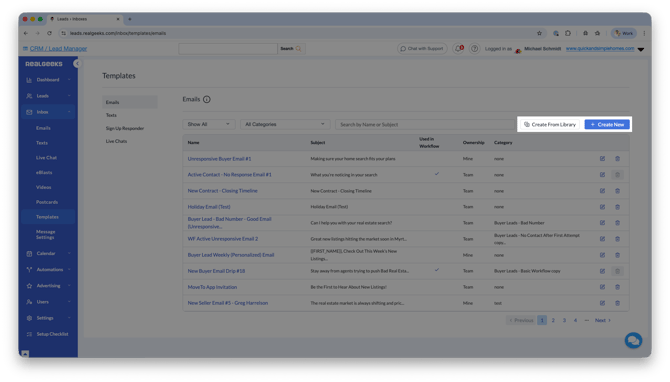
-
Create From Library: Use this option to choose from Real Geeks’ pre-written email templates that are designed for common lead conversations.
-
Create New: Use this option to build your own custom email template from scratch.
How to Create or Edit an Email Template
When creating or editing a template, you can customize several settings to organize and personalize your message.
Template Setup Fields
When editing a template, you will see the following options:
-
Name: Add a name for the template so it is easy to identify internally.
-
Subject Line: The subject line that will appear when the email is sent to the lead.
-
Category (Optional): Assign a category to organize templates within your library.
-
Who Can Use This Template: Choose whether the template is private or shared with your team.
-
Message: Write the body of your email message.
Message Formatting Options
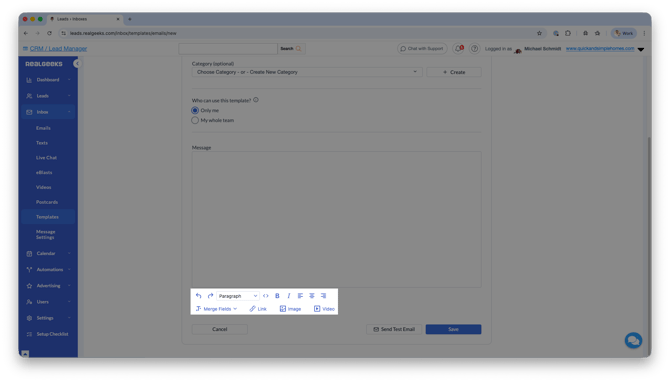 Inside the message editor, you can:
-
Format text
-
Add images
-
Insert videos
-
Attach files
-
Use merge fields to personalize the message
These tools help you create engaging emails that still feel personal to each lead.
Best Practices for Writing Effective Email Templates
Good templates should feel helpful and conversational while encouraging a response from the lead.
Consider these tips when creating your templates:
-
Keep messages short and easy to read
-
Use merge fields to personalize the greeting
-
Ask open-ended questions to encourage replies
-
Provide helpful information rather than sales pressure
-
Focus on starting conversations, not closing deals immediately
Example:
Are there any specific neighborhoods or price ranges you're most interested in right now?
Frequently Asked Questions
-
Can I edit the built-in email templates?
Yes. You can modify existing templates or create your own custom templates. -
Can my team use the same templates?
Yes. When creating a template, select the option to share it withMy whole teamin the Who can use this template section -
Can I personalize templates for each lead?
Yes. Merge fields allow you to automatically insert lead details such as their name into the message. -
Can I add images or videos to templates?
Yes. The message editor allows you to insert images, videos, attachments, and formatted text.
Need Help?
- Call us at 844-311-4969 (Mon–Fri, 8 AM–8 PM CST)
- Email support@realgeeks.com
- View our Live Events page for free coaching and training.
- Join the Real Geeks Mastermind Group on Facebook for peer tips and best practices