.svg)
New to Geek AI Text?
Not sure what Geek AI Text is or whether it's enabled in your account? Read this guide first to learn how it works, check if it's available in your account, and get started:
Geek AI Text uses proven real estate communication strategies to consistently engage your leads. For most agents, the real challenge is trusting Robin to handle follow-up so you can focus on conversations that need your expertise.
Treat Robin as your personal real estate assistant. Robin keeps leads engaged and conversations moving, while you provide the market knowledge, relationships, and guidance only a real estate professional can offer. Working together, you save time, create better client experiences, and uncover more opportunities to turn leads into clients.
Need to Know
- Robin works best when it's enabled for all eligible lead sources.
- Robin uses your lead's activity and notes to personalize conversations.
- Review lead conversations regularly to stay informed and identify opportunities.
- Enable Assistant Conversation Handoff notifications so you know when Robin needs your help.
Table of Contents
Enable Robin for Every Opportunity
Robin can't help if it isn't talking to your leads. The more conversations Robin is actively having, the more opportunities it has to qualify, nurture, and move leads forward.
To get Robin talking to more of your leads:
-
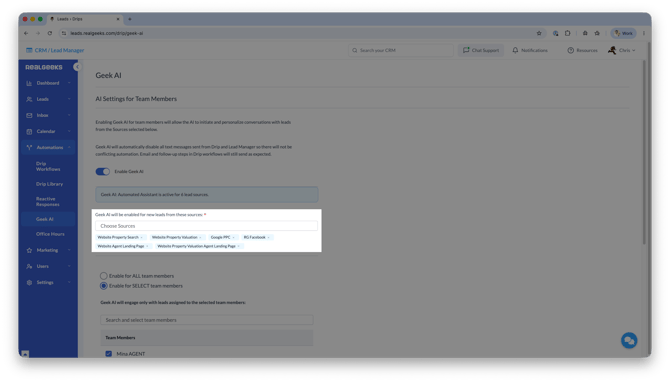
Go to Lead Manager > Automations > Geek AI.
-
Click Choose Sources.
-
Enable every eligible lead source you want Robin to engage.
-
Repeat as needed to add additional lead sources.
Why this matters
-
Robin starts conversations automatically.
-
More leads receive consistent follow-up.
-
Fewer opportunities fall through the cracks.
-
You gain more time for appointments, negotiations, and client relationships.
Review Robin's Conversations
Just like you would check in with a human assistant, spend a few minutes each day reviewing Robin's conversations.
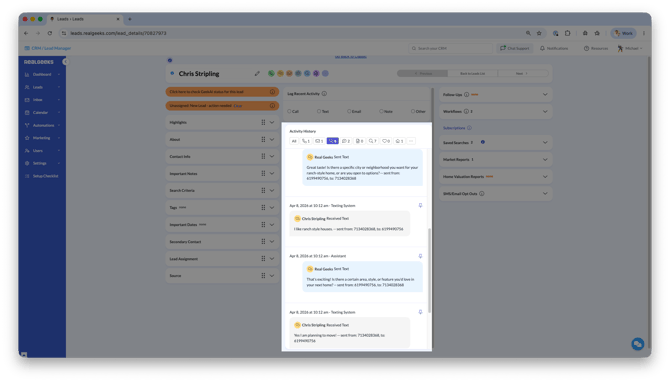
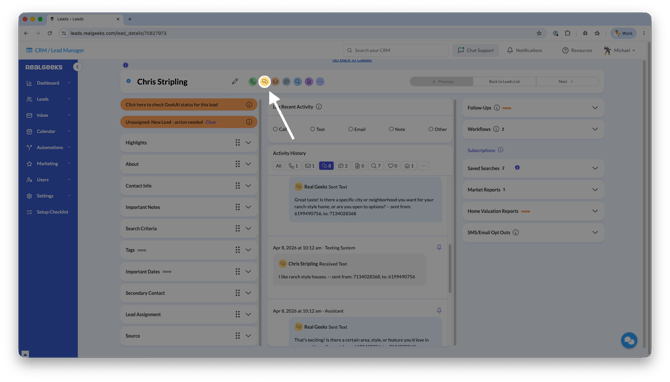
You can view Robin's conversations in the lead's Activity History, or by opening a text message to the lead by clicking the Text Lead button in their profile.
 Review your:
-
Lead Feed to identify engaged leads.
-
Leads List to monitor activity across your database.
-
Lead Summaries to quickly understand recent conversations and website activity.
-
Conversation history to see how Robin is building rapport.
Checking in regularly helps you recognize when it's the right time to personally join the conversation.
Give Robin More Context
Robin uses your lead's activity history to personalize future conversations, and every note you add gives it more context to understand your lead and continue the conversation in a more personal and meaningful way.
Leave your assistant notes in the lead's profile to coach your assistant with more context to build stronger connections.
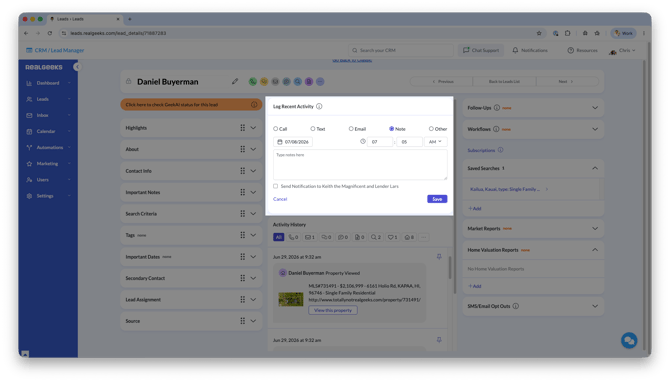
How to Leave a Note for the AI:
-
Open the lead's profile in the CRM
-
Under Log Recent Activity, click Note
-
Enter the note details
-
Click Save
Use Notes to capture:
-
Buying or selling timeline.
-
Neighborhoods or home features they're interested in.
-
Family, work, or relocation details.
-
Vacation plans or follow-up reminders.
-
Important objections, goals, or motivations.
Think of Notes as leaving instructions for your assistant before the next conversation.
Work Together
Robin's goal isn't to replace your conversations. It's to create more opportunities for you to have them.
When Robin keeps a lead engaged, step in to:
-
Answer detailed real estate questions.
-
Schedule showings or listing appointments.
-
Offer local market expertise.
-
Help overcome objections.
-
Guide the lead toward their next step.
Robin starts and nurtures the conversation. You provide the expertise that turns relationships into clients.
Never Miss a Handoff
Robin knows when a lead is ready for a human conversation. Make sure you receive Assistant Conversation Handoff notifications.
To Enable These Notifications:
-
Go to Lead Manager > Settings.
-
Select Notifications.
-
Open the Custom tab.
-
Enable Assistant Conversation Handoff.
We recommend enabling notifications for:
-
Text message
-
Email
Responding quickly helps maintain the momentum Robin has already built.
Frequently Asked Questions
-
Should I still contact my leads if Robin is texting them?
Yes and No... Do not text over Robin. If you send a text, Robin stops and you take over. Keep calling your leads and leave notes so Robin can keep texting effectively. Mention Robin on your calls so leads know who they have been messaging. -
What information should I add to Notes?
Add anything that helps personalize future conversations, including timelines, preferences, objections, family details, or important life events. -
How often should I review Robin's conversations?
A quick daily review of your Lead Feed and Lead Summaries helps you stay informed without needing to read every conversation. -
What's the best way to receive handoff notifications?
We recommend enabling notifications through the Real Geeks mobile app so you can respond as quickly as possible.
Need Help?
- Call us at 844-311-4969 (Mon–Fri, 8 AM–8 PM CST)
- Email support@realgeeks.com
- View our Live Events page for free coaching and training.
- Join the Real Geeks Mastermind Group on Facebook for peer tips and best practices