.svg)
Geek Verified Leads adds SMS text verification to your website sign-up process to confirm lead phone numbers at the point of registration. By verifying contact information upfront, you reduce incorrect or incomplete phone numbers and improve the quality of leads entering your CRM.
Need to Know
-
SMS verification confirms a lead’s phone number using a one-time code
-
Unverified leads receive limited access to listing photos and galleries
-
Verified leads are clearly labeled in the lead manager with badges and filters
-
Agents can manually verify leads if their contact information is confirmed offline
Table of Contents
- How Geek Verified Leads Work
- Verified vs. Unverified Lead Access on Your Website
- How Verified Leads Appear in the CRM
- Managing and Updating Lead Verification Status
- Frequently Asked Questions
- Need Help
- Related Articles
How Geek Verified Leads Works
When a lead submits their contact information after looking at a property:
Note: Geek Verified Leads must be enabled on your account. Contact Real Geeks support at support@realgeeks.com or call 844-311-4969 to enable this feature.
-
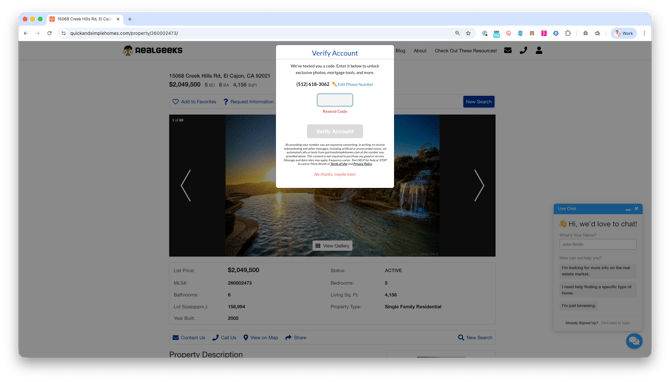
The system sends a one-time verification code via SMS to the phone number provided
-
The lead enters the code on your website to confirm ownership of the phone number
-
If needed, the lead can request the website resend the code to verify the phone number
-
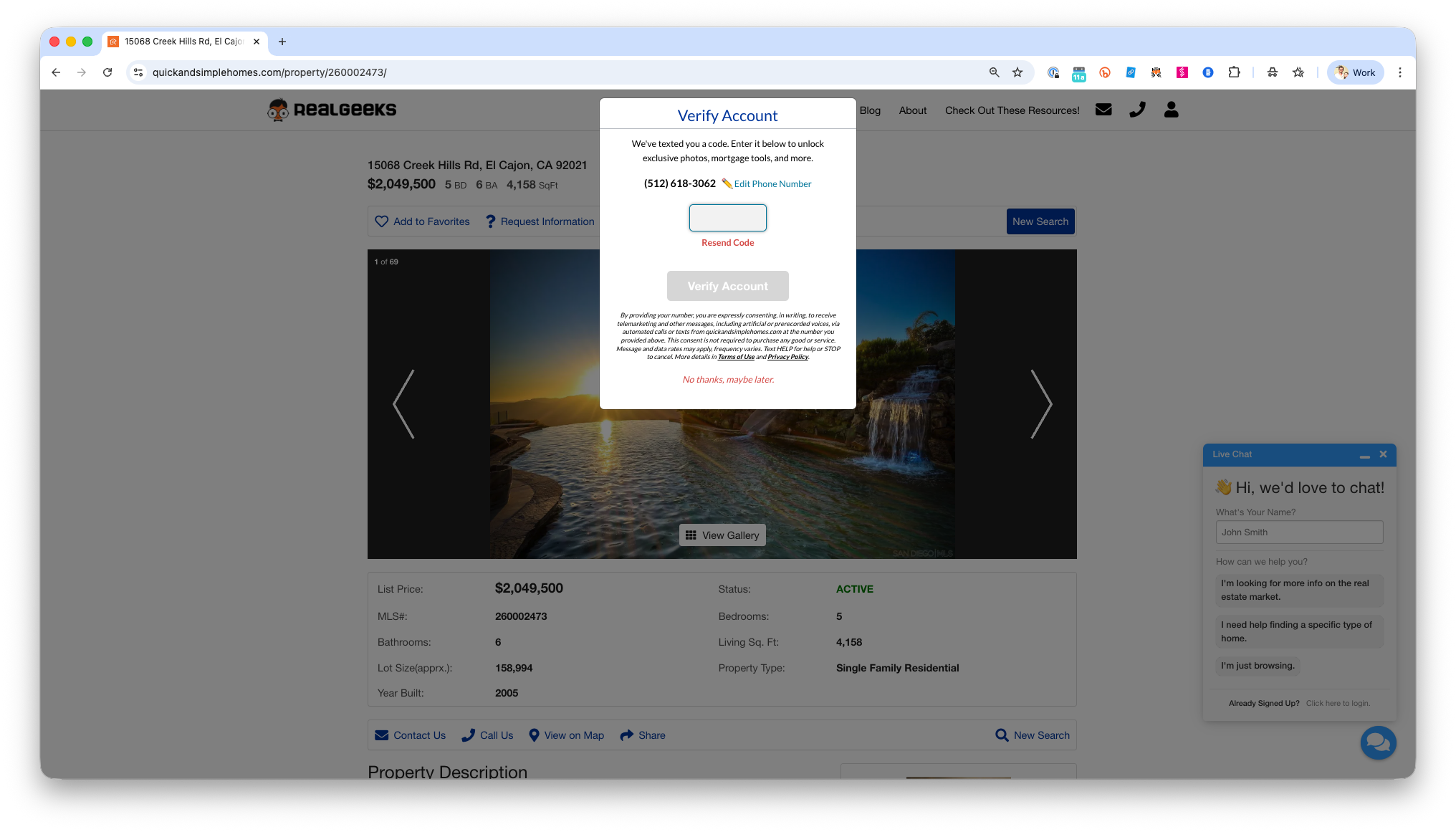
Leads can skip phone verification, but the lead cannot view more than 3 photos per property until a verified phone number is provided.
Because verification happens after the form is submitted, lead sign-ups are not blocked and conversion is not affected. This process helps reduce incorrect phone numbers while keeping the sign-up experience simple.
Verified vs. Unverified Lead Access on Your Website
Leads with verified phone numbers have full access to the website and all of its features.
For unverified leads:
-
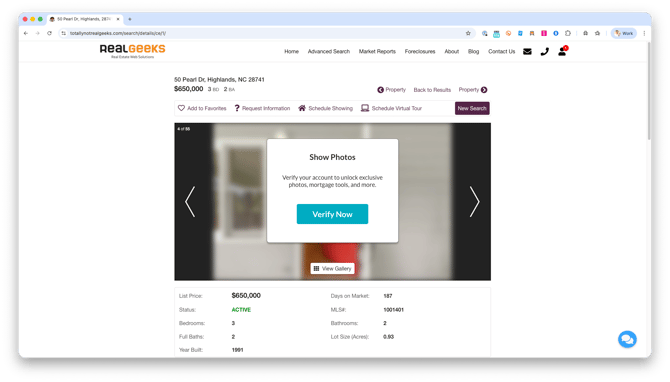
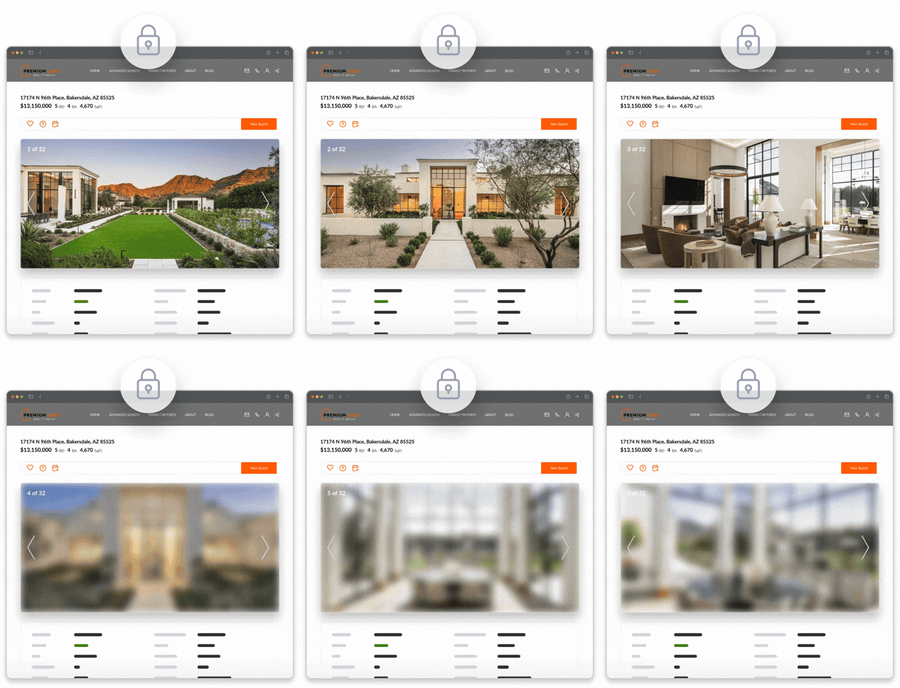
Property images are blurred after viewing 3 (three) listing photos per property
-
Clicking View Gallery will prompt them to verify their phone number instead of opening the gallery
Leads can update their phone number at any time from their profile on the website. Updating the phone number automatically triggers a new verification code to be sent to their phone.
How Verified Leads Appear in the CRM

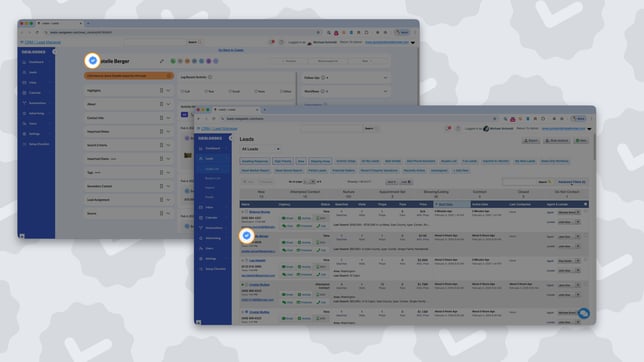
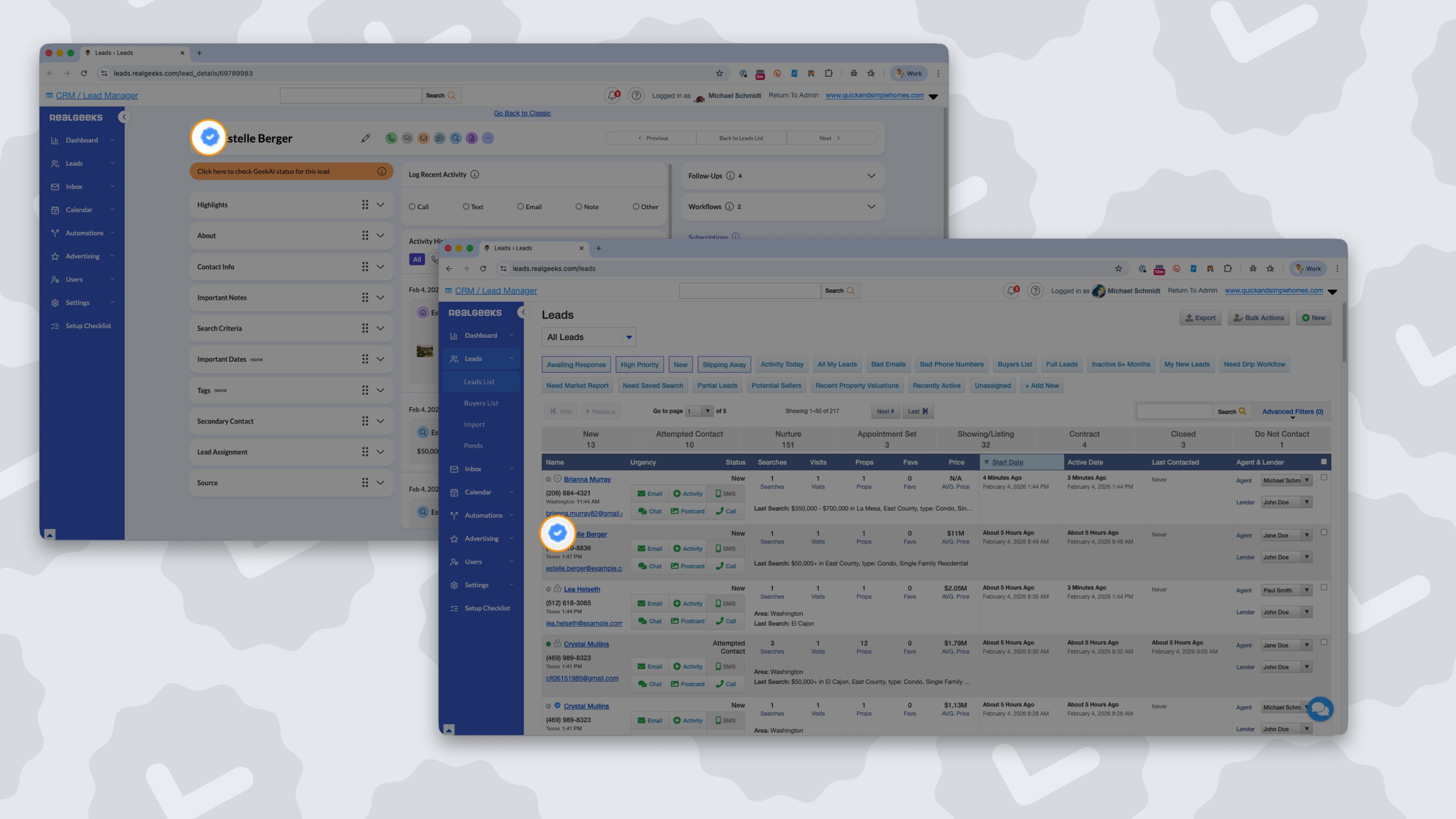
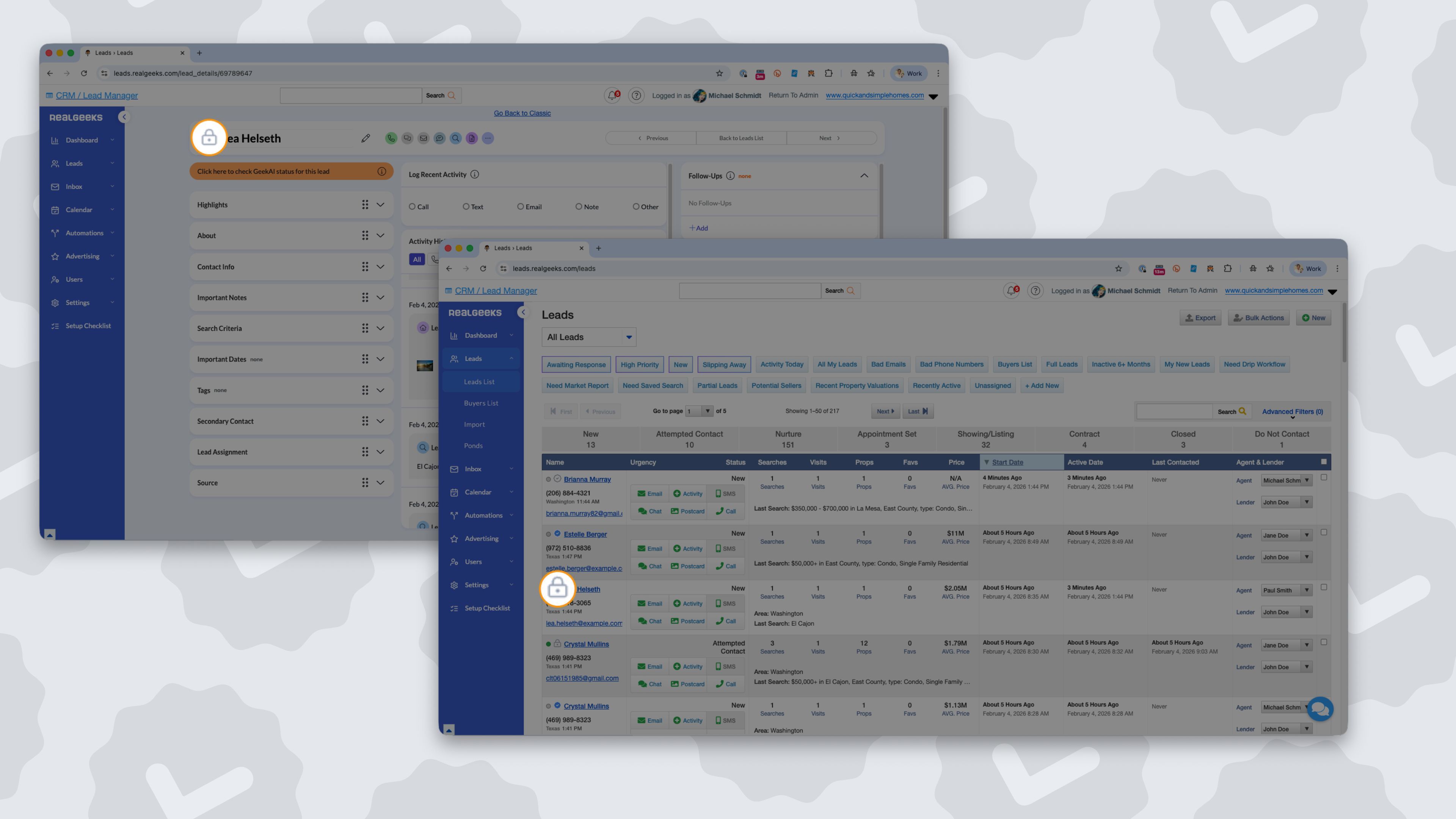
Each lead is assigned a verification status badge next to their name throughout the CRM, making it easy to see who has confirmed their phone number:
-
Geek Verified: The lead confirmed their phone number using SMS verification
-
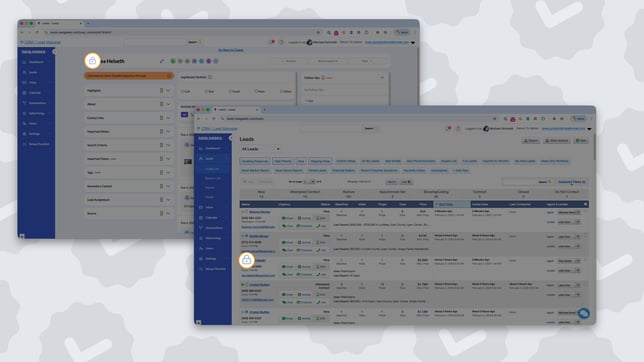
Unverified and Locked: The lead declined verification and does not have full access to listing content
-
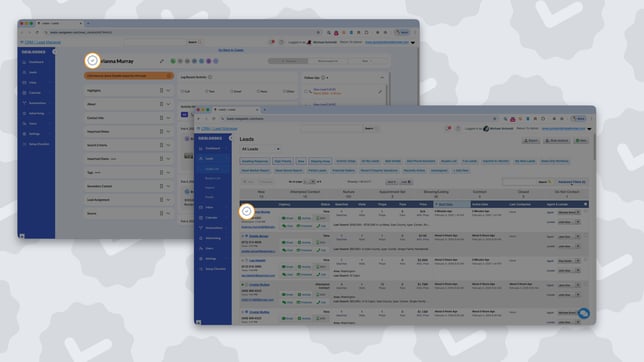
Unverified and Unlocked: The lead has not verified their phone number but has been granted full website access by an agent
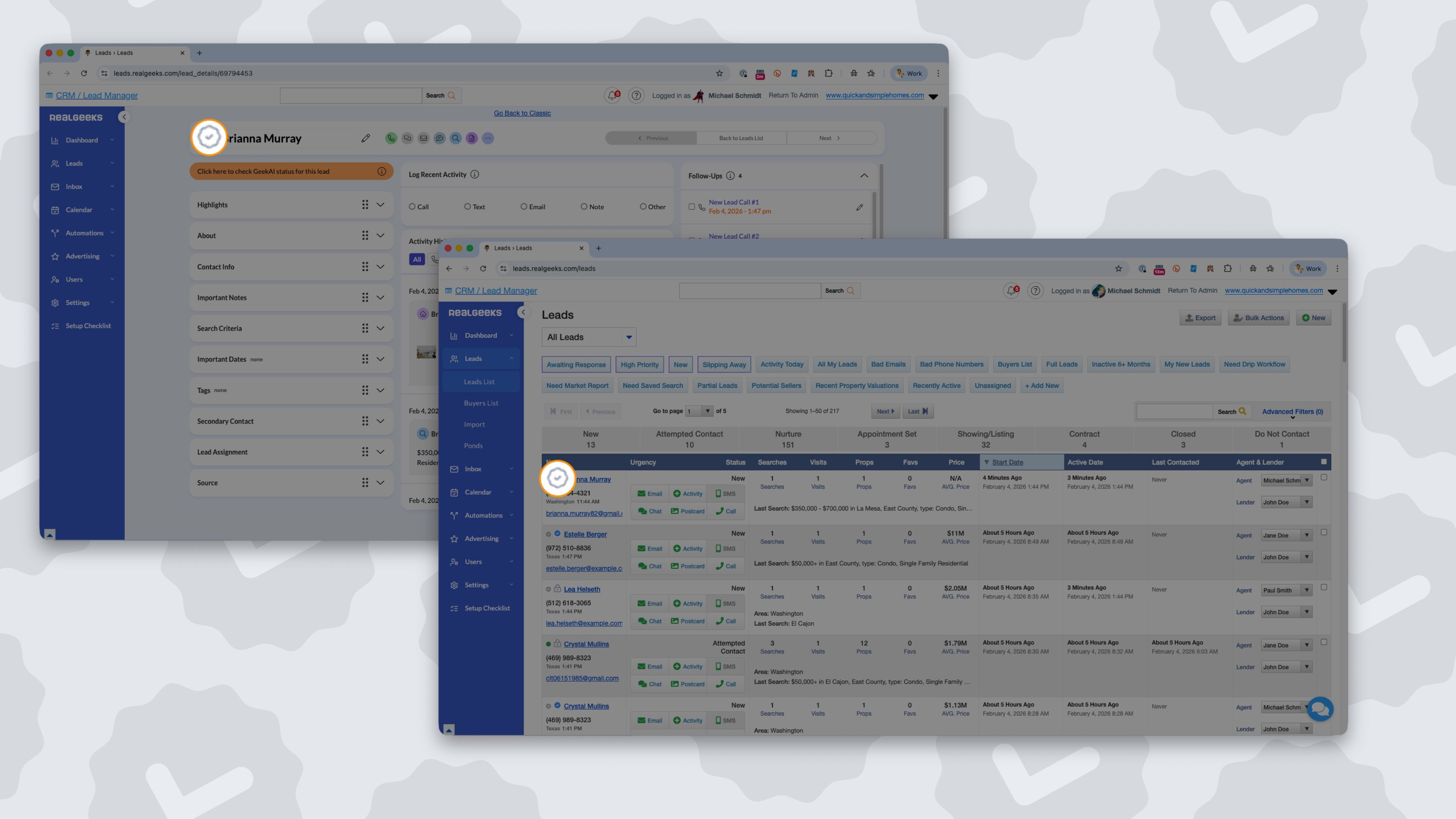
Agents can use advanced filters to build lists that show only specific verification statuses, making it easier to monitor verified activity and prioritize outreach.
How can I view only my verified leads?
Create a filter to show only verified leads:
-
Select Verified Status
-
Choose Geek Verified
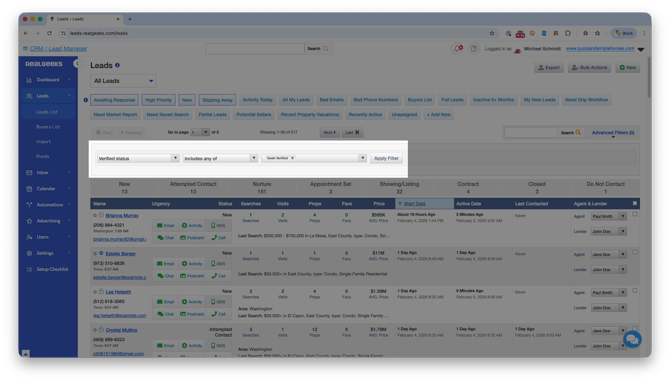 Click Apply Filter and save it for quick access
Managing and Updating Lead Verification Status
You can manage a lead’s website access from their profile page in the CRM or update access in bulk from the leads list. This lets you control whether one or multiple leads can view all listing photos and galleries on your website.
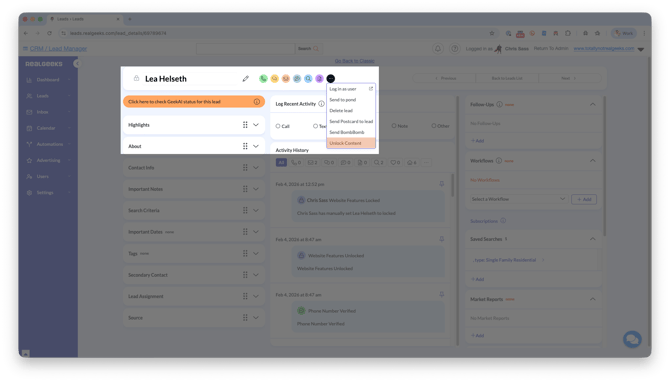
Update Website Access for a Single Lead:
-
Open the lead’s profile page
-
Click the More (...) button
-
Select Lock Content or Unlock Content
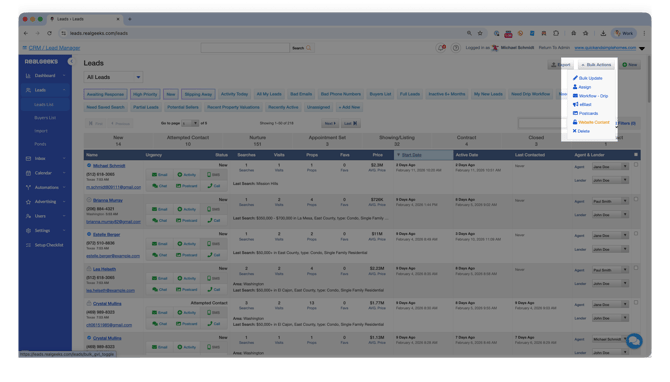
Update Website Access in Bulk:
-
Go to the Leads List page
-
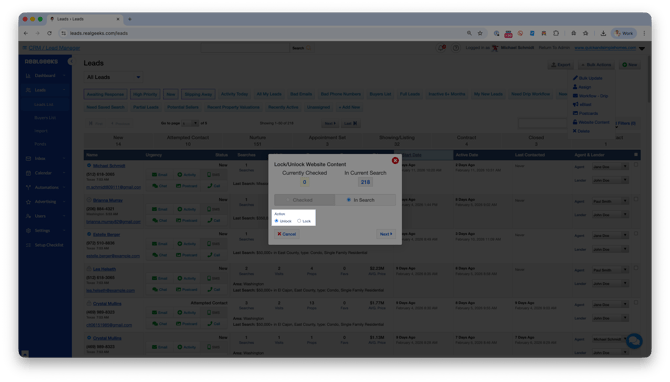
Click Bulk Actions > Website Content
-
Select the option to Lock or Unlock
-
Click Next
-
Select Confirm Unlock Website Content (or Confirm Lock Website Content)
-
Click Submit
Agents can use advanced filters first to target specific groups of leads, then apply bulk actions to adjust website access efficiently.
If you choose "Lock Content"
-
The lead loses access to full listing photos and galleries
-
Access is restored once the lead verifies their phone number on the website
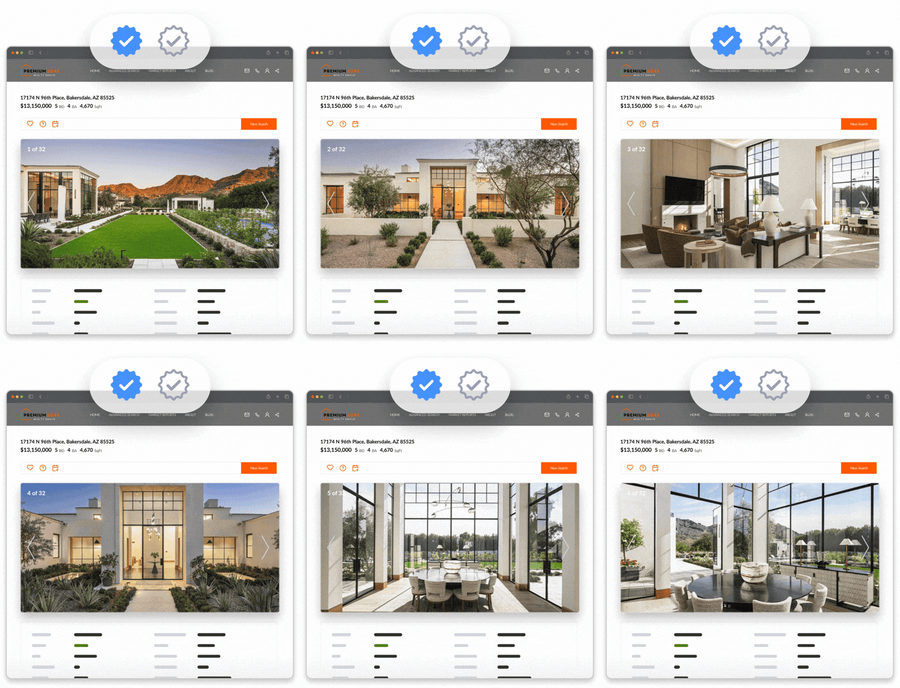
If you choose "Unlock Content"
-
The lead can view all listing photos and galleries
-
Phone verification is not required to access listing content
Frequently Asked Questions
What leads are affected by Geek Verified Leads?
Geek Verified Leads applies to new leads who sign up on your website.
Existing leads are assigned a starting status:
-
Leads who have previously received an SMS text and whose phone number is not marked as bad are set to Unverified and Unlocked
-
All other existing leads are set to Unverified and Locked
Agents can manually lock or unlock website access from the lead’s profile to collect verified phone numbers over time.
What happens if a lead skips phone verification?
Leads can still sign up and browse your website, but they can only view up to three photos per property before images are restricted.
What if a lead enters a landline (home) number instead of a cell phone?
The verification system detects that the number is a landline and cannot receive texts.
During the verification process, the lead will see this message: SMS is not supported by a landline phone number.
Can a lead verify their phone number later?
Yes. Leads can verify at any time from the photo prompt while browsing listings, or you can manually unlock access if you’ve already confirmed their phone number.
Does Geek Verified Leads prevent leads from signing up?
No. It does not block sign-ups. It helps collect and verify valid phone numbers, confirming ownership of your lead's phone number.
How can I manually change a lead’s website access?
Open the lead’s profile, click the More (...) button, and select Lock Content or Unlock Content.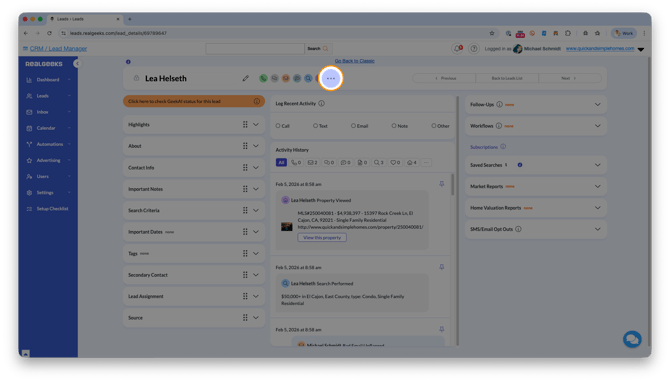
What status are imported leads given?
Imported leads are set to Unverified and Unlocked.
They can view all listing photos but are not marked as Geek Verified. When they return to your website, they will be prompted to verify their phone number.
What If I Have Turned Off or Delayed Lead Registration?
If your website has delayed or turned off registration, then the lead will continue to be able to search and view as many homes as they'd like, but the verification form will appear after the lead has viewed 3 photos of a listing.
Need Help?
-
Call us at 844-311-4969 (Mon–Fri, 8 AM–8 PM CT)
-
Email support@realgeeks.com
-
Visit Real Geeks University for free video courses
-
Join the Real Geeks Mastermind Group on Facebook for peer tips and best practices