.svg)
Adding a Google Tag (Gtag) to your Real Geeks website is the first step in tracking how well your Google Ads perform. The Gtag allows Google to see when people visit your site, what pages they view, and whether they take important actions like signing up or attempting to contact you.
Without this tag, Google Ads cannot measure your ad performance.
Important: Real Geeks Support Must Install Your Tag
You cannot install the Google Tag yourself. All tracking must be added by the Real Geeks Support team.
For the fastest installation, call 844-311-4969. You can also email support@realgeeks.com. Responses may take up to 24–48 hours.
Table of Contents
- How to Get Your Google Tag Installed on Your Website
- What a Google Tag Does for Your Business
- How to Set Up Your Google Ads Tag (Gtag)
- How to Set Up Your Conversions
- How to Install Your Google Tag in Real Geeks
- Troubleshooting
- Related Articles
How to Get Your Google Tag Installed on Your Website
Setting up Google Ads tracking has two simple parts, and both must be completed together in order to properly track your ad performance:
- Add your Google Tag (Gtag) to your Real Geeks website so Google can start collecting data.
- Create your conversions, which tell Google which actions matter most
Once both steps are complete, you can send one email to Real Geeks Support that includes:
Sending everything together makes the installation faster, clearer, and more accurate - and ensures your tracking is set up correctly from the start.
What a Google Tag (Gtag) Does for Your Business
A Google Ads Tag (Gtag) is the key to understanding how well your Google Ads are performing. When you can see which ads bring people to your website and which ones encourage visitors to sign up or reach out, you can make smarter decisions about where to spend your advertising budget.
A Google Ads Tag (Gtag) helps you:
-
See which ads bring visitors to your site
-
Identify which ads generate real leads
-
Understand how visitors interact with your key pages
This tag measure ad performance for all ads run through Google.
Without it, Google cannot connect your ad budget to actual results, meaning you would have no way to measure success or improve your advertising strategy.
How to Set Up Your Google Ads Tag (Gtag)
Check out our Google Tag Installation Demo below for guided instructions:
Try a Guided Demo
Click the button below to view an interactive walkthrough of these steps:
Follow these steps to locate your Google Tag in Google Ads:
- Log in to your Google Ads account.
- Click Tools, then select Data Manager.
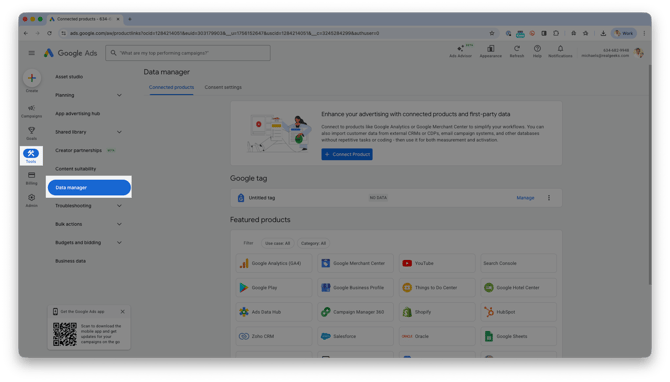
- Click Manage next to your Untitled tag
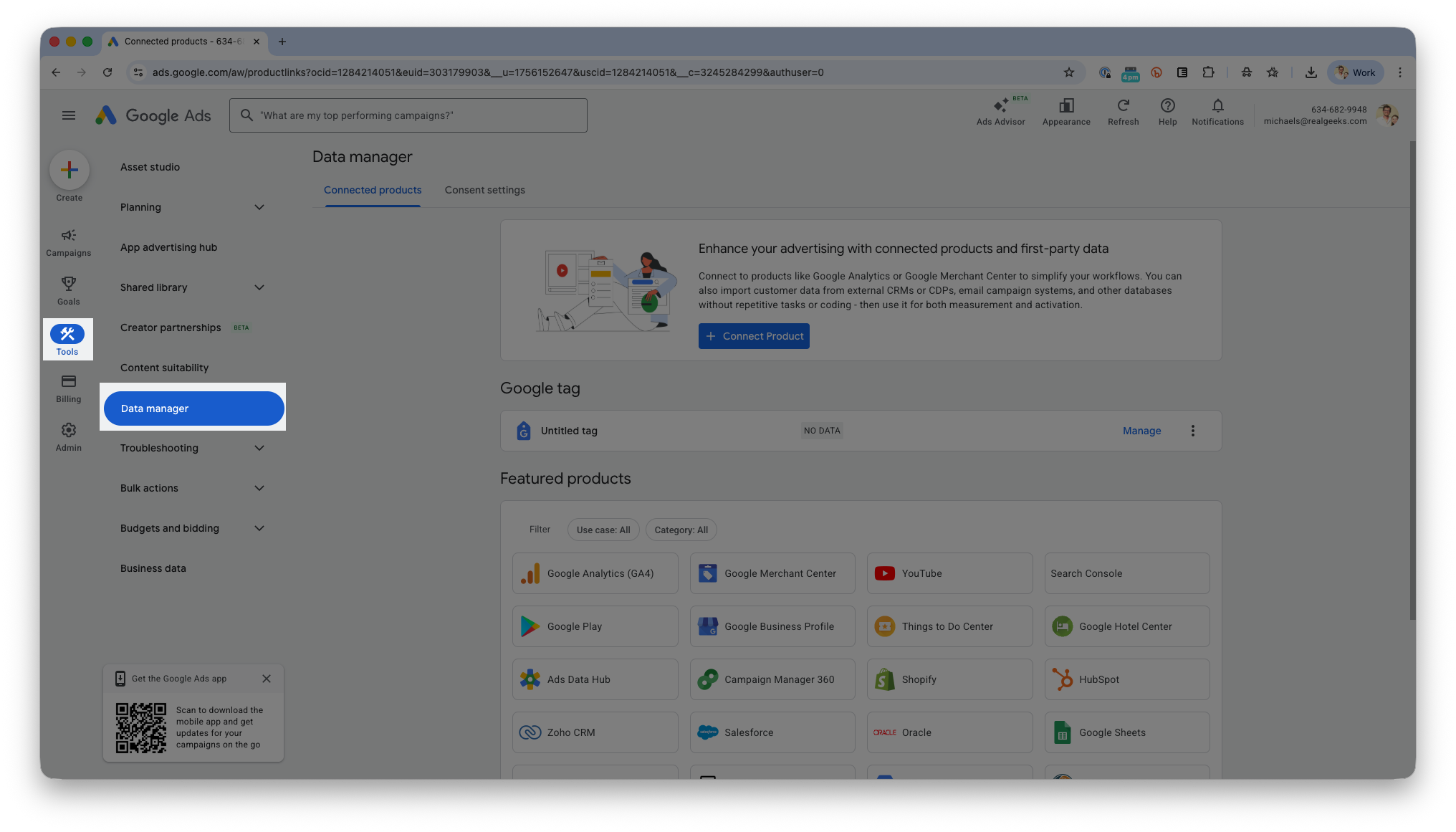
- Click Installation Instructions.
- Choose Install Manually.

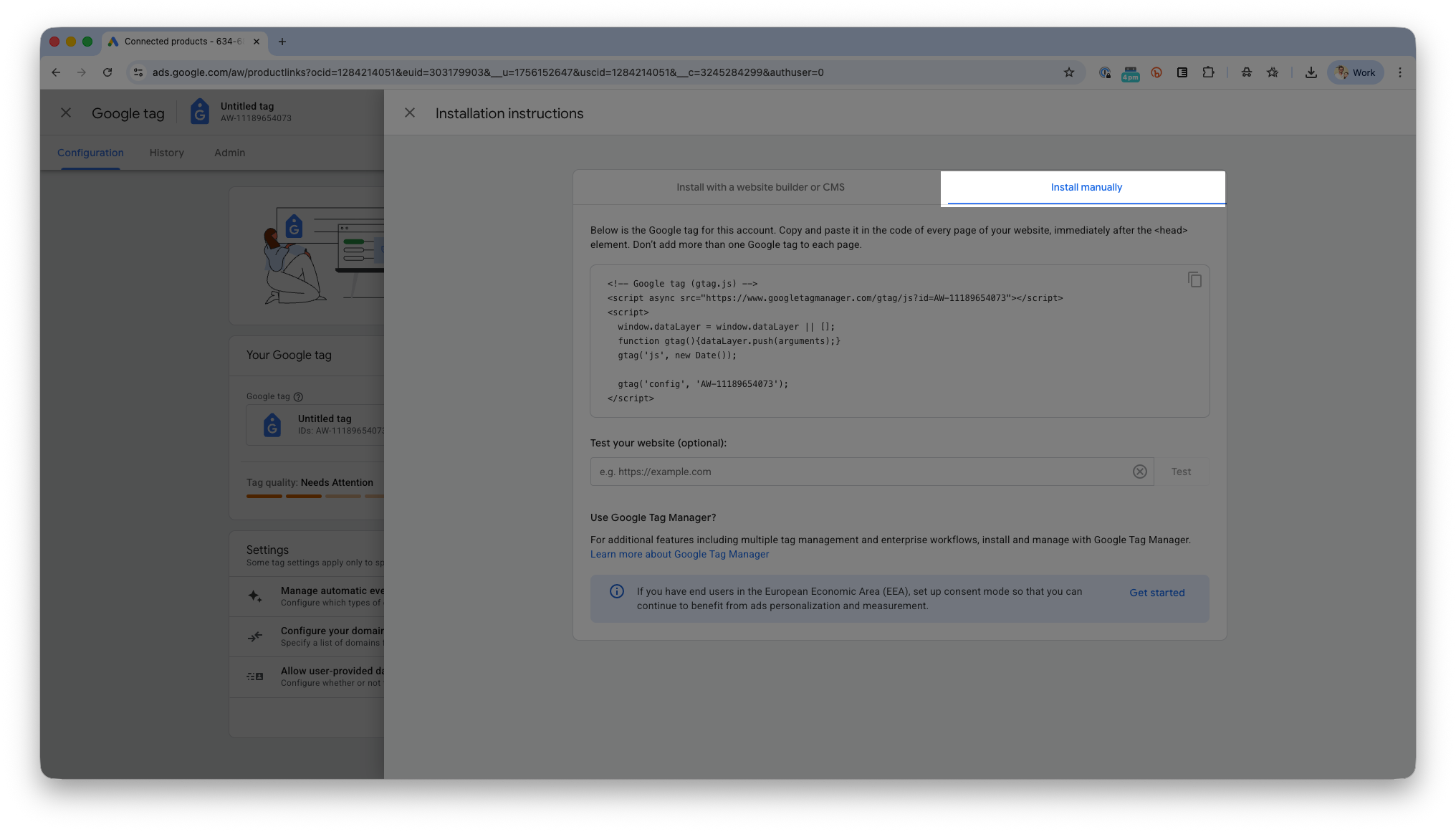
- Click Copy to grab your full global site tag (Gtag).
How to Set Up Your Conversions
Conversions are actions you want Google to recognize as meaningful, such as a new lead signing up or submitting a contact request. These tell Google which results matter most so it can measure your ad performance accurately. - such as a new lead signing up or submitting a contact request. Defining these conversions tells Google what results matter to you so it can optimize your ads accordingly.
Try a Guided Demo
Click the button below to view an interactive walkthrough of these steps:
To set up Conversions:
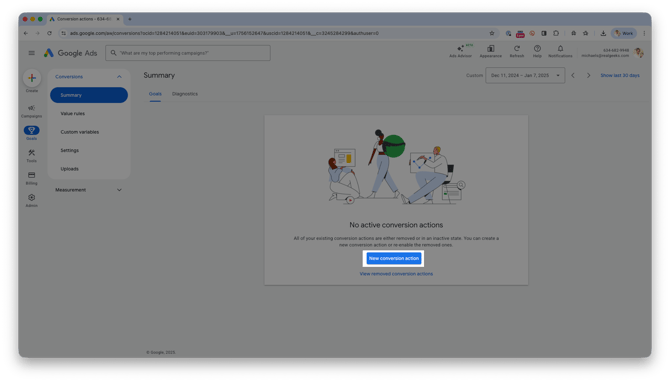
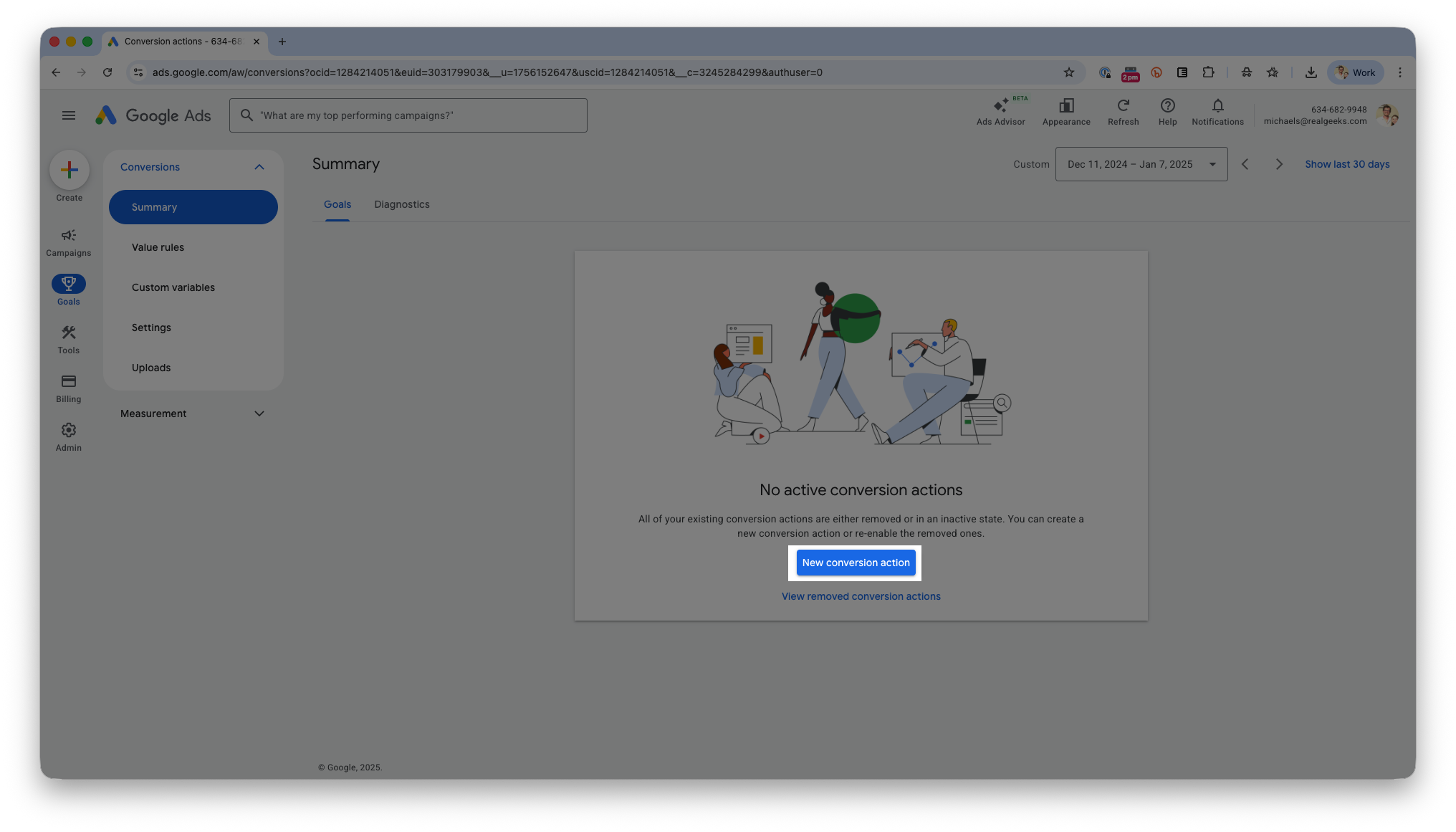
- In Google Ads, Click Goals in your navigation menu.
- Click New conversion action.
- Select your Website.
- Add your Real Geeks URL if prompted.
- Select Conversions on website
- unselect any additional options here. we just want Conversions on website selected here
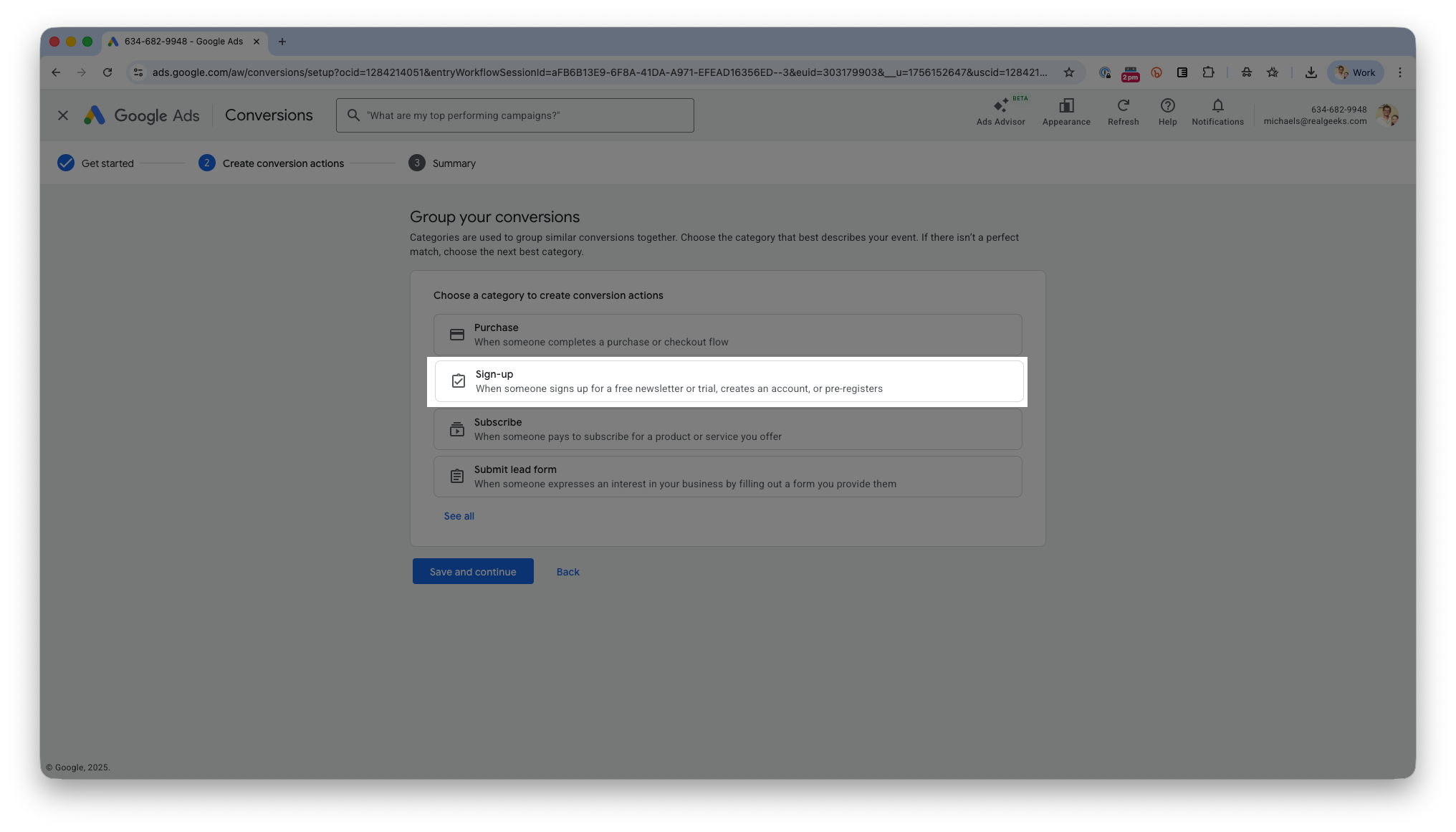
- Click Save and continue
- Select Sign-up
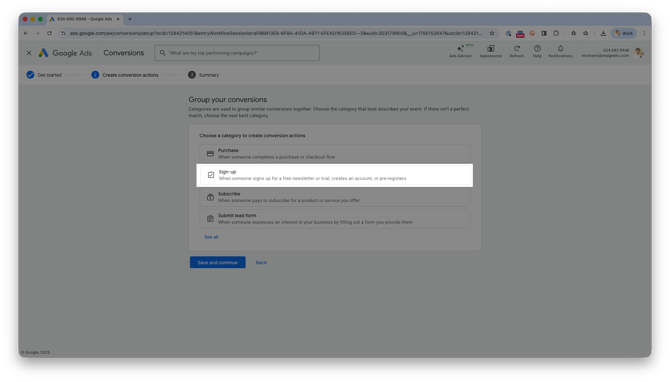
- click Create Conversion
- Select your website
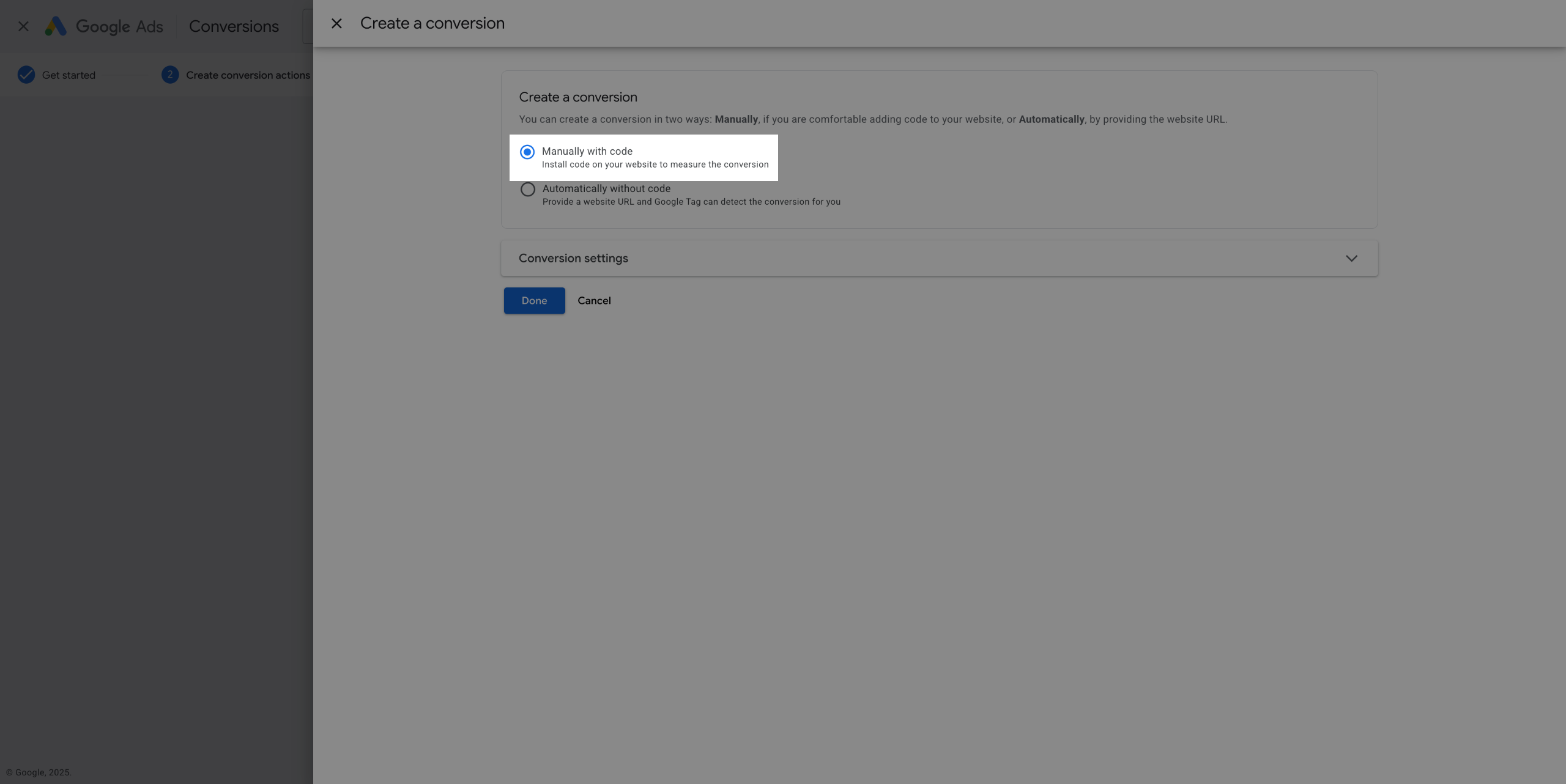
- Select Manually with Code
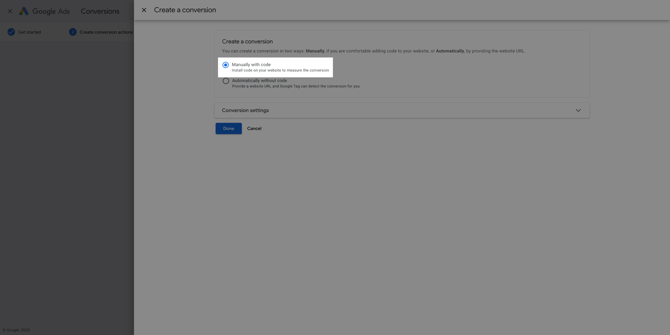
-
Click Done
-
Click Save and continue
To set up these events:
- Click See event snippet next to your conversion, Sign-up
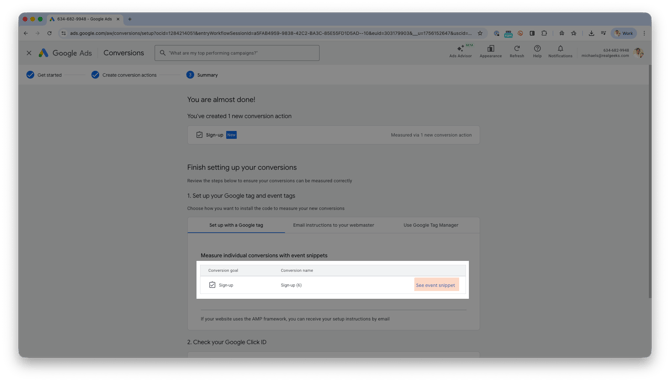
- Click Copy
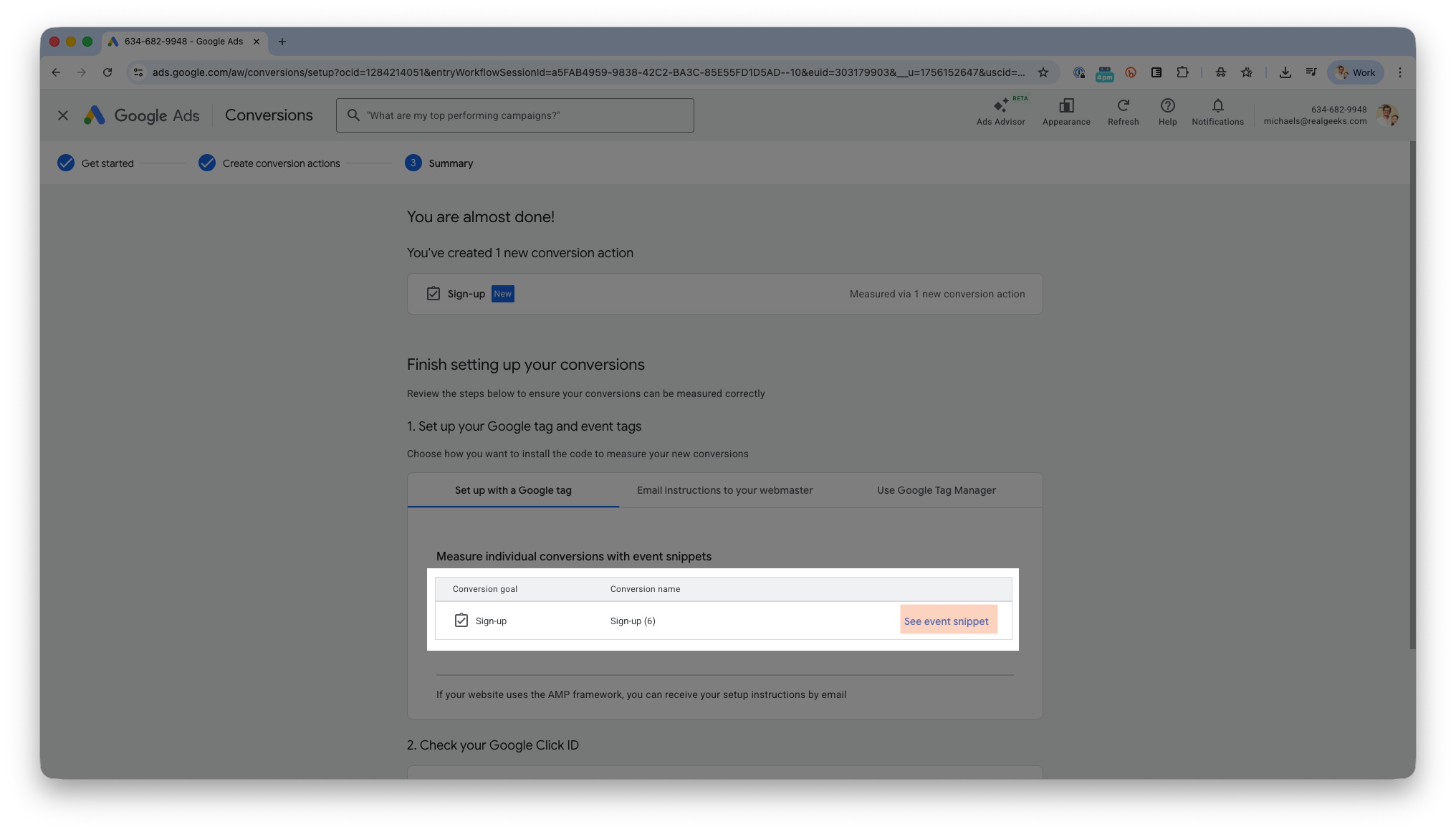
Take this copied code and put it in an email to our support team for additional assistance.
How to Install Your Google Tag in Real Geeks
With your Google tag and conversions set up, you are ready to submit the codes to Real Geeks Support so they can be installed on your website. Submitting everything in the correct format helps prevent delays and ensures our team installs your tracking accurately.
Here's an email template for contacting support:
To make the process simple and avoid any confusion, please use the following structure when sending your tracking information to Support.
Email To: support@realgeeks.com
Subject Line: yourwebsite.com- Google Tag and Event Snippet Install
Replace yourwebsite.com with your own website.
Example: quickandsimplehomes.com - Google Tag and Event Snippet Install
Body:
Hello,

Please install the following Google Ads tracking items on my website.

Google Tag:

[PASTE GTAG HERE]

Event Snippet:

[PASTE SIGN UP SNIPPET HERE]

Thank you!
Click here to view a sample email you can send to Real Geeks Support.
Final Steps
Review your email to ensure all code is included.
Send the email to support@realgeeks.com. Emails are typically responded to within 1-2 business days
For Faster Service
Call 844-311-4969 after sending your email to confirm we received it. Our team can install your tracking code during this call.
Troubleshooting
My conversions are stuck on “unverified.”
This is normal until Real Geeks installs the code and you receive your first conversion.
Google Ads does not detect my website.
Ensure you typed your domain correctly and it is publicly accessible.
I created too many conversion types.
Delete extra conversions in Google Ads to avoid confusion.
Support didn't receive my email.
Call us immediately at 844‑311‑4969 and resend your message.
Need Help?
- Call us at 844-311-4969 (Mon–Fri, 8 AM–8 PM CST)
- Email support@realgeeks.com
- Visit Real Geeks University for free video courses
- Join the Real Geeks Mastermind on Facebook for peer tips and best practices
Related Articles
- Overview of Google Tracking for Your Real Geeks Website
- How to Set Up Google Analytics 4
- How to Use Google Tag Manager