.svg)
Admin Feature
Editing the website is an account owner-level permission. If you don't see this option, contact your account owner to enable these permissions for you.
Tracking your website activity starts with the two tools that actually collect data:
- Google Analytics 4 (GA4)
- Google Ads tracking (gtag)
GA4 measures how visitors use your Real Geeks website, while Google Ads tracking shows which ad clicks turn into leads, and together they capture and report your traffic and conversion data.
This guide explains how each Google tracking tool works and helps you choose the best setup for your needs.
Need to Know
- Google Analytics (GA4) tracks your website traffic and visitor behavior.
- Google Ads tracking (gtag) measures the results of your paid Google Ads campaigns.
- Use Google Tag Manager (GTM) to manage multiple tracking tools in one place and not submit multiple requests to support to add tracking code to your website
Table of Contents
- Google Analytics 4 (GA4)
- Google Ads Tracking (gtag)
- Google Tag Manager (GTM)
- When to Choose Each Google Tracking Method
- How You View Your Data
- Need Help?
- Related Articles
Google Analytics 4 (GA4)
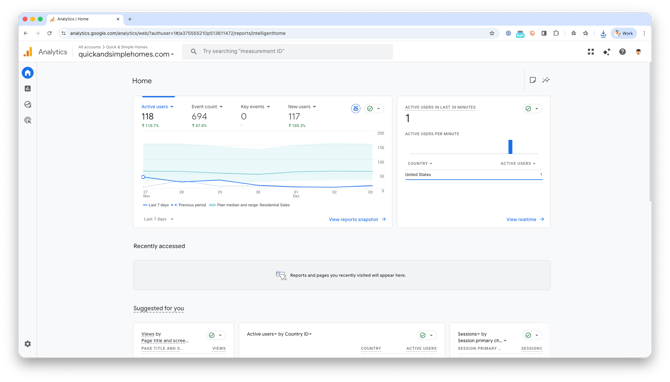
GA4 tracks overall website activity. Once installed, it automatically measures visits, page views, engagement, and major actions users take. GA4 is the simplest and most common way to understand your Real Geeks website performance.
GA4 uses a Measurement ID (format: G-XXXXXXX) that you add to your Real Geeks Site Settings.
Learn More: How to set up Google Analytics on your Real Geeks website.
Google Ads Tracking (gtag)
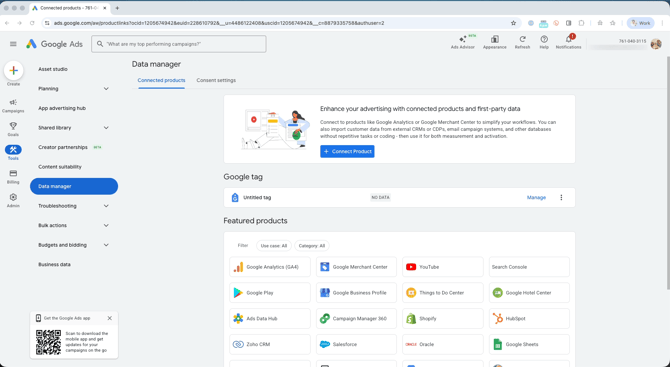
If you run Google Ads, you need to install a Google Ads tag (gtag) to measure your campaign results. This tag tells Google which ad clicks become leads, registrations, or other valuable actions.
You can install the gtag directly in your Real Geeks settings or through Google Tag Manager. You only need this tag if you're actively running Google Ads.
Learn More: How to track leads from Google Ads you run for your website.
Google Tag Manager (GTM)
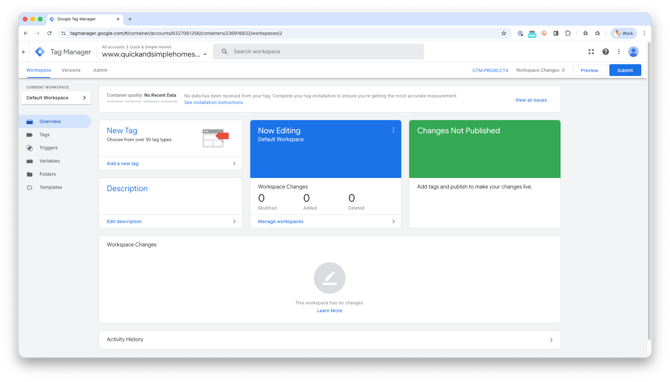
Google Tag Manager (GTM) is a free tag management tool that lets you deploy and manage tracking tags — like GA4 and the Google Ads tag — without editing your website's code directly. Instead of adding each tracking snippet separately, you add one GTM container snippet to your site and manage all tags from one dashboard.
Use GTM when:
- You want to install GA4 and Google Ads tracking, or any additional tools like Meta (Facebook) Pixel.
- You prefer managing all tags from one dashboard.
- You want cleaner code and easier long-term updates.
Do not use GTM if you're only installing one tag (GA4 or gtag). Direct installation is simpler.
Learn More: How to set up Google Tag Manager on your Real Geeks website.
When to Choose Each Google Tracking Method
Using Only Google Analytics 4
Choose this option if you want a simple way to see how people use your website. Google Analytics 4 reports on visits, page views, and basic engagement. This is the easiest setup for agents who are not running paid Google ads and simply want to understand their website traffic.
Using Google Ads Tracking Tag (Gtag)
Choose this option if you are running Google Ads campaigns and want to measure which ads are generating sign ups on your website. The Gtag reports which clicks turn into registrations or contact requests. This method helps you understand your return on ad spend and improve the performance of your campaigns.
Using Google Tag Manager to Organize Your Google Analytics and Ad Tracking Accounts
Use Google Tag Manager to organize your tracking data and manage different systems that collect information from your website. It keeps everything in one place, making it easier to maintain and update your tags over time. This is an ideal setup for people who plan to monitor both Google Analytics and Google Ads conversions, or who want a cleaner and more efficient way to manage multiple tracking tools.
How You View Your Data
Once your tracking tools are installed, you can view your data directly in each platform. You do not view tracking data inside your Real Geeks dashboard.
Each tracking tool has its own dashboard:- Google Analytics: Click Here
Shows website traffic, engagement, and major events. - Google Ads: Click Here
Shows ad performance, budget, keywords, and conversions. - GTM: Click Here
Used only for managing tags for Google Analytics and Google Ads. This tool does not provide reporting for you, but instead organizes your tracking tags
Need Help?
- Call us at 844-311-4969 (Mon–Fri, 8 AM–8 PM CT)
- Email support@realgeeks.com
- Visit Real Geeks University for free video courses
- Join the Real Geeks Mastermind on Facebook for peer tips and best practices