.svg)
Admin Feature
Editing the website is an account owner-level permission. If you don't see this option, contact your account owner to enable these permissions for you.
Hosting an open house is a simple way to meet motivated buyers in person. With RealGeeks, you can require attendees to sign in on a form before viewing details about the home. This turns open house traffic into organized leads that are easy to track and follow up with in your lead manager.
This guide walks through how to create an open house sign-in experience using built-in RealGeeks tools. This approach keeps everything inside your RealGeeks system and makes it easy to track and follow up with open house leads.
Need to Know
-
The recommended method uses Content Pages and Capture Forms, which are built into RealGeeks
-
Leads collected through Capture Forms are automatically added to your lead manager
-
You can assign a custom source to easily identify open house leads
-
Both methods are free to a point, but third-party tools may have usage limits
-
Most agents display the sign-in page using a QR code at the open house
Table of Contents
How to Create an Open House Lead Capture Form in RealGeeks
This section walks through the recommended way to create an open house sign-in experience using built-in RealGeeks tools. You will first create a custom Capture Form, then apply it to a Content Page so visitors are required to sign in before viewing the page.
Guided Demo
Click the button below to view an interactive walkthrough of this task.
Step 1: Create a Custom Open House Capture Form
Start by creating the Capture Form first. This allows you to reuse the form and apply it to any page later.
Step-by-Step Instructions
-
Open your website editor by adding /admin to the end of your website address (e.g. www.yourwebsite.com/admin)
-
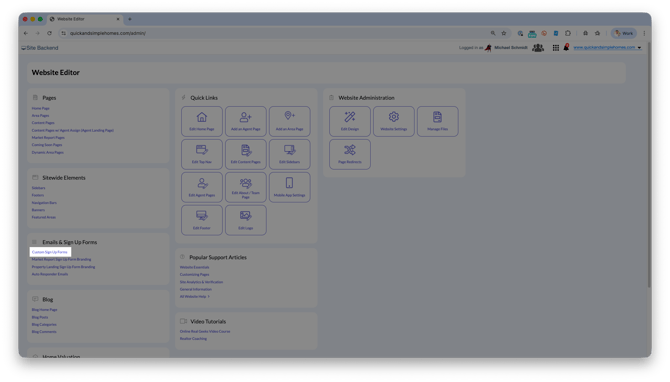
Scroll down to Emails and Signup Forms, and click Custom Signup Forms
-
Click Add Content Page Capture Form
-
Name the form using the property address or open house date
-
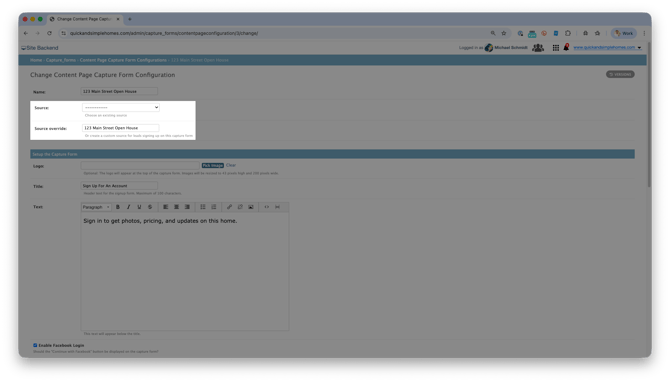
Choose how these leads will be assigned a source after completing the form
-
Use the Source dropdown to select an existing source already in your lead manager
-
Use the Source Override field to create a new custom source such as “Open House Lead” or “123 Main St Open House”
-
Best Practice: Create a custom source in CRM settings, then select it in the Source menu. Use this to trigger a workflow campaign with open house details and automate future follow-up with the lead.
-
-
Personalize the form with a title, custom text, or logo
-
Choose which fields are required and customize the sign-in button text or Facebook login option
-
Optional: Select a background image for the sign-in form (available on Molly, Miranda, and Miranda-Thin templates only)
-
Click Save
Step 2: Create a Required Open House Sign-In Page
Next, create a Content Page and apply the Capture Form so visitors must sign in before viewing the page.
Step-by-Step Instructions
-
Open your website editor by adding /admin to the end of your website address (e.g. www.yourwebsite.com/admin)
-
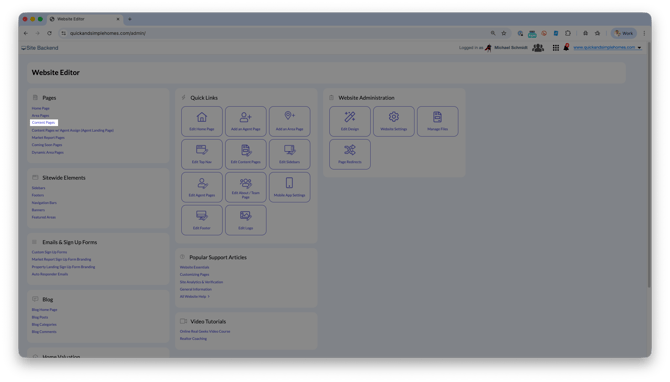
Under Pages, Select Content Pages
-
Click Add Content Page
-
Enter the page details like Page Title, Meta Details, Page Name/Anchor Text, and page Slug
-
Under Content: Add custom details about the home or resources to help the lead get to know you better
-
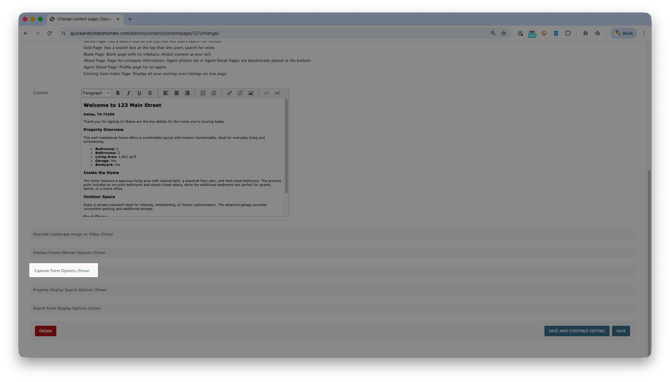
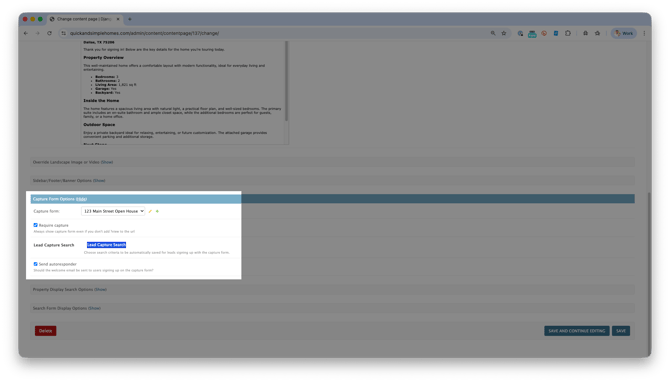
Click Show next to Capture Form Options
-
Select the Custom Capture Form created in Step 1
-
Enable Require Capture
-
Optional: Set a Lead Capture Search to assign a saved search or MLS number
-
Scroll down and click Save
Step 3: Use the Page at Your Open House
Once your page is live, you can use it in several ways during the open house.
-
Create a QR code that sends attendees to the page to sign in
-
Try one of the many free QR code generators like myqrcode.com or qr-code-generator.com to create this
-
-
Open the page on a tablet for guests to complete as they arrive
-
Hand your phone to attendees if needed and sign out between guests
Most agents recommend using a QR code because it allows multiple visitors to sign in quickly without device handoffs.
Best Practices
- Name your Capture Forms using the property address or date of the open house to ensure the right form is assigned to the right page
-
Set a saved search so leads can begin receiving a saved search of property information
-
Test the page before the open house begins. Send it to someone, or open the page in a new browser or incognito/private browser
Troubleshooting
-
If the form is not appearing when your or a lead views your sign in page:
- Confirm Require Capture is enabled in the page editor. Save the changes when you are done!
- Check if an account is logged in to the website already. You may have accidentally been logged in as a lead
-
Test the page in an incognito browser before sending it to people
Frequently Asked Questions
Do I need to pay for this feature?
No. Content Pages and Capture Forms are included with RealGeeks.
Can I require a phone number?
Yes. You can choose which fields are required on the Capture Form.
Where do these leads appear?
All sign-ins are added directly to your lead manager with the source you selected.
Need Help?
-
Call us at 844-311-4969 (Mon–Fri, 8 AM–8 PM CST)
-
Email support@realgeeks.com
-
Visit Real Geeks University for free video courses
-
Join the Real Geeks Mastermind Group on Facebook for peer tips and best practices