.svg)
Seller Signals is a Real Geeks feature that automatically identifies potential home sellers among your new website registrants. By asking buyers if they own a home immediately after registration, Seller Signals uncovers leads who may need to sell before they buy — letting you open both the buyer and seller conversation from day one.
Need to Know
- The seller prompt appears immediately after a buyer completes registration.
- Homeowners who provide their address automatically receive a home valuation via email.
- The lead is automatically enrolled in both Market Report and Home Valuation email updates.
- The buyer's browsing experience continues uninterrupted.
- Seller activity is automatically recorded in the Lead Manager.
Table of Contents
What Is Seller Signals?
Many buyers also have a home to sell before purchasing their next one. Seller Signals helps identify these homeowners by asking a simple question immediately after website registration:
"Do you own a home?"
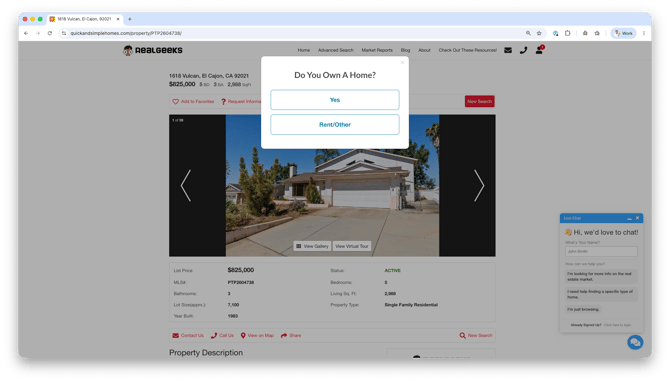
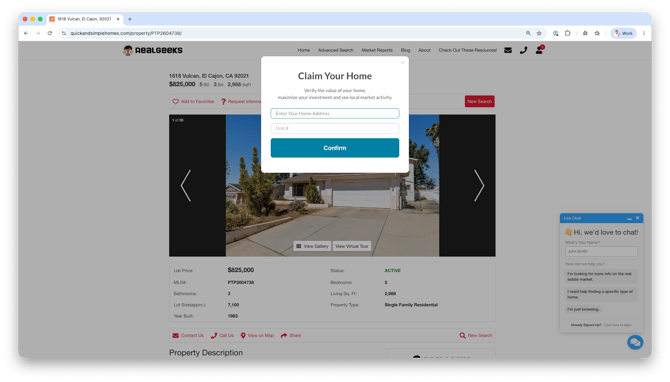
If the lead answers Yes, they're prompted to enter their property address. Real Geeks then quietly generates a home valuation and begins automated seller follow-up while allowing the lead to continue browsing properties uninterrupted.
How Seller Signals Works
The entire process happens automatically after a new lead registers on your website.
-
A visitor completes registration on your website.
-
They are asked, "Do you own a home?"
-
If they answer Yes, they're prompted to enter their property address.
-
Real Geeks will:
-
Send an initial home valuation for the submitted property.
-
Set up weekly Market Report emails for their local area.
-
Create a Monthly Home Valuation updates for their property.
-
-
The prompt closes, and the visitor immediately returns to browsing homes.
The entire experience is designed to identify seller opportunities without interrupting the buyer's home search.
What is Sent to the Lead?
After a homeowner submits their address, Real Geeks automatically begins delivering valuable information.
The lead receives:
- An initial home valuation for the submitted property.
- Weekly Market Report emails for their local area.
- Monthly Home Valuation updates for their property.
Home Valuation Availability
Home Valuations rely on local property data, so availability and accuracy may vary by market.
In non-disclosure states, a Home Valuation may not be available.
When this happens, Seller Signals notifies you so you can personally reach out and provide a customized valuation.
This gives you an additional opportunity to start a conversation and position yourself as the local market expert.
These automated emails provide ongoing value while helping you stay connected with both buyers and future sellers over time.
Viewing Seller Activity in the CRM
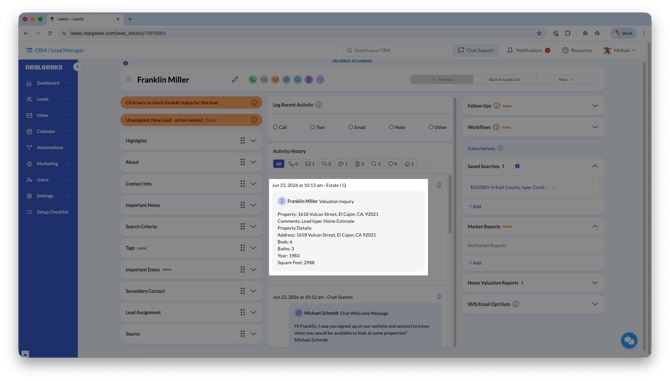
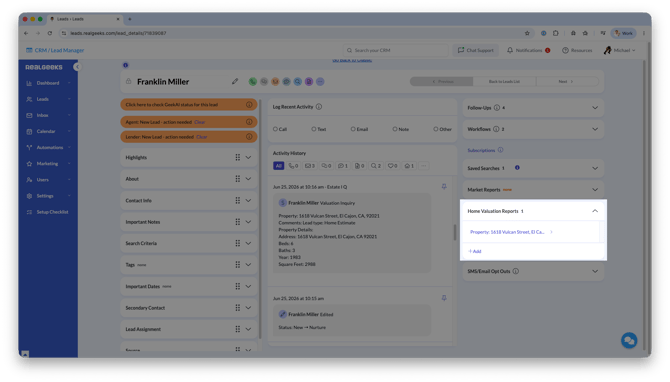
Seller interactions are automatically recorded in the Lead Manager, giving you additional insight into homeowner activity.
You'll see:
-
A Valuation Inquiry event in the lead's Activity History.
-
The generated report in the Home Valuation Reports section.
-
An event indicating how the lead responded to the "Do you own a home?" prompt.
This information can help you identify seller opportunities earlier and personalize your follow-up conversations.
Enable or Disable Seller Signals
Site Owners and Website Admins can Enable or Disable this feature in the website settings.
How to Enable/Disable
-
Open your website editor by adding /admin to the end of your website address (e.g. www.yourwebsite.com/admin)
-
Click Site Settings
-
Select Advanced Site Settings
-
Update the Enable Post Registration Modal field.
Select True to enable or False to disable.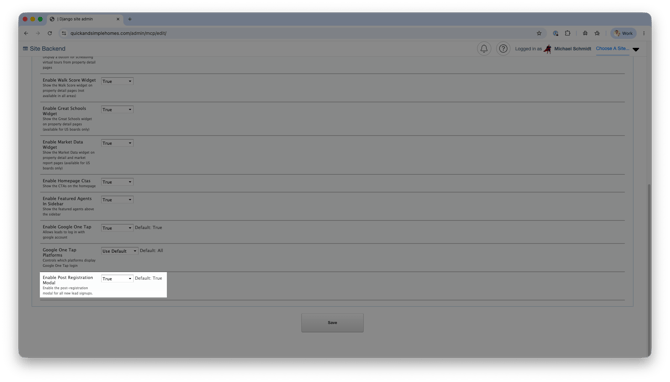
-
Click Save
Best Practices
The automated emails help keep the conversation going, but a quick personal message can make an even bigger impact.
After receiving a new Valuation Inquiry:
- Confirm the lead received their home valuation.
- Reference the properties they're actively viewing on your website.
- Ask if their current property value will influence their next move.
- Let them know they're set up for Market Report and Home Valuation updates, and you can adjust the area or frequency anytime.
Example Text Message
Hi
{{FIRST_NAME}}! I sent your home valuation and set up your market updates. Did everything look right? Happy to adjust anything for you!
Frequently Asked Questions
- Does Seller Signals interrupt a visitor's property search?
No. The home valuation is generated in the background, and visitors immediately return to browsing properties after completing the prompt. - Do I need to manually create the home valuation?
In most markets, no. Seller Signals automatically generates and emails the Home Valuation after the homeowner submits their address.
In non-disclosure states, a Home Valuation may not be available due to limited property data. When this happens, Seller Signals notifies you so you can personally follow up with the lead. - Can I turn Seller Signals off?
Yes. Seller Signals is enabled by default for all Real Geeks websites. To enable or disable it yourself, follow the steps in the Enable or Disable Seller Signals section above, or contact Real Geeks Support. - What emails are sent automatically?
The lead receives a welcome email, a home valuation, weekly Market Report emails, and monthly Home Valuation updates. - Can I customize the Market Report?
Yes. After the lead is created, you can update the Market Report search area at any time from the lead's profile in the Lead Manager. - Where can I view submitted home valuations?
Open the lead in the Lead Manager and review either the Activity History or the Home Valuation Reports section.
Need Help?
-
Call us at 844-311-4969 (Mon–Fri, 8 AM–8 PM CST)
-
Email support@realgeeks.com
-
View our Live Events page for free coaching and training.
-
Join the Real Geeks Mastermind Group on Facebook for peer tips and best practices