.png?width=500&height=146&name=Real%20Geeks%20Primary%20Logo%20Black%20(3).png)
Super Saved Searches let you create a detailed, MLS-level search for your lead directly on your Real Geeks website. This gives you the same level of control as your MLS, but under your personal brand. It also keeps your lead engaged on your site instead of sending them elsewhere.
As your lead uses the search, their activity is tracked for you in the lead’s Activity History in their CRM profile. You can see what they view, what they favorite, and when they are active. This helps you follow up at the right time and have better conversations.
Need to Know
-
Super Saved Searches pull listings directly from your MLS feed to power highly relevant searches and send property update emails that keep leads active on your site.
-
Only agents can create Super Saved Searches. Leads do not have access to set up a Super Saved Search.
-
Lead behavior on these searches (views, favorites, and site visits) is automatically logged in the lead’s Activity History in your CRM, giving you clear insight for smarter, more targeted follow-up.
Table of Contents
Why Use a Super Saved Search Instead of the MLS
Most agents use their MLS to send listings. The problem is you cannot see how your leads are engaging with those listings. Super Saved Searches solve this by keeping everything inside your Real Geeks system.
You can create a detailed, MLS-level search on your website, keep your branding in front of the lead, and track everything they do.
All activity is recorded in the lead’s Activity History in their CRM profile, so you can see what they view, what they like, and when they are most active. This gives you a clear reason to follow up, and makes your conversations more relevant and helpful.
MLS Searches
-
Deliver listing alerts
-
Provide limited engagement data
-
Do not show how your lead is interacting with listings
Super Saved Search (Real Geeks)
-
Deliver listing alerts
-
Track client activity and engagement
-
Show behavior in the lead’s Activity History in the CRM that help you perform timely, valuable follow up
Use Super Saved Searches when a lead has clear preferences and you want to guide the search and stay involved in the process.
How to Create a Super Saved Search
- Visit your CRM
- Click Leads > Leads List
- Select your lead's profile
- Open the Saved Searches menu
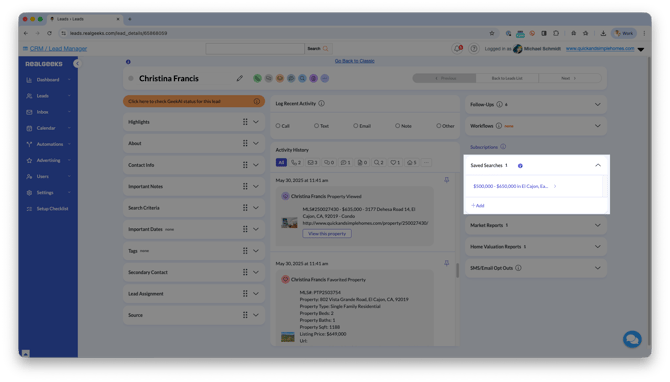
- Click Add
- Select Create Super Saved Search at the top of the page
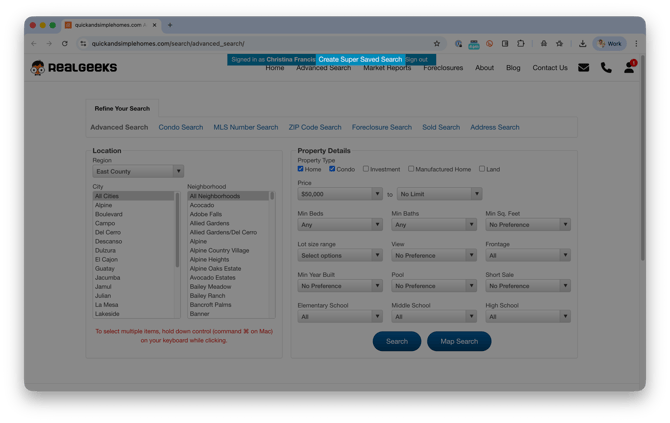
- Use the available criteria to create a search using your lead's property interests
- Use the Sort By to organize how the listings are displayed for your lead
- Click Create Search
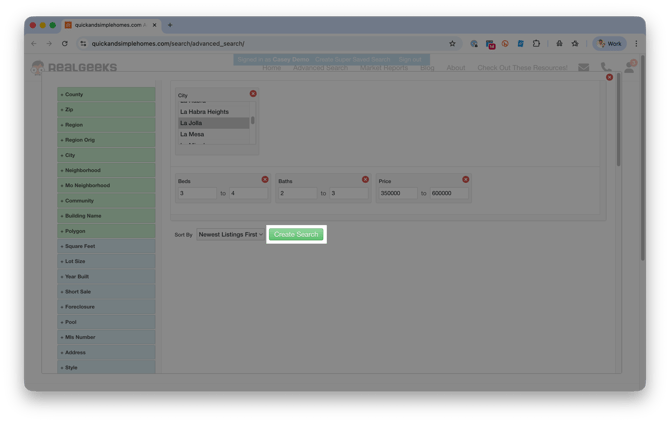
- Click Yes to Confirm
The search is created and saved to the lead’s profile, just like a standard Saved Search.
Best Practices
Use Super Saved Searches when a lead has specific requirements or when you want to turn the home search into a more collaborative conversation.
-
Schedule a call or meeting to clarify must-haves and deal-breakers and offer a unique, concierge-level service while setting up the lead's
-
Use the MLS-provided filters to build your lead's custom search
-
Hold Command (⌘) on a Mac or Control (ctrl) on a PC to select multiple options within a criteria field. This lets you select multiple cities, counties, property features, etc...
-
Explain how MLS-only criteria improves their search results
Frequently Asked Questions
Can leads create Super Saved Searches themselves?
No. Super Saved Searches are agent-only and require MLS access.
Do Super Saved Searches send listing updates automatically?
Yes. Listings are delivered to the lead the same way as standard Saved Searches.
Need Help?
-
Call us at 844-311-4969 (Mon–Fri, 8 AM–8 PM CST)
-
Email support@realgeeks.com
-
Visit Real Geeks University for free video courses
-
Join the Real Geeks Mastermind on Facebook for peer tips and best practices