.svg)
Admin Feature
Editing the website is an account owner-level permission. If you don't see this option, contact your account owner to enable these permissions for you.
Adding a PDF to a page on your Real Geeks website is a powerful way to provide value and position yourself as the local expert. Whether you’re offering a Buyer Guide, Seller Checklist, Relocation Packet, or Market Report, downloadable content can help you generate leads and build trust. This guide walks you through the recommended way to upload and link a PDF on your website.
Need to Know
-
A PDF on your website is a value-add that encourages visitors to sign up and return
-
Use downloadable guides to position yourself as the local expert
-
Uploading your PDF to the File Browser keeps it on your website domain
-
You can link to a PDF using text, an image, or a button
-
Embedding with iframe code is optional and considered advanced setup
Table of Contents
Why Add a PDF to Your Website?
Offering a downloadable PDF allows you to provide high-value content in a professional format. Agents commonly use PDFs to share:
-
Buyer or seller guides
-
Neighborhood guides
-
Market updates
-
Home preparation checklists
-
Relocation resources
When hosted directly on your website, your PDF becomes part of your brand ecosystem. Visitors stay connected to your domain, your branding remains consistent, and your website structure stays clean and organized.
Upload Your PDF to the File Browser (Recommended)
Uploading your PDF to your Real Geeks File Browser ensures the file lives on your website domain.
-
Go to your website backend by adding /admin to your domain (example: www.yourdomain.com/admin)
-
Open an existing Content Page, Area Page, or create a new page
-
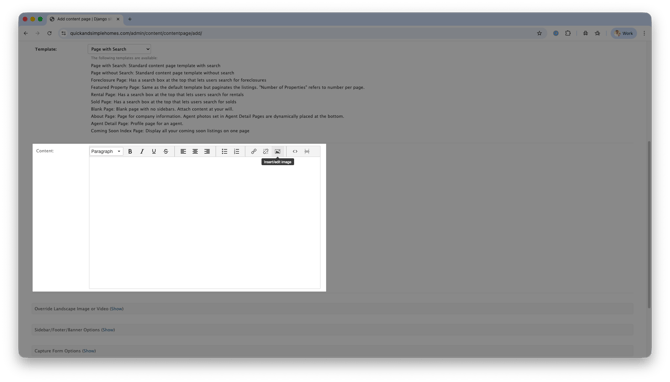
In the Content section, click the Insert/Edit Image button
-
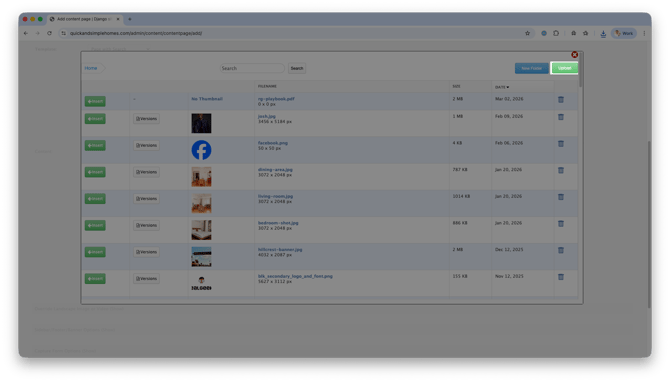
Click Upload
-
Drag and drop your PDF file into the upload window
-
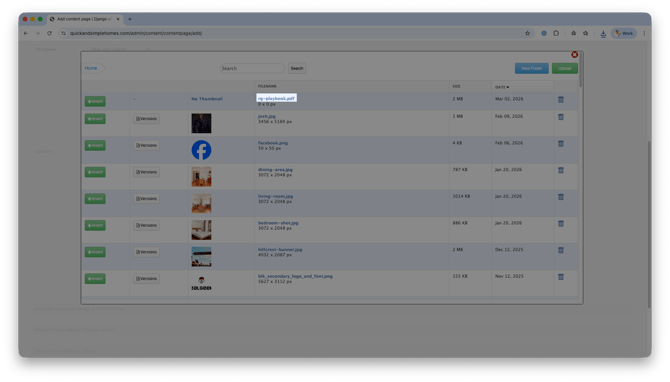
Click the file name once uploaded
-
Copy the file URL shown in your browser

This URL is what you will use to create a clickable download link on your page.
Add a Text Link to Your PDF
Creating a simple text link is the easiest and cleanest way to share your PDF.
-
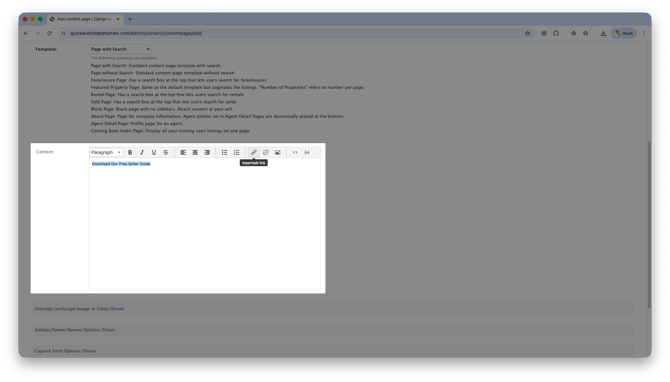
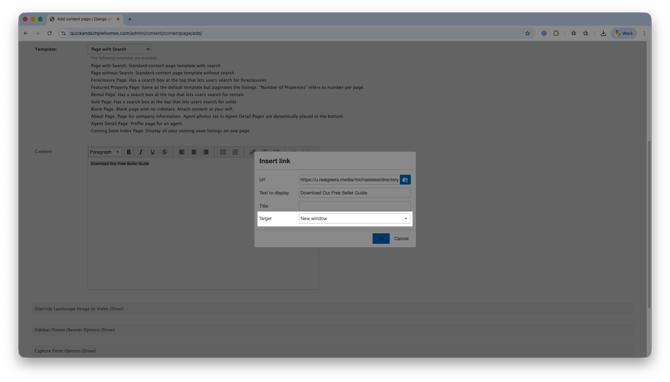
Highlight the text you want visitors to click (example: Download Our Free Seller Guide)
-
Click the Link icon in the editor
-
Paste the PDF URL
-
Change the Target menu to New Window to open the guide in a new tab
-
Click Save
This method is mobile-friendly, simple to maintain, and visually clean.
Link a PDF to an Image or Button
For a more visual approach, you can link your PDF to an image or button.
-
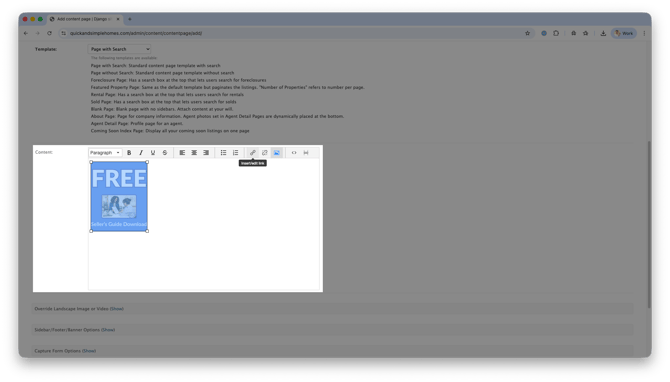
Insert an image (such as the cover of your guide) or add a button in your page with the Insert/Edit Image button
-
Click on the image or button and select Insert/Edit Link
-
Change the Target menu to New Window to open the guide in a new tab
-
Click Save
Should I Use Google Drive or Dropbox Instead?
You can share a PDF using a Google Drive or Dropbox link, but it is not recommended as your primary method.
Using third-party storage may:
-
Send visitors away from your domain
-
Create permission or access issues
-
Break if sharing settings change
-
Feel less branded or professional
Uploading your file to the File Browser keeps everything inside your website ecosystem and supports your long-term SEO strategy.
Can I Embed a PDF on My Website?
Yes. You can display a PDF directly on your page using an iframe so it appears inside the content instead of opening in a new tab or as a separate download.
This method requires adding custom HTML and is best for users comfortable working in the Source Code (<>) view. If you want a more advanced layout or prefer the PDF to appear seamlessly within the page, embedding with an iframe can be a strong option.
To embed a PDF:
-
Upload the file to your File Browser
-
Copy the file URL
-
Open your page and click the Source Code (<>) icon first
-
Enter your iframe code directly into the page where you want the PDF to appear
-
If you’re not sure what this is or how to create it, you can use an online iframe generator, such as www.iframe-generator.com
-
- Click Save
Embedded PDFs may not display consistently on all devices and are not necessary for most use cases. Linking to the file is typically the better option.
Frequently Asked Questions
-
Does uploading a PDF to my website help with SEO?
Hosting your PDF on your website domain keeps your content within your site structure and supports overall SEO strategy. -
Can I require visitors to register before downloading a PDF?
Yes. You can create a dedicated landing page with a capture form before providing access to your download. -
Will my PDF automatically update if I upload a new version?
No. If you upload a new version, you may need to update the file link depending on how it is stored. -
What types of PDFs work best for lead generation?
Buyer guides, seller checklists, market updates, and relocation resources tend to perform well.
Need Help?
- Call us at 844-311-4969 (Mon–Fri, 8 AM–8 PM CST)
- Email support@realgeeks.com
- View our Live Events page for free coaching and training.
- Join the Real Geeks Mastermind Group on Facebook for peer tips and best practices