.svg)
Importing your Google Contacts into the Real Geeks CRM is a quick way to bring your existing database into the system. Once imported, become leads in your CRM and create accounts on your website, making it easier to track activity and follow up with them.
Once imported, each contact will appear as a lead in your CRM with any available primary contact information such as name, email address, and phone number. From there, you can begin tracking activity, adding notes, and following up directly from the system.
Need to Know
-
Use the Google Contacts import tool to automatically upload your Google contacts into Real Geeks as leads and create accounts for them on your website.
-
You will be prompted to sign in to your Google account and allow Real Geeks to access your contacts.
-
After the import finishes, you will receive an email confirming the results of the import.
Table of Contents
Why Import Google Contacts into Your CRM
Many agents already have hundreds of contacts stored in their Google account. Importing these contacts into the Real Geeks CRM allows you to manage them alongside your website leads in one centralized place.
Benefits of importing your Google Contacts include:
-
Keep your Sphere of Influence connected to your real estate business
-
Organize your entire contact database in one system
-
Track conversations and follow‑ups with notes and activity history
-
Adding contacts to workflows, saved searches, or email campaigns
Once your contacts are inside the CRM, they function just like any other lead in the system.
How to Import Google Contacts
Follow these steps to import contacts from Google into your CRM:
-
In the CRM navigation menu, click Leads.
-
Select Import
-
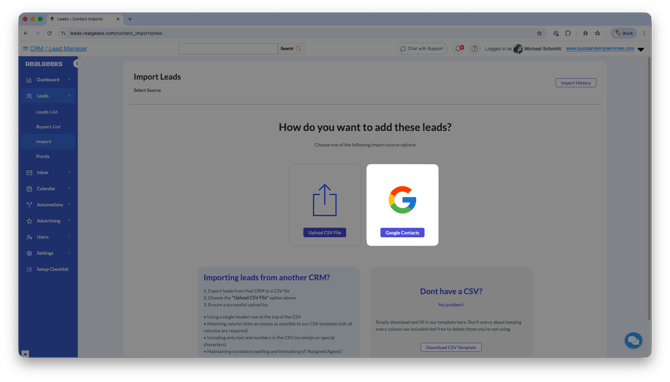
Click Google Contacts.
-
Log in to your Google account. If you are already logged in, you may simply select your account.
-
Follow the prompted steps to connect Google to your Real Geeks CRM
Your Google Contacts will then be automatically imported into your CRM.
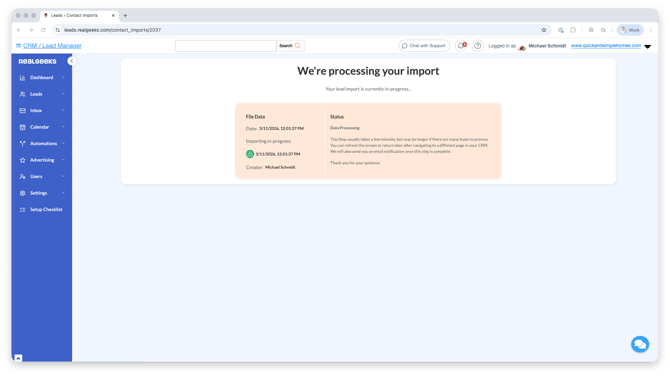
What Happens After Your Contacts Are Imported
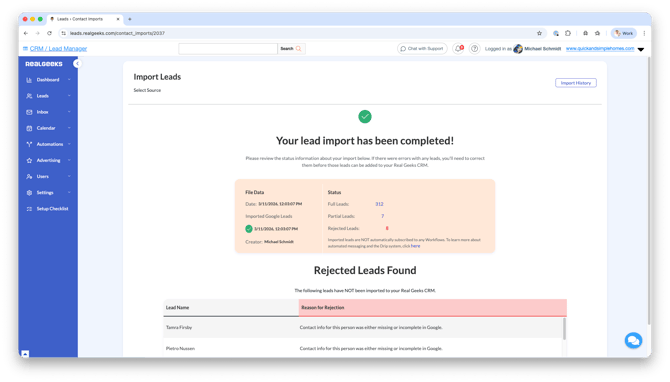
You will receive an email confirming when the import has finished. From there, you can review the import results, including:
-
Full Leads: These are contacts who have their First and Last name, email address, and phone number
-
Partial Leads: These are contacts who are missing any of their Name, Email or Phone Number
-
Rejected Leads: These are contacts who were rejected for one reason or another. A description will be provided that informs you about why the lead was not imported
Once the import is complete, agents can begin working with these contacts inside the CRM by:
-
Create automated listing alert emails with Market Reports or Saved Searches
-
Adding notes about their relationship or conversations
-
Assigning statuses or tags
-
Adding them to workflows or follow-up plans
-
Creating saved searches for property alerts
This makes it easy to turn an existing contact list into an active real estate database.
Frequently Asked Questions
-
Will importing Google Contacts create duplicate leads?
No. If a contact's email address already exists in your CRM, that contact will not be imported to prevent duplicate leads. -
What information imports from Google Contacts?
The CRM imports available primary contact information such as the contact's name, email address, and phone number. After the import is finished, the results page will also show how many contacts were imported as Full Leads, Partial Leads, or rejected leads. -
Do I need a Google Workspace account to import contacts?
No. Any standard Google account with Google Contacts can be connected for importing. -
Can I edit the contacts after importing them?
Yes. Once contacts are in the CRM, you can update their information, add notes, and manage them like any other lead.
Need Help?
- Call us at 844-311-4969 (Mon–Fri, 8 AM–8 PM CST)
- Email support@realgeeks.com
- View our Live Events page for free coaching and training.
- Join the Real Geeks Mastermind Group on Facebook for peer tips and best practices