.svg)
Text messaging in Real Geeks helps you reach leads quickly and start conversations fast. This guide gives you a clear overview of the texting tools available in the CRM and links to the full setup instructions for each one.
Why Texting Matters (Quick Stats)
Texting is one of the most effective ways to connect with leads. Here are a few important numbers to keep in mind:
-
98% of text messages are opened and read. Nearly every single text you send will be seen. Always introduce yourself the first time you text a lead.
-
62% of homebuyers prefer to get property information through text. Most buyers want quick updates sent straight to their phone.
-
Text messages have a 45% response rate. Email averages only about 6%, so texting helps you get replies much faster.
These numbers show why texting should be a key part of your follow-up process.
Table of Contents
- Register Your Texting Number
- Choose Your CRM Texting Number
- How to Send Text Messages in the CRM
- Text Notifications and the CRM App
- Automatic Welcome Texts (Sign-Up Responder Texts)
- Text Templates: Save and Reuse Common Messages
- Automated Texting in Workflows
- Send Video Messages Through Text
Register Your Texting Number
Before you can text from the CRM, you must complete the A2P 10DLC registration process for your local texting number. This registration process is the system phone carriers use in the United States to verify business texting and reduce spam.
During registration, your business information is reviewed by the carriers so they can approve your number for sending messages to leads. This confirms your identity as a trusted sender. Until approval is complete, texting features will remain inactive.
You can read the full texting number registration guide in our support center: Registering Your Local Texting Number
Choose Your CRM Texting Number
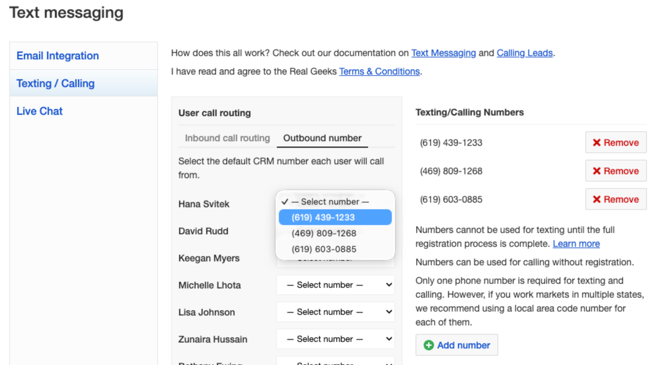
Selecting your CRM texting number sets the main phone number your Lead Manager will use for text messages and calls. By default, all users in the Lead Manager communicate using the same CRM Number, which keeps communication simple and consistent for your leads. Calls to this number can still be routed directly to the assigned agent, while keeping your conversations, lead activity, and follow-up history organized in one place.
Teams working across multiple market areas can now choose which CRM Number appears when agents text or call leads. For example, teams working in different states can use local area codes for each market.
Important
Most businesses should still use a single CRM Number. Additional numbers should only be used for separate market areas, not for individual agents. Excess CRM Numbers may be removed if they are being reserved for individual agent use.
"What Happens When a Lead Calls This Number?"
If a lead receives your text and calls the number back, the system needs to know who should answer. This is handled through User Call Routing, which you can find in your CRM Text Message Settings.
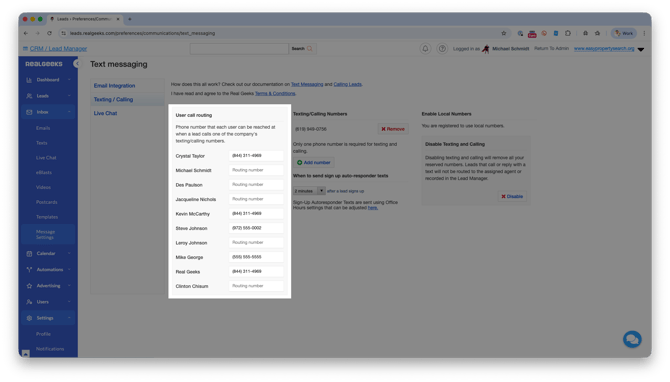
Call routing makes sure the call goes to the correct agent. Each agent must have their phone number added in the system. If their number is missing, the call will go to the site owner instead.
How to Send Text Messages in the CRM
You can send text messages quickly from the CRM Dashboard or the Leads List page. You can also open the lead's profile to reference notes and the lead's website activity history, which can help you start stronger, more personal conversations.
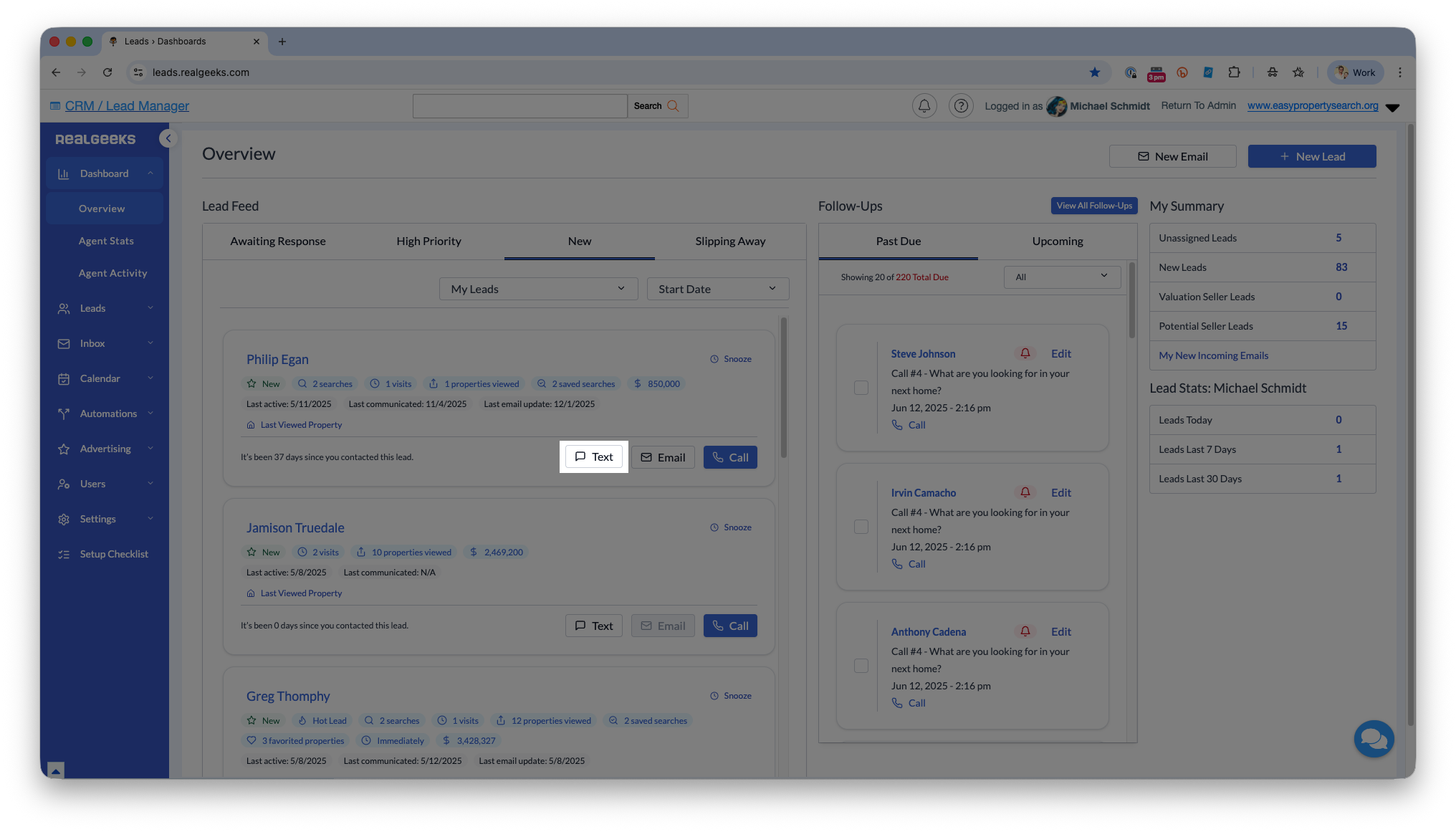
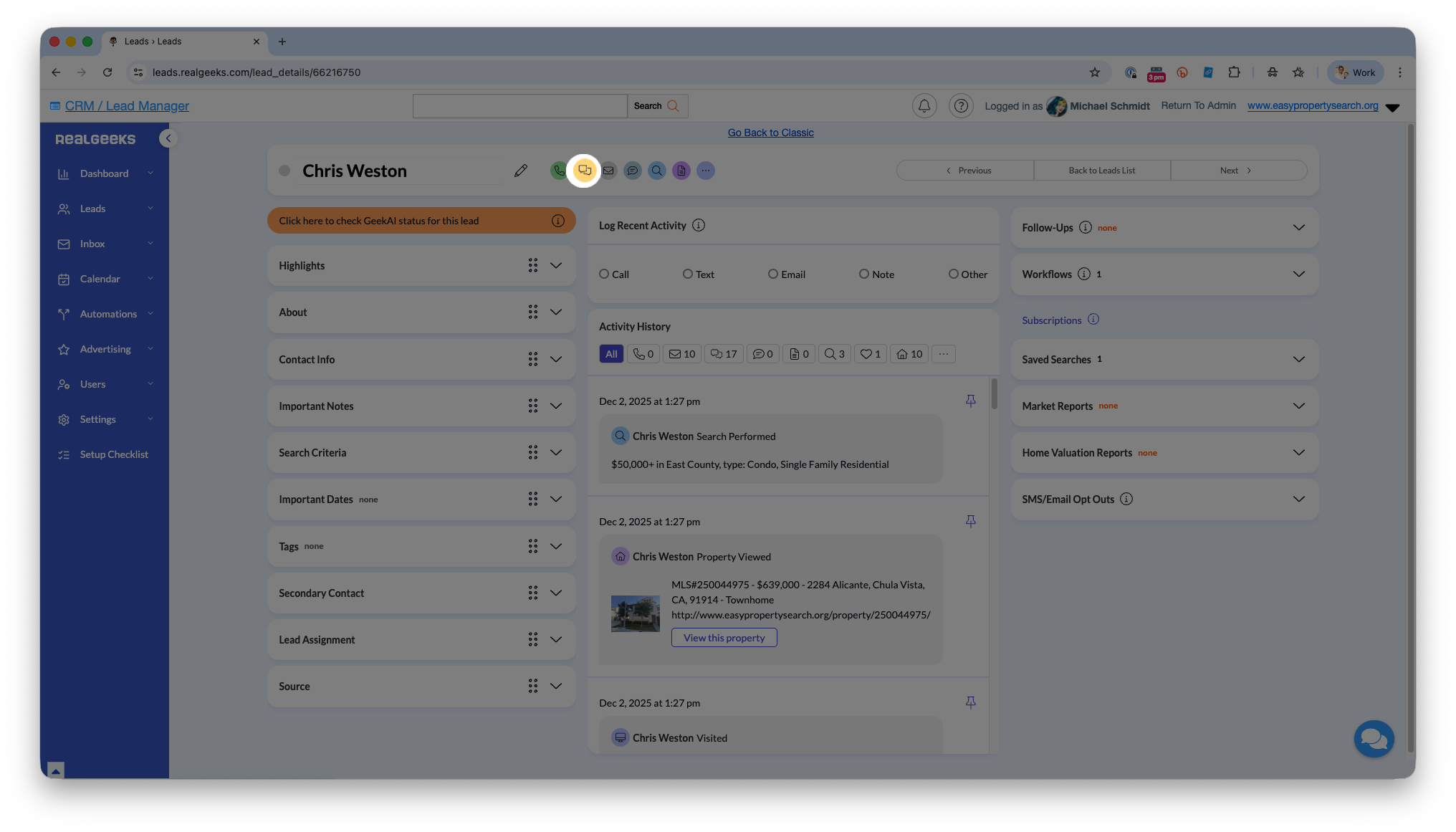
To send a text, follow these simple steps:
- In the Lead Manager, click SMS or Text next to the lead’s name.
- Type your message or apply a text message template.
- Click Send.
Text Notifications
Text notifications let you know right away when a lead sends you a text message. You can also receive alerts for other important lead activity on your website, such as new sign-ups, property inquiries, and return visits.
These notifications help you respond faster and give your leads the attention they need and deserve. Staying aware of lead activity helps you reach out at the right moment and keeps your follow-up strong.
For help setting up alerts, see: CRM Notifications
Automatic Welcome Texts (Sign-Up Responder Texts)
A Sign-Up Responder Text is an automatic message that goes out when a new lead signs up on your website. This helps you reach the lead within the first few minutes, which is one of the most important parts of real estate follow-up.
Studies show that if you reach out within the first 5 minutes of a lead registering on your website, you are up to 100 times more likely to connect with them.
That makes your initial welcome text message one of the most important touches in your entire follow-up process.
You can explore more examples and setup tips in our guide: Sign-Up Responder Texts
Text Templates: Save and Reuse Common Messages
Text templates help you save time by letting you reuse messages you send often. Instead of typing the same message again and again, you can store it as a template and send it with one click.
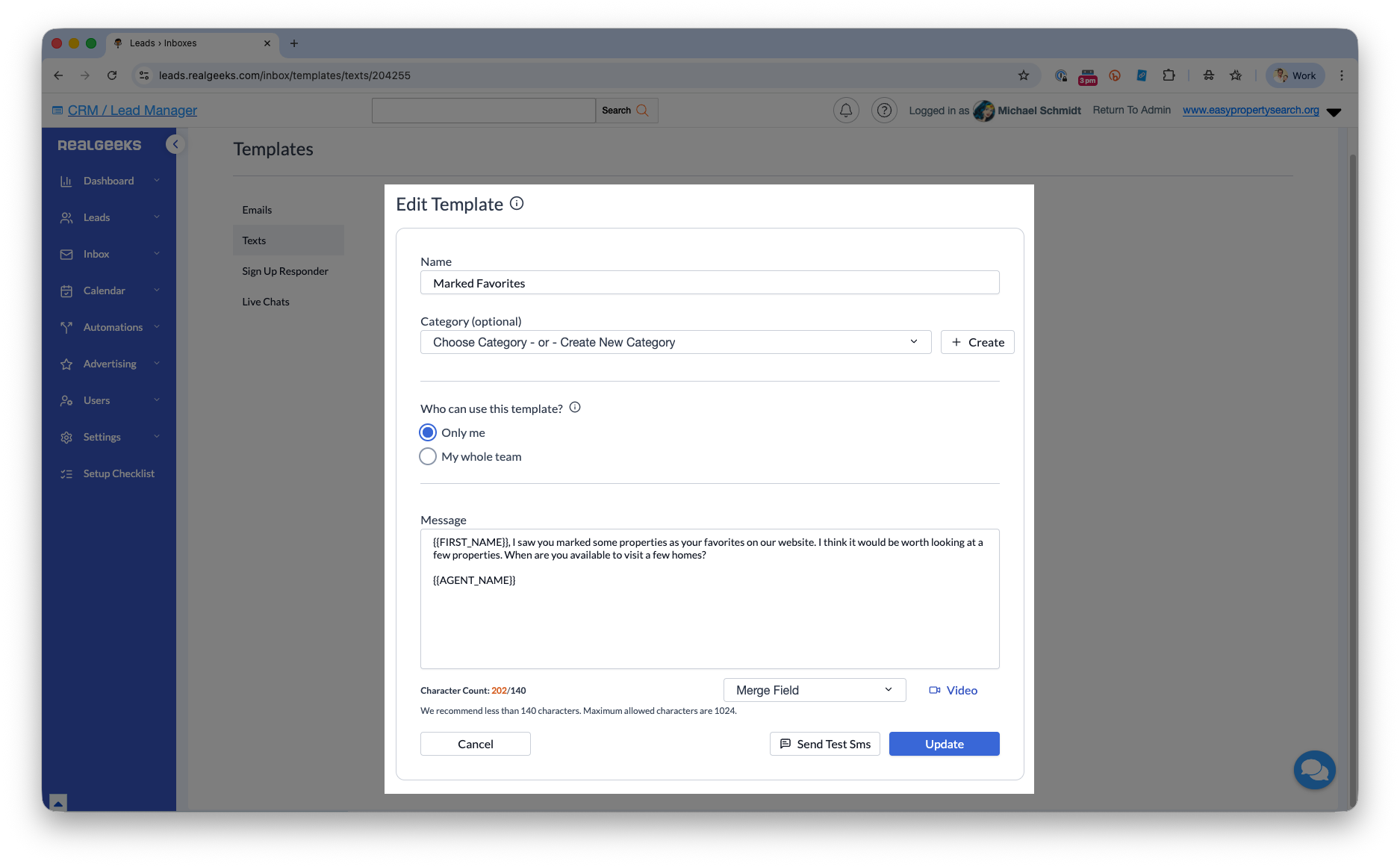
Templates also help keep your communication clear and consistent across your entire team. You can create templates for things like welcoming a new lead, checking in after a showing, or sharing property updates.
For step-by-step instructions, visit: How to Create and Use Text Templates
Automated Texting in Workflows
Workflows let you schedule text messages to send automatically based on rules and timing you set. Each step in the workflow triggers the next one, so you can map out a complete follow-up sequence from first contact through long-term nurturing.
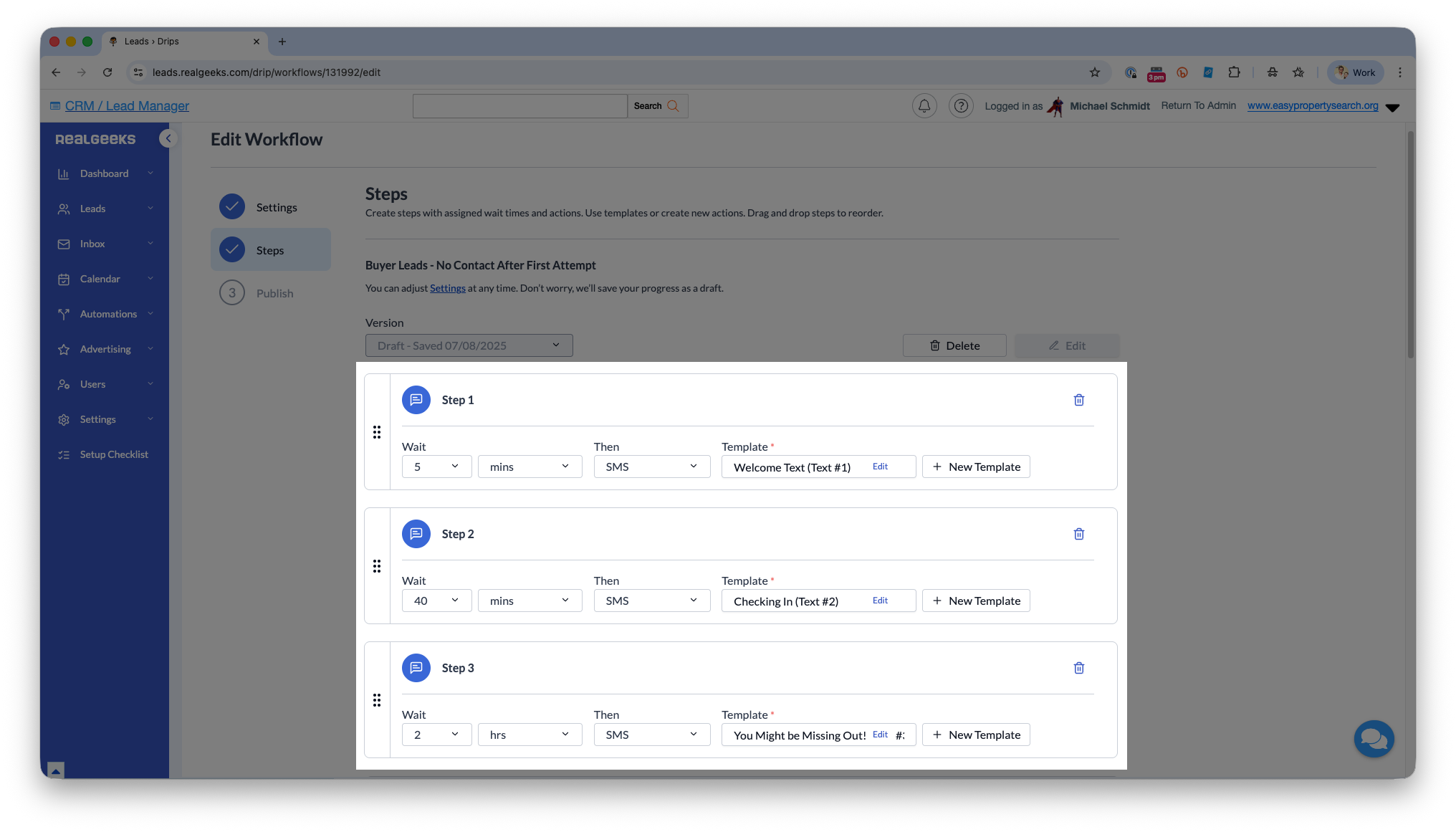
For example, you might send a text immediately after a new-lead email, or schedule a friendly check-in text a few days after the lead first registers on your site. You can build mixed email-and-text campaigns or text-only campaigns, depending on your strategy. This keeps your follow-up consistent without relying on memory for every single touchpoint.
Automated texting can save you hours every week and helps ensure your leads don’t go long periods without hearing from you, even when they’re “just browsing” and not yet ready to buy or sell.
You can learn more about adding text steps in the workflow guide: Workflow Text Messaging
Send Video Messages Through Text
Video messages let you add a personal touch that goes beyond a normal text. You can record a quick video or choose one you’ve already saved, and Real Geeks will send it to your lead as a simple link they can open on your website.
Video Messages Can Help You:
-
Introduce yourself in a more personal way
-
Explain details that may be harder to share in a long text
-
Stand out from other agents who only use standard text or email messages
-
Build trust faster by letting leads see and hear you
It’s a quick way to give more value without needing a long phone call.
Leads receive hundreds of emails a day, and often many texts too. Video messages help you stand out by giving your lead useful information in a more personal and memorable way.
To see how video messaging works, read our full guide: Video Messaging in Real Geeks
Final Thoughts
Texting is one of the easiest and most effective ways to reach your leads. Almost everyone reads their texts, which means you have a great chance to connect quickly and keep the conversation going while interest is high.
Real Geeks gives you simple tools to help you make the most of texting. With features like automatic welcome texts, saved templates, video messages, alerts, and the CRM App, you can stay in touch with your leads no matter where you are. These tools are built to help you respond faster and build stronger relationships with less effort.